


Grading scales
A grading scale gives names to the results of the Gradebook. It has two uses:
- Concept: shows the class’s final result as a letter or label (A, B, C, D; Pass, Fail) next to the 0 to 100 grade.
- Mention: lets you enter the grade of an item by choosing a level (A, PA, NA) instead of typing a number.
The scale does not decide who passes: that is still the institution’s minimum passing grade (see Minimum passing grade).
Where it is and who can use it
Section titled “Where it is and who can use it”Institution > Grading scales.
Only institution administrators (and the Eduvem team) see and use this screen. Anyone who is not an institution administrator does not see the tab.
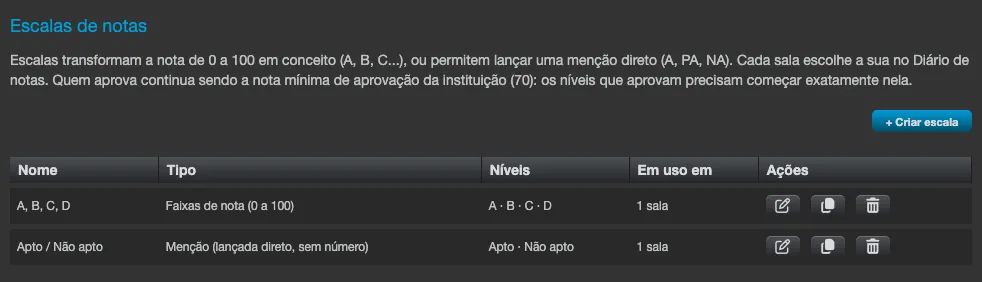
The screen opens with a short text that shows the current minimum passing grade (if it is not yet defined in Settings, the text says so). The list has the columns Name, Type, Levels and Used in (no classes, 1 class or N classes), and the actions Edit, Duplicate (creates a copy named <name> (copy)) and Delete.
There are two kinds of scale:
| Type | How it works |
|---|---|
| Grade bands (0 to 100) | Each level covers a range of the grade (for example, A from 90 to 100). It is used to show the concept of a numeric result. |
| Mention (entered directly, no number) | Each level has an abbreviation and a value from 0 to 100. The tutor chooses the level and the gradebook stores the value. |
Creating a scale
Section titled “Creating a scale”- Click + Create scale.
- Under Start from a model, choose:
- A / B / C / D - bands A (90 to 100), B (70 to 90), C (50 to 70) and D (0 to 50). Levels that start at or above the minimum passing grade come already marked as Passes. If the minimum passing grade falls in the middle of a band, the model is refused and the scale has to be created by hand.
- Pass / Fail - two levels split at the minimum passing grade (Pass from there up to 100; Fail from 0 up to there). It requires the minimum passing grade to be defined, between 0 and 100.
- A / PA / NA - three mentions: Met (worth 100), Partially met (worth 70) and Not met (worth 0). It is a mention scale, with no bands.
- Blank - you build everything.
- Fill in the Name and the Type, and adjust the Levels (best to worst). In band scales, each row has Label, From, To and Passes; in mention scales, Abbreviation, Worth (0 to 100) and Passes. Use + Add level, Remove level, Move up and Move down to build the list.
- Check the Preview and save.
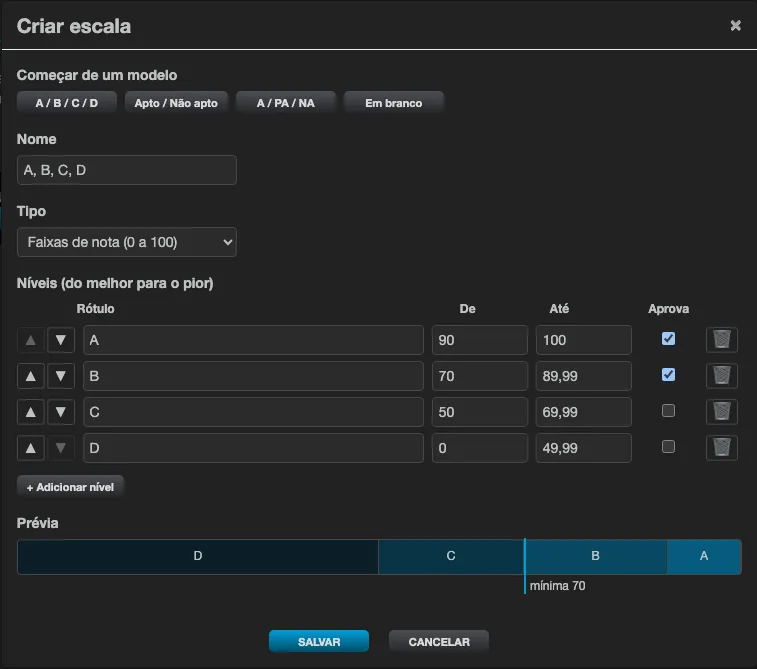
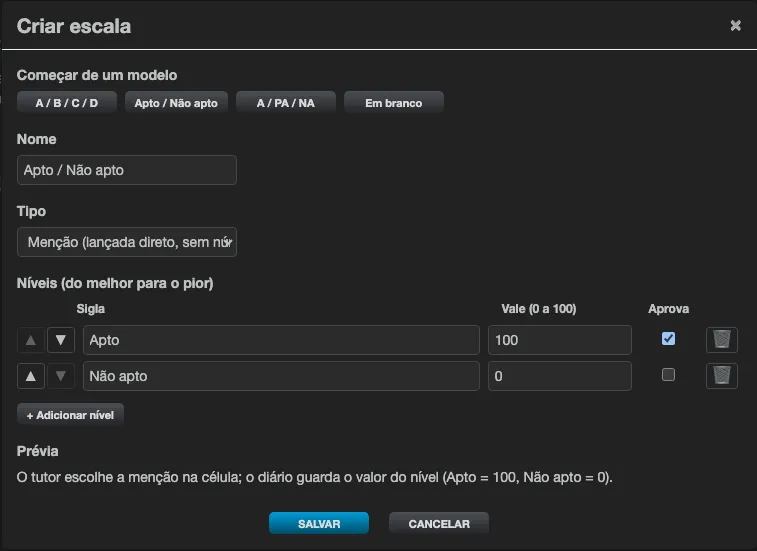
Rules the editor checks when saving:
- a scale has 2 to 20 levels, each with a label;
- in band scales, the lowest level starts at 0, the highest goes up to 100, and there are no gaps or overlaps (the message says which levels and values to adjust);
- the level that passes must start exactly at the institution’s minimum passing grade, and the levels that do not pass must end at or below it;
- in mention scales, every level needs a value from 0 to 100.
The models fill in the scale and level names in Portuguese (for example Atendido, Parcialmente atendido and Não atendido, or Apto and Não apto). They are only a starting point: rename them as you need.
Editing and deleting
Section titled “Editing and deleting”- Editing a scale in use: the editor says in how many classes it is used. Grades already closed keep the old scale; the change applies to the next ones.
- A level that already appears in a grade cannot be removed or have its key or value changed; the label, ranges and the Passes flag can be edited.
- Delete asks for confirmation. A scale used by any class cannot be deleted: the message lists the classes.
- Changing the institution’s minimum passing grade to a value that contradicts a scale in use is refused: adjust the scale first.
Showing the concept of the final result
Section titled “Showing the concept of the final result”In each class, choose which scale shows the concept:
- Open the class and go to the Gradebook tab.
- Under Gradebook settings, in the Displayed concept field, choose a scale (or None). Only band scales appear; if there are none, the field says No scale with grade bands yet. Create one in Institution > Grading scales.
- The change is saved right away (Displayed concept saved.). People who can only consult the gradebook see the name of the scale and cannot change it.
With a concept set:
- the gradebook grid gets a Rating column next to the average;
- when the grade is closed, the concept (and the scale used) is recorded with the result - if the scale changes later, the closed grade keeps the concept it had;
- the participant sees the concept on the final-grade line of the class’s Certification tab, after the grade (
Rating: B); - the export of the managers’ My team screen has a Grade level column.
Entering by mention
Section titled “Entering by mention”For an item to receive a level instead of a number:
- In the Gradebook tab, click Add item.
- Under Entry, choose Scale (level) and, under Scale, choose a mention scale (Choose a scale). Only scales in which every level has a value appear; if there are none, the field tells you to create one in Institution > Grading scales.
- Set the Weight and save.
In the grid, the cell of this item becomes a list with the scale’s levels (the first option is empty): whoever can enter grades chooses the level. The gradebook stores the level’s value, and that value enters the weighted average with the item’s weight. A mention item:
- cannot be linked to an activity;
- cannot change its entry mode or scale once it has grades;
- can be cited in a formula by its code, counting as the level’s value.