


Tracks - bulk enrollment and tracking
A track is a category marked as a pathway: instead of enrolling the person class by class, you enroll them once in the track and the platform creates the enrollment in every class that is part of it. The track also brings tracking together, showing how much each participant has already completed of the set.
Tracks are configured alongside the other categories, on the Home Screen tab of the institution’s settings.
Where the controls are
Section titled “Where the controls are”Each category appears as a row, with the action buttons on the right. On a category marked as a track, two of those buttons are specific: Enroll in track and Progress.

Enrolling people or groups
Section titled “Enrolling people or groups”The Enroll in track button opens the bulk enrollment window.
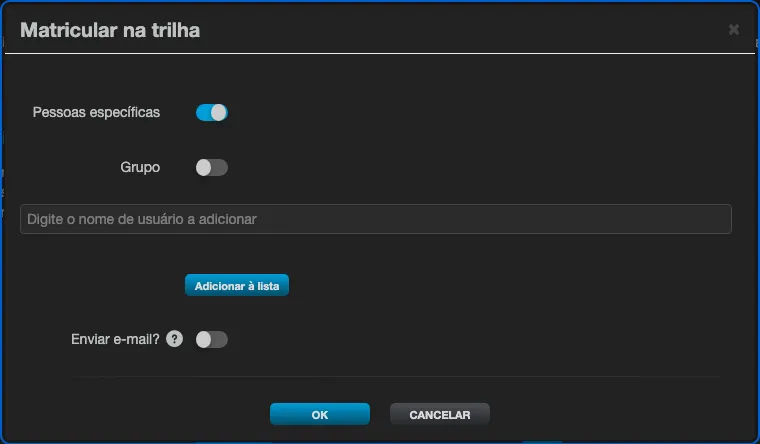
Choose the enrollment’s target:
- Specific people - search for each person by username and use Add to list. The list accepts several people before you confirm.
- Team - enrolls every participant of a group at once.
- Division - enrolls every participant of a division at once. It only appears when the institution uses divisions.
The Send e-mail? option notifies each person about the new content released. It applies to every target and comes off: turn it on when participants do not yet know the track has been released, and leave it off for a correction or a reprocessing, so as not to notify everyone again.
Confirm with OK. The platform creates one enrollment per class in the track and returns the result in four numbers: enrolled, already enrolled, skipped (class full) and failed. Repeating the operation is safe: anyone who already has an enrollment falls under “already enrolled”, with nothing duplicated, which is what makes the action repeatable after adding new content to the track. In large batches (more than 50 people, or more than 200 enrollments to create counting people times classes), instead of the four numbers a notice appears saying the enrollment started in the background: check the result afterward in Progress.
Tracking progress
Section titled “Tracking progress”The Progress button opens the track’s tracking view.
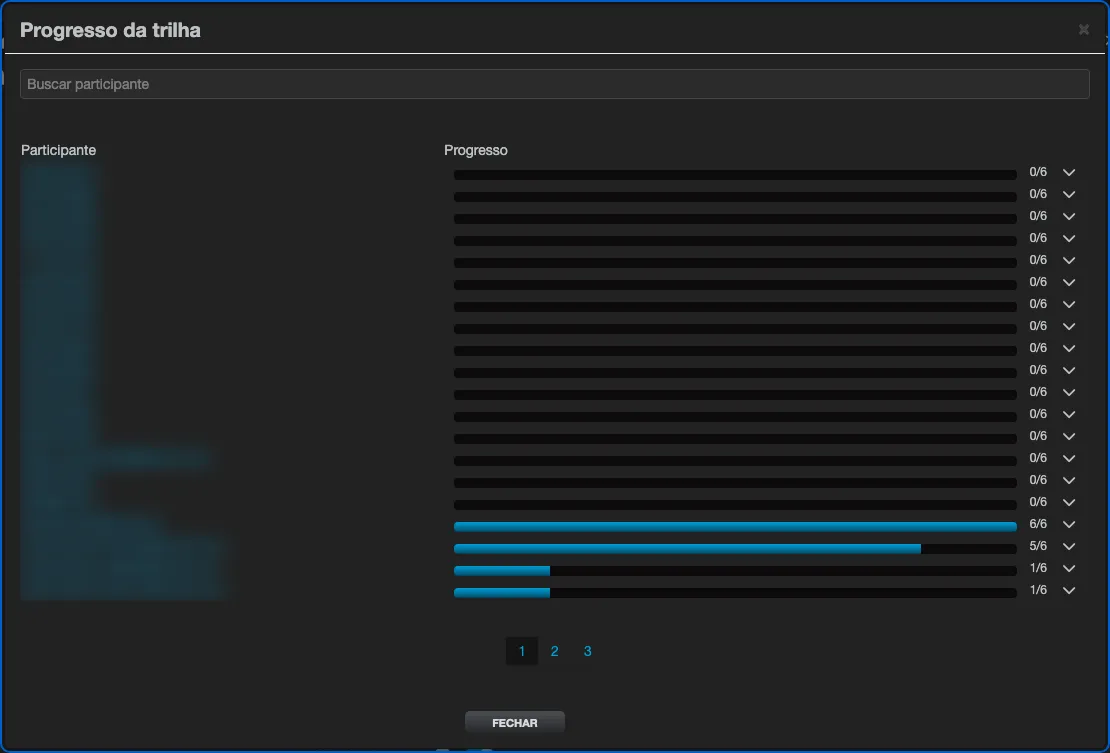
Each row is a participant, with a progress bar and the total in the format completed/total (for example, 0/32 for someone who has not started yet). Use the Search participant field to find someone in a long list, and the arrow at the end of the row to open that person’s detail. The list is paginated (20 participants per page) when the track has many participants; when the institution uses divisions, an All divisions selector lets you filter by division.