


Formulas and mentions
Besides items with entered grades, the Gradebook accepts calculated items: each participant’s value comes from a formula that uses other items of the class. This is how you write a rule such as “if the average is below 70, the final grade is the mean of the average and the exam”. Items graded by mention (A, PA, NA) are explained in Grading scales.
Creating and editing calculated items is exclusive to institution administrators (and the Eduvem team). Other roles that open the gradebook see the result and cannot change the formula.
Creating a calculated item
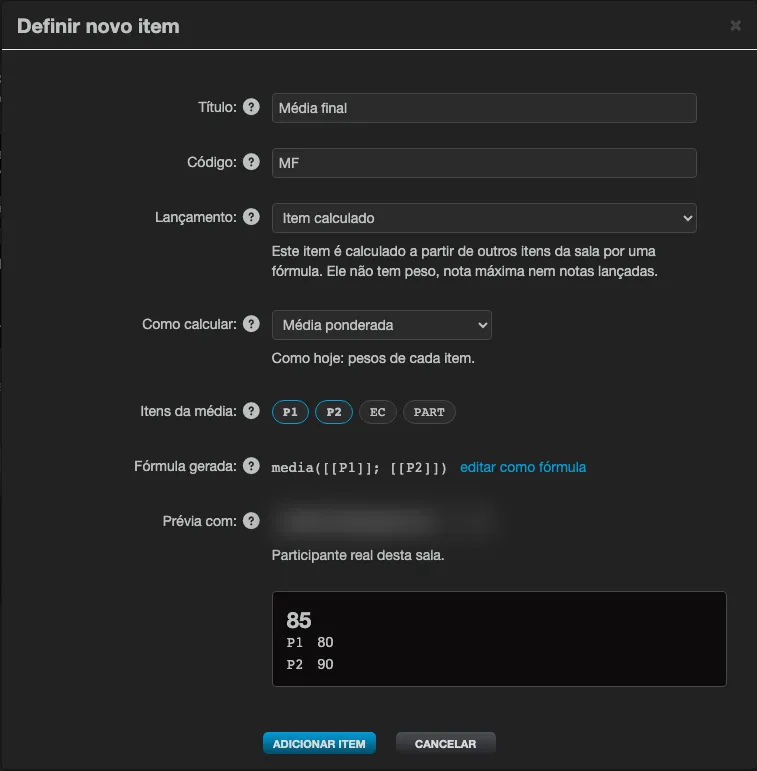
Section titled “Creating a calculated item”- In the class’s Gradebook tab, click Add item.
- Under Entry, choose Calculated item. The weight, maximum score, scale and activity fields disappear: a calculated item takes no weight, maximum or grades of its own, only a title, a code and a formula.
- Fill in the Title and the Code. If you leave the code blank, Eduvem generates one (
I1,I2…). - Under How to calculate, choose a model or write the formula:
| Model | What it does |
|---|---|
| Weighted average | Uses the weight of each item, like the gradebook’s default average. Click the Items of the average. |
| Average with final exam | Below the Cut-off grade, the final average is (average + exam) / 2. Click the Items of the average, choose the Final exam and the Cut-off grade (by default, the institution’s minimum grade). |
| Highest grade among items | Keeps the highest grade among the chosen items, for example exam or make-up exam. |
| Custom formula | You write the rule yourself. |
- The model writes the text under Generated formula:; to adjust it, click edit as formula.
- Check the Preview (see below) and save.
To edit later, click Edit formula in the item’s column header: the Edit item window opens, with the Save item button. If the class has no grade items yet, the field says Create grade items before calculating.
Writing a formula
Section titled “Writing a formula”Each item has a code (for example P1, T1). The code starts with a letter and uses only letters, digits and underscores, up to 31 characters, different for each item in the class. The formula words (ou, e, nao, se, min, max, media, soma, arred) are reserved and cannot be used as a code.
In a formula, an item is cited by its code in double brackets: [[P1]]. In the window, the Items: buttons insert the code into the text, and the Functions: buttons (such as If … then … else) insert the function with the cursor in its first argument. When you type [[, the window suggests the class’s codes.
| You want | Write |
|---|---|
| Simple average of three items | media([[P1]]; [[P2]]; [[T1]]) |
| The highest of exam and make-up exam | max([[P1]]; [[SC]]) |
| Recovery: below 70, average with the exam | se(media([[P1]]; [[P2]]) >= 70; media([[P1]]; [[P2]]); arred((media([[P1]]; [[P2]]) + [[EX]]) / 2; 1)) |
Syntax rules:
- numbers with a comma or a period (
7,5or7.5); - operators
+,-,*,/and parentheses; - comparisons
=,<>,<,<=,>,>=(they are worth 1 when true and 0 when false); - logical
e(and),ou(or),nao(not) (nãois also accepted, ignoring case and accents); - functions
se(condition; then; else),min,max,media(average),soma(sum) (1 to 50 values) andarred(value; places)(round; 0 to 5 decimal places; without the places, it rounds to a whole number); - arguments are separated by a semicolon (
;), in every language, and the function names are always the same, in Portuguese; - the formula has at most 1,000 characters. Formulas that are too long or too complex are refused: split them into smaller calculated items.
A calculated item can cite another calculated item, but it cannot depend on itself, directly or indirectly (Circular reference).
Preview
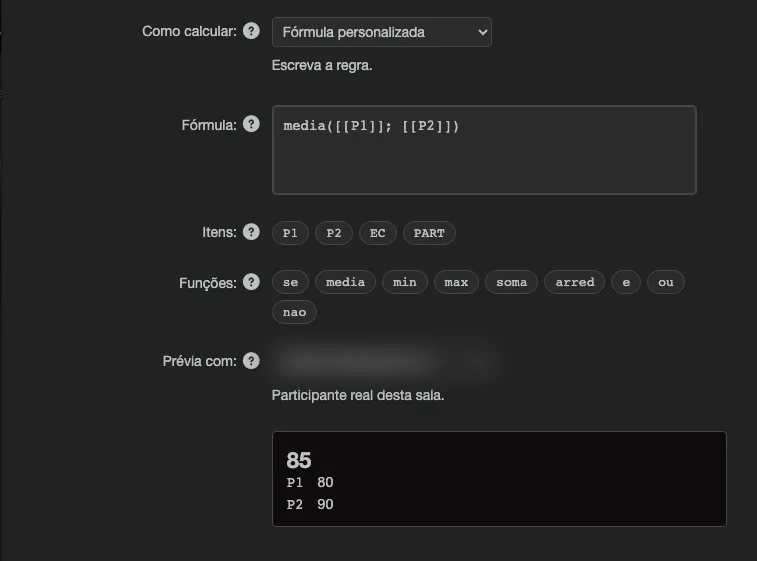
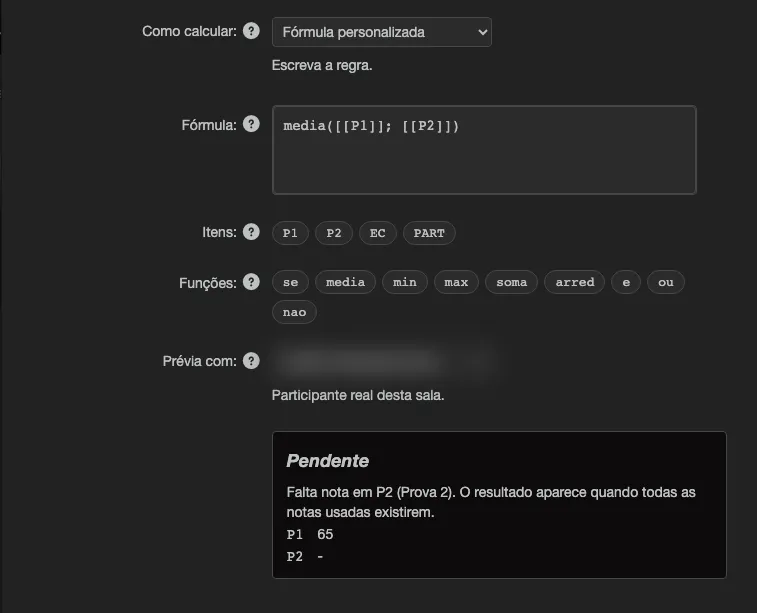
Section titled “Preview”Under the field, Preview with calculates the result for a real participant of this class that you choose from the list, a moment after the last keystroke. The result can be:
- a value;
- Pending, with the reason: Missing grade in
. The result appears once every grade used exists. or Division by zero: the result stays pending while the divisor is zero.; - an error in the formula: the problem part is underlined, the preview is unavailable (Preview unavailable while the formula has an error.) and you cannot save.
When the result stays pending
Section titled “When the result stays pending”- Missing grade: if any item used has no grade (or is marked as not assessed, with a negative grade), the result is Pending. This applies to
+,-,*,/,min,max,media,somaandarred. se,eandouonly evaluate what they need: if the condition picks one branch, a missing item in the other branch does not make the result pending. A pending condition makes thesepending.- Division by zero keeps the result pending while the divisor is zero (in the grid, pending: division by zero).
- A formula whose result falls outside the range it can calculate (a value too large or too precise) is not calculated: Eduvem warns that the formula cannot be calculated.
Pending never becomes zero: the participant only gets the value once every necessary grade exists.
How the calculated item appears in the grid
Section titled “How the calculated item appears in the grid”The item’s column shows the title, the code and Calculated; the cells say calculated and show each participant’s value (or pending), with no field to type in. The item does not enter the weighted average.
An item used by another formula, or chosen as the final grade rule, cannot be deleted: Another calculated item or the final grade rule uses this item. Remove it from there first.
Final grade rule
Section titled “Final grade rule”By default, the class’s final grade is the weighted average of the items. When the class has at least one calculated item, the Final grade rule field appears in the Gradebook tab:
- Open the class’s Gradebook tab.
- Under Final grade rule, choose Weighted average of the items (default) or a calculated item. It saves right away: Final grade rule saved.
- The chosen item now supplies the average, instead of the weighted average. Pass or fail still compares the result with the minimum grade for passing set by the institution.
Things to keep in mind:
- The rule only really decides the grade in classes whose final grade comes from the Gradebook (see Using the gradebook as the final grade). In other classes, the gradebook is informative.
- The formula result used as the final grade must be between 0 and 100; outside that range, the final grade is not calculated.
- The average used is rounded to two decimal places (half up) before being compared with the minimum grade:
69.995becomes70.00and passes at a minimum of70. - When the grade is closed, Eduvem records the formula text and the values it used together with the result. If you change the formula or the rule later, grades already closed do not change and the row gets the rule changed after closing mark; grades still open use the new rule.
- People who are not institution administrators only see the name of the rule in use.

Mentions
Section titled “Mentions”An item can receive a level (A, PA, NA, Pass) instead of a number. This is set under Entry → Scale (level) and uses the institution’s scales - see Grading scales. In a formula, a mention item is worth the value of the chosen level.