


Creating a class
A class is an offering of a piece of content: the same content can be offered several times as separate classes (for example, “Shift 1” and “Shift 2”, or one group per term), each with its own enrollments, deadlines, and tracking.
To create one: in Classes, click Create New Class, choose the content, and configure the offering.
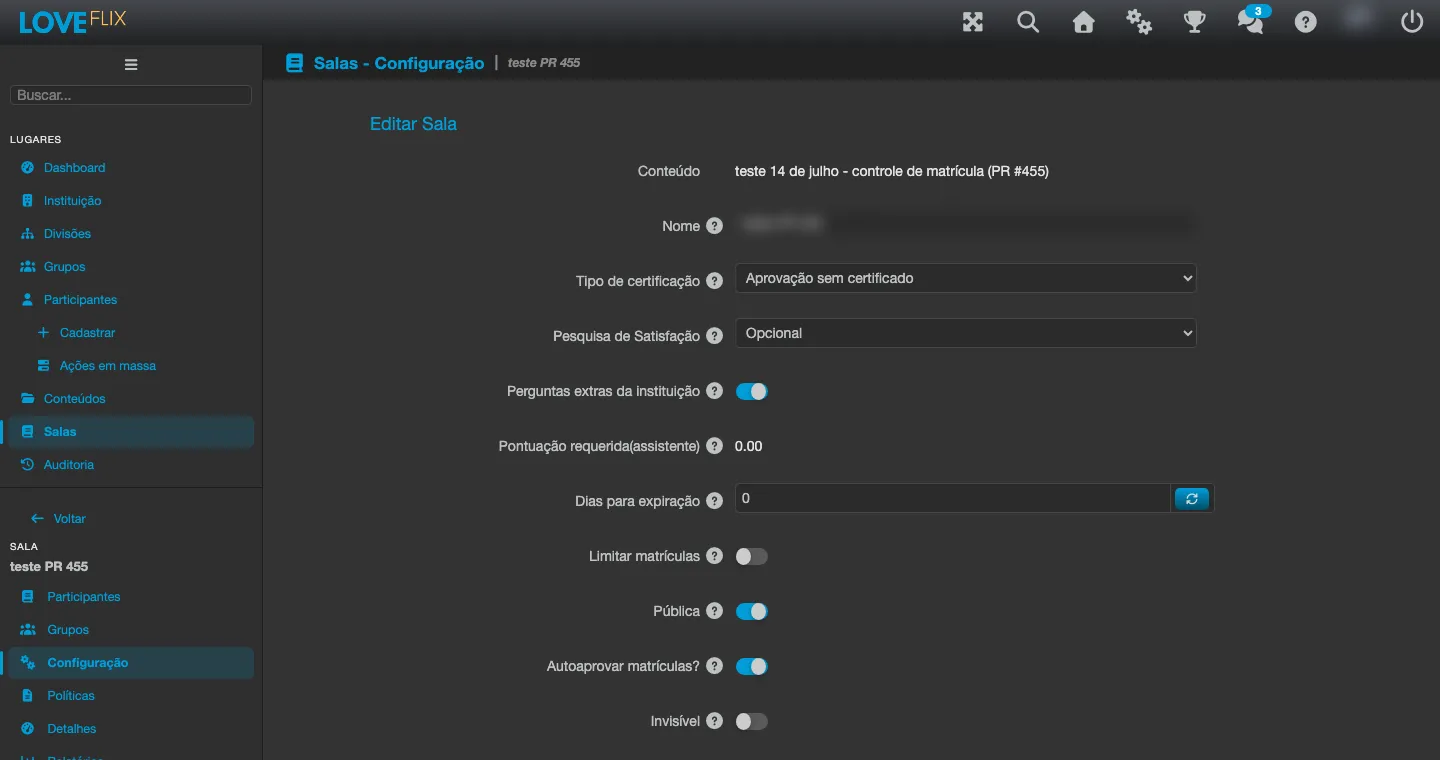
Main settings
Section titled “Main settings”- Access: the Public option makes the class visible in the storefront and open to enrollment requests from any participant of the institution; without it, the class stays out of the storefront and enrollments are made by the administrator or by invitation (the class’s Direct URL and Registration URL keep working). The Invisible option instead hides the class from every participant, including those already enrolled, who can no longer access it or generate a certificate.
- Approval: enrollment requests can go through automatically or wait for manual approval. Turning on automatic approval in a class that already had pending requests approves all pending ones right away. Automatic approval (Approve Enrollments Automatically) is only available for public classes without an enrollment limit.
- Seats: set a participant limit, if needed. With the class full, new requests are refused with a clear notice - including ones made by the administrator. To admit more people, raise the seat limit of the class.
- Access deadline: how many days the participant has to complete it (0 = no deadline), counted from enrollment or from first access, depending on the setting. Deadlines can be extended individually afterward.
- Registration identification: email, CPF, or username, depending on the class’s audience.
- Certification rule (the Certification type field): Approval (requires the minimum score and issues a certificate), Approval without certificate (requires the minimum score but only records the grade), Participation (no minimum score; issues a certificate), or None (no minimum score and no certificate).
After creating it
Section titled “After creating it”- The new class automatically enters the platform-managed All Classes category (visible in the storefront when the Enable “All Classes” Category option is on for the institution; invisible classes stay hidden from participants). If your catalog uses curated categories, assign the class to the right category.
- A class can only be deleted once it has no enrollments left - resolve the enrollments first.