


Grade book
The Grade book lets you build up a class’s evaluation from several items - tests, assignments, participation - each with its own weight and maximum score, and enter each participant’s grade item by item. Eduvem calculates the weighted average.
It sits in the enrollment control window, next to the manual score field that already existed: Administration → Classes → [class] → Participants tab → [participant].
Defining the evaluation items
Section titled “Defining the evaluation items”- Open the enrollment control window for any participant in the class.
- Scroll down to the Grade book section.
- In the Define new item block, fill in:
- Title - required (for example,
Test 1). - Weight - how much the item counts relative to the others. The field already comes filled
in with
1; leave it that way so all items weigh the same. - Maximum score - the highest possible score on that item, up to the platform’s ceiling,
which is
100. The field already comes filled in with100; a value above that is refused when you save.
- Title - required (for example,
- Click Add item.
The items apply to the whole class, not just that one participant: define them once and enter the grades for everyone.
Entering the grades
Section titled “Entering the grades”With the items defined, each one shows a score field for the open participant. Type the score and save.
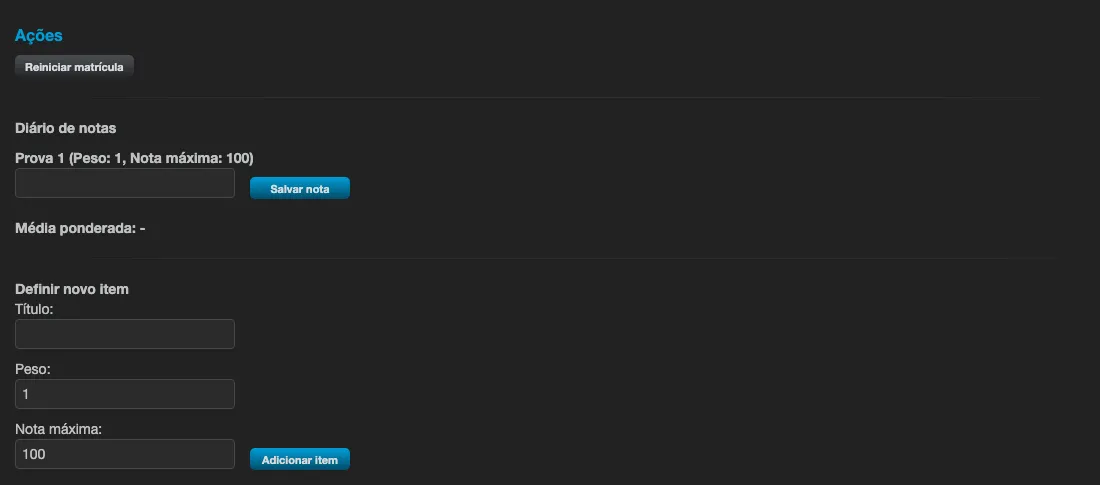
- A score above the item’s maximum score is refused.
- Clearing the field removes the score and returns the item to the “no score” state - it’s not the same as entering zero.
- A negative score is deliberately accepted and means “not graded yet.” Use it when you want to record that the item exists for that participant but hasn’t been graded yet. Entering zero in that case would fail someone who simply hasn’t been evaluated yet.
The weighted average
Section titled “The weighted average”The average is calculated by Eduvem, not by the browser, and considers every item defined - not just the ones that already have a score.
While any item has no score, the screen shows Weighted average: pending, not every item has a grade yet
instead of a number. This is intentional: with Test 1 scoring 9.0 and Test 2 and Test 3 still blank,
showing “average 9.0” would report a better score than the real one. The average only appears once
every item has a usable score.
An item with a negative score (“not graded”) also keeps the average open, for the same reason.
Common questions
Section titled “Common questions”Does the grade book’s average become the enrollment’s grade? Not in this version. Publishing the average as the final grade doesn’t have a screen yet; the score that counts is still the content’s or the manual score.
Who can see and use the grade book? Institution administrators and tutors with grading permission. Creating, editing, and deleting items is exclusive to administrators - the tutor enters grades on the items already defined.
Do participants see the grade book? No. It’s a screen for the team.