


Class pendencies
The Class pendencies screen shows, in a single list, your active classes that have something falling behind: overdue roll calls and assignments awaiting grading. It sits in the admin menu, right below Classes.
Who sees it
Section titled “Who sees it”| Profile | What appears |
|---|---|
| Institution Administrator | The active classes of the whole institution |
| Global Class Administrator | The active classes of the whole institution |
| Class Administrator | Only the classes they administer |
Observers and tutors do not see the Class pendencies entry in the menu.
What the list shows
Section titled “What the list shows”The list has one row per active class that has some pendency, with the columns Class, Content, Roll calls overdue, Awaiting grading and Enrollment requests. It shows counts only: no participant names appear. There are up to 50 classes per page, ordered by class name.
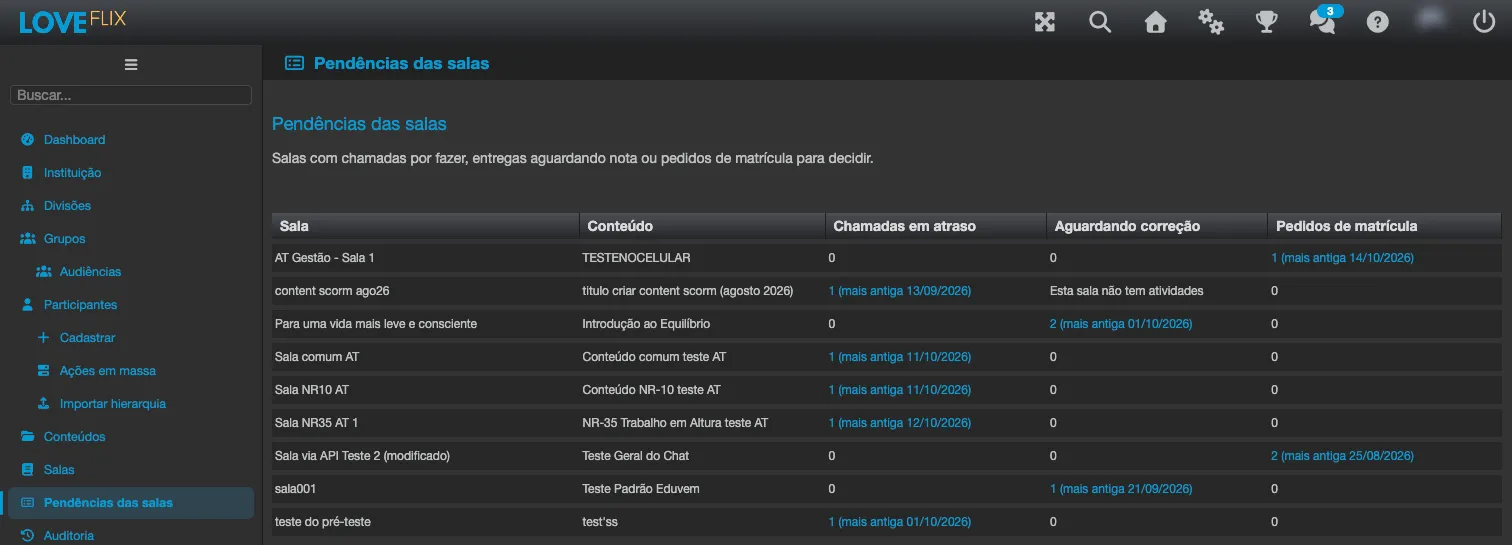
Roll calls overdue
Section titled “Roll calls overdue”Counts the class’s sessions that have already happened, were not cancelled, and whose roll call was never taken. The count goes up to yesterday, in the institution’s time zone: today’s session is not considered overdue yet. Next to the number you see the date of the oldest session still without a roll call.
This column only appears when the institution uses Roll call (the attendance list).
Awaiting grading
Section titled “Awaiting grading”Counts the participants whose latest submission of an Assignment still has no grade. Next to the number you see the date of the oldest submission awaiting grading.
This column only counts classes built in the Eduvem content editor, which are the ones that have Assignments. For a class with no assignments, the cell shows No activities in this class.
Enrollment requests
Section titled “Enrollment requests”Counts the class’s enrollment requests that have not been decided yet (state Requested; see Enrolling participants). Next to the number you see the date of the oldest request waiting for a decision. A class whose only pendency is enrollment requests also appears in the list.
The number is a link: it opens the class’s Participants tab, already filtered to the pending requests (see Deciding several requests at once). In a class with enrollment management, the link opens the Enrollment queue. If you administer by division, the count covers the requests of your own divisions.
Going straight to the problem
Section titled “Going straight to the problem”Each number is a link. Roll calls overdue opens that class’s Roll call tab, and Awaiting grading opens its Assignments tab, ready for you to clear the pendency.
When the list is empty
Section titled “When the list is empty”- No pendencies in your active classes. You have active classes, and none has an overdue roll call or an assignment awaiting grading.
- You have no active classes. There is no active class in your scope.
- There are no pendencies tracked for your profile in this institution. Neither check applies to your profile in this institution, so there is nothing to follow.
Grading assignments as a class administrator
Section titled “Grading assignments as a class administrator”Along with this screen, the Class Administrator and the Global Class Administrator can now grade the Assignments of their own classes: see the list of assignments, set the due dates, follow the grading queue, download the submitted files, and give the grade. The tutor still grades when the institution allows tutors to grade; see Who can grade.
The grading queue no longer shows submissions from cancelled or removed enrollments, so the Awaiting grading count does not include them either.