


Requesting enrollment in a class that needs manager approval
Some classes at your institution use enrollment management: your enrollment request is reviewed by your manager (or by the class administrators) and, if the class is full, you join a waiting list until a seat is freed. This page explains what you see at each step.
Requesting enrollment
Section titled “Requesting enrollment”On the Contents home screen, open the class that shows as Available and click Request enrollment. Next to the button, a notice says the class is managed: Enrollment subject to manager approval. If the class has no seats left at that moment, the notice reads Enrollment subject to manager approval. This class is full - you will join the waiting list.
After you click, Eduvem opens the class screen with the progress of your request. Some situations in which the request is refused:
- Requests for the class have already closed (“Requests for this class are closed.”).
- A previous request of yours for the same class was denied (“Your request for this class was denied.”). Only an administrator can reopen that case.
- The class requires a prerequisite you have not completed yet. The message names the content: “To request this class you must have completed the course …”. Complete that content (any version of it counts, even with an expired certificate) and request again.
Someone who withdrew, or whose request was closed, can request again while the class still accepts requests.
Following the progress
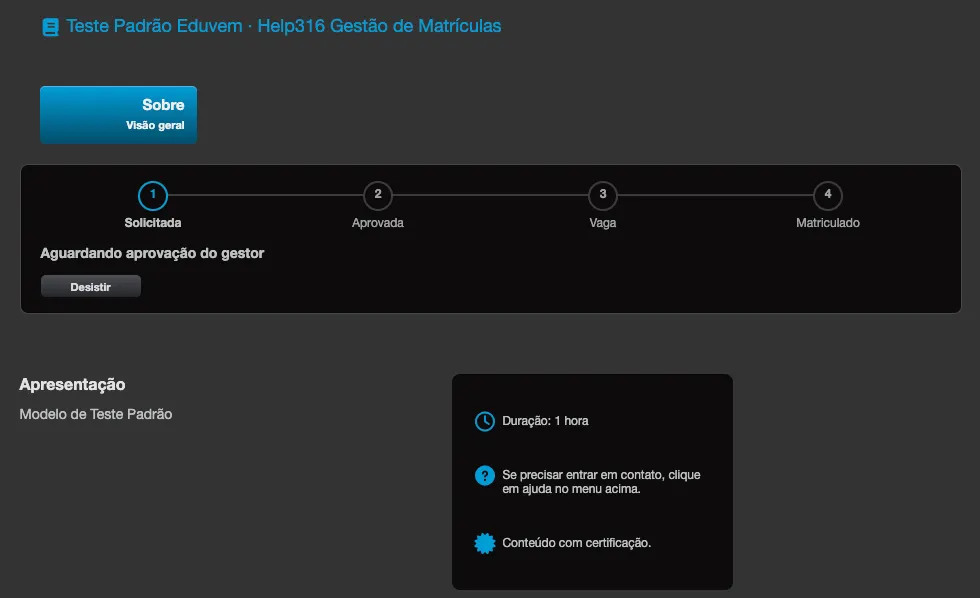
Section titled “Following the progress”While your request has not become an enrollment, the class screen shows the Enrollment progress box, with four steps:
Requested > Approved > Seat > Enrolled
| What you see | What it means |
|---|---|
| Awaiting manager approval | Your manager has not decided yet. |
| Awaiting approval | Your request is decided by the class administrators (for example, because you have no manager). |
| The Seat step as On the waiting list - position N | The request was approved, but the seats are taken. N is your position in the queue. |
| Request denied - Reason: … | The request was denied. The reason can be Not aligned with current needs, Schedule conflict, Team coverage or Other. |
| Closed - … | The request was closed, and the cause appears after the dash (see below). |
When the seat is confirmed, the box disappears and the class works like any other you are enrolled in - see Access my content.
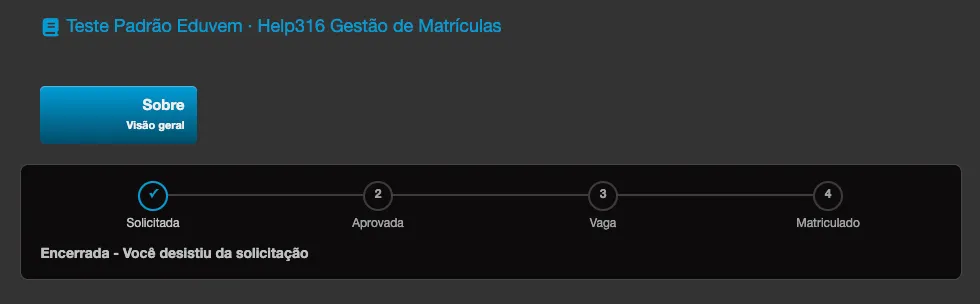
Possible causes under Closed: You withdrew this request, Enrollment closed for this class, Your account was deactivated, This class was archived and You were enrolled in another class.
In the class list, the card shows the summary: Awaiting enrollment approval, On the waiting list or Closed.
Waiting list
Section titled “Waiting list”On the waiting list you do not need to do anything. When a seat is freed and it is your turn, your enrollment is confirmed automatically: there is no acceptance step. Your position can change, because the class administrator can reorder the queue and reserve seats for some units.
If the class has priority groups, the waiting-list step also shows the notice Priority groups may move ahead in the queue. Members of those groups approved after you can be placed ahead of you, so your position number can go up.
If you were approved but have not completed the class’s prerequisite yet, you stay on the waiting list and do not get a seat until you complete it.
Withdrawing
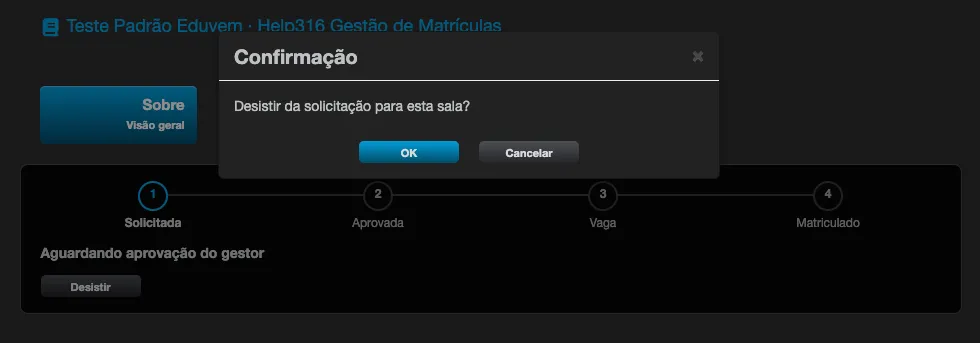
Section titled “Withdrawing”While the request is Requested (awaiting approval) or on the waiting list, the Withdraw button appears in the progress box. When you click it, Eduvem asks “Withdraw your request for this class?”; once you confirm, the request is closed with the cause You withdrew this request. After the request is denied or closed, or once you are enrolled, the button no longer appears.
The e-mails you receive
Section titled “The e-mails you receive”| E-mail subject | When it arrives |
 |—|—|
| Your enrollment was approved: you are on the waitlist | The request was approved, but there is no seat. It states your position. |
| Your seat is confirmed | You got the seat, at approval or when your turn in the queue came. The Open the class button takes you to the class. If you turned on the app notifications, you also get a notice. |
| Your enrollment request was not approved | The request was denied. The e-mail carries the reason and the View my enrollment button. |
| Enrollment for the class has closed | The class deadline passed before a seat was freed for you. |
|—|—|
| Your enrollment was approved: you are on the waitlist | The request was approved, but there is no seat. It states your position. |
| Your seat is confirmed | You got the seat, at approval or when your turn in the queue came. The Open the class button takes you to the class. If you turned on the app notifications, you also get a notice. |
| Your enrollment request was not approved | The request was denied. The e-mail carries the reason and the View my enrollment button. |
| Enrollment for the class has closed | The class deadline passed before a seat was freed for you. |
These e-mails arrive even if you turned off e-mail communications, and can take a few minutes to arrive. See also Install the app and receive notifications.