


Listening to audio lectures in my own voice
Some institutions enable the Listen in my voice option. With it, you record your voice reading a short text and the class’s audio lectures are narrated by a synthetic voice created from that recording. It is optional: if you prefer not to, nothing changes in your content and the original voice stays available.
Before you start
Section titled “Before you start”- The option is for people aged 18 or older.
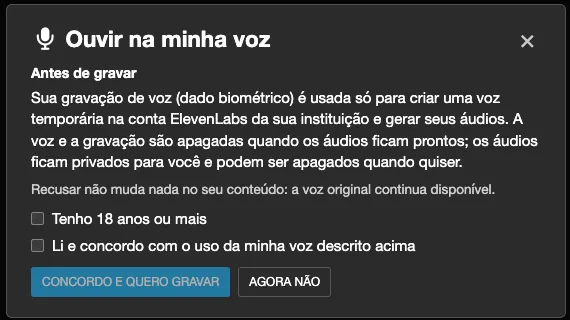
- Your voice recording is personal biometric data. It is only used with your consent, which you give on screen before recording.
- Go to a quiet place and use a device with a microphone. If your browser does not allow audio recording, the button does not appear and you see the notice “Your browser does not allow recording audio” in its place. If the microphone is blocked, allow it for this site in your browser settings.
Step by step
Section titled “Step by step”-
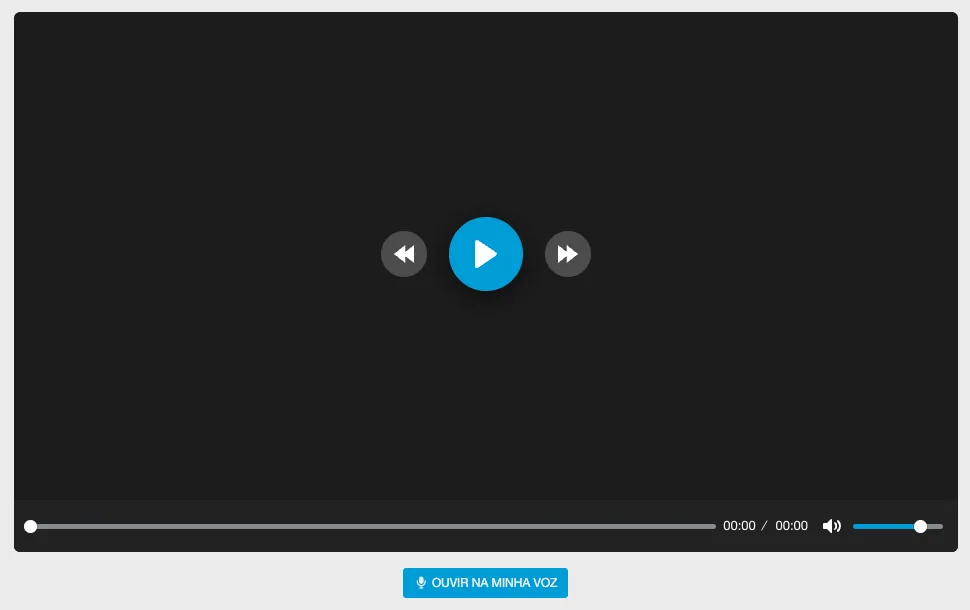
Open an audio lecture in the class. If the option is available, it shows the Listen in my voice button under the player. Click it: a window opens over the lecture, and the whole process happens in it.
-
Read the Before you record screen. Check I am 18 years old or older and I have read and agree to the use of my voice described above, then click I agree and want to record. If you prefer not to take part, click Not now.
-
Under Read the text aloud, read the text shown, in a quiet place and at your normal pace. Record about 45 seconds reading a short text. The recording must be at least 0:30 and at most 2:30. The Stop button unlocks only at 0:30 (until then it shows “Keep reading: the minimum is 30 seconds.”), and at 2:30 the recording stops by itself. Click Stop when you finish; to redo it, click Record again.
-
Wait while the platform uploads the recording and creates your voice (Creating your voice…). It takes less than a minute, and the lecture stays available in the original voice. If you like, close the window while you wait and reopen it with the Creating your voice… button under the player.
-
Under Listen to a sample, listen to the result. Does it sound like you? If not, record again before generating. The sample expires in 24 hours.
-
Click Generate audios. While the audios are generated (Generating your audios), you can leave the page: each lecture shows My voice when it is ready. You can close the window and reopen it with the Generating your audios button under the player (it shows how many lectures are already ready).
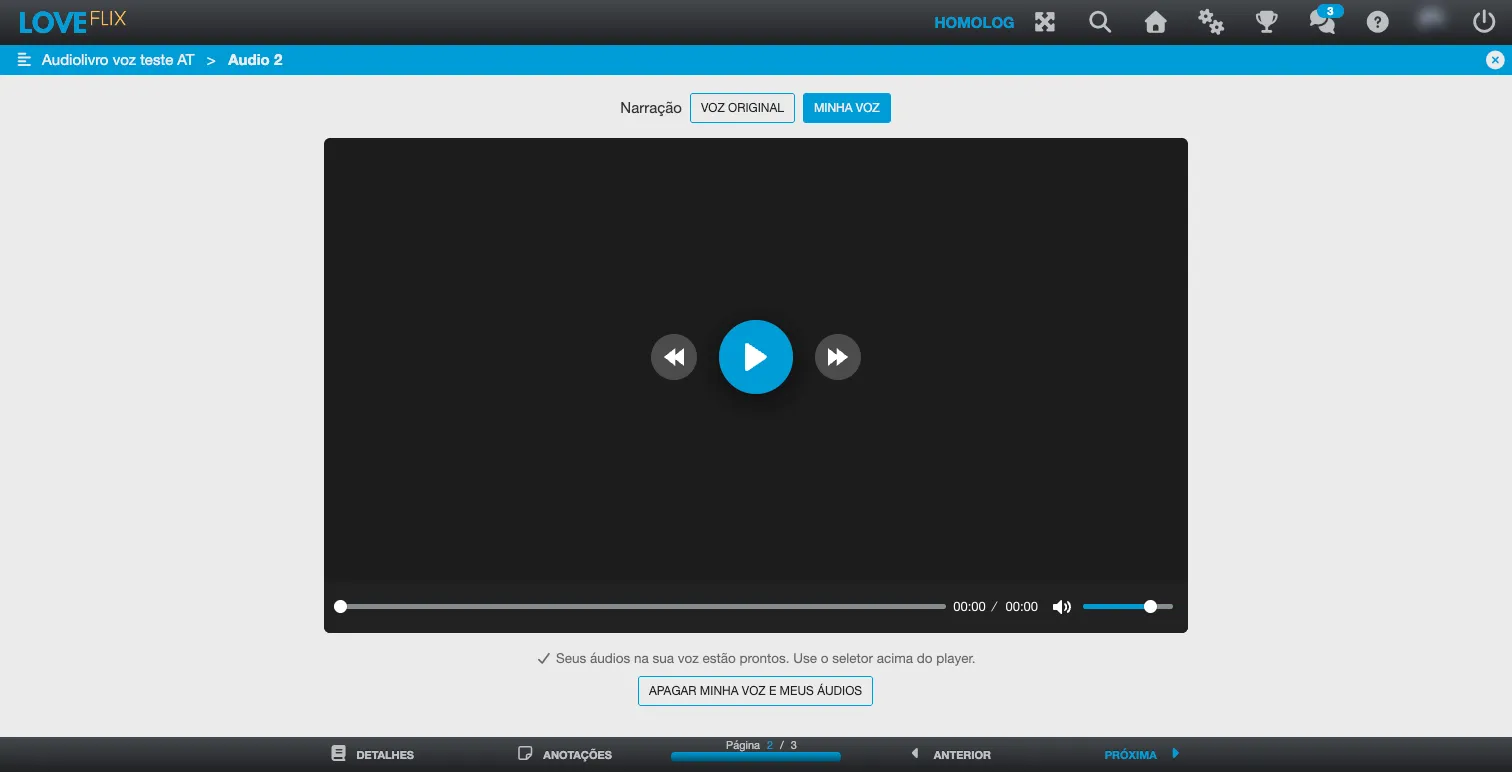
When the audios are ready, the Narration selector appears above the player, with Original voice and My voice; the chosen option is highlighted. Right after the audios are generated, the lectures open in My voice. Your choice is remembered for the other audio lectures of the same class, in this browser, and does not change your progress in the lecture. Under the player, the message “Your audios in your voice are ready. Use the selector above the player.” confirms everything is ready.
What happens to your voice
Section titled “What happens to your voice”- The recording and the synthetic voice are deleted as soon as your audios are generated.
- Each recording covers one class only: after that class’s audios are generated, the recording and the created voice are deleted. To listen in your voice in another class, you will need to record again.
- The recording is used once, to create a temporary voice in your institution’s ElevenLabs account. ElevenLabs processes that data under the institution’s contract.
- The generated audios are removed from your institution’s ElevenLabs history and stay private to you on the platform.
Delete my voice and my audios
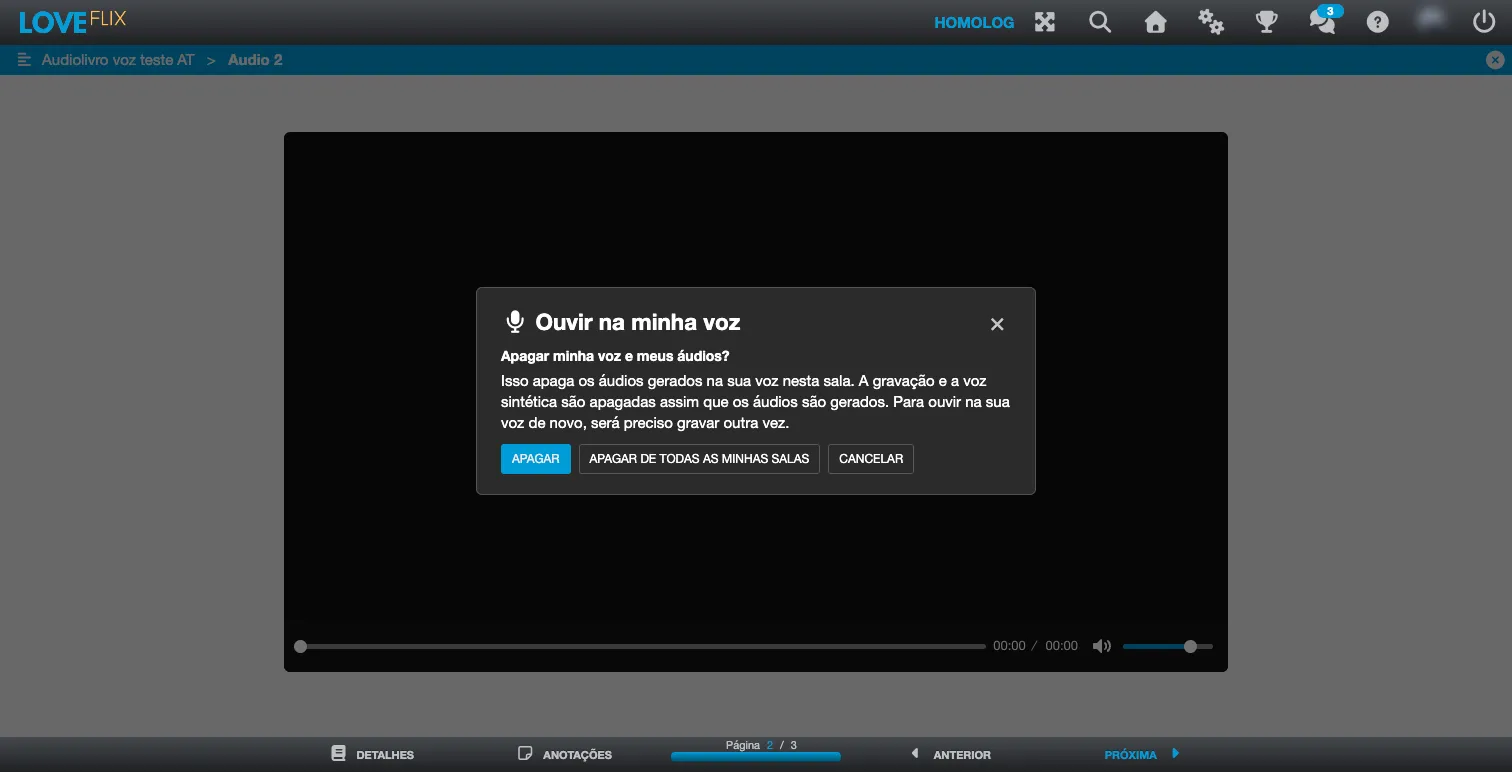
Section titled “Delete my voice and my audios”You can delete the generated audios at any time. Under the player, click Delete my voice and my audios and confirm with Delete. This deletes the audios generated in your voice in that class. To listen in your voice again, you will need to record again.
In the confirmation window that opens, use Delete to delete this class only, Delete from all my classes to delete from every class where you used the feature in one go, or Cancel to back out.
If something does not work
Section titled “If something does not work”| Message | What to do |
|---|---|
| We could barely hear your voice | Record again, closer to the microphone. |
| Recording too short | Record at least 30 seconds. |
| We could not validate your voice from this recording | Record again, reading the whole text in a quiet place. |
| You have made too many attempts today | Try again tomorrow. |
| Audios in your voice are not available this month | Your institution has reached the month’s limit. Try again next month. |
| The lesson text changed after your audio was requested | Record again to generate the audio with the new text. |
In any failure, the original voice stays available. If the problem persists, contact your institution’s administration.