


Custom scripts
Your institution can insert its own HTML and JavaScript snippets on every screen of the platform: a media pixel, a chat widget Eduvem doesn’t integrate natively, a verification meta tag, a support script. It’s the equivalent of “header and footer scripts” in other systems, with no need for a new Eduvem release for every vendor.
Two switches, two owners
Section titled “Two switches, two owners”The feature only works with two switches turned on, and each one belongs to someone different:
- Allow custom scripts for this institution - Eduvem’s switch. Only a platform administrator sees and changes this switch, and it comes off for every institution. While it’s off, the section just shows the notice “Custom scripts are not yet available for this institution. Contact Eduvem to activate this feature.” Ask your Eduvem contact to release it.
- Enable custom scripts - the institution’s switch. Once released, the institution administrator decides when to turn the scripts on and off.
You can write and save the snippets before turning on your switch, but nothing runs until both are on.
Where to configure it
Section titled “Where to configure it”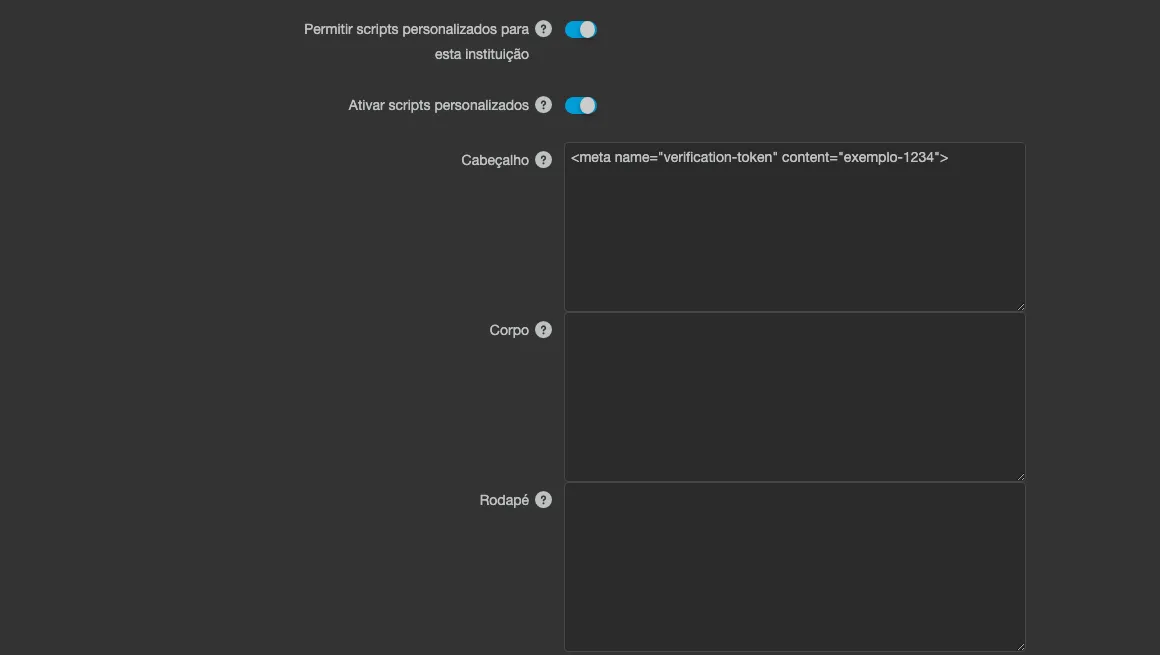
In the institution’s administration, Integrations tab, Custom Scripts section (right below the API token list):
- Paste the snippet into one or more of three fields:
- Header - runs inside the page’s
<head>, before the platform’s own styles and scripts. Use it for a verification meta tag or a script that needs to load early. - Body - runs right after the
<body>opens. Use it for a banner, a chat widget, or anything that should appear as soon as the page starts rendering. - Footer - runs right before the
<body>closes. It’s the usual place for tracking and analytics scripts.
- Header - runs inside the page’s
- Check Enable custom scripts.
- Click Save. The message “Custom scripts saved successfully.” confirms it.
Each field accepts up to 32 KB. A longer snippet is refused on save, with the message “The Header content is too long - it must be at most 32 KB.” (or the matching field), and nothing gets changed. Blank lines at the start and end are removed on save; the rest is stored exactly as you pasted it.
When and where the scripts run
Section titled “When and where the scripts run”The scripts enter the page after the user logs in - on a page load with the session already open, and right after a login through the form, with no page reload. They never run:
- on the public login and sign-up screens, where passwords are typed;
- for Eduvem platform administrators, even when they sign in through your institution’s address;
- inside the content player, the home screen and the dashboard panels, which are separate pages;
- in content opened embedded in another system (external launch/embed);
- on the maintenance and deactivated-institution screens;
- on Eduvem’s own Control Panel.
The snippets run on the platform’s main page. If you need to instrument what happens inside a lecture, use Google Tag Manager, which already delivers the learning events ready-made.
Turning the switch on or off, or changing a snippet, takes effect from the next page load. A tab that was already open keeps running the previous script until it’s reloaded - a third-party script that already loaded cannot be unloaded.
Care when writing the snippets
Section titled “Care when writing the snippets”- A
<script>tag actually runs. Vendor snippets work as-is. A block withtype="application/ld+json"or another non-JavaScript type is inserted into the page but not executed, just like on any site. - Order is respected within the same field: a tag that loads an external file runs before the next tag, so a “loader” followed by a configuration works. Between different fields (Header, Body, Footer) there is no such guarantee - if two snippets depend on each other, put them in the same field, or use the vendor’s own queue pattern.
- A broken snippet does not bring down the page or the other snippets. The error shows up in the browser Console and everything else keeps running.
document.writedoes not erase the page. An old script that usesdocument.writehas its content redirected to the end of the page, instead of erasing everything already drawn. The browser logs a warning in the Console.- A
<noscript>block does not work as a no-JavaScript fallback. These fields only run once JavaScript is already active; the<noscript>content is inserted, but it isn’t the same as the fallback the vendor describes. - A verification meta tag placed here is invisible to search crawlers, because it only enters the page after login. Use the institution’s link-preview configuration for anything that needs to be public.
- Never paste a password, key or token. The content is public to every participant of the institution.
Checking that it’s working
Section titled “Checking that it’s working”Sign in as an ordinary participant, press F12 and, in the Console, check your snippet’s effect (the variable it creates, the element it inserts, or the network request it fires in the Network tab). On the login screen, before signing in, that same Console should show that none of your snippet exists yet - that’s the expected behavior.
Best practices
Section titled “Best practices”- Prefer native integrations where they exist: Third-party widgets for Movidesk, Zendesk and Hotjar, and Google Tag Manager for marketing tags. They already handle consent and the places where they shouldn’t load.
- Keep the snippets short and keep a copy of them together with the institution’s other integrations.
- When switching vendors, delete the old snippet instead of just leaving it off via the switch: the switch turns off every field at once.