


Access control
Eduvem’s access control has three layers: who gets in (registration), what each one can do (roles) and who stops accessing (deactivation and deletion).
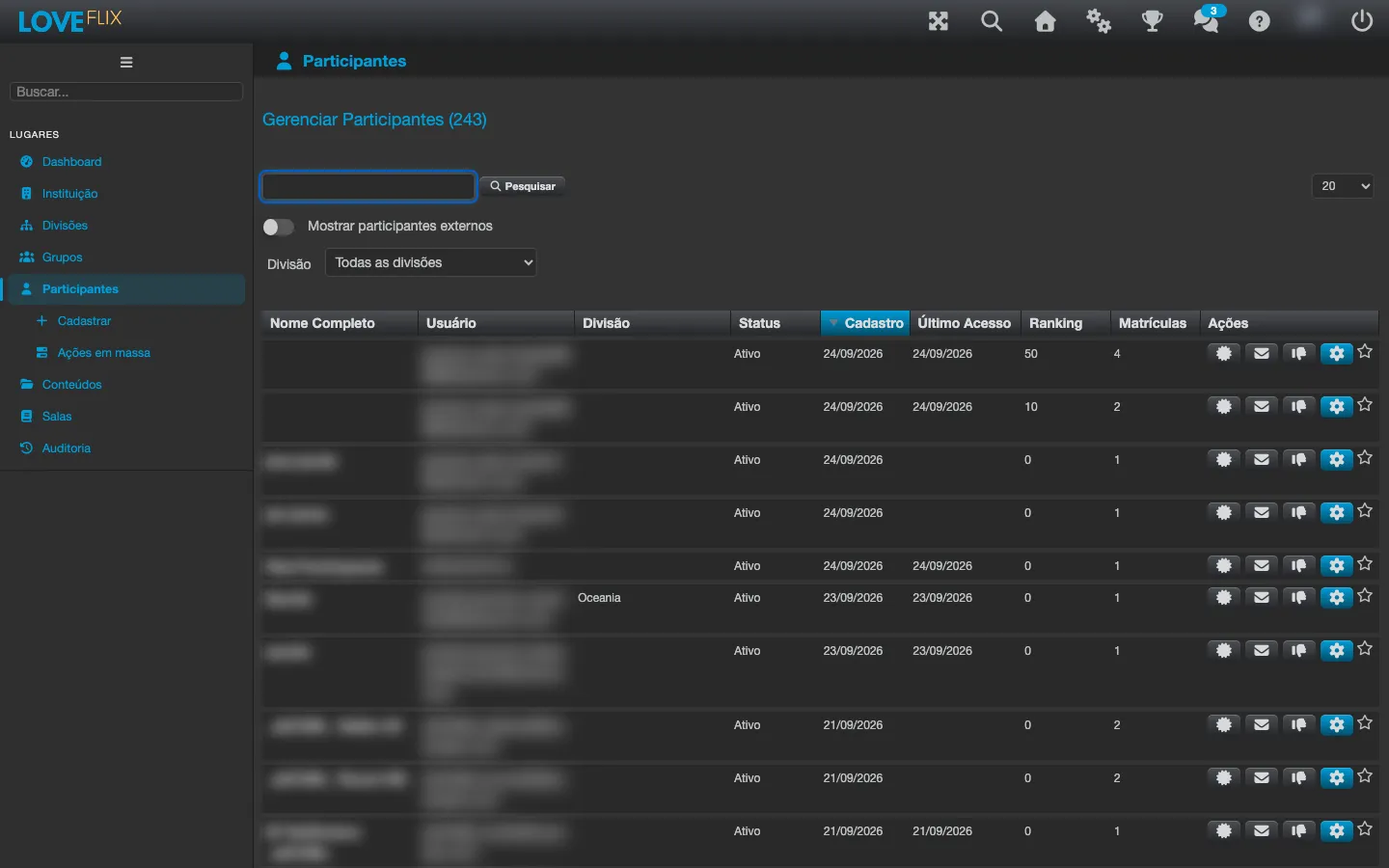
Who gets in
Section titled “Who gets in”Configure it on the institution’s Configuration tab (the registration form fields live on the Profile tab):
- Open registration: with Allow Registration turned on, anyone registers through the login screen (REGISTER button). With the option off, only people already registered get in - or people arriving through a class registration URL, when Allow Registration Codes is turned on.
- Registration by the administrator: individually or in bulk; the audience does not self-register.
- Corporate login (SSO): authentication goes through your organization’s directory - see SSO with Microsoft.
What each one can do (roles)
Section titled “What each one can do (roles)”| Role | What it does |
|---|---|
| Participant | Consumes content, takes part in classes |
| Tutor | Follows classes and takes part in discussions |
| Course Class Admin | Manages specific classes (enrollments, follow-up) |
| Course Class Observer | Sees the progress of specific classes, without changing anything |
| Content Publisher | Changes the settings and material of the institution’s contents |
| Global Class Admin | Enrolls participants and answers messages in all the institution’s classes |
| Global Class Observer | Views enrollments and generates certificates for all classes, without changing anything |
| Institution Admin | Full administrative access to the institution |
Always grant the smallest role that solves the need.
Who stops accessing
Section titled “Who stops accessing”- Deactivate: blocks access and suspends the participant’s active enrollments in all classes (suspended is different from cancelled: the enrollment comes back on reactivation), but preserves the registration history (Deactivated status in the list). Reversible: when the person is enrolled again, they are reactivated automatically.
- Delete: removes access and anonymizes personal data. Irreversible - see How to delete a user.
- Automatic deactivation: an institution rule can retire inactive accounts on its own, every night, with a preview before saving and a per-person exception - see Automatic deactivation of participants. It comes turned off.