


Full certificate editor
The full editor is the full-screen view where you design the certificate freehand: every text, image, signature, and shape is an element you position, resize, and format on the sheet. It complements the Certificate builder, which puts the certificate together from a few questions.
Who sees the full editor
Section titled “Who sees the full editor”The full editor is part of the Certificate builder. It only appears for institutions that have the builder enabled, and the Eduvem team enables it, per institution (see Before you start: enable the feature). Without the builder, the certificate screens stay as they were.
Open the editor
Section titled “Open the editor”There are two ways in, both in the institution settings:
- A new template: on the Certificate Templates tab, click New template. With the builder enabled, the button opens the full editor on its start screen (see Start a certificate).
- The institution’s certificate: when the institution’s certificate was made in the full editor, the Certificates section shows the card This certificate was made in the full editor, with the preview, the publication date, and where it is used. Click Open full editor.
In the Certificate Templates list, templates made in the full editor show Full editor in the Model column, and the edit button opens the editor. Templates made in the previous form get the old badge next to the name and still open in the previous form. In the Custom Certificate Template field of a content, class, or track, full-editor templates appear with (new editor) after the name.
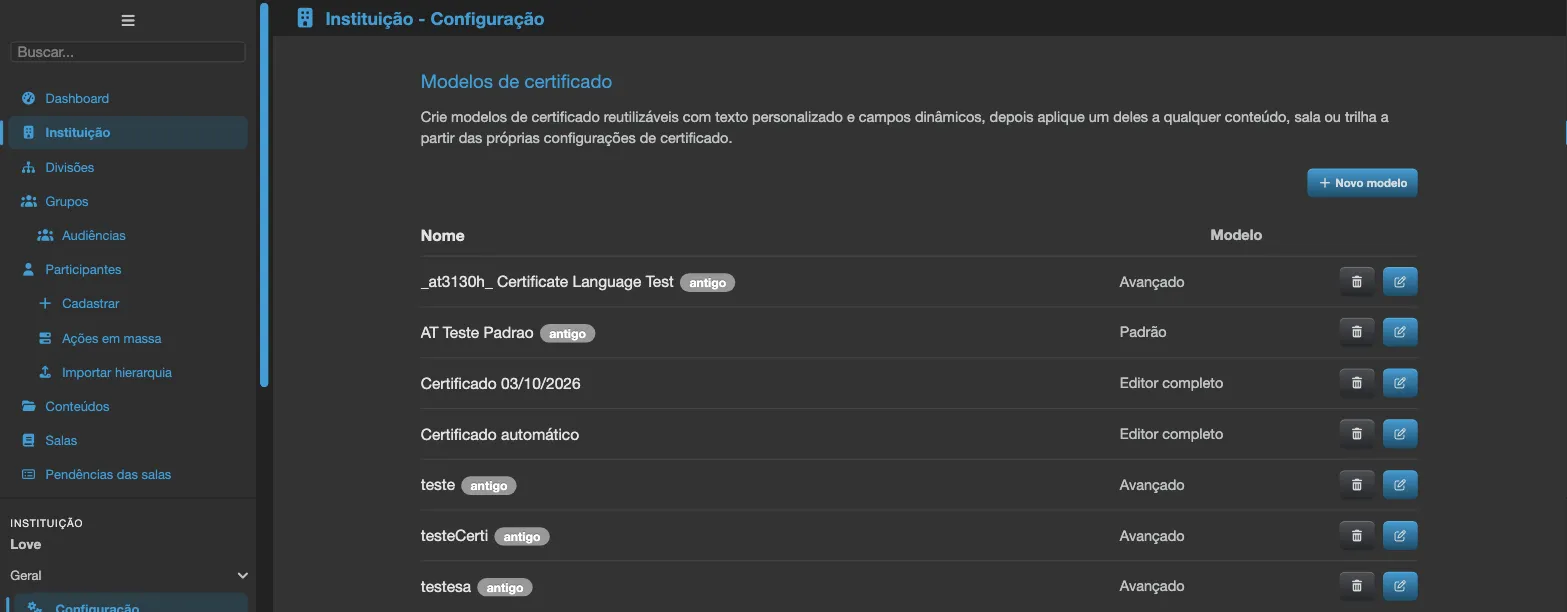
To leave the editor, click Close, in the top right corner. If the last change could not be saved, the editor warns you and offers Close without saving.
Start a certificate
Section titled “Start a certificate”A new template starts on the How do you want to start? screen, with two tabs. You can change everything later.
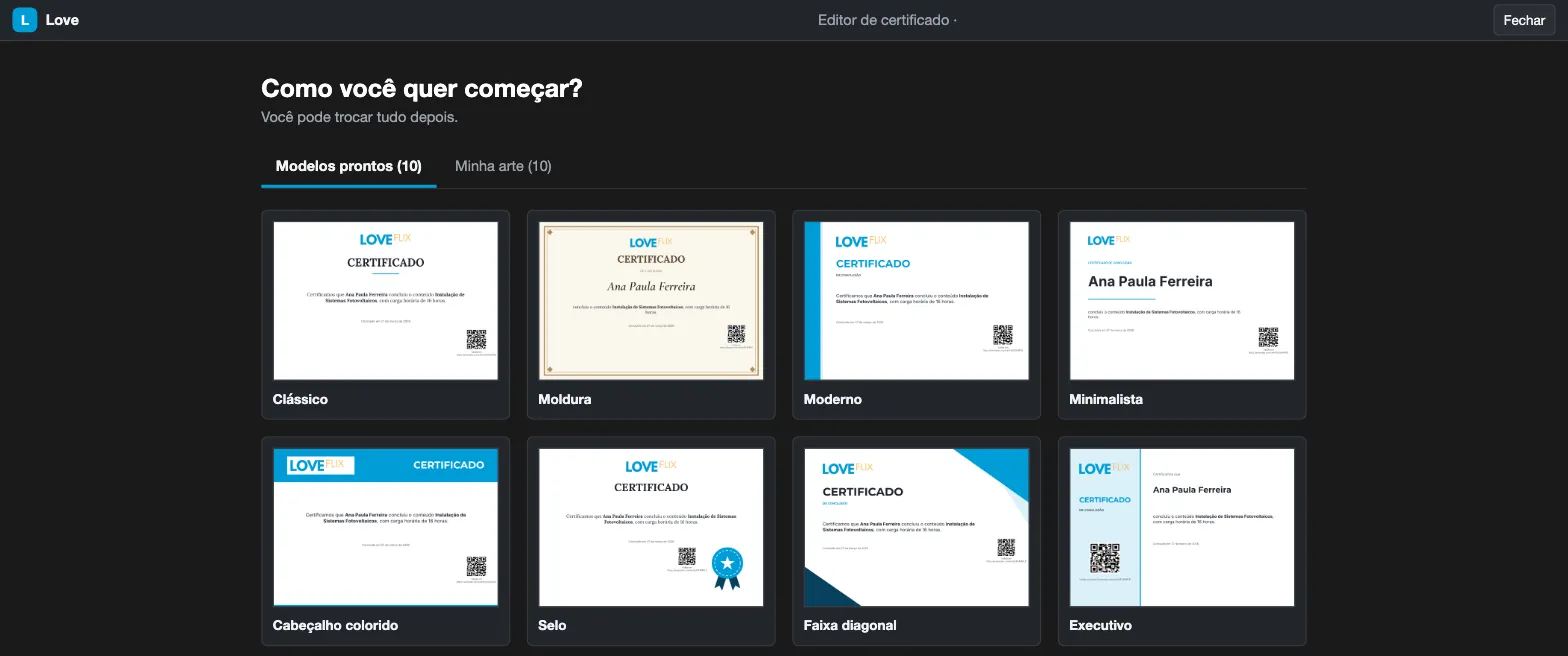
Ready-made templates
Section titled “Ready-made templates”Choose one of the ready-made designs: Classic, Frame, Modern, Minimal, Colored header, Seal, Diagonal band, Executive, and Diploma. Institutions with NR certificates also see the NR template. The thumbnails show the certificate with sample data.
My artwork
Section titled “My artwork”The My artwork tab lists the background images the institution already uses on its certificates (the 50 most recent) and lets you Upload new artwork. The screen opens on this tab when at least one artwork can be used.
The artwork fills the whole page, so it must be:
| Rule | Value |
|---|---|
| Format | PNG or JPG |
| Orientation and proportion | Landscape A4, about 1.41 times wider than it is tall |
| Minimum width | 1200 pixels |
| Maximum size | 7016 pixels on each side, up to 34.8 million pixels and up to 10 MB |
Artwork that does not qualify appears without the Use this artwork button and with the reason, for example “It is portrait: it must be A4 landscape” or “Too small: 900 px wide (minimum 1200)”. Check Only the ones that can be used to hide the rest.
When you pick an artwork, the Where does each piece of information go? screen asks you to click on the artwork where each piece of data should appear, in this order: Participant name, Content title, Completion date, Workload, Signature, and Verification code. Use skip to leave out an optional item. The verification code is required: Done only becomes available after it is placed. You can adjust everything later in the editor.
The new template is named “Certificate” followed by today’s date (see Rename the template).
Edit the certificate
Section titled “Edit the certificate”The sheet sits in the center, the pages on the left and, at the top, a bar that changes with what is selected. With nothing selected, the bar shows Undo, Redo, and the + Insert, Background, and Page menus. Click an element to select it, drag to move it, and use the handles to resize it. The keyboard arrows also move the selected element.
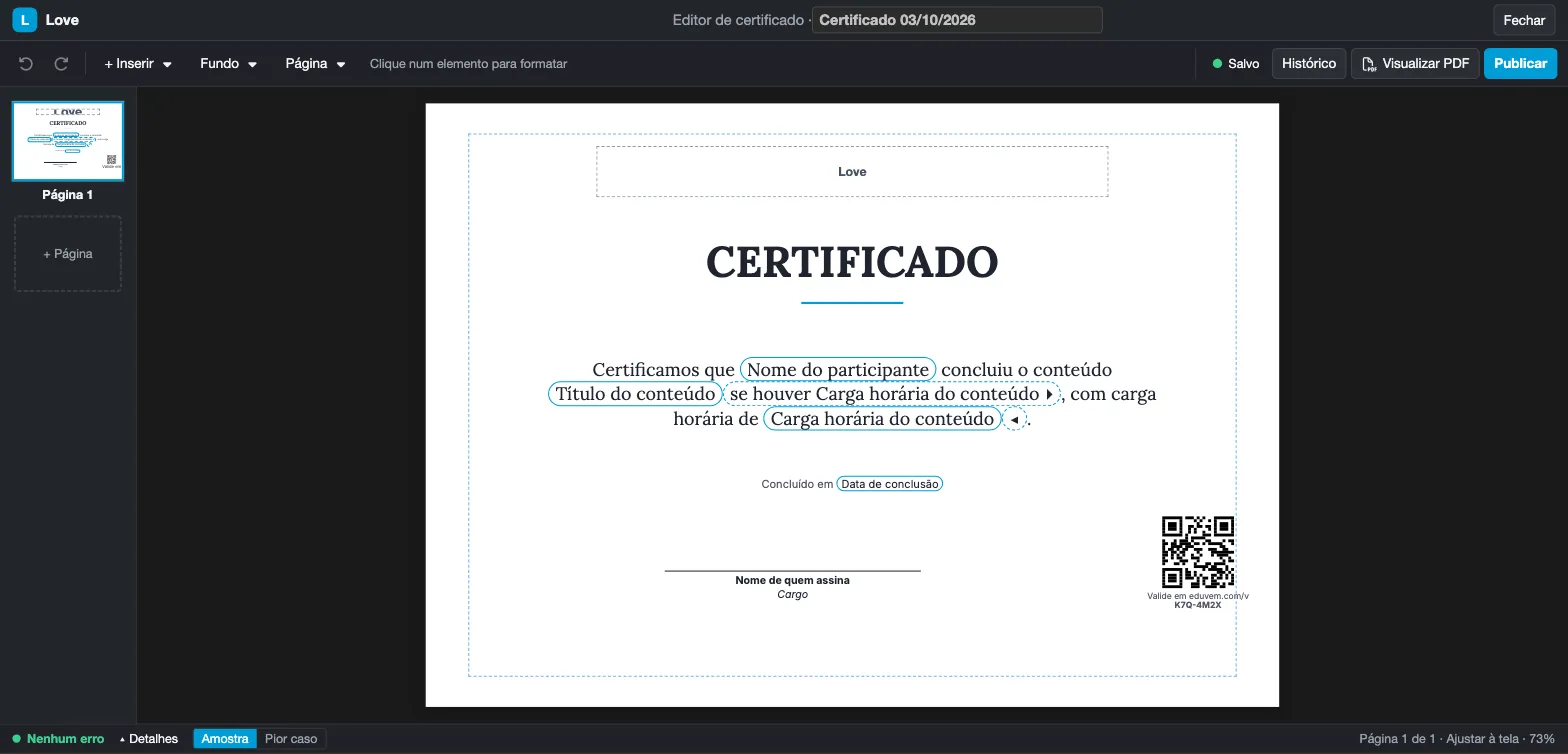
Insert elements
Section titled “Insert elements”In + Insert:
- Text: a text box;
- Image: uploads an image (for example, a logo) and places it on the sheet;
- Signature: a signature line with the signer’s name;
- Shape: Rectangle, Ellipse, or Line.
Each page accepts up to 40 elements. Images follow the same format and maximum size rules as the artwork (PNG or JPG, up to 10 MB), and must be at least 300 pixels wide.
Format text
Section titled “Format text”With a text selected, the bar shows Font, Font size (from 6 to 120 points), Bold, Italic, Underline, the alignment (Align left, Align center, Align right), and Color (Theme color or Other color). Double-click the text to edit it.
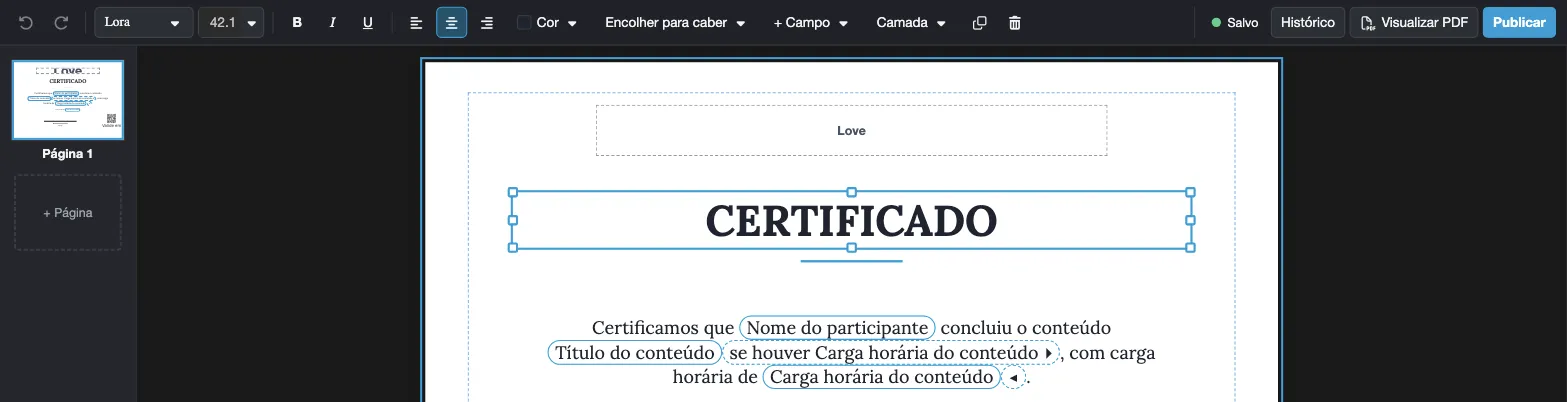
The Layer menu (Bring to front, Bring forward, Send backward, Send to back), Duplicate, and Delete apply to every element.
Dynamic fields
Section titled “Dynamic fields”Participant and content data go into the text as tags that cannot be edited letter by letter. While editing the text, use + Field (with Search field to filter) and choose the data. The list is the same as for certificate templates - see Dynamic fields. A field can also go in as an if present snippet, which disappears when the data is empty.
The Participant name is required on the certificate. If you type by hand something that looks like data (a name, for example), the editor suggests using the matching field.
Shrink to fit, Sample, and Worst case
Section titled “Shrink to fit, Sample, and Worst case”Names and titles have different lengths for each participant. That is why each text box has two options in the Shrink to fit menu:
- Shrink to fit: the font gets smaller when the text does not fit in the box. When that happens, the box shows the Shrunk to NN% badge;
- Fixed size: the font never changes size.
In the status bar, below the sheet, switch between Sample (sample data) and Worst case (the longest name and title) to check that nothing overflows. If the text still does not fit, the editor shows “The text does not fit in the box” and the certificate cannot be published until you make the box larger or shorten the text.
Background and pages
Section titled “Background and pages”- Background: Background color, Change artwork, and Remove artwork for the current page;
- Page: New page, Duplicate page, Delete page, and the visual aids Show margin and Guides.
A certificate has 1 to 4 pages. Use + Page, in the page column on the left, to add another.
Undo and redo
Section titled “Undo and redo”Use Undo and Redo on the bar, or the keyboard: Ctrl+Z undoes, Ctrl+Y (or Ctrl+Shift+Z) redoes. On a Mac, use Cmd instead of Ctrl. Ctrl+D duplicates the selected element.
The verification code
Section titled “The verification code”Every full-editor certificate has a Verification code: the QR code and the address where anyone can check that the certificate is genuine. It is required and cannot be deleted (“The verification code is required. You can move it or make it larger.”).
- Minimum size: 2 cm, so the QR code can be read on a printed certificate. Below that, the certificate cannot be published; the Enlarge to 2 cm fix solves it in one click. Restore size goes back to the default size.
- Code color: the color of the QR code and its caption.
- Code background: the square behind the QR code - White, Light theme color, Same color as the page, Custom…, or Transparent.
The editor checks that the code will scan:
- Low contrast blocks publishing. If the code color and the background behind it have too little contrast (less than 4.5:1), the error “The verification code may not scan: increase the contrast between the code and its background.” appears. Choose a darker color or another code background.
- A busy background is only a warning. When the artwork shows behind the code (for example, with Transparent) and has a lot of detail, the editor warns “The artwork behind the verification code is very busy; check that it scans.” Test the scan with a phone on the PDF.
- The code also cannot be covered by another element.
Over dark artwork, the code caption turns light automatically, unless you chose its color.
Problems before publishing
Section titled “Problems before publishing”The status bar shows how many problems the certificate has (for example, No errors, 1 error, 2 warnings). Click Details to open the list, split into two groups:
- Prevents publishing: errors that must be fixed, such as a missing participant name, text that does not fit, or a verification code that is too small, covered, or low in contrast;
- Warnings · do not prevent publishing: points to check, such as “No signature”, “Text with low contrast”, or “Text covered by another element”.
Each item has Go to ›, which selects the element on the sheet, and some come with a ready fix (for example, Insert the field or Enlarge to 2 cm).
Automatic saving
Section titled “Automatic saving”There is no save button: the editor saves on its own right after each change. The indicator at the top shows Saving…, Saved, or Saved · unpublished changes. Without a connection, it shows No connection - trying again and retries on its own.
Saving does not change participants’ certificates: what you save is a draft. Only the published version is used (see Publish).
Recover unsaved changes
Section titled “Recover unsaved changes”If you close the editor before a change reaches the server (for example, with the connection down), the browser keeps a copy for up to 24 hours. When you reopen the certificate in the same tab, the editor shows We found unsaved changes in this browser, with:
- Recover: goes back to your changes;
- Discard: keeps what is saved on the server;
- Download my version: saves your changes to a file before you decide.
If the server draft changed in the meantime, the message adds “The server draft has been updated since then.”
When the certificate is edited in two places
Section titled “When the certificate is edited in two places”If someone else (or you, in another tab) saved the same certificate while you were editing, the editor shows This certificate was changed by someone else and “Your latest changes were not saved.”:
- Reload: loads the server version. Before discarding your changes, the editor offers Download my version;
- Keep mine: saves your version over the other one.
Languages
Section titled “Languages”A certificate can be issued in more than one language. The Certificate languages bar only appears when more than one language is in play: the certificate already has two or more, or the institution has another active language you can add. With a single language, the editor works as described above.
The language bar
Section titled “The language bar”Each language of the certificate is a button with its name (Português, English, Español, Français). Click it to view and edit the certificate in that language. The main language carries the base tag. The others show their status:
- complete: the certificate can be drawn entirely in that language;
- incomplete, with the count 1 missing or N missing (texts without a translation) or 1 to review / N to review;
- checking: the editor is still checking;
- no longer active: the language was removed from the institution (see Language disabled in the institution).
A certificate accepts at most 4 languages: Português, English, Español and Français.
Add and remove languages
Section titled “Add and remove languages”Open the Languages menu. Under Add a language are the institution’s active languages that are not in the certificate yet; a button such as + English also appears in the bar itself. Under Remove a language (or the remove on the language’s button) you remove a language. The main language cannot be removed.
Removing deletes, from this certificate, that language’s texts, background art and own positions. The Remove language? confirmation says so. Removal is a single editor change: use Undo right after to bring everything back.
View modes
Section titled “View modes”Next to the languages, the View mode has three options:
- Page: the certificate sheet, in the selected language, where you edit as usual;
- Compare: the sheet of the selected language next to a second, read-only sheet in the Reference language (the first language that is not the main one, or the main one if that is the one you are editing). Change the language under Compare with;
- Translation table: one row per text box and one column per language, to edit the texts of every language at once. Check Only what is missing to see only the text boxes without a translation (the N missing count in the language bar uses the same boxes; an empty optional signature or caption is not counted). A translation that shows review was written before the main language text changed: check that it is still correct. The review mark only lasts for the current editing session.
Text, art and position per language
Section titled “Text, art and position per language”- Text: each text box has one text per language. Pick the language in the bar and edit, or use the Translation table. Dynamic fields work in every language.
- Background art: on each page, choose Own art for this language (upload an image just for it, for example when the art has written text) or Use the same art (the language uses the main language’s art). The image follows the rules for background art.
- Position: by default, each element sits in the same position in every language (common position). With the element selected, Position for this language only creates its own position for the language you are viewing, useful when the translated text is longer. Back to the common position undoes the adjustment.
Which language the participant receives
Section titled “Which language the participant receives”The certificate is never mixed: it is issued entirely in a single language, chosen in this order:
- the participant’s own language, if the certificate is complete in it;
- otherwise, the class’s fixed language (the Certificate language field, see Creating a class), if the class fixes one and the certificate is complete in it;
- otherwise, the certificate’s main language.
That is why an incomplete language harms no one: while text or art is missing in it, participants in that language receive the certificate in the main language. When you publish, the editor warns which languages will fall back to the main one (for example, “Participants in English will receive the certificate in Português.”).
If a text box has no content at all in the language the certificate is being issued in, the certificate is not generated and the platform asks for the text to be filled in for every language of the template. Fill in the boxes before publishing.
Once issued, a certificate keeps its language: changing the languages or publishing a new version does not change the certificates that already exist.
Language disabled in the institution
Section titled “Language disabled in the institution”If a language of the certificate was disabled in the institution, the editor shows a warning (the language appears as no longer active) that does not prevent publishing: at issue time, the language is ignored. Remove it from the certificate. If it is the main language that was disabled, it is still used when no other language is complete.
View PDF
Section titled “View PDF”Click View PDF to see the certificate as it will come out. The editor saves the draft first and opens the PDF in a new tab; you stay in the editor. Use the PDF to check the print and test scanning the QR code with a phone.
The PDF comes out in the language you are viewing in the editor. To check the other languages, switch the language in the bar and preview again.
Publish
Section titled “Publish”Click Publish. The button is only available when the draft is saved and nothing is listed under Prevents publishing. The Publish this certificate? confirmation shows where the certificate is used (for example, “It is the institution’s certificate and is used in 2 contents and 1 class”) and lists the warnings, which do not prevent publishing.
Once you confirm, the next certificates issued in those places use this version. Certificates already issued do not change.
To use the template on a content, class, or track, choose it in the Custom Certificate Template field - see Apply the template to content, a class, or a track.
Version history
Section titled “Version history”Click History to open the Version history: the current Draft and each published version, with who published it and how many certificates it issued. The 10 most recent come first; Show more brings the rest.
- View: shows the version on the sheet, read-only;
- Restore as draft: copies the version into the draft. It is not published: review it and click Publish to use it again.
Rename the template
Section titled “Rename the template”The template name sits at the top, next to Certificate editor. Click it, type the new name (up to 100 characters), and press Enter. Each name is unique within the institution.
Back to simple mode
Section titled “Back to simple mode”On the institution’s certificate card, in the Certificates section, the Back to simple mode link swaps the full editor for the questions of the Certificate builder. The platform asks for confirmation, because the adjustments made in the full editor (positions, fonts, elements, and the artwork) are discarded. Certificates already issued do not change, and published versions stay in the history. To confirm, click Discard adjustments and go back.
Common questions
Section titled “Common questions”I do not see the full editor. The Certificate builder is not enabled for the institution. Ask Eduvem support to enable it.
The Publish button is disabled. Open Details in the status bar: there is at least one item under Prevents publishing, or the last change is still being saved.
I published a new version. Do people who already received the certificate see the change? No. Certificates already issued do not change; only the next ones use the new version.
My artwork appears without the Use this artwork button. It does not meet the background artwork rules. The reason appears on the card; prepare a PNG or JPG image in landscape A4, at least 1200 pixels wide and up to 10 MB.
Can I delete the verification code? No. It is required; you can move it, enlarge it, and change its colors.
See also
Section titled “See also”- Certificate builder - the institution’s certificate put together in a few steps, with a live preview.
- Reusable certificate templates - dynamic fields and how to apply a template to contents, classes, and tracks.
- Online customization and issuance of certificates - which certificate applies to each participant.