


Notifications to participants
The Notifications tab, under Institution, is a notice-sending tool: a message that reaches the institution’s active participants all at once. Use it for general announcements - a new training available, an important date, a maintenance notice.
The notice can arrive through two channels, and you choose one or both:
- Show on screen - the message appears as a card inside the platform for each recipient, while they are logged in, until the expiry date you set or until they close the card. Comes on by default.
- Send by email - the same message also goes out by email. Comes off by default.
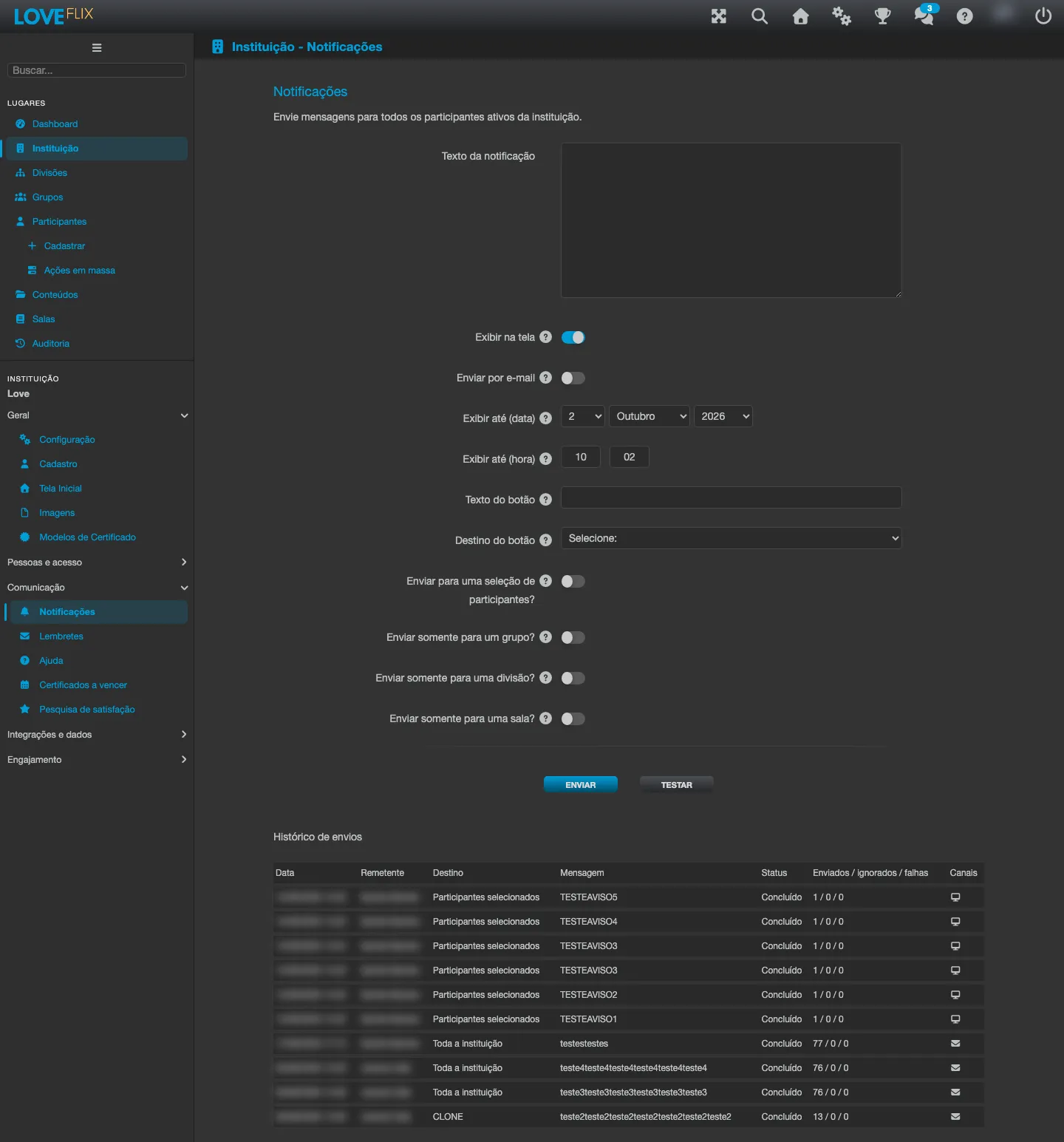
How to send
Section titled “How to send”- Under Institution, open the Notifications tab.
- Write the message in the Notification text field (between 10 and 1000 characters).
- Choose the channels: Show on screen, Send by email, or both. At least one must be on - with none, the platform answers Select at least one channel.
- Check Show until (date) and Show until (time). They come pre-filled with a future date and define when the on-screen card stops being shown.
- Optionally, add an action button (see below).
- Optionally, restrict the audience:
- Send only to a selection of participants? - only the participants you pick, one by one.
- Send only to a group? - only the members of the chosen group.
- Send only to a division? - only the participants of the chosen division. This option only appears when divisions are enabled in the institution.
- Send only to a class? - only the participants enrolled in the chosen class.
- Use Test to validate the sending before sending to the whole audience.
- Send dispatches the notice to the selected audience.
Sending happens in the background. When you confirm, the platform answers that the sending has started and may take a few minutes to reach every recipient - there is no need to keep the screen open.
How long the card stays on screen
Section titled “How long the card stays on screen”Show until (date) and Show until (time) apply to the Show on screen channel: from that moment on the card stops appearing, even for those who never opened it. Both fields come pre-filled with a future date, and the platform refuses a date in the past (The date and time must be in the future).
The date and time are interpreted in the institution’s time zone, which the screen itself states below the fields - not in the sender’s time zone.
The participant can also close the card at any time; once closed, it does not come back.
Action button (optional)
Section titled “Action button (optional)”The on-screen card can carry a button that takes the participant straight to what the notice is about.
| Field | What to fill in |
|---|---|
| Button text | The button’s label, 2 to 24 characters. E.g.: See the new track. |
| Button destination | Where the button leads: URL or Selected class (opens one of the institution’s classes). |
| Button URL | Appears when the destination is URL: the absolute address, starting with http:// or https://, that the button opens. |
The two fields go together: fill in both or leave both blank. With only one filled in, the platform answers Enter both the button text and destination, or leave both blank. With the URL destination, a malformed address is refused with Enter a valid URL.
Without a button configured, the card shows only the text and the option to close it.
Sending history
Section titled “Sending history”Below the form, the Sending history panel records every notification sent, from the most recent to the oldest, with pagination. The columns are:
| Column | What it shows |
|---|---|
| Date | When the sending started. |
| Sender | Who sent it. |
| Target | The chosen audience: Selected participants, the selected group, division or class, or Whole institution when no restriction was checked. |
| Message | The text that was sent, and the action button’s label when there is one (prefixed by Button). |
| Status | Sending…, Completed, Partially sent or Failed. |
| Sent / skipped / failed | How many recipients received it, how many were skipped and how many failed. |
| Channels | Where the notice went out: on screen, by email, or both. |
Use PREVIOUS and NEXT, below the table, to browse older sendings.
While no notice has been sent yet, the panel shows No notifications sent yet.
What the participant sees
Section titled “What the participant sees”With Show on screen on, the notice appears inside the platform, in the Notifications area, as a card with the message text, the action button (when you configured one) and a Close. If you set a button without a label of its own, it appears as Learn more.
The card disappears when the participant closes it or when the display date and time pass, whichever comes first.
Notifications are not the automatic emails
Section titled “Notifications are not the automatic emails”The platform also sends automatic emails at the key moments of the journey (welcome on registration, enrollment confirmation, completion and password reset). Those are triggered by the platform itself, independently of this screen - the Notifications tab is for the notices you write and send yourself. Beyond those, the platform can send scheduled reminders based on the enrollment’s state - deadline near, content never opened, pending document - configured on the Reminders tab. The support email that signs the automatic messages is set on the Configuration tab.