


Access my content
After signing in to the platform, the Contents home screen lists everything you are enrolled in.
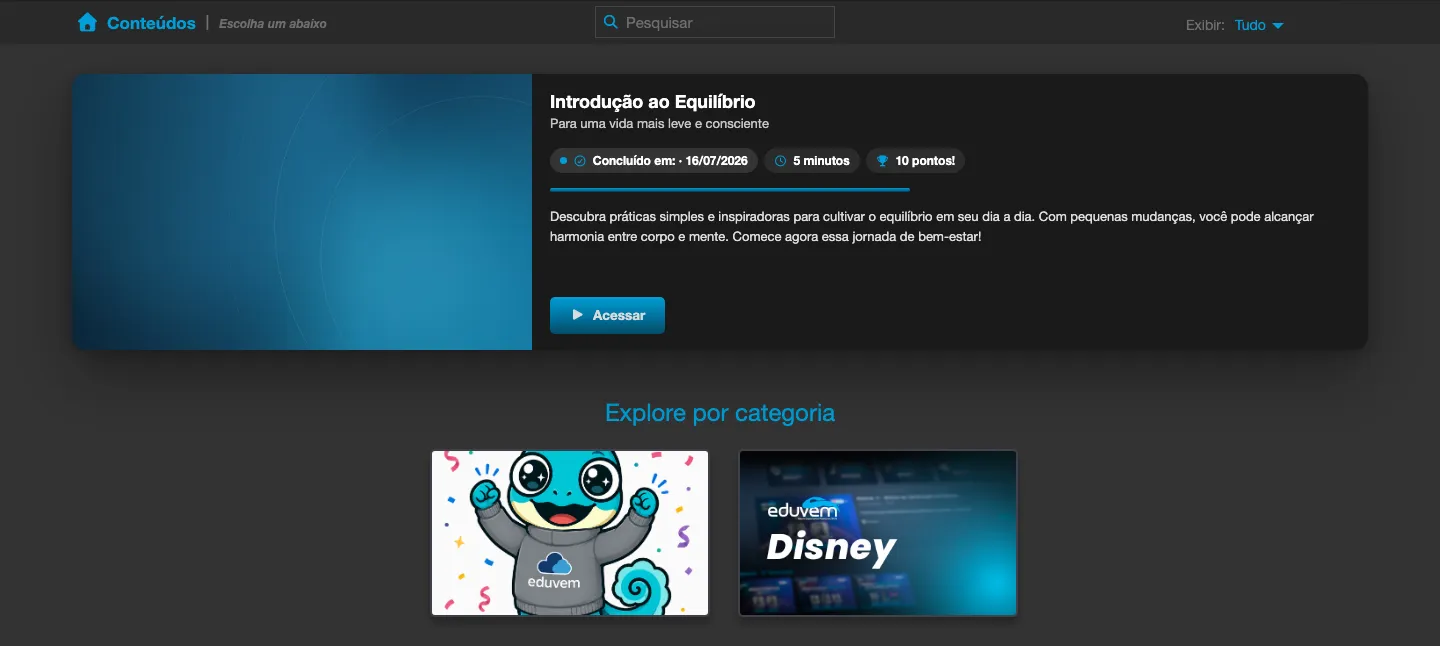
Opening content
Section titled “Opening content”- On the home screen, use the search box or the Show filter to find the content (for example, filtering by My contents).
- Click the content card to see more details, such as name, description, and your progress so far.
- Click the card’s access button to enter the classroom.
Navigating through the lectures
Section titled “Navigating through the lectures”Inside the class, the content is organized into lectures (also called lessons), which may include videos, texts, images, evaluations, and other formats, depending on how the content was created. Use the class navigation to move between lectures - your progress is saved automatically as you advance.
Organizing what you are watching
Section titled “Organizing what you are watching”On the home screen you can also:
- Add a piece of content to My List, to find it faster later.
- Pick up where you left off in content you have already started, directly from the card with the progress bar.
To understand how progress is calculated and where to track it, see Track my progress.