


Guide: searching across the whole institution
“Which content has that lecture about the data protection law?”, “where did we upload that code of conduct PDF?”, “what is that class called again?” - questions that normally cost a screen-by-screen sweep. The institution search answers all of them at once, from a single field.
Where it is
Section titled “Where it is”On the top bar, to the right of the full-screen icon, there is a magnifying glass icon. It opens the Search screen.
How to search
Section titled “How to search”- Click the magnifying glass to open the Search screen.
- Type the term in the search field. At least 3 characters are required.
- Press Enter or click Search.
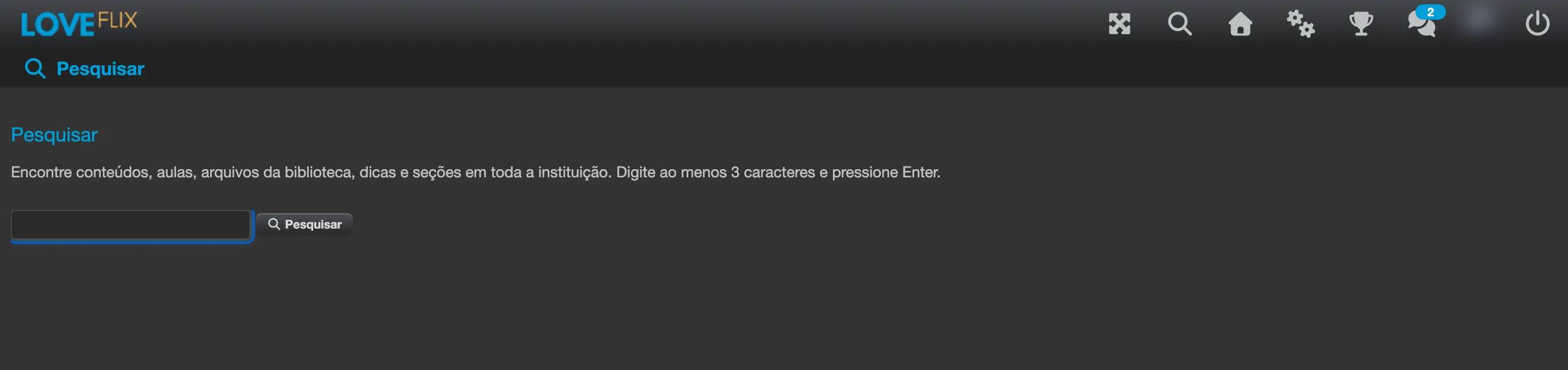
With fewer than 3 characters, the screen responds Type at least 3 characters and does not run the search. With no match at all, the response is No results found.
What the search covers
Section titled “What the search covers”A single search sweeps six item types, across the whole institution:
| Type | What is searched |
|---|---|
| Content | Title, code, and description of the content |
| Class | Name of the class |
| Lecture | Text of the lectures in modular contents |
| Library | Name of the file published in the library |
| Hint | Title and text of the hint |
| Section | Title and text of the section |
Hints, sections, and library files can belong to a Content or to a Class (see Content repository), and the search finds both cases.
Participants, enrollments, and certificates are not part of this search: each of those lists has its own search field, with the filters specific to the area (see Participant administration).
Reading the results
Section titled “Reading the results”The results appear in a table with three columns:
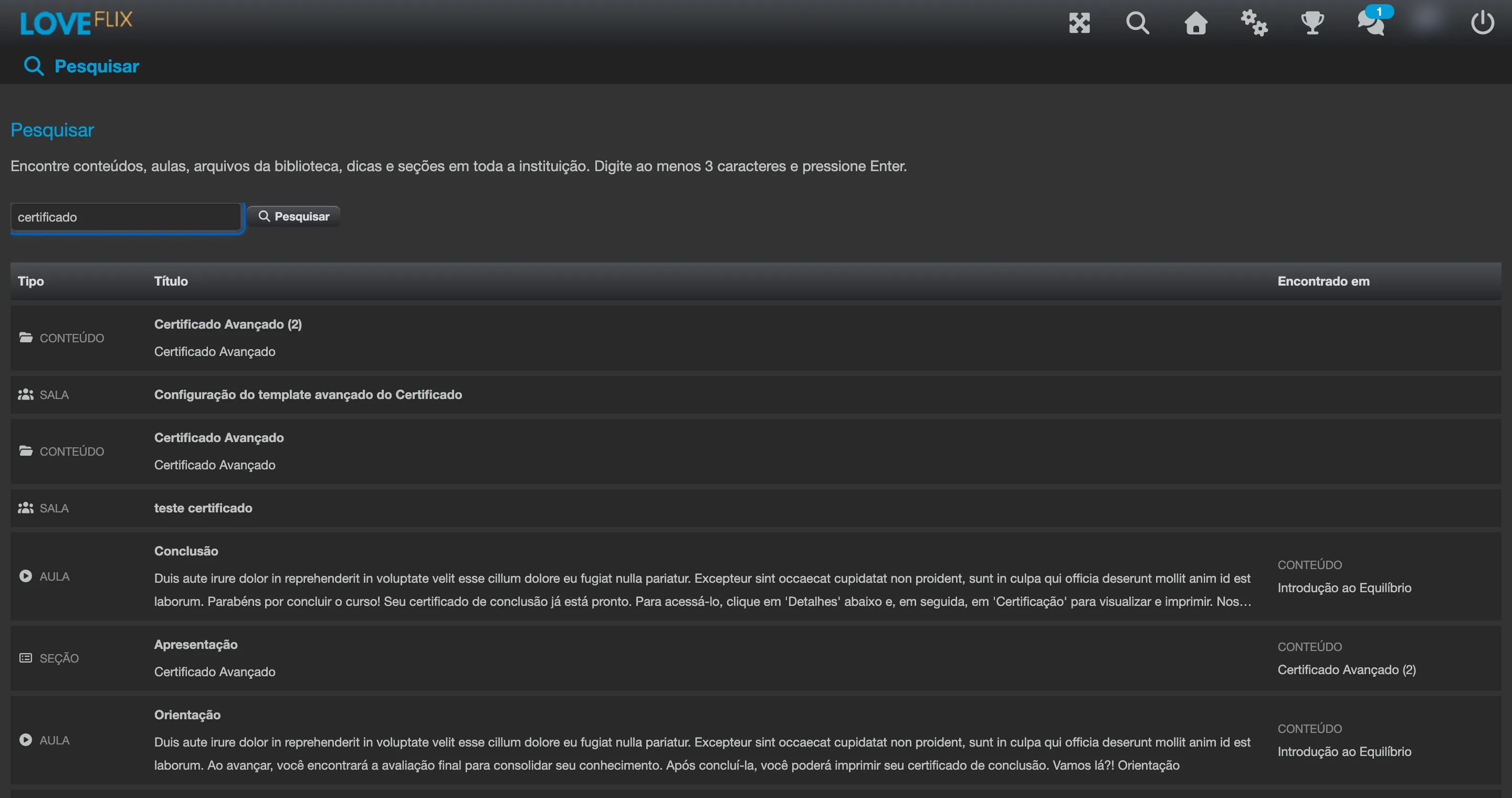
- Type - which of the six types above was found, with the corresponding icon.
- Title - the item’s name. When the term was found in the body of the text (a content’s description, the text of a lecture, a hint, or a section), an excerpt of the text appears right below the title, showing why that row was listed. Disabled contents show the Disabled marker.
- Found in - where the item lives: whether it is inside a Content or a Class, and the name of that item. Rows that are themselves the content or the class leave this column empty, because there is nothing above them.
Click any row to open the content or the class in which the item was found. Lectures and library files open the content that contains them: use the row’s title to locate the item once inside.
Result limit
Section titled “Result limit”The search shows at most 30 results, ordered by match quality (titles identical to the term first, then titles that contain the term, then codes and, last, the body of the text). When there are more than that, this message appears:
Showing the first 30 results - refine your search to narrow them down.
To refine: use more specific terms, a whole phrase instead of a single word, or the content’s code instead of its title.
What never appears
Section titled “What never appears”- Contents and classes from other institutions. The search is always restricted to your institution.
- Deleted items.
- Classes marked as Sandbox or as Invisible.