


Importing and exporting questions via spreadsheet
Building an evaluation question by question in the editor works well for a few questions. When there are dozens, it is faster to write everything in a spreadsheet (Excel, Google Sheets, LibreOffice) and upload the finished file.
The editor supports both paths:
- Import - uploads a file with several questions at once.
- Export - downloads the questions that already exist, to review, fix, or hand off for someone else to fill in.
This applies to both lecture types with multiple-choice questions: Learning Exercise and Final Exam.
Where to find it
Section titled “Where to find it”- In the admin menu, open Contents and choose the content you want to edit.
- Go to the Content tab to open the editor.
- In the tree on the left, click the Learning Exercise or Final Exam lecture.
- Next to the Questions title, in the top-right corner, are three buttons: import, export and add a question.

Start from the template
Section titled “Start from the template”There is no need to work out the format on your own. Click the import button and, in the window that opens, use Download a filled-in example: Eduvem generates a spreadsheet already with the column names and two example questions, in your language.
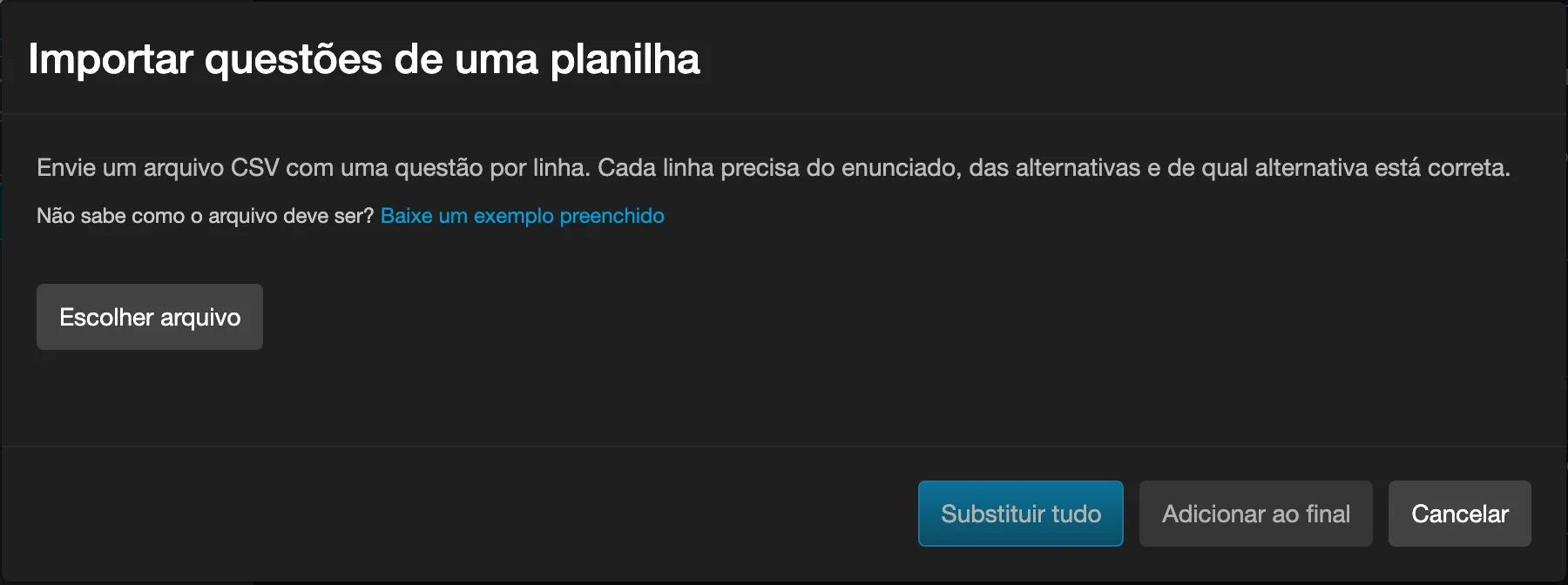
Open the template, delete the two example questions, write your own and save the file in CSV format.
The columns
Section titled “The columns”Only the first three are required. The rest are optional and, if left out, Eduvem uses its usual default; two of them (Multiple answers and Shuffle choices) only take effect on the Learning Exercise.
| Column | What it’s for |
|---|---|
| Question | The question’s prompt. |
| Choice 1, Choice 2, … | The answer options. Use as many columns as you need; if a question has fewer choices than the others, leave the extra cells blank. |
| Correct answer | Which choice is right (see below). |
| Multiple answers | Yes allows more than one choice to be marked. Left blank, Eduvem infers it from how many correct answers are given. |
| Shuffle choices | Yes randomizes the order of the choices on every access. |
| Show feedback | No hides the message shown after the participant answers. |
| Feedback correct | Message shown when the participant gets it right. |
| Feedback wrong | Message shown when the participant gets it wrong. |
| Reveal correct | Yes shows which choice was correct after the answer. |
The Final Exam ignores the Multiple answers and Shuffle choices columns: on it, multiple answers and shuffling apply to the whole exam and are still set in the editor, not in the spreadsheet (the same goes for the number of questions drawn and the minimum score). The feedback columns and Reveal correct are imported normally.
How to indicate the correct answer
Section titled “How to indicate the correct answer”Write whatever is most comfortable. All three forms work:
- The choice’s letter:
Afor the first,Bfor the second, and so on. - The choice’s number:
1,2,3. - The choice’s own text:
Paris.
For questions with more than one correct answer, separate with a vertical bar: A|C.
Uploading the file
Section titled “Uploading the file”- Click the import button.
- Click Choose file and select the spreadsheet.
- Check the summary before applying anything.
- Click Replace all or Add to the end.
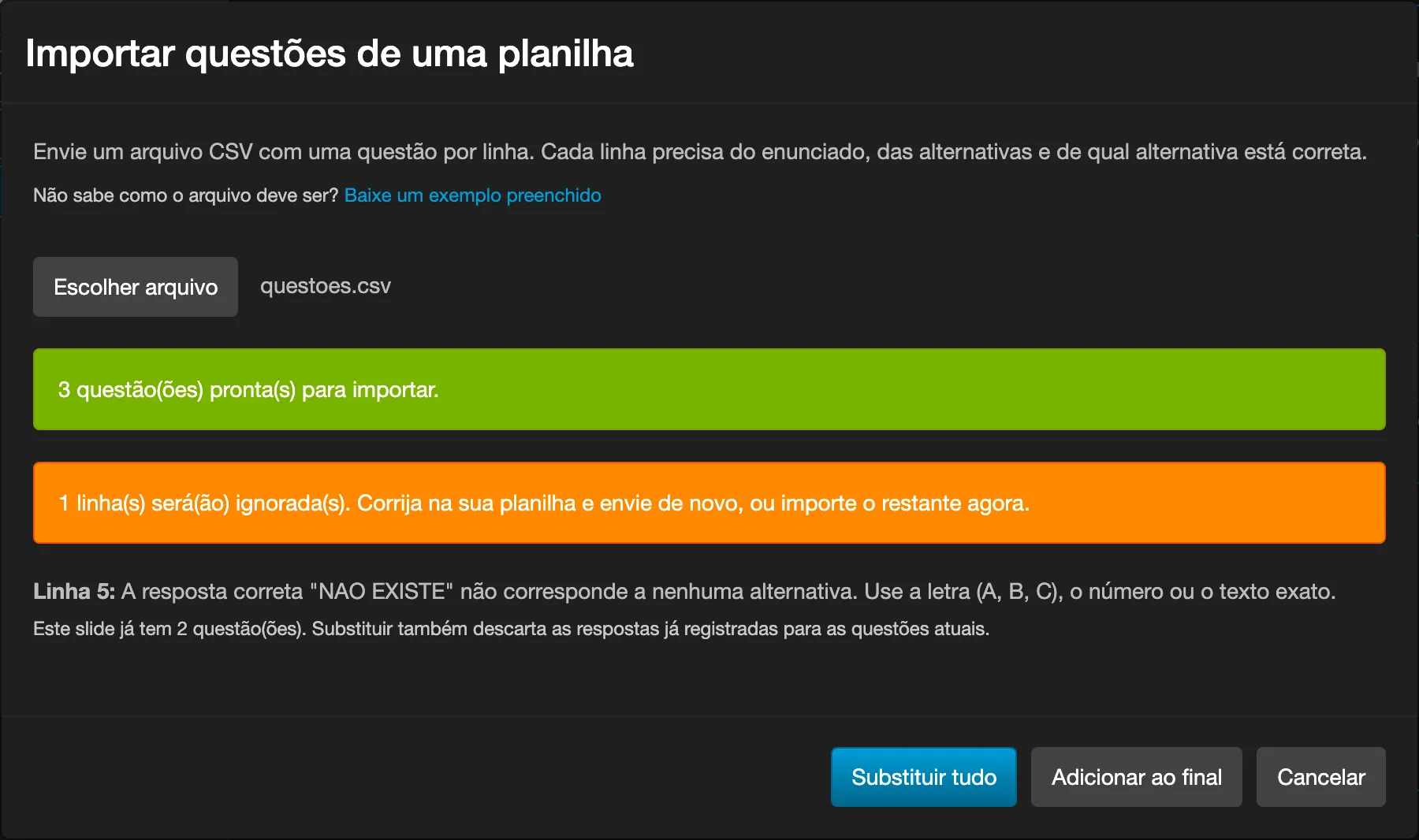
Nothing is changed until you click one of the two buttons. Until then, you can swap the file or simply cancel.
Replace or add
Section titled “Replace or add”- Replace all deletes the lecture’s current questions and puts the spreadsheet’s in their place.
- Add to the end keeps what already exists and adds the new questions after it.
Rows with a problem
Section titled “Rows with a problem”If a row cannot be used, Eduvem does not cancel the whole import: it imports the good rows, skips the rest, and shows each one with the row number exactly as it appears in your spreadsheet.
The most common reasons:
| Message | What to fix |
|---|---|
| The correct answer “…” does not match any choice | Check whether the letter, number or text matches one of the choices on the same row. |
| The correct answer “…” matches more than one choice | There are repeated choices on the row; make each one different, or indicate the answer by letter. |
| A question needs at least two choices | Fill in at least two choice columns. |
| The prompt is empty | The Question column is blank. |
| The first row needs to name the columns | The file was saved without the header. Download the template and reuse its first row. |
There is also a case that does not generate an error message: if the header’s accents come out
garbled (for example M√łltipla escolha instead of Múltipla escolha), Eduvem stops recognizing
that column and simply ignores whatever is in it - a Yes in Multiple choice, for example,
has no effect at all, and the import finishes with no reported problem. This happens with files
downloaded before the August 2026 fix, when Mac Excel opened the template with the wrong encoding.
Download the template again and rebuild the spreadsheet from it - fixing the accents by hand
in the old file also works, but it is easy to miss a column.
Fix it in the spreadsheet and upload it again, or apply the good rows now and complete the rest later.
Exporting the current questions
Section titled “Exporting the current questions”The export button downloads the selected lecture’s questions into a spreadsheet. It is useful to:
- review the whole evaluation at once, instead of opening it question by question;
- bulk-fix and bring the file back through import;
- hand off to someone else to write or review the questions, without giving them access to the editor.
The file opens directly in Excel, Google Sheets and LibreOffice.
After importing
Section titled “After importing”The questions enter the content’s draft, like any other edit made in the editor. Check the imported questions and publish the content so participants start seeing them.