


Scheduled reminders
There is a difference between the participant who gave up and the participant who forgot. Most enrollments that expire without completion belong to the second category: someone started, life got in the way, and nobody warned them the deadline was running out.
Scheduled reminders are the platform’s answer to that. Every night (the routine runs at 06:00 server time, around 03:00 in Brasília), Eduvem goes through your institution’s enrollments and sends an email whenever a condition applies - the deadline is near, the content was never opened, there is a pending document. No administrator needs to trigger anything.
The feature comes turned off in every institution, and two separate actions are needed before an email actually reaches anyone. That is on purpose: it is a communication that goes out in your institution’s name, without prior review, to real people.
Where to configure it
Section titled “Where to configure it”Under Institution, open the Reminders tab.
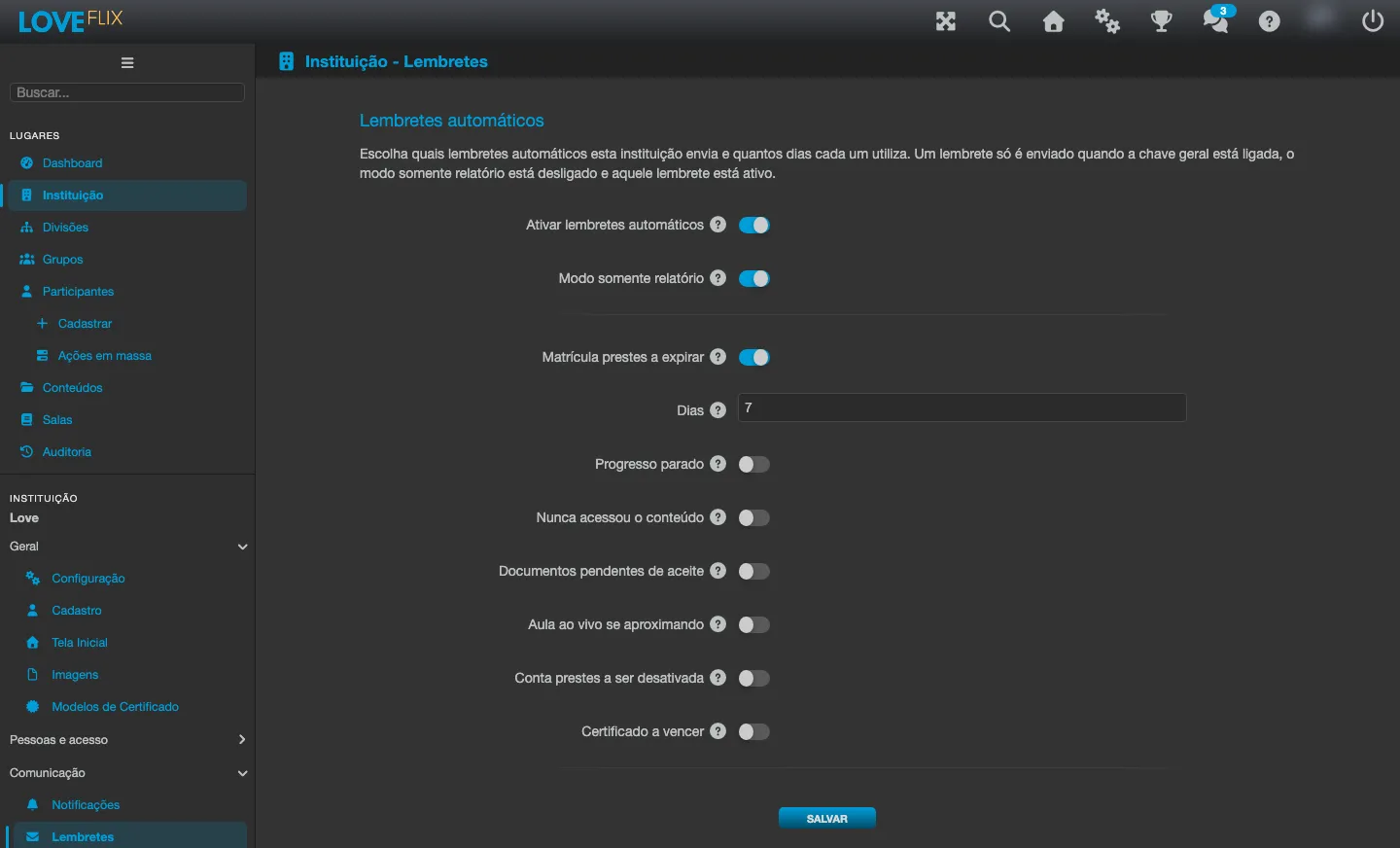
With the main switch off the tab shows only that switch: the other options appear as soon as you turn on Enable scheduled reminders, and each reminder’s Days field appears when that reminder is turned on.
The tab is available both to platform administrators and to institution administrators - you do not need to open a ticket with Eduvem to turn a reminder on or off or adjust it.
The two main switches
Section titled “The two main switches”At the top of the tab there are two switches that apply to every reminder at once.
| Switch | Default | What it does |
|---|---|---|
| Enable scheduled reminders | Off | The main switch. While it is off, no reminder is sent in this institution, no matter what is checked below. |
| Report-only mode | On | The safety brake. While it is on, the platform records what it would send and sends nothing. |
The recommended path for turning the feature on for the first time is to use the two at different moments: turn on the main switch while keeping report-only mode on, let it run for a few days, and only then release the brake. That way you find out the real email volume before anything goes out.
The seven reminders
Section titled “The seven reminders”Each reminder has its own switch and its own number of days. The number means different things depending on the reminder: in some it is a lead time (days before something happens), in others it is a wait (days without something happening). The help text beside each field explains which case applies.
| Reminder | Default | Days (default) | Accepted range | When it fires |
|---|---|---|---|---|
| Enrollment about to expire | On | 7 | 1 to 90 | This many days before the enrollment’s end date. Sent only once. |
| Progress has stalled | Off | 14 | 1 to 29 | When a participant who had been advancing goes this many days without progressing. |
| Never opened the content | Off | 7 | 1 to 29 | When the participant has not opened the content even once this many days after enrolling. |
| Documents awaiting acceptance | Off | 5 | 1 to 29 | When the participant has been enrolled for this many days and still has unaccepted documents blocking access. |
| Live class starting soon | Off | 1 | 1 to 14 | This many days before each scheduled live class. |
| Account about to be deactivated | Off | 7 | 1 to 90 | This many days before the account is deactivated for inactivity. |
| Certificate expiring | Off | 30 | 1 to 90 | This many days before the certificate of a completed content expires. Only works with certificate validity enabled for the institution. |
Only “Enrollment about to expire” comes turned on, and it is the only one that already existed before this configuration. The other six are new and start turned off on purpose: each one sends email for a new reason, to an audience that currently receives nothing, and that is the institution’s decision.
Details that change the volume
Section titled “Details that change the volume”- The three waiting reminders (progress has stalled, never opened, documents awaiting acceptance) repeat at most once a week while the situation persists. It is not one email per day.
- “Account about to be deactivated” also repeats at most once a week while the person remains eligible.
- “Live class starting soon” is sent once per session. In a recurring series, the participant is warned about each occurrence.
- “Account about to be deactivated” requires automatic deactivation to be configured in this institution. Without it there is no deactivation date to anticipate, and the reminder has nothing to send.
Choosing the number of days
Section titled “Choosing the number of days”Each reminder accepts its own range, shown in the table above. If you type a number outside the range, or something that is not a whole number, the screen refuses to save with the message “Enter a whole number of days within the range shown for each reminder.” and nothing is recorded until it is corrected.
It is worth thinking about the number based on the deadlines of your content. Seven days of lead time on a two-week content is a useful warning; on a six-month content, it is probably too late to change the outcome.
Who receives them
Section titled “Who receives them”Reminders follow the same consent rules as the platform’s other emails. Participants who opted out of receiving emails, accounts already deactivated and those who already completed the content are left out automatically - there is no exception list to maintain.
The platform also never sends the same reminder twice for the same situation, even if the routine runs again.
See also
Section titled “See also”- Notifications to participants - the notices you write and send yourself.
- Automatic deactivation of participants - the rule that the account-about-to-be-deactivated reminder anticipates.
- Certificate validity and recertification - the feature the certificate-expiring reminder requires.