


Choosing the class of a content
When your institution offers the same content in several classes, with different dates, units or formats, the Contents home screen shows a single card for the content and you choose the class inside it. This page explains how.
The card with several classes
Section titled “The card with several classes”When two or more classes of the same content are open for requests in a home category, they appear together on one card, with the label N classrooms (for example, 3 classrooms) and the Choose a classroom button. If only one class is open, the card is the usual one, with Request enrollment.
If you already have a request in one of the classes, the card shows its status: Awaiting approval or On the waiting list.
A class leaves the list when its request deadline passes or when it has no dated sessions yet.
Choosing the class
Section titled “Choosing the class”Click Choose a classroom. The Classrooms window lists each class by date, with the “X of Y” count of those shown with the current filters.
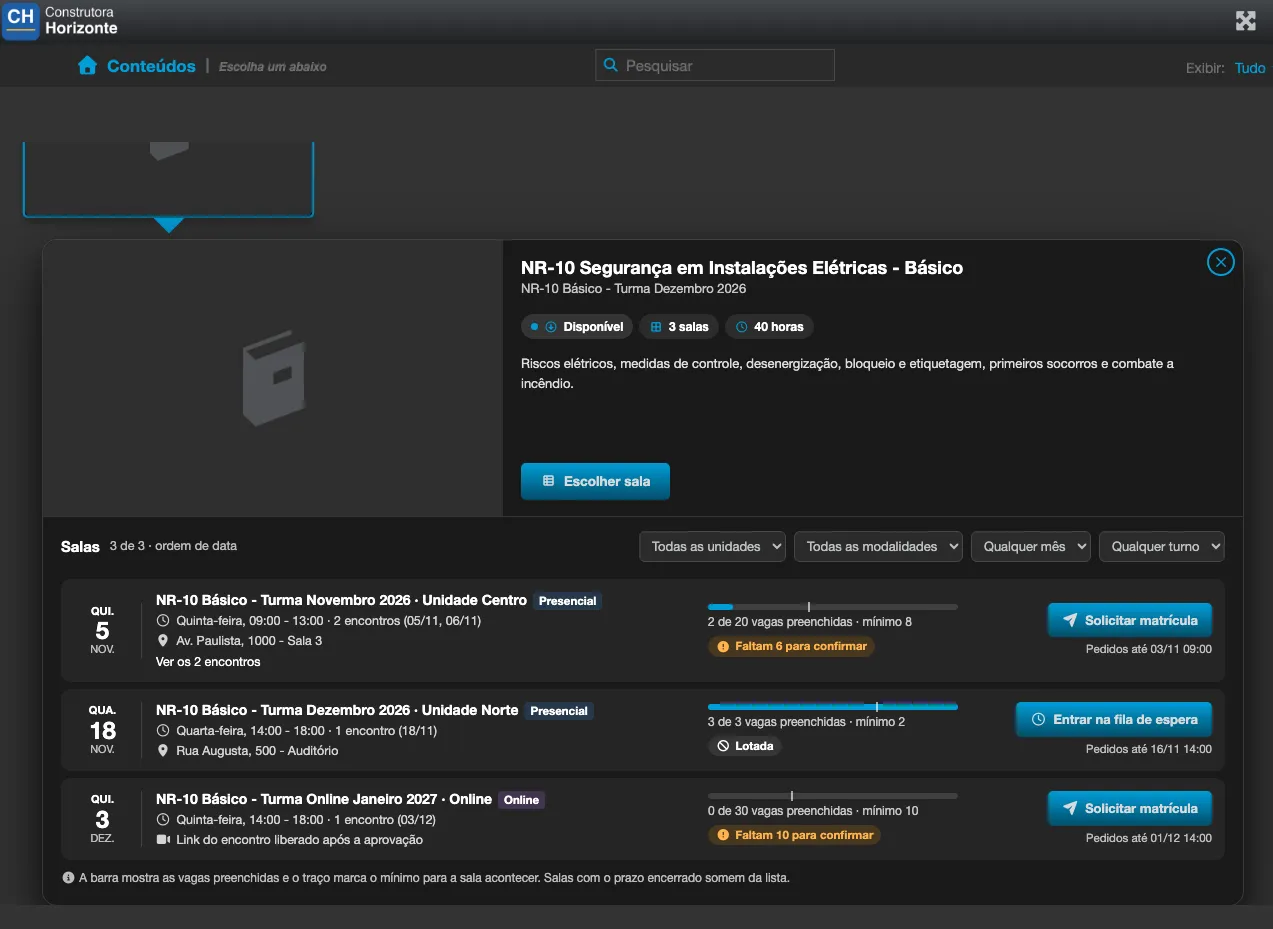
Each class shows:
- the unit and the format (In person, Online or Hybrid, based on the class sessions);
- the sessions: the number of sessions and, under See all N sessions, the date and time of each (“Session 1: …”), always in the institution’s time zone;
- the place of each in-person session;
- the seats: the bar and the text “X of Y seats filled · minimum Z”. The tick on the bar marks the minimum for the class to run. The status shows as Full, Confirmed (the minimum was reached) or N more needed to confirm;
- the deadline: Requests until the closing date and time.
For online sessions, the text Session link released after approval tells you the link only arrives after you are approved.
To narrow the list, use the Unit, Month, Shift (Morning, Afternoon or Evening, based on the time of the first session) and Format filters. If no class matches the filters, the window shows No classroom matches these filters.; if no class is open, it shows No classroom with open enrollment right now.
What you can do in each class
Section titled “What you can do in each class”| Button | When it appears | What happens |
|---|---|---|
| Request enrollment | You have no request for this content and the class has a seat. | Sends the request (“Enrollment request sent.”). |
| Join the waiting list | The class is Full. | The request joins the waiting list. |
| Switch to this classroom | You already have a request in another class of the same content. | Moves the request to this class (“Request moved to the new classroom.”). The earlier request is closed with the reason You switched to another class. |
| Cancel request | This is your current request. | Cancels the request (“Request cancelled.”). |
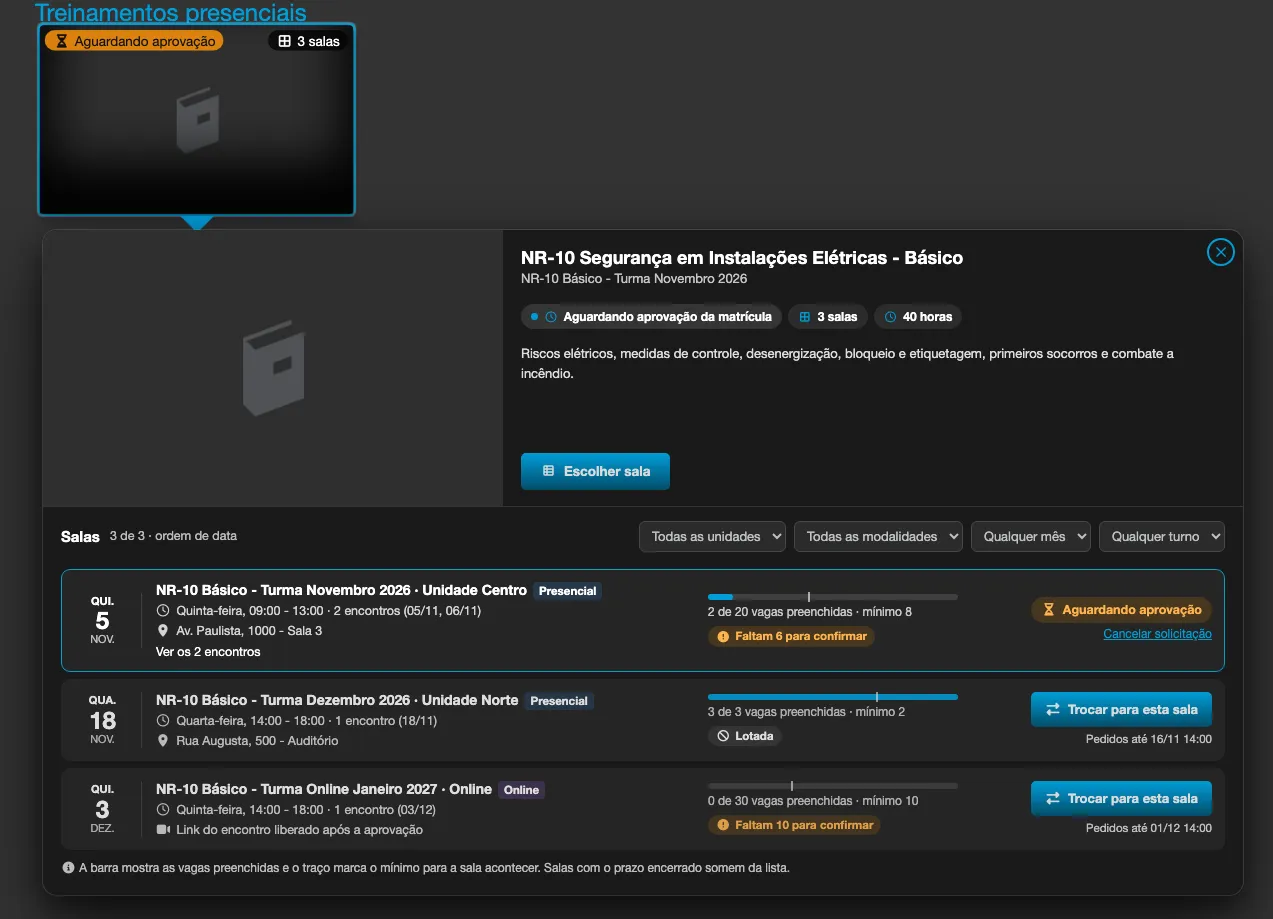
After you switch classes or withdraw, the class stays in the same card and can be chosen again, as long as it is still open for requests.
You can have one open request per content: a pending request, a waiting-list position or a seat, counting all the classes of the content. If you try to request another class without switching, Eduvem warns you: “You already have an open request or enrollment in another class of this course. Withdraw it first or use “Switch to this class”.” If an administrator enrolls you in another class, your open request in the others is closed with the reason You were enrolled in another class.
After the request, the progress is the same as for any class with manager approval: approval, waiting list, seat and e-mails. See Requesting enrollment in a class that needs manager approval.