


Modular content
Modular content is Eduvem’s own authoring format: a course organized into sequential modules, assembled in the visual editor with text, video, audio, image and question lectures.
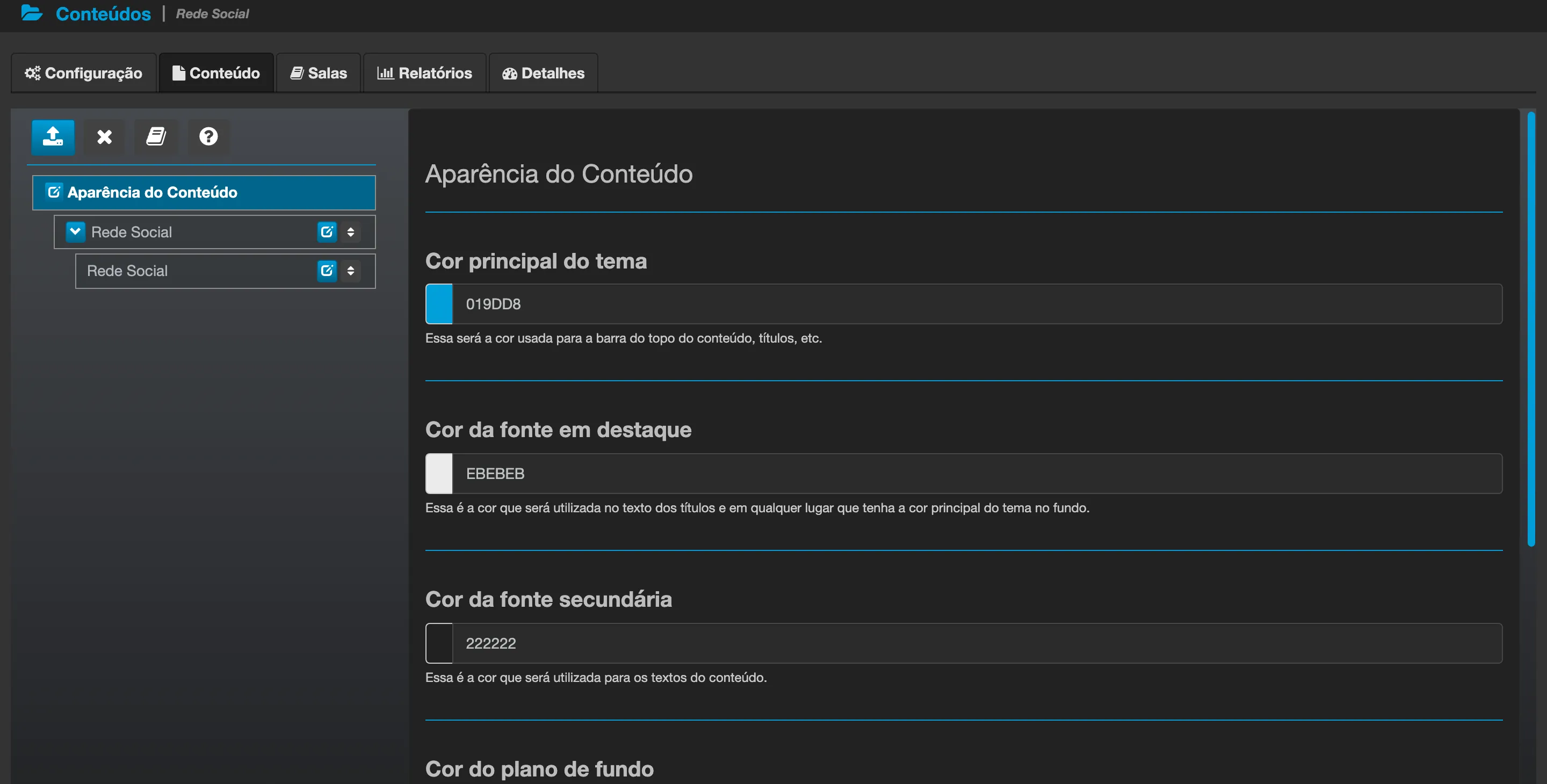
The editor is on the content’s Content tab. On the left is the structure - Content Appearance at the top and, below it, the modules and each one’s lectures; on the right, the panel for the item selected in the structure (in the example, the theme colors).
Draft and publishing
Section titled “Draft and publishing”The editor works with a draft-and-publish cycle:
- Every edit stays in draft, invisible to participants.
- When you publish, the content takes effect for whoever is taking it - and every publication generates a new version, replacing the previous one while preserving the history.
Test class (preview)
Section titled “Test class (preview)”The editor has a Preview tab: it opens the content in a preview, with a fictional participant, exactly as anyone taking it would see it - without generating a real enrollment or real progress. There is no separate class for this, and since nothing real is recorded, there is nothing to reset.
Sequential progress
Section titled “Sequential progress”The institution can turn on sequential progress: the participant must follow the content’s lecture sequence instead of opening any lecture in the class.
Requiring an answer before moving on
Section titled “Requiring an answer before moving on”Besides the lock between modules, two question lecture types can lock the NEXT button within the module itself until the participant answers. In both, the option sits on the lecture’s panel, with the same text: Require participants to answer before advancing.
The option’s initial state differs by type, and the difference is deliberate:
| Lecture type | Comes | Effect of changing it |
|---|---|---|
| Learning Exercise | Checked | Uncheck it to make the exercise optional, allowing the participant to move on without answering. |
| Open Questions | Unchecked | Check it to start requiring an answer before moving on. |
- The Learning Exercise already required an answer before the option existed. It comes checked precisely so nothing changes in content already published: checked, the behavior is the same as always. Uncheck it only when you want to offer the exercise as optional practice.
- On Open Questions, the requirement applies to the whole lecture: the NEXT button only unlocks once every question in the lecture has an answer.
- The lock also applies on the way back. If the participant returns to a lecture that requires an answer and still has not answered, they cannot advance from it.
- The lock is navigation only. It does not grade or score the answer: to evaluate, use the Final exam.
Final exam
Section titled “Final exam”- The minimum passing score is set on the module’s exam question itself - once published, it takes effect automatically, with no duplicate configuration on the class.
- The questions are multiple choice, with a time limit per attempt for the exam (set in the editor; left blank means no limit).
- Across multiple attempts, the participant’s best score counts, not the last one.
- The administrator can review, per participant, every attempt: the questions drawn, the answer marked and whether it was correct - essential for disputed cases.
- It is also possible to reset only the final exam (clears attempts, score and certification date, keeping the rest of the progress) or reset the whole enrollment (clears everything, including ranking points, and restarts the enrollment date).
Images in the editor
Section titled “Images in the editor”- Images have a ceiling of 12 MB each.
- The image picker shows the 40 most recent - to reuse an older image, upload the file again.
- In a question’s prompt (learning exercise or exam), the image icon on the text toolbar opens the computer’s file picker and uploads the image straight into the prompt - same 12 MB ceiling, PNG, JPEG, GIF and WEBP formats. The inserted image also accepts drag-and-drop or paste (Ctrl+V) straight into the text field.