


Visual identity and theme
Your Eduvem’s visual identity is configured under Institution, mainly on the Configuration (theme) and Images (brand files) tabs.
Color theme
Section titled “Color theme”On the Configuration tab, choose the platform’s visual theme from the available themes, with light and dark variations. The theme applies to the whole institution - participants do not choose themes individually.
Logo and icons
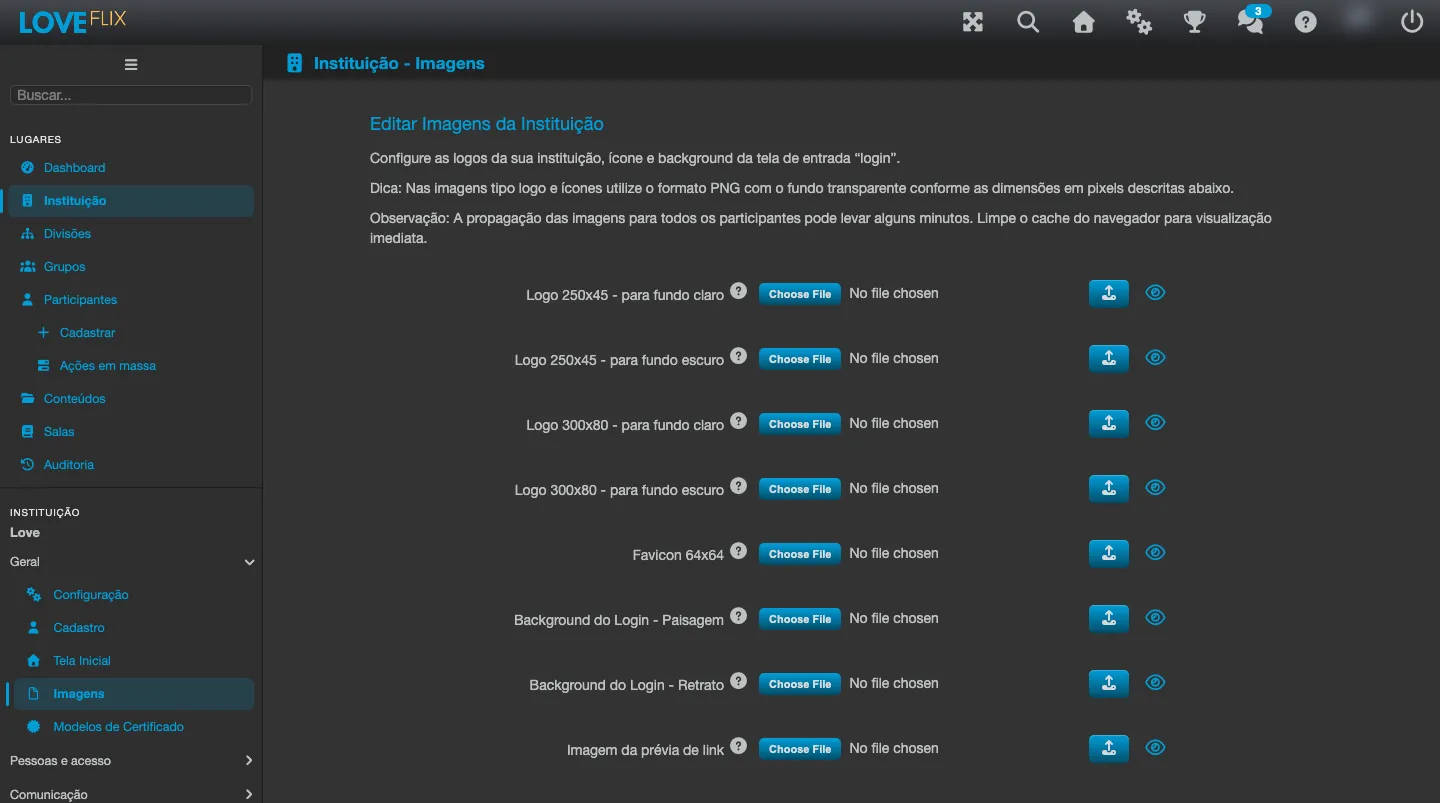
Section titled “Logo and icons”On the Images tab, upload your brand files. They are exclusive to your institution and appear on the login screen, at the top of the platform and in the app. Each piece has a specific size and use:
- Logo 250x45: used in the platform’s internal top bar - one version for dark background and another for light background.
- Logo 300x80: used on the login screen and in the emails and alerts sent by the platform - also in versions for dark background and for light background.
- Favicon 64x64: icon shown on the browser tab and in the top bar in mobile mode.
- App icons: 512x512 (large) and 192x192 (small), used when access through the app is enabled.
Prepare the files with a transparent background, readable at small sizes. The 4 logo fields (250x45 and 300x80, light and dark) accept PNG, SVG, JPG and GIF: anything that is not PNG is automatically converted to PNG at the correct size. Prefer PNG or SVG when a transparent background matters, because JPG has no transparency and the transparent areas of a GIF turn white in the conversion. The favicon is uploaded as an ICO file and the app icons as PNG.
Featured popup
Section titled “Featured popup”The home page supports an announcement popup (promotions, important notices), with separate images for portrait (490x380px, mobile) and landscape (1200x460px, desktop). Title, text, link and a display period (start and end dates) are optional, as is a checkbox for the participant to opt out of seeing that popup again. By default, the popup is shown 2 times to each participant even after being closed - that number is configurable. When a new landscape image is uploaded, the platform resets that count: whoever had already dismissed the previous popup sees it again for the configured number of times.
Interface languages
Section titled “Interface languages”Still on the Configuration tab, the Allowed languages field defines which interface languages are available to participants - among Português, English, Español and Français; the first language in the list is the base language of multilingual content. The Time zone used in dates and deadlines is on the same tab.