


External Distribution
External Distribution lets a buyer run your content inside their own LMS, without the participants ever signing in to your platform. You generate a SCORM dispatch package, hand that package to the buyer, and every launch made from their LMS opens the content hosted here.
Before you start
Section titled “Before you start”External Distribution is a platform-level commercial toggle, not something an institution turns on by itself. Until it is enabled for your institution, the “External Distribution” tab simply does not appear when you open a piece of content - there is no “not enabled” message to read there. Contact Eduvem support to request it.
Where it lives
Section titled “Where it lives”Under Contents, open the content and go to the External Distribution tab. It sits between Classes and Reports.
The tab only exists for wizard-type content. A SCORM or Coursebox content shows no such tab, even when external distribution is enabled for the institution.
Each deployment belongs to one content and points at one of its Classes.
Creating a deployment
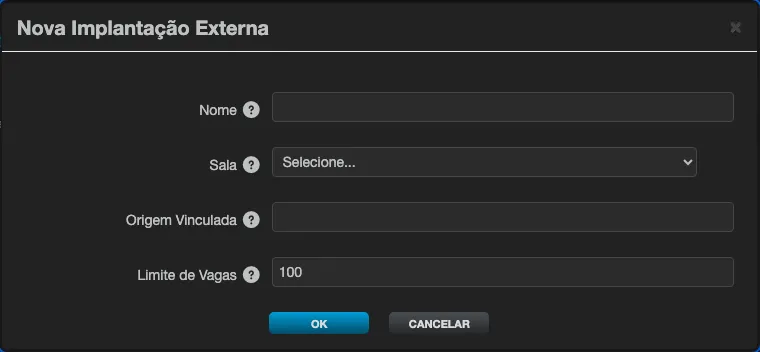
Section titled “Creating a deployment”Click + New Deployment. The form has four fields, in this order:
| Field | What to enter |
|---|---|
| Name | An internal name to tell this deployment apart from the others. The buyer never sees it. |
| Class | The Class this deployment enrolls participants into. Every launch creates a person and an enrollment in this Class. |
| Bound Origin | The address of the buyer’s own LMS (for example https://buyer-lms.example.com). |
| Seat Cap | The maximum number of distinct participants this deployment will ever enroll. |
About the Seat Cap: the field already comes filled in with a real number, so no deployment goes without a limit by oversight. 0 means no limit, still contained by the platform’s own safety limit. For a single-buyer deployment, keeping a real number is recommended.
About the Bound Origin: when the buyer’s browser sends the origin header, a launch coming from any other address is refused. This is a browser-level check: it does not stop a caller that already holds the launch key. Treat the key as the secret that actually protects the deployment.
The launch key is shown only once
Section titled “The launch key is shown only once”As soon as the deployment is created, the Deployment created dialog displays the Launch Key.
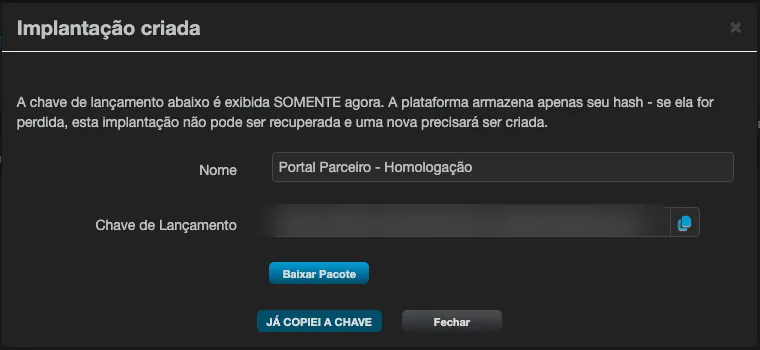
Copy the key, click Download Package, and confirm with I HAVE COPIED THE KEY. If you try to close the dialog without copying it, the platform asks for an extra confirmation.
If the package is not ready at that instant, refresh the list a few seconds later and download it from there.
Tracking your deployments
Section titled “Tracking your deployments”The list shows one row per deployment, with the columns Name, Class, Bound Origin, Seat Cap, Expiry, Status and Actions.

- Seat Cap shows the limit the platform will actually enforce, not the raw value you typed. That is why an uncapped deployment never appears as
0. - Expiry shows Never for deployments created here. An expiry date does exist and is enforced at launch time, but it is not a field on the form: if your contract needs a date, talk to Eduvem.
- Status shows Active or Revoked.
Under Actions, the download button hands over the SCORM dispatch package again. A revoked deployment has no package: it is deleted on revocation and cannot be recovered.
Revoking a deployment
Section titled “Revoking a deployment”Revoking is how you end a buyer’s access, for instance when the contract ends. Revocation:
- immediately ends any live session launched through that deployment;
- makes the launch key stop working right away;
- deletes the downloadable package.
A revoked deployment stays visible in the list with the Revoked status, so you keep the record of what was distributed.
The participants who arrive through a deployment
Section titled “The participants who arrive through a deployment”Every launch made in the buyer’s LMS creates a person and their enrollment in the chosen Class. These participants carry the External badge.
On the participants screen, use the Show external learners filter to include them in the listing or leave them out. They do not reach your platform through a login of their own: the session is always opened from the buyer’s LMS.