


Allowed email domains
You can restrict which email domains can receive messages sent by your Eduvem - enrollment notifications, password resets, certificates and other automatic emails. The list is maintained by the institution administrator themselves, on the E-mail tab.
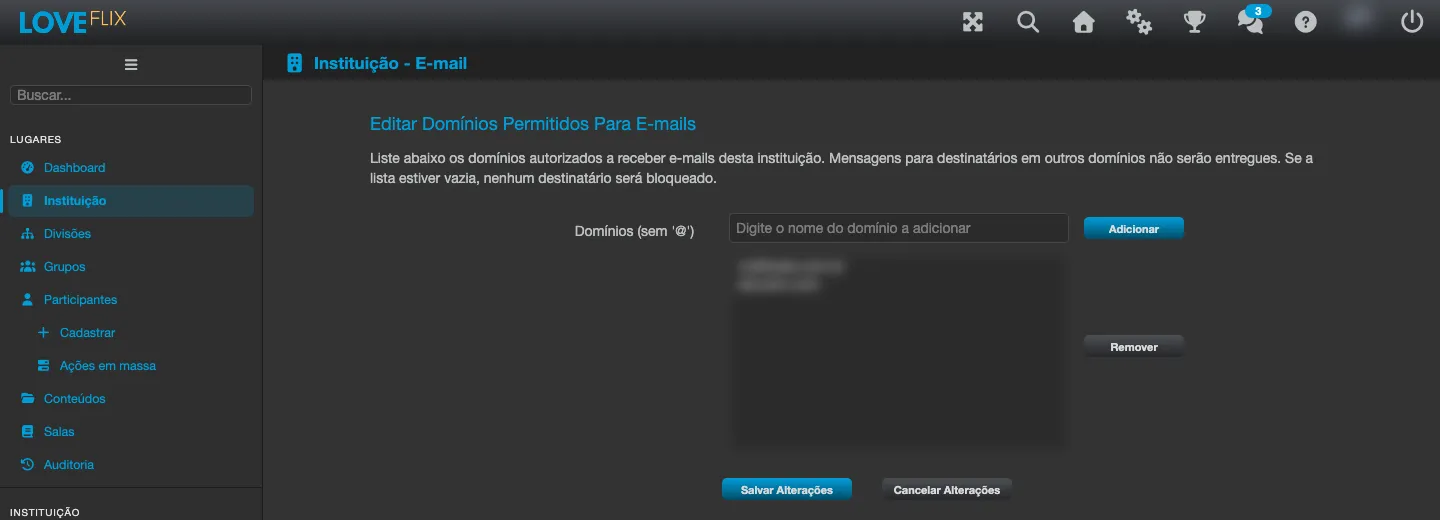
This restriction is about the destination of the emails sent by the platform - it does not prevent a person with an email from another domain from registering or accessing the platform.
How to enable it
Section titled “How to enable it”- On the Configuration tab, check the Configure e-mail domains option.
- Save the changes. The E-mail tab now appears on the institution’s edit screen.
- On the E-mail tab, register the domains allowed to receive messages (without the
@, in the formatexample.com).
How it works
Section titled “How it works”- With the restriction on, messages to recipients outside the listed domains are not delivered - the platform simply does not send them, with no visible error for the participant.
- The comparison ignores upper and lower case:
Company.comandcompany.comare the same domain. - Typed domains are normalized automatically: extra spaces are removed, a leading
@is discarded and the text is lowercased. Entries that do not look like a valid domain are rejected on the spot.
Every change to the domain list is recorded in the institution’s audit history - you can always answer “who allowed this domain and when”.
Best practices
Section titled “Best practices”- Register every domain that should keep receiving emails from the platform (headquarters, subsidiaries, providers used by the participants) before enabling the restriction - a forgotten domain makes certificates and notifications simply not arrive, with no warning.
- Use this restriction when you want to make sure automatic notifications (enrollment, password, certificate) only go out to your organization’s corporate domains - for example, to avoid sending to personal email accounts registered by mistake.