


Rubrics
A rubric is a grid of criteria and levels used to grade a lecture. Each level is worth a number of points. The person grading chooses one level per criterion and Eduvem calculates the score - nobody types the final score. It can be used in two lecture types: Open Questions and Assignment.
How the score is calculated
Section titled “How the score is calculated”The rubric score is the sum of the points of the chosen levels, divided by the sum of the maximum points of each criterion, times 100. That result (0 to 100) is converted to the lecture’s maximum score.
Example: an Open Questions lecture with a maximum score of 10 has three criteria, each worth at most 4 points. The tutor chooses a 3-point level, a 2-point level and a 4-point level. That is 9 points out of 12: 75 out of 100, or 7.5 out of 10.
- The lowest level can be worth more than 0 points. The calculation is a plain sum, with no deduction for the lowest level.
- The points of each criterion must grow (or stay equal) from the lowest level to the highest.
- Every criterion counts by its points: a more important criterion should have levels worth more points.
Building the rubric
Section titled “Building the rubric”Anyone who can edit the content can build the rubric: institution administrators, publishers and division administrators (on the content they can edit).
- In the modular content editor, open the Open Questions or Assignment lecture.
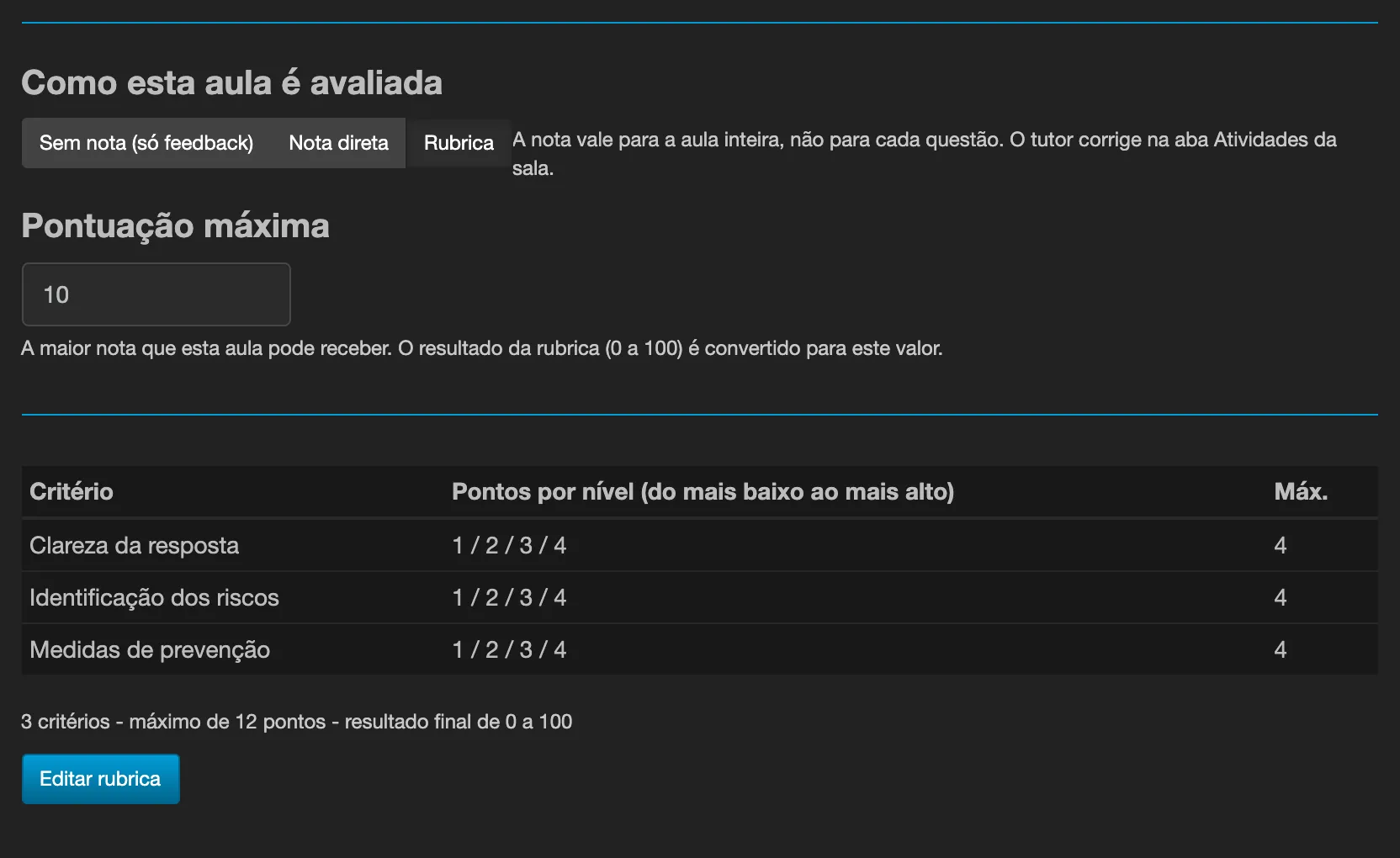
- Under How this lecture is scored, choose Rubric. For Open Questions the options are No score (feedback only), Direct score and Rubric; for Assignment they are Direct score and Rubric.
- Set the Maximum score (in an Assignment it is the existing Maximum score field): the highest score the lecture can receive. The maximum score accepts values from
0.01to999; if left empty it goes back to the default10. - Click Create rubric. The Rubric window opens.
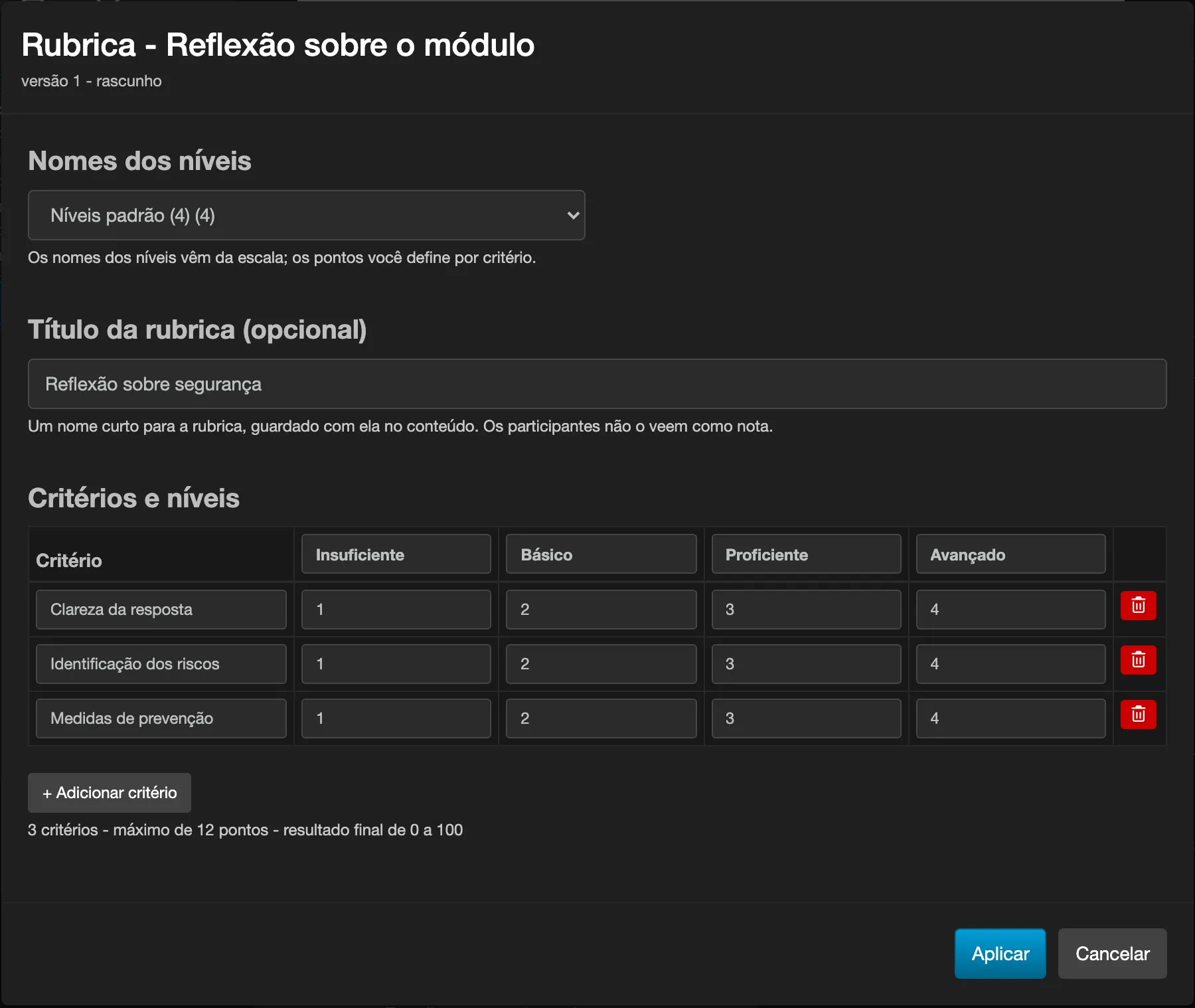
- Under Level names, choose where the level names come from: Standard levels (4) (Insufficient, Basic, Proficient, Advanced) or one of the institution’s grading scales. The names are copied: changing the scale later does not change the rubric. Changing the scale once the rubric is built asks for confirmation, renames the levels of every criterion and keeps the points.
- Optionally, fill in the Rubric title. It is a short name kept with the rubric, and learners do not see it as a grade.
- In the Criteria and levels grid, write the criterion name on each row and the points of each level. The level names sit in the first row of the grid and apply to all criteria. Use Add criterion to create another row and the trash icon to remove one.
- Check the summary under the grid (number of criteria and maximum points) and click Apply.
- Publish the content.
Limits: 1 to 20 criteria, 2 to 10 levels, 0 to 1000 points per level, and every criterion needs at least one level worth more than 0 points. If something is outside these limits, the window shows why and the content does not publish; a rubric without a maximum score also blocks publishing.
If the institution has a minimum passing grade, the editor warns (without blocking) when the points make it impossible to fail or impossible to pass. Review the points if the warning is not intended.
To go back from Rubric to Direct score (or No score), click the mode you want and confirm: the criteria and points you entered are lost.
Changing a rubric that has already graded answers
Section titled “Changing a rubric that has already graded answers”Once the rubric has graded at least one answer, editing it and publishing creates a new version (the window and the grading panel show version 2, version 3…). Each graded answer keeps the rubric as it was when it was graded, so grades already given stay explainable and do not change by themselves.
Grading with the rubric
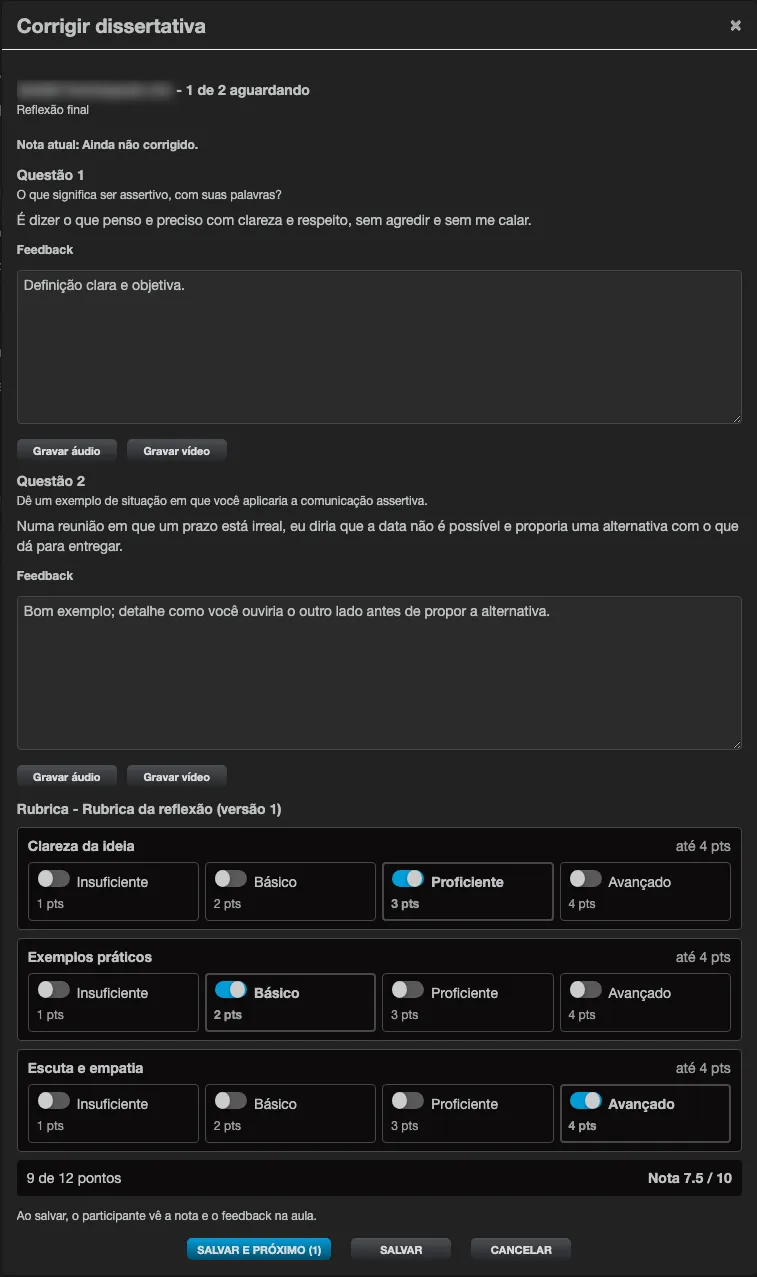
Section titled “Grading with the rubric”Grading happens in the class’s Activities tab, in the same window as other gradings. Instead of the score field, the window shows the Rubric panel:
- each criterion is a row with its levels side by side; each level shows its name and points (for example,
4 pts), and the criterion showsup to 4 pts; - click a level to choose it (the whole cell is clickable);
- the panel shows the total (
9 of 12 points) and the Score already converted (Score 7.5 / 10).
You can only save with one level on every criterion; if any is missing, the pending criteria are marked and the window shows Choose a level for every criterion. A lecture with a rubric has no typed-score field: Eduvem refuses a score typed by hand.
Who can grade, and how to grade again, is the same as for other gradings: see Who can grade. Reopening an answer that was already graded shows the levels chosen before.
If the lecture’s rubric cannot be read (for example, the content was republished with an invalid rubric), the window warns This rubric could not be read, so it cannot be graded here. Reload the page and try again. and the save button stays blocked.
What the participant sees
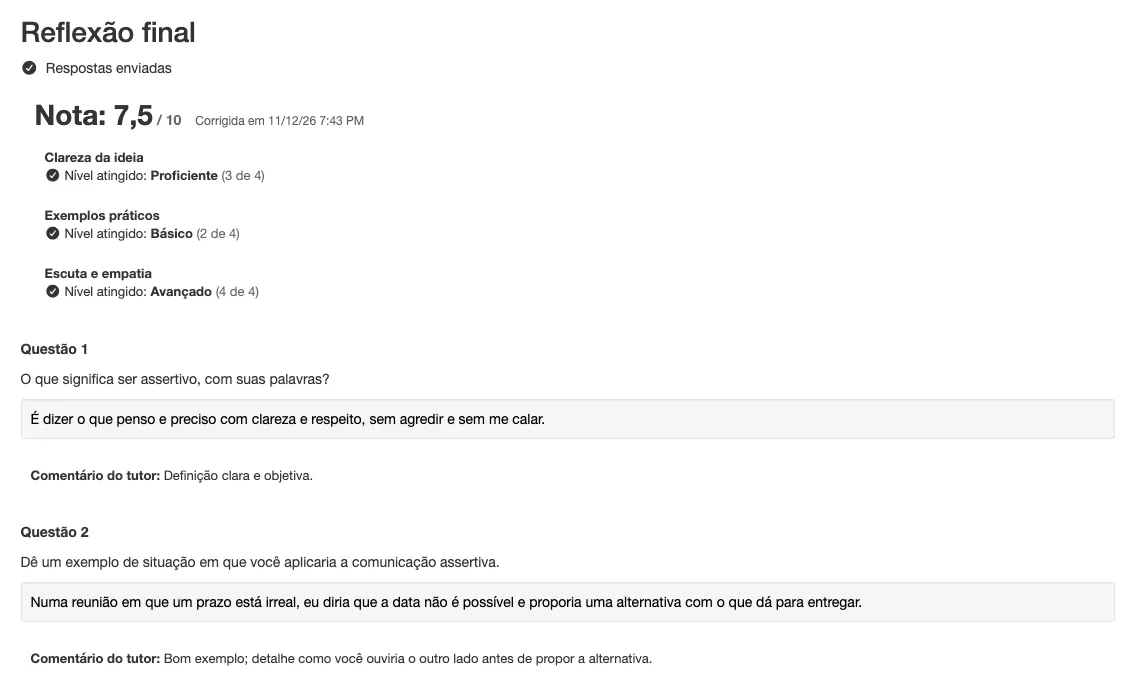
Section titled “What the participant sees”In Open Questions, as soon as the tutor saves, the participant sees at the top of the lecture:
- Waiting for grading. while the answer has not been graded, with a note that they will get a notice when the score is out;
- after grading, the Score (
7.5 / 10), the date under Graded on and, for each criterion, the criterion name and the Level reached with the points (3 out of 4); - the Tutor’s comment under each question.
The participant also gets a notice on the platform and an e-mail with the score and the link to the lecture; the tutor’s comment appears only inside the lecture.
In the Assignment, the participant keeps seeing the score and the comment in the lecture, as with any graded assignment; the levels chosen on each criterion are not shown to them.
What the rubric does not do
Section titled “What the rubric does not do”- There is no comment per criterion: the comment is still one per question (Open Questions) or one per submission (Assignment).
- The rubric applies to the whole lecture, not to each question of an Open Questions lecture.
- There is no institution-wide rubric library: the rubric lives inside the content and travels with it when the content is distributed or copied.