


Certificate validity and recertification
Some certificates have a validity period - that’s the case, for example, with workplace safety training required by NR-1, which needs to be redone periodically. With certificate validity, Eduvem calculates on its own when each certificate expires and can automatically enroll the participant in a recertification class before that happens.
Configuring validity for a piece of content
Section titled “Configuring validity for a piece of content”When editing a piece of content in the administration, the certificate section gains three new fields:
- Certificate validity (days) - how many days the certificate is valid for, starting from the participant’s completion date. Leave it blank for a certificate with no validity (the usual behavior).
- Recertification content - the content the participant is automatically enrolled in when the certificate is close to expiring. It can be the same content, redone - the most common case.
- Recertification lead time (days) - how many days before expiration the recertification enrollment is made. The lead time can’t be longer than the validity period.

When saving a validity period on content that already has certificates issued, certificates already issued receive the new validity retroactively, calculated from each participant’s completion date - nobody needs to redo anything for the period to start applying.
Where validity appears
Section titled “Where validity appears”A certificate with validity shows the expiration date in three places, besides the PDF: on the completed content’s screen, on the participant’s profile Certificates tab, and on the certificate’s public verification page. An already-expired certificate is marked with the Expired badge.
Tracking who’s about to expire
Section titled “Tracking who’s about to expire”On the institution’s screen, the Expiring certificates tab lists every participant whose certificate expires within a chosen period.
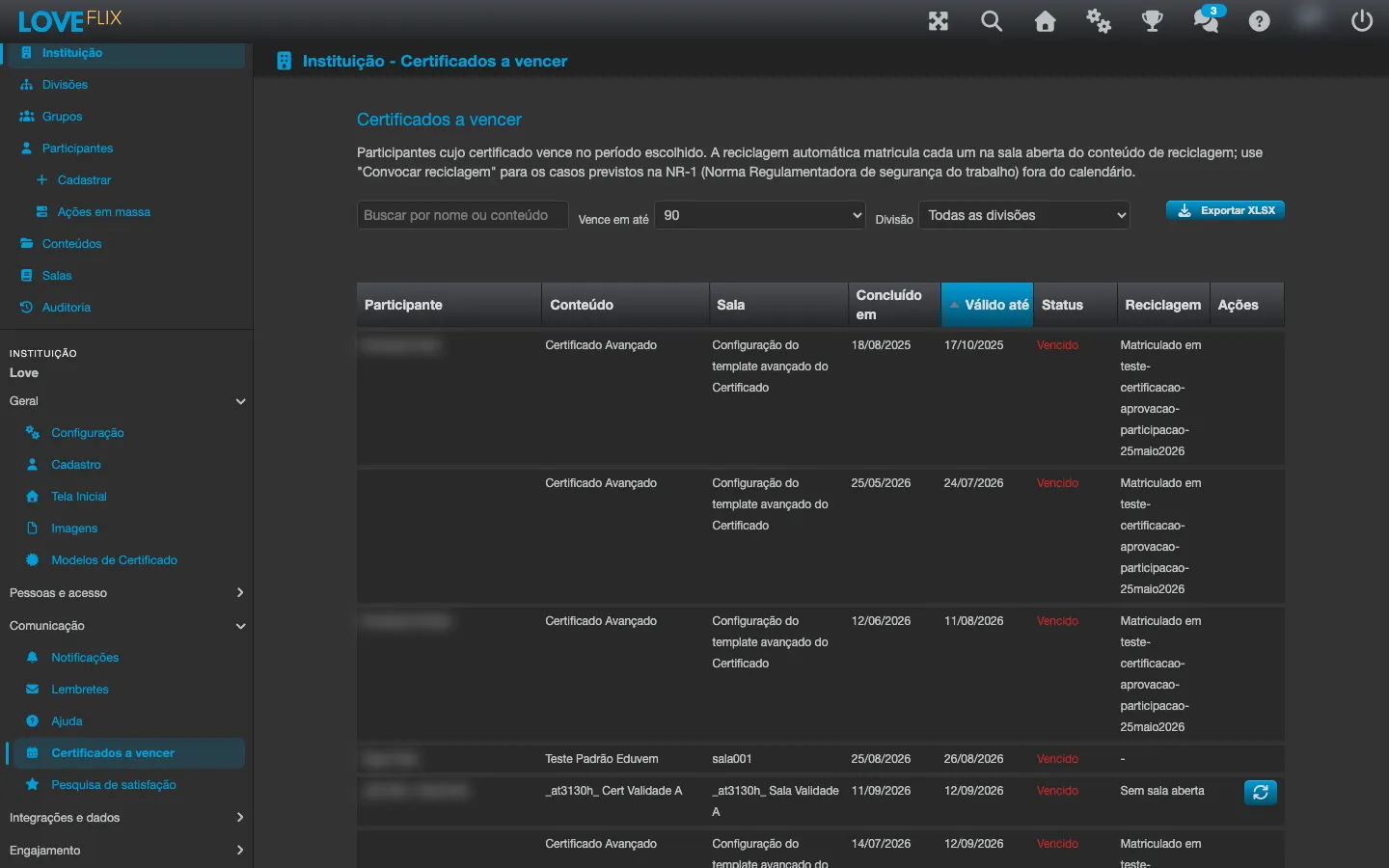
- Search - filters the list by the participant’s name or the content’s name.
- Expires within - choose between 30, 60, 90, or 180 days; the list shows every certificate that expires within that window, including ones already expired.
- Division - if the institution uses Divisions, an extra filter narrows the list to participants in that division.
- Export XLSX - downloads the full list as a spreadsheet. The spreadsheet includes extra columns that don’t appear on screen (CPF, e-mail, and the content’s workload), in addition to the columns already visible.
Each row shows the participant, the content, the class, the completion date, the expiration date, and the certificate’s status (Valid, Expiring soon, Expired, or Content updated - recertification required when the content has been replaced). A separate Recertification column shows whether the automatic enrollment has already happened, is pending, or couldn’t happen (the reason appears there, such as No open class, Class full or Already in progress).
Triggering recertification manually
Section titled “Triggering recertification manually”Besides the automatic enrollment made through the configured lead time, the Trigger recertification action, available on each row of the list, forces the enrollment right away - useful for cases that fall outside the schedule, like someone who needs the recertification before the automatic deadline.
How it works behind the scenes
Section titled “How it works behind the scenes”Every day, early in the morning, the platform reviews the institution’s certified enrollments and enrolls in the recertification class whoever entered the configured lead-time window - the same process the Trigger recertification action fires on demand, right away.
Expiring certificate reminder
Section titled “Expiring certificate reminder”There’s a dedicated automatic reminder that notifies the participant themselves by email that their certificate is about to expire. Like every automatic reminder, it comes turned off and is configured separately on the institution’s Reminders tab - and it only works with certificate validity enabled.
Common questions
Section titled “Common questions”Does an expired certificate stop counting for everything? No. The platform keeps showing the certificate normally, just marked as expired - the decision on what to do with an expired certificate (for example, whether it’s still accepted by a client or a regulatory body) is external to Eduvem.
Can I turn off validity after configuring it? Yes. Clearing the number of days in the content’s validity field makes the next certificates issued come out with no validity; certificates already issued keep the date they already received.
Does turning off “Allow certificate validity” erase the configurations? No. The Expiring certificates tab and the content’s fields disappear, but the configured validity and the history stay saved and come back once the option is turned on again. If a content version replacement is in progress, turning it off is refused until the replacement is cancelled.