


NR pack and NR readiness
The NR readiness section shows, in one place, what your institution still needs for its NR certificates to hold up in an inspection. Each line of the list leads straight to the screen that fixes the item. The NR pack is the shortcut the Eduvem team uses to turn on, in one go, the features the NRs call for.
Where to find it
Section titled “Where to find it”In the institution’s configuration (under Administration, Institution), open the NR readiness section, in the General group. The Eduvem team always sees the section; the institution administrator only sees it when the Allow NR certificates option is on for the institution.
The NR pack
Section titled “The NR pack”There are two packs, for two kinds of institution:
| Pack | What it turns on |
|---|---|
| Reseller / academy | Certificate validity, Roll call (attendance list) and NR certificate (NR compliance). |
| Employer | Everything in the Reseller / academy pack, plus Audiences and Required trainings. |
Choose Reseller / academy when participants are not the workforce of a single employer. Employer fits organizations that train their own workforce and need audiences and a required-training matrix.
What the pack does, and what it never does:
- It only turns features on. Nothing is turned off, and a feature that was already on stays as it is.
- It does not set validity periods, does not mark any class as an NR certificate, and does not activate the paid signatures (the dual signature ones). Those choices remain yours.
- It does not change certificates already issued.
- The NR certificate only turns on when the institution is ready. If there are classes marked as NR certificate without the required fields, that one feature is skipped and the others are turned on. The result tells you so; fill in the pending fields (item 3 of the list below) and ask the Eduvem team to apply the pack again.
After it is applied, the screen reports what was turned on now, or that everything in that pack was already on.
The readiness list
Section titled “The readiness list”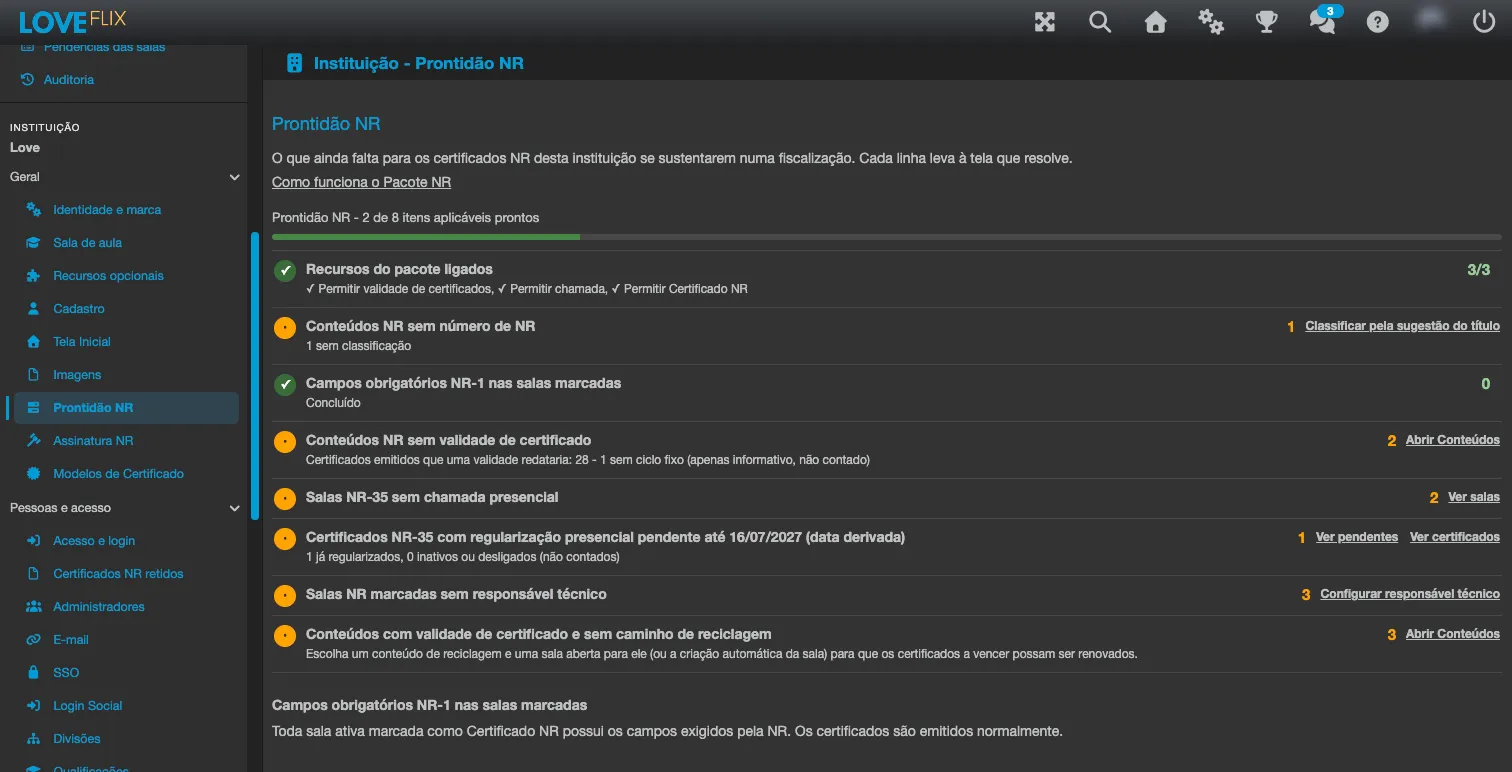
At the top of the section, a progress line sums things up, for example “4 of 6 applicable items ready”. Items that do not apply to your institution are not counted.
There are eight items. Each one shows a status (Done, Pending, Not applicable, or a notice that it could not be checked, in which case just reload the page), a count, and a link to the screen where the item is resolved.
- Pack features on. Checks that the pack’s features are turned on.
- NR contents without an NR number. Lists NR contents that do not have the NR number set yet, or whose number differs from what the title indicates. See “Classify by title suggestion” below.
- NR-1 required fields on marked classes. Counts the classes marked as NR certificate that have NR fields pending. The link leads to the list described in NR certificates: place, modality and instructor.
- NR contents without certificate validity. Shows the NR contents with no validity period, with the suggested cycle for each and how many already issued certificates would be re-dated if you set or change the validity. See Certificate validity and recycling.
- NR-35 classes without an in-person roll call. Lists the NR-35 classes that do not yet have a roll call with an in-person session. See Roll call.
- NR-35 certificates pending in-person regularization until 16/07/2027. Lists the institution’s NR-35 certificates whose holder does not have 480 in-person minutes confirmed by the instructor in their own class. The 16/07/2027 date is derived. See “NR-35 regularization”, below.
- Marked NR classes without a technical responsible. Lists the classes marked as NR certificate that have no technical responsible set. See NR certificates with dual digital signature.
- Contents with certificate validity but no recertification path. Lists contents with validity that have no recertification content chosen, or whose recertification content has no open class and does not use automatic class creation. It only applies with certificate validity enabled. See Certificate validity and recertification.
Long lists show the first 8 rows. Use Show all (N) to see the full list and Show fewer to collapse it.
NR-35 regularization
Section titled “NR-35 regularization”In item 6, click View pending people to open the list, with the columns Person, Content, Certified on, Deadline and Regularized on:
- Deadline: 16/07/2027 for certificates issued before 16/07/2026, the date the in-person training requirement for NR-35 took effect (Portaria MTE 1.259/2026). For certificates issued from that date on, the column shows Irregular since issuance.
- Regularized on: the date the person later completed an NR-35 class with the 480 confirmed in-person minutes. Until that happens, the column shows “–”. The regularization certificate earns no ranking points or challenge bonus.
Below the list there are two actions, for the content of the first person still pending:
- Create in-person class opens the list of classes of that content, where you create the class for the in-person stage. If the content has no active class yet, the screen says: “This content has no active class yet. Create an in-person class first.”
- Enroll pending people: pick an active class of the content and click the button. After you confirm, every person on the list who has not been regularized yet is enrolled in that class. People already enrolled are skipped and no e-mail is sent: give the people the details of the in-person stage yourself. When it finishes, the screen reports how many were enrolled, how many were already enrolled, how many were left out because the class was full, and how many failed.
The chosen class must belong to the institution, be active, not be a sandbox, and have the in-person NR-35 requirement in effect; otherwise the action is refused. With more than 300 people pending, the action is refused too; in that case, contact support.
Classify by title suggestion
Section titled “Classify by title suggestion”In item 2, the Classify by title suggestion button sets the NR number of several contents at once, based on each one’s title.
- Only contents whose title names exactly one NR are changed. A title that names two NRs, or none, is skipped and left for you to classify manually.
- NR-35 contents that are already locked are not reclassified.
- The action requires the NR certificate feature to be on for the institution. Without it, the screen says so and offers Classify manually.
- Before applying, the screen asks for confirmation with the number of contents to classify. When it finishes, it reports how many were classified and how many were skipped.
Common questions
Section titled “Common questions”I don’t see the NR pack row. Is that a problem? No. Only the Eduvem team applies the pack. Ask Eduvem support to activate it for your institution.
Can the pack turn off something I already use? No. It only turns features on.
The NR certificate was not turned on. What do I do? Fill in the pending fields of the marked classes (item 3) and ask the Eduvem team to apply the pack again.
See also
Section titled “See also”- NR certificates: place, modality and instructor - the fields required on classes marked as NR certificate.
- Certificate validity and recycling - validity period per content.
- NR certificates with dual digital signature - signature by the participant and by the technical responsible.