


The Assignment lecture type
The Assignment is the lecture where the participant produces something and hands it in: a document, an image, a recording, a written answer, or a file together with text. The submission is graded by a member of the team, who gives a score and a comment - it is not graded automatically like an exam.
Before it existed, there was no way for the participant to submit a file from within the content: work arrived by email.
Adding the assignment to the content
Section titled “Adding the assignment to the content”- In the modular content editor, click Add new lecture to this topic and choose Assignment.
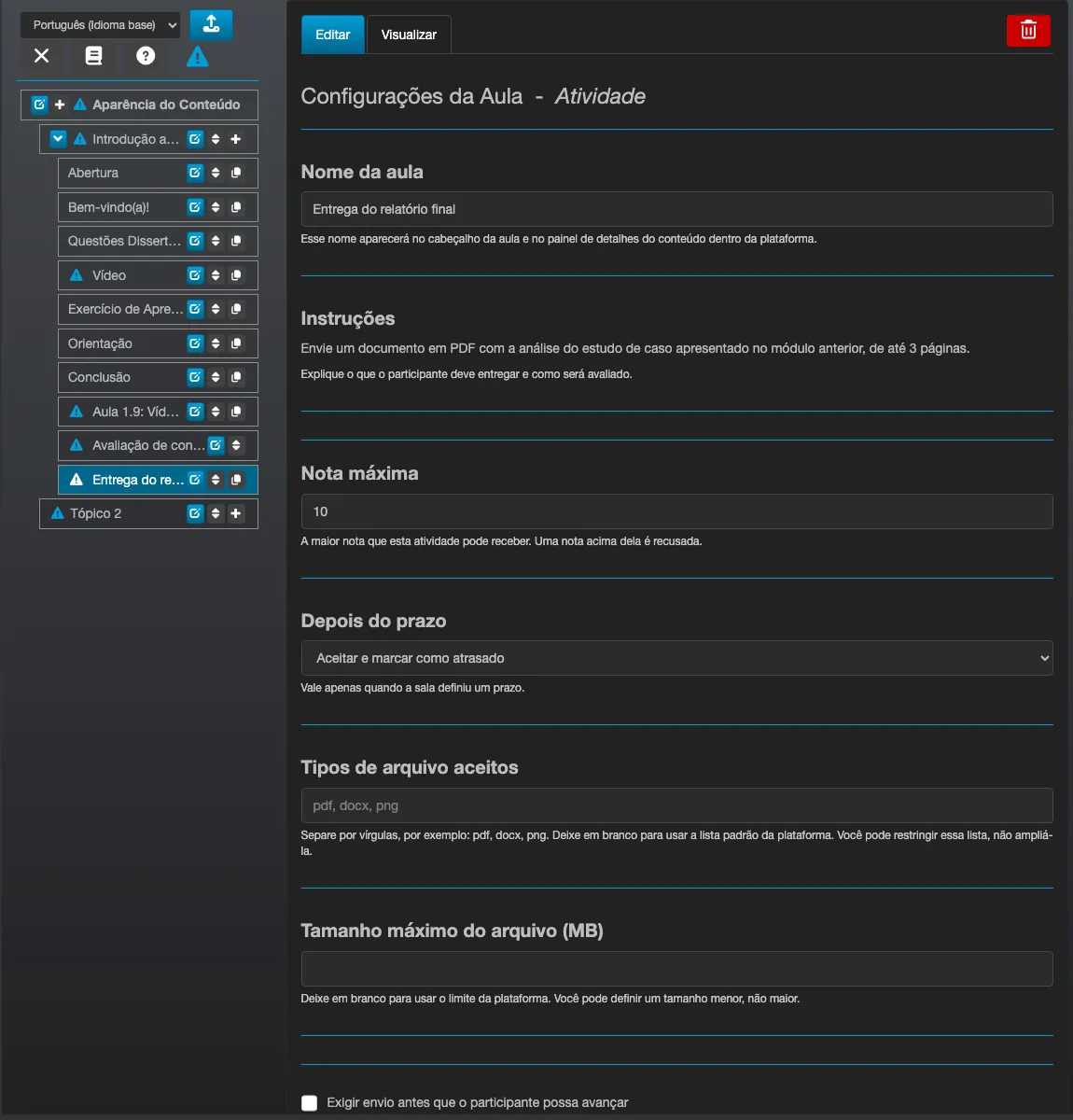
- Fill in Instructions - explain what the participant must hand in and how it will be graded.
- Set the Maximum score. It is the highest score the assignment can receive; a score above it is refused at grading time.
- Choose what happens After the deadline: Accept and mark as late (default) or Do not accept.
- Optionally, restrict the Accepted file types and the Maximum file size (MB).
- Optionally, check Require a submission before the participant can move on.
- Publish the content.
File types and size
Section titled “File types and size”Both fields can only narrow what the platform already allows, never widen it.
- Accepted file types - separate with commas (
pdf, docx, png). Left blank, the platform’s default list applies:pdf,doc,docx,odt,rtf,txt,xls,xlsx,ods,csv,ppt,pptx,odp,png,jpg,jpeg,gif,zip,mp3,mp4. You can narrow that list; including a type that is not on it does not allow it. - Maximum file size (MB) - left blank, the platform ceiling applies, which is 20 MB. A file of exactly 20 MB is accepted; above that it is refused. If you set a smaller value, yours applies.
Requiring the submission to move on
Section titled “Requiring the submission to move on”Checking Require a submission before the participant can move on locks the Next button on this lecture until the participant submits. It comes disabled by default.
The lock is reconciled against what is stored on the server, not just what happened in that session - anyone who has already submitted stays unlocked after reloading the page or signing in from a different computer.
How the participant submits
Section titled “How the participant submits”Before submitting anything, the participant opens the lecture and sees the prompt, the class’s deadline (or No deadline set for this class), the assignment’s maximum score, and - when the class has a deadline - what happens to a late submission. Then comes the submission form: they can attach a file, write an answer, or do both.
Each submission becomes a new, numbered and dated attempt, and earlier ones stay visible in Your submissions. A submission made after the deadline, when the assignment accepts late work, appears marked as Late.
The attached file stays available for download in the history. Clicking it downloads the file instead of opening it in a browser tab, including for images and PDFs. The file is not on a public link: only the participant who sent it and the staff who grade the assignment can open it.
Grading
Section titled “Grading”Grading is done on the class’s Assignments tab, in the Control Panel.
- Open the class and go to Assignments.
- Choose the assignment. The queue shows one submission per row, identified by the participant’s name: submissions with no score yet come first and, within each group, the oldest ones first.
- Open a submission, assign the score and write the comment.
- Save.
When a participant has submitted more than one attempt, the queue shows only the latest one - it is the only one that can be graded. Earlier attempts stay visible to the participant, with whatever score they already had.
The score and the comment appear to the participant on the lecture itself. They also get notified: a notification card (the same mechanism used for any platform notice) and an email telling them the assignment was graded, with the score. This applies to every grading, including a re-grading.
Who can grade
Section titled “Who can grade”Institution and class administrators grade as usual.
For a tutor to grade, two things need to be turned on: the Tutors can grade? option in the institution’s configuration (turned on by the Eduvem team), and that tutor’s Can grade? flag in the class’s tutor list. If either is missing, the Assignments tab does not appear for them.
What the assignment does not do
Section titled “What the assignment does not do”- The assignment’s score does not count toward the content’s grade and does not affect certification.
- An assignment with no submission, or with a submission that has no score yet, does not block completion of the content - unless you have checked the requirement to submit before moving on, which blocks only advancing past that lecture.
- Submitting is not available in the content’s preview, only in a real class.