


Enrollment management
With enrollment management, the participant requests enrollment in a class, and the request is approved by their manager or by the class administrators. Seats are allocated automatically: when the class is full, an approved participant joins the waiting list and gets a seat as soon as one is freed. You can also reserve seats for some units and put their members ahead in the queue, require a prerequisite, set a closing deadline and a minimum number of enrollments, and track the expected cost.
Before you start
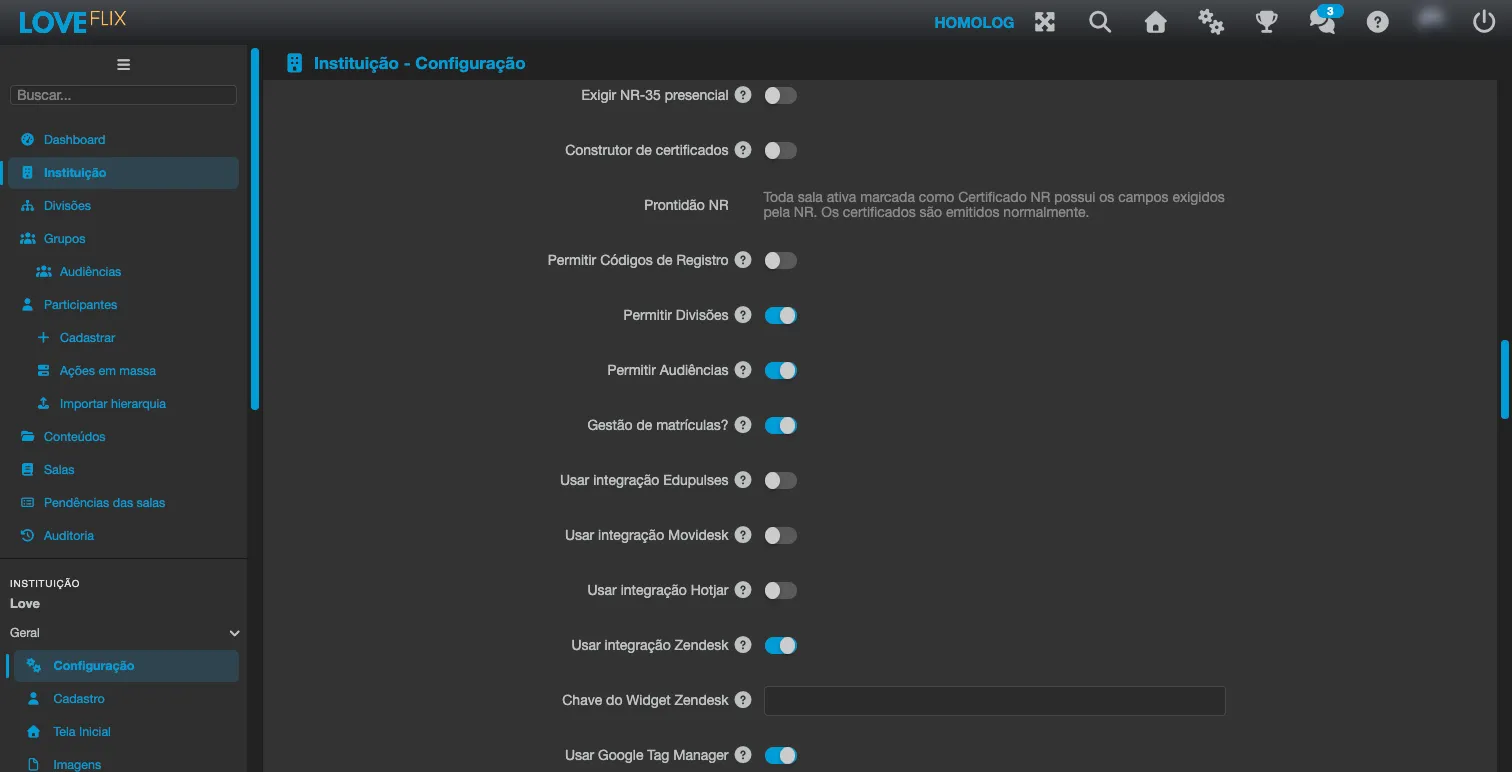
Section titled “Before you start”- The feature must be active for the institution. The Enrollment management? field is turned on by the Eduvem team: contact Eduvem support to activate it. While it is off, none of the screens or fields described here appear.
- The reporting line must be on and loaded, because it is what says who manages whom. See Manager hierarchy: the Reporting line (“My team”)? field must be on and the hierarchy loaded, through each person’s record, through Participants > Import reporting line, or through the API. Without both options on, Eduvem answers “Enrollment management is not enabled.”
- Escalation after (days): once enrollment management is active, the same institution form shows this field. A request that nobody decided after this many days also moves up to the manager’s manager. It accepts whole numbers from 0 to 30; the default is 3 and 0 never escalates.
Turning it on for a class
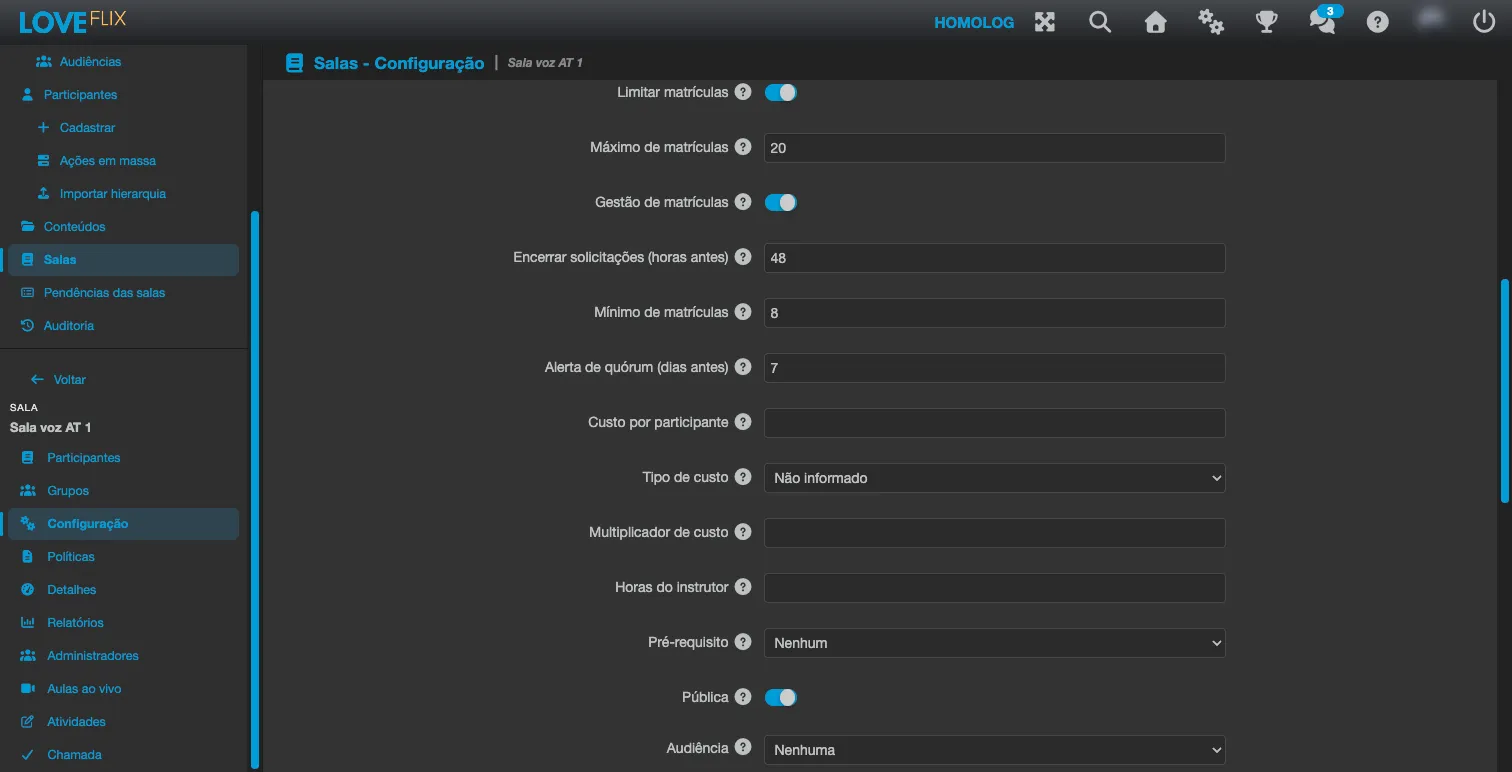
Section titled “Turning it on for a class”In Classes, open the class and go to the Configuration tab. The fields below are only shown to institution administrators (other administrators see the form read-only).
The class must meet four conditions:
- Limit Enrollments on, with Max Enrollments of at least 1. The Enrollment management switch only appears with Limit Enrollments on, and turning the limit off turns management off.
- Manual approval: with the limit on, the Approve Enrollments Automatically option is hidden and off, which is what management requires.
- A free class (no price set).
- The class cannot be a sandbox class.
Turning on the Enrollment management switch reveals these fields:
| Field | What it does | Rule |
|---|---|---|
| Close requests (hours before) | Requests close this many hours before the first session. | Whole number from 0 to 2160, inclusive. The default is 48. 0 closes them at the session start. |
| Minimum enrollments | Enrollments needed for the class to run. | Whole number from 1 up to Max Enrollments, inclusive. Blank means no minimum. |
| Quorum alert (days before) | The class administrators are alerted this many days before the session if the minimum is not reached. | Whole number from 0 to 365, inclusive. The default is 7. 0 disables the alert. |
| Prerequisite | Content the person must have completed, in any version, to request a seat. See the Prerequisite section below. | Any content of the institution, or None (the default). It cannot be the class’s own content. |
| Cost per participant | Internal cost of one seat, used for the expected cost and the class report. It is not charged to anyone. | A value of 0 or more, with at most 2 decimals, using a comma (for example, 450,00). Blank if unknown. |
The Cost per participant field appears on every class of the institution, even without management turned on, as long as the option is active for the institution.
Right below the cost are three informational fields, with the same display rule. Only institution administrators can edit them, and they are not used in any calculation: the expected cost is still the cost per participant times the occupied seats.
| Field | What it records | Rule |
|---|---|---|
| Cost type | Who delivers the class: Internal (an internal instructor) or Mediator (legal entity) (a mediator hired as a legal entity). | Not informed if it does not apply. |
| Cost multiplier | A factor shown next to the cost. It does not change the expected cost. | Greater than 0 and up to 100, with at most 3 decimals. Blank if not used. |
| Instructor hours | Hours the instructor spends on the class, typed in hours (for example, 2,5). | From 0 to 10,000, with at most 2 decimals. Blank or 0 means not informed. |
Who sees these values is covered in Cost per participant and the class report, below.
Other rules worth knowing:
- Requests that already existed before the class was marked as managed are decided by the class administrators, not by the participant’s manager. For the manager to decide, turn management on first and only then let participants request.
- If the participant has no manager (or the manager is inactive), the request is also decided by the class administrators.
- You cannot turn management off for a class (or for the institution) while people are on the waiting list: Eduvem warns “There are people on a waiting list: decide the queue before turning enrollment management off.”
- The sum of the reserved seats cannot exceed Max Enrollments.
- In a managed class, Max Enrollments cannot go below the number of enrolled people: someone with a pending request or on the waiting list holds no seat and does not count in that comparison, so the class can be saved with a full queue.
- In a managed class that is full, a direct enrollment made by the administrator is also refused (“Class is at capacity. No more enrollments are allowed.”), and an enrollment that is in the queue cannot be transferred to another class.
- If enrollment management is turned off for the institution, classes that were already marked go back to working as ordinary classes.
The Enrollment queue tab
Section titled “The Enrollment queue tab”In Classes, open the class and click the Enrollment queue tab. It appears to the class administrators when management is on for that class. Its subtitle sums up what it does: decide on requests, order the waiting list, and reserve seats for priority units.
Indicators
Section titled “Indicators”At the top of the tab, each indicator shows a value over a caption:
- free seats: free over the maximum. Only people who are enrolled occupy a seat; requests and the waiting list do not.
- reserved seats free: only shown if the class has reservations.
- quorum: enrolled over the minimum. Only shown if there is a minimum; it changes appearance when below it.
- requests: how many are waiting for a decision.
- on the waiting list.
- expected cost: the cost per participant times the occupied seats. Only shown if the class has a cost.
Below them, a line states Requests close on the closing date and time (the first session minus the configured hours) or, if the class has no session yet, No cut-off: the class has no session yet.
Deciding requests
Section titled “Deciding requests”The Requests table has the columns Participant, Who decides and Requested. Who decides shows the name of the participant’s manager or Class administrators when the request has no manager. Tick the rows and use Approve or Deny.
- When you approve, the participant gets the seat (seated) or, if the class is full, joins the waiting list (waitlisted). If the deadline has already passed, the request is closed.
- Denying always requires a reason, chosen from the Reason… list: Not aligned with the role, Schedule conflict, Team coverage or Other.
- Deciding in place of the manager also requires a reason. When the Who decides column shows a manager’s name, approving or denying is a decision in their place and asks for a reason (“Choose a reason: it is required to deny, and to decide in place of a manager.”). Approving a request that has no manager needs no reason.
- When you finish, a summary counts how many were seated, waitlisted, denied, closed and not decided.
- In a batch, when two requests compete for the last seat, the order in which they are handled does not necessarily follow the request date. If the order matters, approve one at a time.
Waiting list
Section titled “Waiting list”The Waiting list table shows the Position (1st, 2nd…), the Participant, the Unit (the participant’s division or audience, or no priority) and In the queue since. A freed seat goes to the first person in this order who can take it.
To change the order, use the icon buttons on each row: Move to the top, Move up, Move down and Move to the bottom. People you positioned manually stay in front; the others follow the order they joined the queue.
If the class has a unit with Queue priority (see Reserved seats, below), the queue has two tiers: members of the priority units stay ahead of everyone else, and the order buttons only move a person within their own tier (Move to the top takes them to the top of their tier, not of the whole queue).
The Status column shows the marks of each row:
- Priority: the person is in the priority tier.
- Prerequisite pending: the class requires a prerequisite the person has not completed yet. They stay in the queue but are skipped when a seat is freed (see Prerequisite, below).
When a seat is freed (someone is cancelled, withdraws, is deactivated or deleted, the maximum is raised or a reservation is released), the first person in the queue becomes Enrolled directly, with no acceptance step, and receives the “Your seat is confirmed” e-mail. After the class closes, the queue is no longer promoted.
Reserved seats
Section titled “Reserved seats”On the same tab, the Reserved seats section lets you keep seats for a Division or an Audience until a release moment; after it, every seat is open to everyone. Only institution administrators can change the reservations (“Only institution administrators can change the reservations.”); the other class administrators see the section read-only.
- Add reservation opens a new row with the Unit, the Type (Division or Audience) and the number of Seats; the Free column shows how many are still not taken. The button is only active when the institution has divisions or audiences, and reservations for an audience require the audiences feature to be enabled for the institution. Remove reservation deletes the row.
- Queue priority: tick this option on a unit’s row so that its members go ahead of everyone on the waiting list. A priority unit may hold 0 seats: it then only orders the queue, without reserving a seat. In the reservations table, the Queue priority column shows Priority on the ticked units.
- Release reserved seats on sets the date and time (00:00 to 23:59) when the reservations open to everyone. Tick Never release so that they never open.
- Click Save reservations. When you save, any seat that was free is immediately offered to the queue.
While a reservation is active, members of the unit take the reserved seats, and the others compete only for the general seats (Max Enrollments minus the reserved ones). A member of the unit takes the reserved seat even if someone from outside was approved first. At the release time, all seats become general and the waiting list is promoted at the next check.
Queue priority does not depend on the release date: it still applies after the reservations open to everyone. Each person’s tier is set when they join the waiting list and is recomputed for the whole queue every time the reservations are saved (for example, when you tick or untick a unit). A later change to the person’s division or audience only changes their tier at the next save of the reservations.
The screen refuses: a reservation with no unit, a reservation with fewer than 1 seat (a priority unit may have 0), the same unit twice, more than 50 units, a sum of reservations above the class capacity, and a release without a valid date and time (unless Never release is ticked).
Prerequisite
Section titled “Prerequisite”In a managed class, the Prerequisite field (on the Configuration tab, with the other management fields) sets one content the person must have completed to request a seat. The list shows the institution’s contents; choose None to require no prerequisite. Only institution administrators can change it.
- Completed means holding a certificate, earned in a class of the institution, in that content or in any version of it. Expired certificates count too.
- When requesting, a person without the prerequisite is refused with a message that names the content: “To request this class you must have completed the course …”.
- After approval, a person who still lacks the prerequisite (for example, because it was set after the request) stays on the waiting list, even with free seats, marked Prerequisite pending. When a seat is freed, they are skipped and the seat goes to the next person in the queue. If they complete the content, they compete for seats again at the next check.
- Enrollments made directly by an administrator, by group or through the integration are not checked.
- The prerequisite cannot be the class’s own content (“The prerequisite cannot be the same course as the class itself.”).
- The prerequisite only applies while enrollment management is on for the class and the institution.
Closing, quorum and e-mails
Section titled “Closing, quorum and e-mails”Eduvem checks managed classes roughly every 15 minutes. Because of this, closing, releasing reservations, the quorum alert and sending e-mails can take a few minutes after the expected time.
- Closing: after the closing time (the first session minus Close requests (hours before)), new requests are refused (“Requests for this class are closed.”). At the next check, every request still pending and everyone on the waiting list is closed, and each one receives the “Enrollment for the class has closed” e-mail. People who are already enrolled are not affected.
- Quorum alert: when a minimum is set, the quorum alert is not 0, the session has not started, less than Quorum alert (days before) remains before the first session and there are fewer people enrolled than the minimum, the class administrators receive the “Alert: class below the minimum enrollment” e-mail, with the Open the class button. If the class has no administrators of its own, the alert goes to the institution administrators. Each person receives one alert per session date. The count starts from the first session’s start, not from the closing time.
Cost per participant and the class report
Section titled “Cost per participant and the class report”The expected cost (indicator on the Enrollment queue tab) and the report header are seen by the class administrators; tutors and observers do not see the cost anywhere. The report is under the class’s Reports tab, in Enrollments report of the class: choose the XLSX format and click Generate. The spreadsheet header carries Cost per participant and the expected cost, in Brazilian reais (for example, R$ 450,00). The header only exists in XLSX, for managed classes that have a cost.
When filled in, Cost type, Cost multiplier and Instructor hours also appear in the header of the same XLSX report and in the class box of the Requests tab in My team, for the approving manager. Like the cost, these values are never shown to tutors, observers or participants.
Substitutes set by the administrator
Section titled “Substitutes set by the administrator”If a manager is away, the institution administrator can name who decides in their place. In Participants, open the manager’s record and use the Substitutes panel. It only appears when the reporting line and enrollment management are on and the person has at least one active report or a substitute in effect.
- The table shows the Substitute, the Period and Set by (Administrator, The manager or Integration). The trash icon (Revoke) ends the substitute after asking for confirmation (“Revoke this substitute now?”).
- To add one, click Choose substitute (any active person in the institution works), fill in From and Until, and click Add substitute.
- The period must start before it ends, end in the future, and last at most 366 days. A period that starts in the future appears in the list, but only takes effect from the start date.
The manager can also choose their own substitute: see My team.
See also
Section titled “See also”- Requesting enrollment in a class that needs manager approval: what the participant sees.
- My team: how the manager decides requests.
- Manager hierarchy
- Creating a class
- Integration API tokens: approving and denying enrollments through the API.