


Audio in the participant's own voice
With the Own-voice audio feature (called Listen in my voice for participants), each participant can record their voice reading a short text and receive the class’s audio lectures narrated by a synthetic voice created from that recording. It is optional for the participant: anyone who prefers not to takes part keeps listening to the original voice, with no difference in the content.
The feature is off by default. It only appears to participants after Eduvem enables it for your institution and the institution saves a valid ElevenLabs key. Until Eduvem enables it, the Own-voice audio tab is not shown to the institution’s administrators: the order is always that Eduvem enables the feature and sets the monthly limit first, and only then the administrator enters the key.
What the institution takes on
Section titled “What the institution takes on”The synthetic voice is generated by ElevenLabs, in your institution’s own account. This means that:
- the ElevenLabs account, the plan, the plan limits and the contract with ElevenLabs belong to the institution, and ElevenLabs bills that account;
- the plan must include instant voice cloning and have a free custom voice slot;
- the voice recording is personal biometric data: the participant only submits it after giving consent on screen, and ElevenLabs processes that data under the institution’s contract.
Each generated audio also counts toward the monthly limit set by Eduvem, and Eduvem bills per generated audiobook on the monthly billing sheet.
Step by step
Section titled “Step by step”- Ask Eduvem to enable it. Enabling the feature and the monthly limit are set by Eduvem. Talk to your account contact to turn it on or change the limit. Until Eduvem enables it, the tab is not shown to the institution’s administrators and the key cannot be saved.
- Create the key in ElevenLabs. At elevenlabs.io, go to Developers, API Keys and create a key with the permissions Text to Speech (Access), Voices (Write), History (Write) and User (Access); everything else can stay off. Without one of them, the key shows the problem “The ElevenLabs key is missing a permission”.
- Save the key on the platform. After Eduvem has enabled the feature and set the limit, sign in again (or reload the page). In the institution administration, open the Own-voice audio tab, paste the key into ElevenLabs API key and save. The key is never shown again after it is saved; to replace it, type a new one. Leaving the field blank keeps the current key. If you see “The key cannot be replaced yet: audios are still being generated or deleted with the current key. Try again in a few minutes.”, audios are still being generated or deleted with the current key: wait a few minutes and save again.
- Check the Key status. Within seconds it moves from Validating… to Valid. If it shows Invalid, ElevenLabs refused the key (or the plan does not include instant cloning): the option stays hidden from participants until a valid key is saved.
What the tab shows
Section titled “What the tab shows”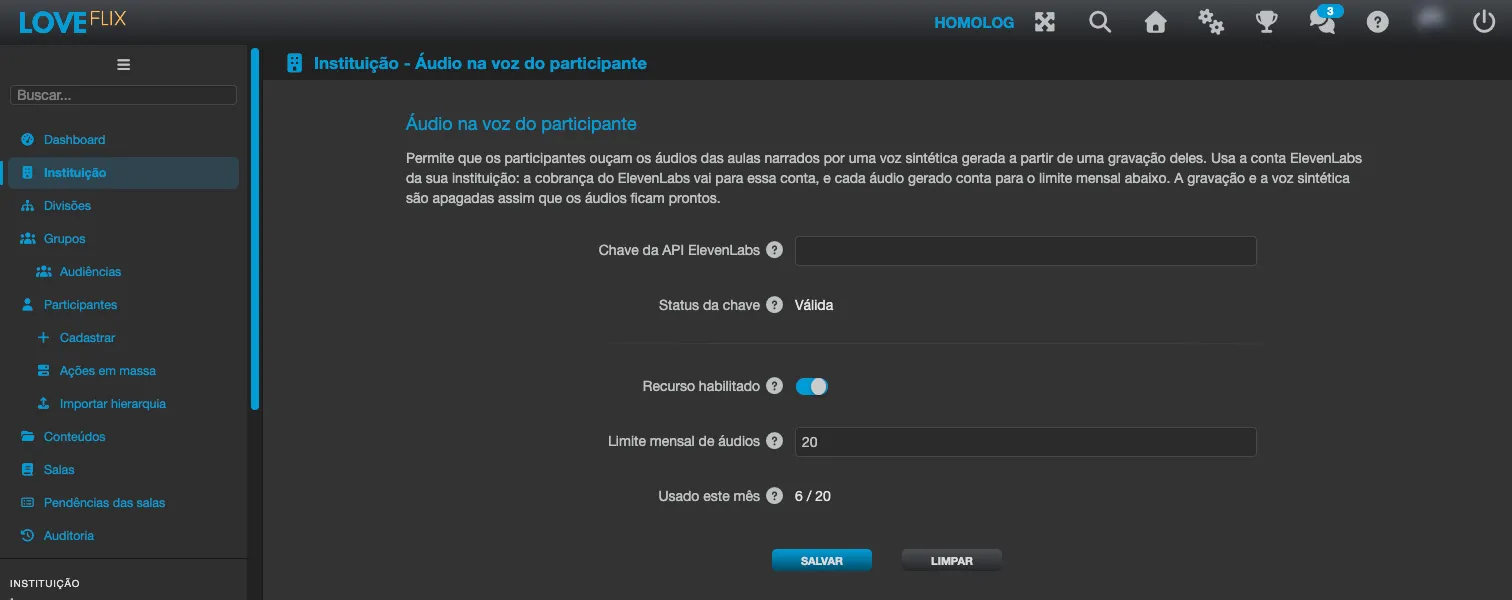
| Field | What it means |
|---|---|
| ElevenLabs API key | Where the key is pasted. It is never shown again after it is saved. |
| Key status | Not configured, Validating…, Valid or Invalid. |
| Last problem reported by ElevenLabs | Appears, with the date and time, when ElevenLabs refused a generation; it clears when a generation succeeds or a new key is saved. |
| Feature enabled | When off, no participant sees the option and the tab is not shown to the institution’s administrators. Only Eduvem changes it. |
| Monthly audio limit | How many audios can be generated per month (UTC). When the limit is reached, new requests are refused until the next month. Only Eduvem changes it. |
| Used this month | How many audios have already been generated this month. |
Each narrated audio lecture counts as one audio toward the limit.
When ElevenLabs reports a problem
Section titled “When ElevenLabs reports a problem”The Last problem reported by ElevenLabs field explains what to do:
- Quota or plan exhausted: add credits or upgrade the ElevenLabs plan. Generation is paused until then; participants can try again.
- Custom voice limit reached: upgrade the plan or remove unused voices in the account.
- The plan does not include instant cloning: upgrade the ElevenLabs plan.
- The plan could not be read with this key: check that the key can read the subscription.
- Deleting a participant’s voice or audio keeps failing (revoked key or ElevenLabs unreachable): the platform retries every hour and deleting the institution stays blocked until it succeeds. Restore the key or delete the voices in ElevenLabs.
Who prepares the content
Section titled “Who prepares the content”The feature only works on audio lectures where the author turned the option on and wrote the script. See The Audio lecture type.
What the participant sees
Section titled “What the participant sees”The participant sees the Listen in my voice button under the player in the audio lecture itself, which opens a window where they handle everything alone: consent, recording (about 45 seconds, minimum 30 seconds), sample and generation. Each recording covers one class only. See Listening to audio lectures in my own voice.
Privacy and deletion
Section titled “Privacy and deletion”- The recording and the synthetic voice are deleted as soon as the participant’s audios are generated.
- The generated audios are removed from the institution’s ElevenLabs history and stay private to the participant on the platform.
- Participants can delete their own voice and audios at any time, in one class or in all of them. If the person is anonymized on the platform, their audios are deleted too.
- When you turn the feature off, participants stop seeing the option, the tab disappears for the institution’s administrators and no new audios can be generated. Audios already generated are not removed automatically: only the participant, the anonymization of the person, or the deletion of the institution removes them.