


Changing a participant's username
Institution administrators (and roles above) can change a participant’s username - their login - directly on the participant’s record, without recreating the person. History, enrollments and progress are kept.
How to change it
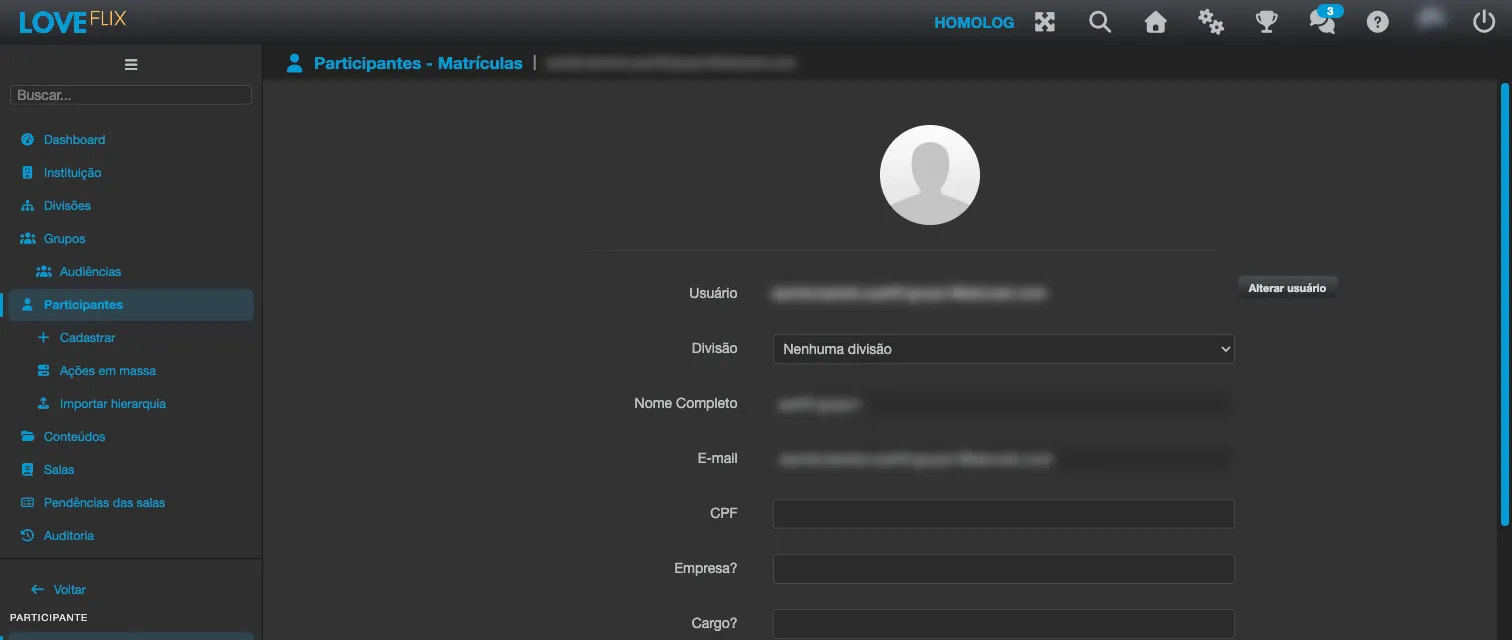
Section titled “How to change it”- Under Participants, open the person’s record and click the Profile tab.
- Below the read-only Username field, click Change username.
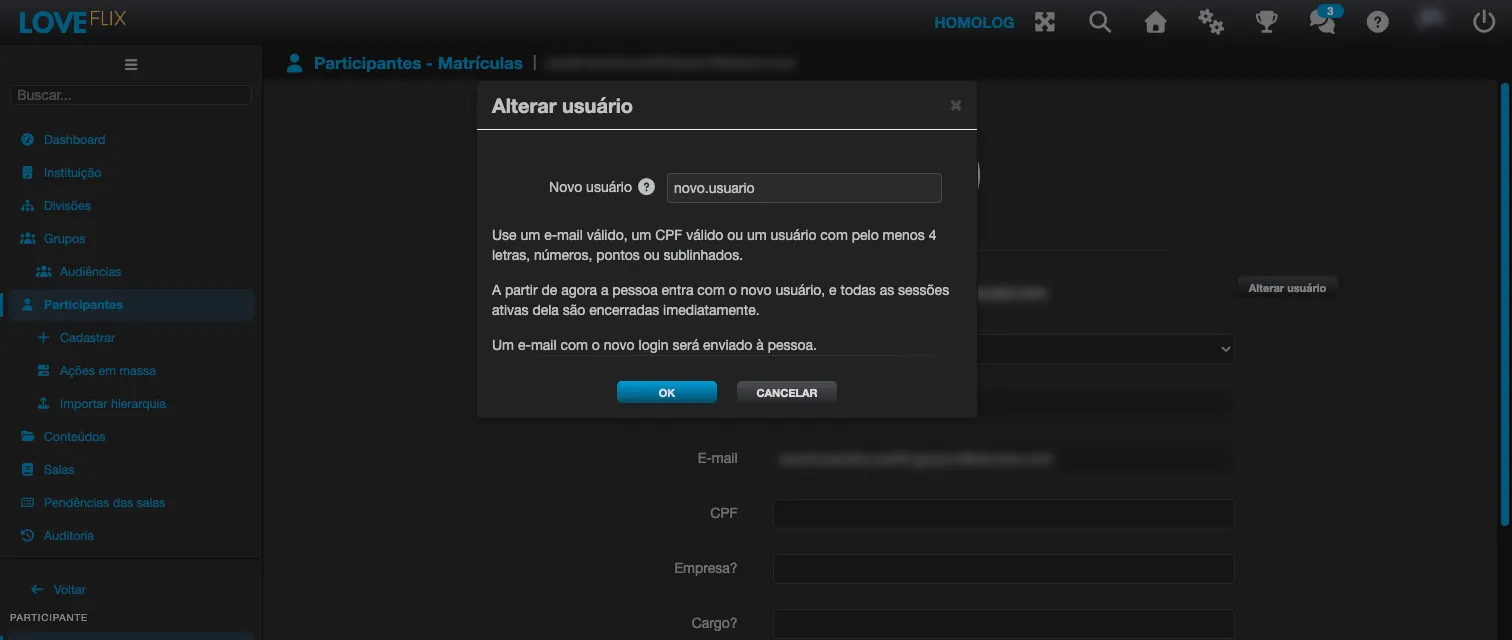
- In New username, type the new value. The window tells you whether the person has an email on file and will therefore be notified.
- Click OK.
Which value is accepted
Section titled “Which value is accepted”The shape of the new value sets the person’s login type:
- a valid email;
- a valid CPF (11 digits; the platform stores only the digits);
- a free-form username with at least 4 letters, numbers, dots or underscores (see Creating users by username).
Any other value is refused with Invalid username. A value equal to another person’s username or CPF, or to another person’s email in the institution, is also refused.
What happens next
Section titled “What happens next”- The person signs in with the new username, and all of their open sessions end immediately.
- If they have an email on file, they receive a message about the change, and the platform confirms Username changed. The person was notified by e-mail.
- If they have no email on file, nothing is sent: the platform shows Username changed, but no e-mail was sent. Please tell the person about the new login. Let them know yourself.
- The email on file keeps working as a login, and the password does not change.
- If you change your own username, your session ends too and you return to the login screen.
When it is not available
Section titled “When it is not available”- People who sign in through corporate or social login (SSO, such as Microsoft or Google): the username comes from the identity provider.
- Institutions that use an external identity provider (Keycloak).
- Eduvem platform administration accounts: their username can never be changed.
- Deleted or anonymized people.
- If you do not hold the institution administrator role (or above) over the person, the Change username button does not appear.