


Audiences
An audience is a set of rules about participant profile fields (for example, “Department = Sales”). Linked to a group, it automatically adds whoever matches that profile - without an administrator having to build the list by hand.
How it works
Section titled “How it works”An audience is made of rules, one per profile field. A person belongs to the audience when their profile meets all the rules (AND across different fields); within a single rule, matching any one of the selected values is enough (OR across values of the same field).
Only profile fields that are locked for participants (the field’s “Admins Only” option, under Institution > Profile) can be used in rules - the twelve custom fields (custom1 through custom12), State and City. A field the participant can edit themselves cannot become an audience rule, because the person could join or leave the group on their own just by editing the field.
While an audience uses a field, that field cannot be unlocked - the institution must remove the rule first.
Creating an audience
Section titled “Creating an audience”On the Groups screen, click Audiences and then Create New Audience. Fill in:
- Audience Name - a short name so administrators can identify the set of rules. Visible only to administrators; participants never see the audience name.
- Description - an internal note, visible only to administrators.
- Rules - the Rules section lists, one by one, ALL the profile fields that exist in the institution (the twelve custom fields, State and City). Each field already locked for participants appears with its own values field: if it has a predefined list, select one or more; if it is free text, type a value and click Add (repeat to add more than one) - leaving a field empty simply creates no rule for it. A field that is not yet locked appears only with a warning in place of the selector, with no values field.
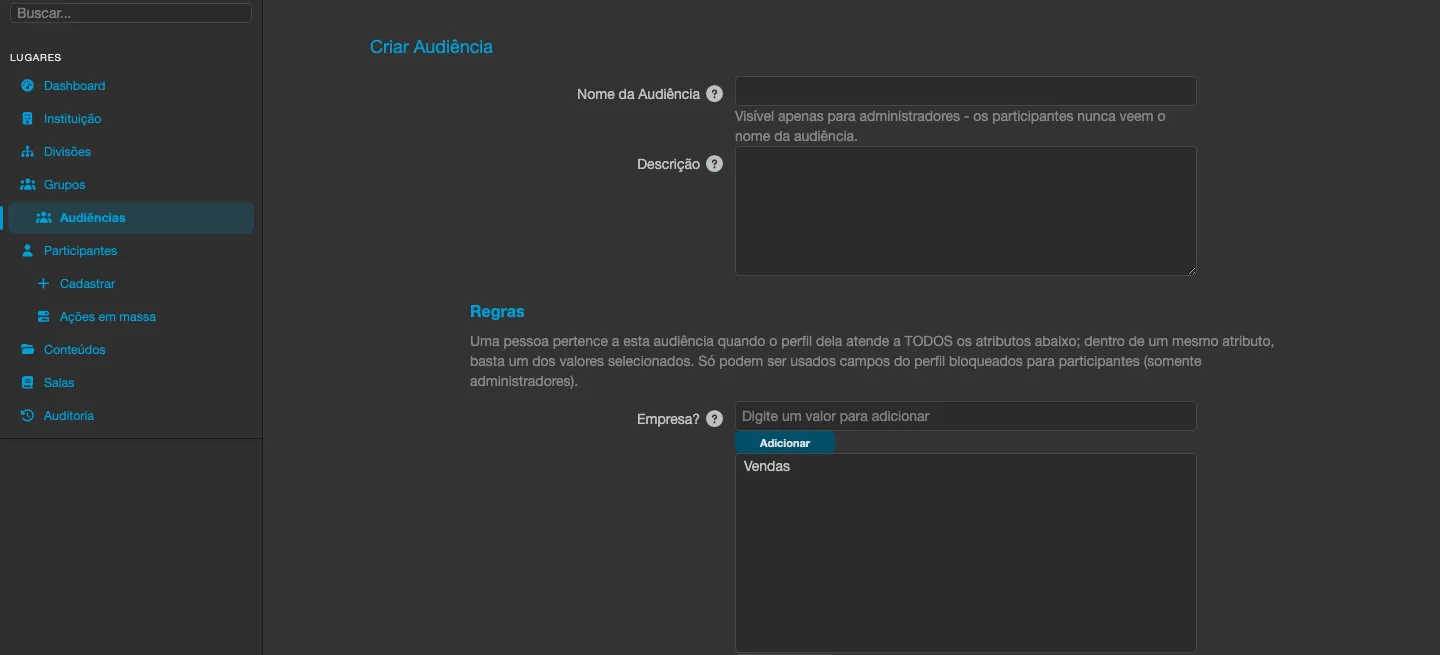
An audience needs at least one filled-in rule. If no profile field is locked for participants yet, every field in the Rules section appears only with the warning - lock at least one field under Institution > Profile first.
Linking to a group
Section titled “Linking to a group”On the group’s Configuration tab, the Audience field lists the audiences already created. When you choose one and save, two options appear:
- Audience members only - unchecked by default. With the option unchecked, the audience only adds people to the group; anyone already in the group for another reason is never removed by it. When checked, whoever stops meeting the rules is removed from the group automatically, and the enrollments the group had made for that person in its classes are cancelled - direct enrollments or those made by another group continue.
- Apply now - appears after the audience is saved on the group. It runs an immediate sweep of all the institution’s participants against the audience’s rules. Before applying, a confirmation window shows how many people currently meet the rules and how many will be added and removed; on confirming, the process runs in the background and an email lets you know when it finishes.
A group enabled for divisions cannot have an audience - they are two automations that do not combine. The special All Participants group, managed by the platform, does not accept an audience either.
When someone joins or leaves the group
Section titled “When someone joins or leaves the group”Besides Apply now, the audience acts automatically at these moments:
- The person is registered with a profile that already meets the rules.
- The profile is saved (by the administrator or, if the field is not locked, by the participant themselves - but remember that only locked fields can become rules) and starts meeting, or stops meeting, the rules.
- The person is reactivated. A deactivated account never joins a group through an audience, even if it meets the rules - joining only happens when it becomes active again.
In every case, joining the group also enrolls the person in its classes, exactly as joining manually does - see Managing groups.
- The audience name is unique within the institution.
- An audience in use by one or more groups cannot be deleted - remove it from the groups first.
- A profile field used in a rule cannot be unlocked for participants while the rule exists.
- A group enabled for divisions cannot have an audience, and vice versa.
- Turning off Allow Audiences on the institution hides the audience button and fields, but deletes nothing - the rules and links stay stored and reappear when the option is turned on again.
When to use
Section titled “When to use”- Departments, job titles or units that already exist as a profile field and change often - the enrollment follows on its own when someone changes area.
- Onboarding: the person lands in the right class straight from registration, with no manual step.
- Recertification by profile: with Audience members only checked, whoever stops meeting the criterion (for example, changed job title) leaves the group and has the enrollment in that class cancelled automatically.