


How to delete content
Deleting content is done on the Manage Contents screen, through the delete action on the content’s row.
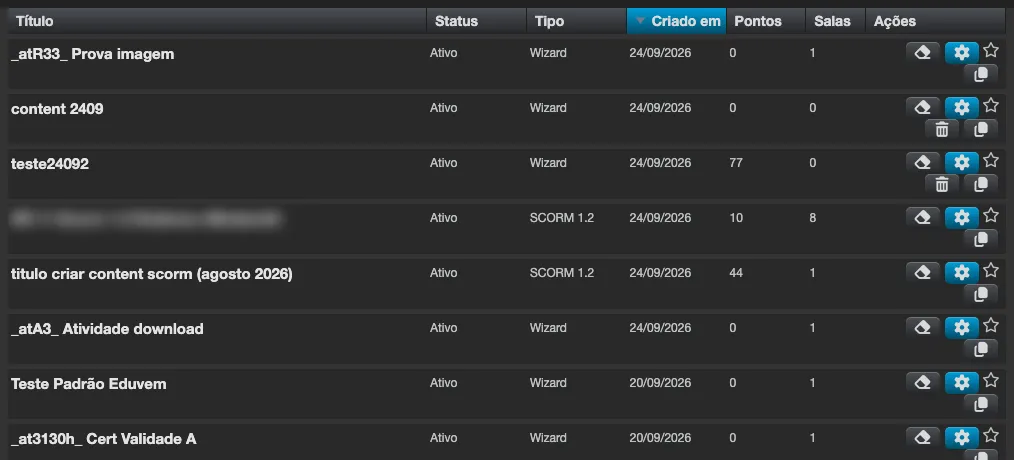
Prerequisite: no linked classes
Section titled “Prerequisite: no linked classes”The delete action is only available for content with no linked classes (Classes column = 0 in the list). If the content still has classes, delete the classes first - this protects participants with enrollments in progress from losing access in the middle of a course.
Step by step
Section titled “Step by step”- Under Contents, locate the content (use the search).
- Confirm the Classes column shows 0.
- Use the delete action in the Actions column and confirm.
What happens
Section titled “What happens”- The content leaves the showcase and can no longer receive classes.
- The institution’s history is preserved: past enrollments, completions and certificates already issued stay in the reports.