


Issue and download certificates
Eduvem issues completion certificates automatically, without you having to request anything - as long as your institution has enabled certificates for that content.
How the certificate is released
Section titled “How the certificate is released”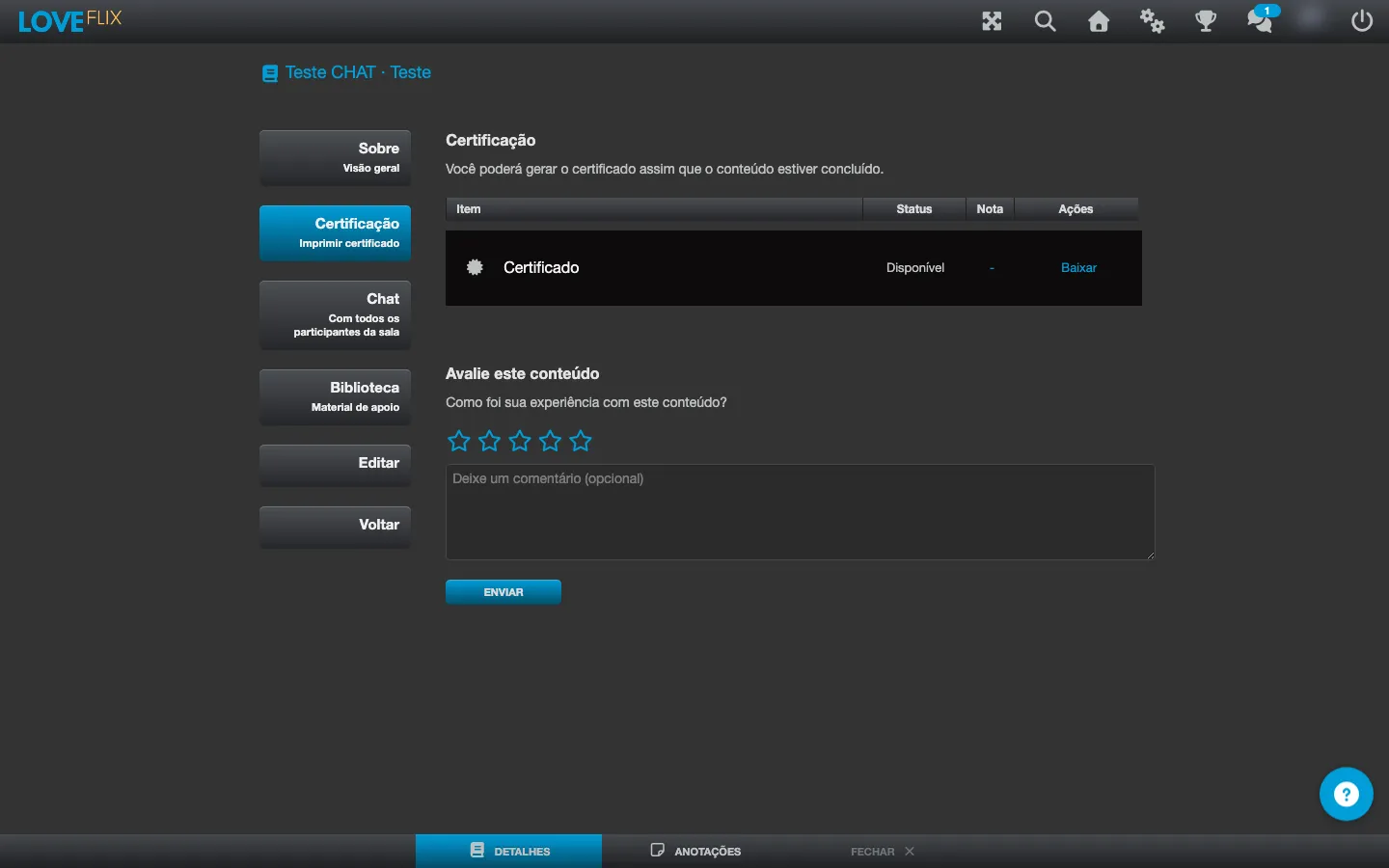
- Complete the content and meet the approval criteria set by your institution (full progress and, when there is one, the minimum evaluation score).
- As soon as approval is confirmed, the certificate becomes available automatically - there is no need to ask the administrator to issue it.
- The document is generated as a PDF, ready to download and print.
Where to find your certificates
Section titled “Where to find your certificates”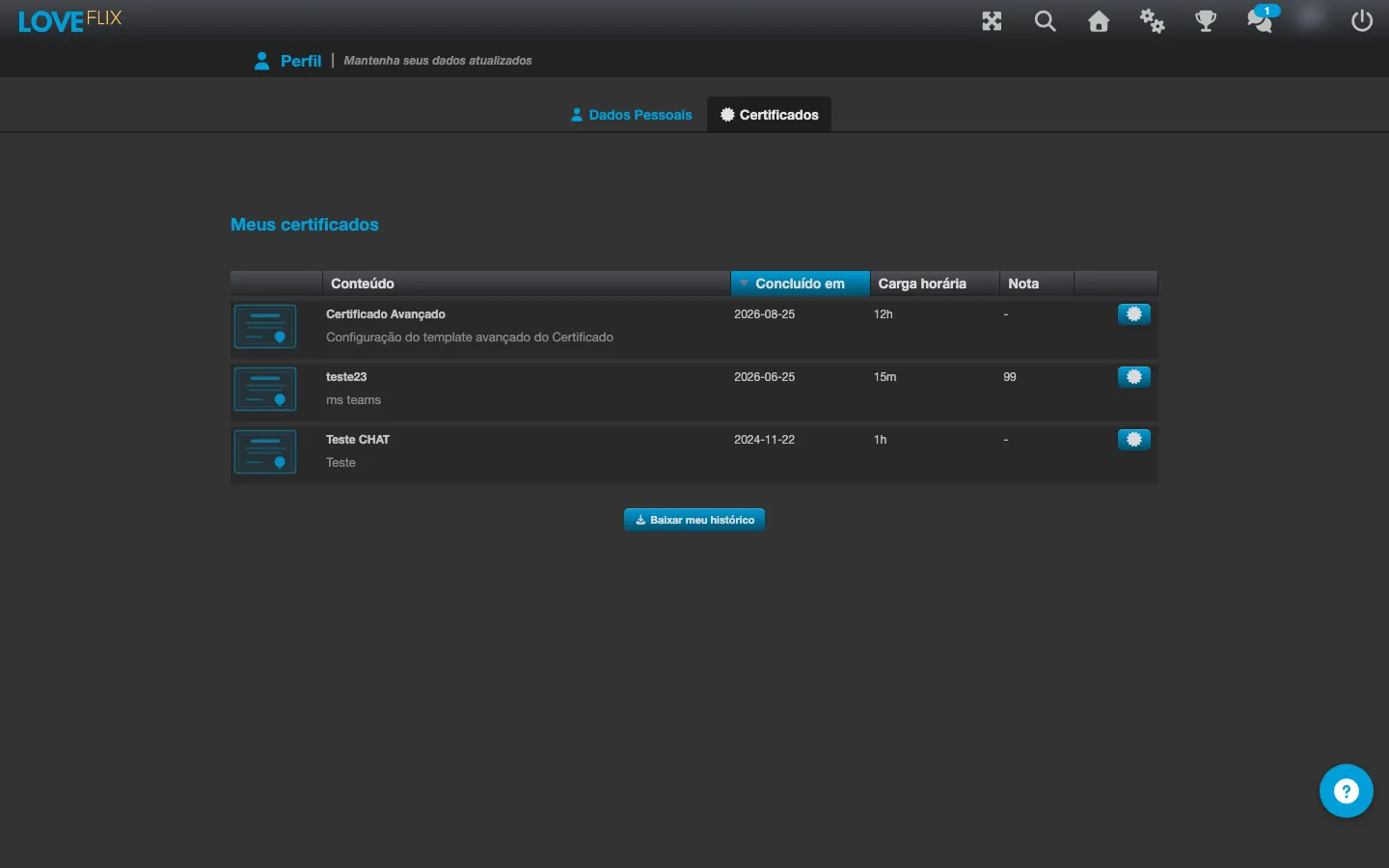
You can reach your certificates in two ways:
- Directly in the completed content, on the content’s own screen.
- On the Certificates tab, inside your profile - that is where all the certificates you have earned are gathered, with the option to view/download each one.
Certificates with an expiration date
Section titled “Certificates with an expiration date”Some certificates have a validity period defined by your institution - this is the case, for example, with training that must be redone periodically. When that applies, the expiration date appears next to the certificate, both on the content screen and on the Certificates tab of your profile; a certificate that has already expired is marked with the Expired badge.
If your institution has configured a recertification for the content, you are automatically enrolled in a new class before the expiration, without having to ask for anything - just complete the recertification for the certificate to become valid again. This depends on a recertification class with an open seat being available; if there is none, contact your institution’s administrator.
Cannot find the certificate?
Section titled “Cannot find the certificate?”If you completed the content and passed, but do not see the certificate available, your institution may not have enabled certificate issuance for that specific content. In that case, contact your institution’s administrator.