


Automation rules
An automation rule takes actions on its own when something happens: someone joins an audience, completes a content, a date arrives or they start owing a mandatory training. The rule can enroll the person in a class, send an e-mail or notify another system through a webhook. Every rule goes through a preview before it is activated, so you always see who would be affected.
How a rule is built
Section titled “How a rule is built”Each rule has three blocks:
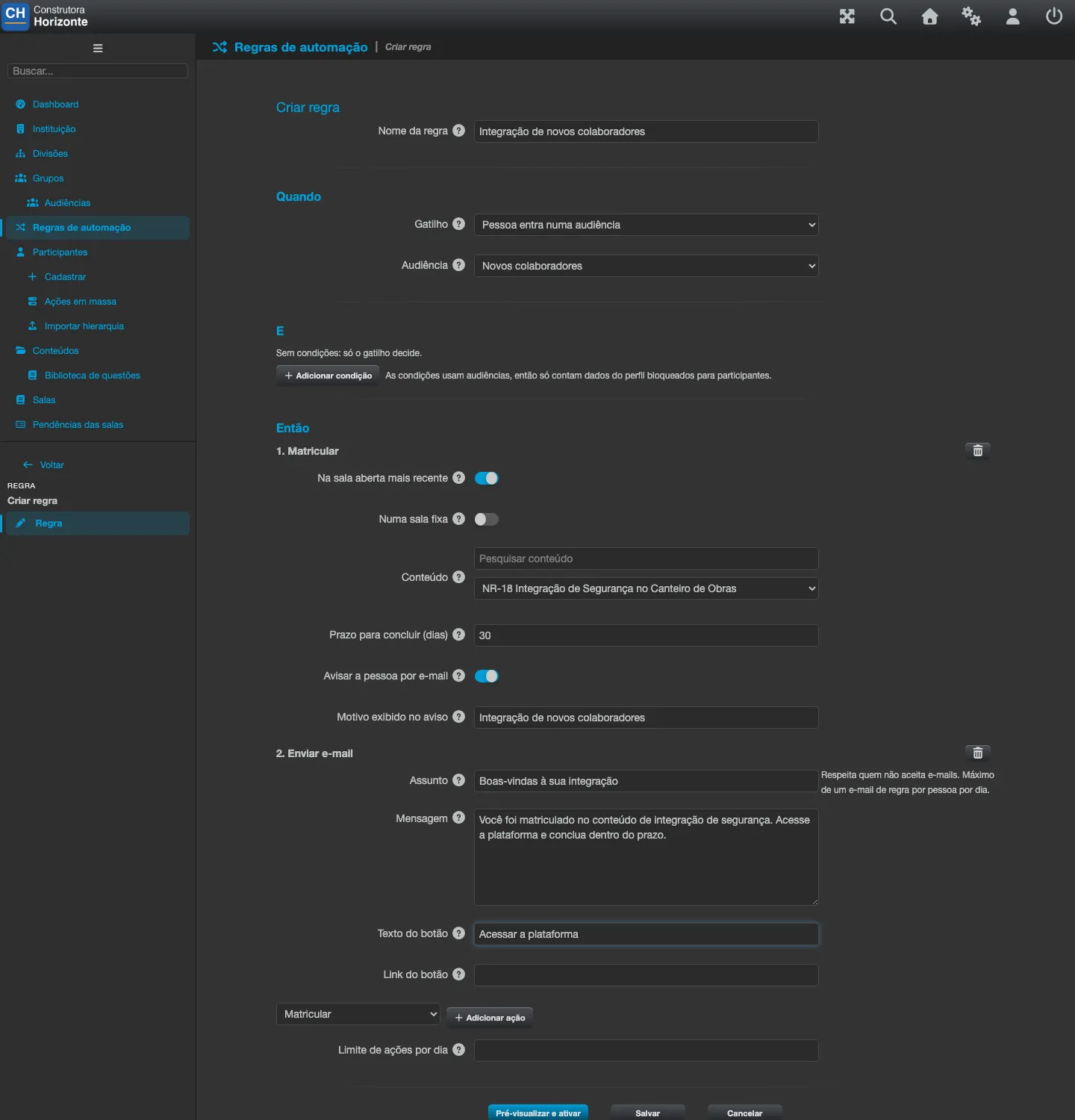
- When - the trigger, what makes the rule act:
- Person joins an audience - whoever joins the chosen audience triggers the rule.
- Enrollment completed - the person completes a content (a chosen content version).
- Date based - a number of days counted from the person’s registration date or from the enrollment deadline (a negative number acts before the date), or a yearly date (every year on the same day, for example 03-15).
- Person owes a mandatory training - used by the NR auto-enrollment template (see below).
- And - optional conditions: the person is or is not in the chosen audience. With no conditions, only the trigger decides. Because conditions use audiences, only profile data locked for participants counts.
- Then - one or more actions:
- Enroll - in the newest open class of a content or in a fixed class. The deadline to complete (in days after the enrollment) becomes the enrollment’s end date. Tick Notify the person by e-mail to send a notice that explains why they were enrolled and shows the deadline; the reason shown in the notice is optional.
- Send e-mail - with a subject, a message and, if you want, a button (text and a link starting with http or https). A greeting with the person’s name is added automatically.
- Notify another system (webhook) - uses a webhook subscription already registered under Integrations, which must subscribe to the
automation.ruleFiredevent.
Starting from a template
Section titled “Starting from a template”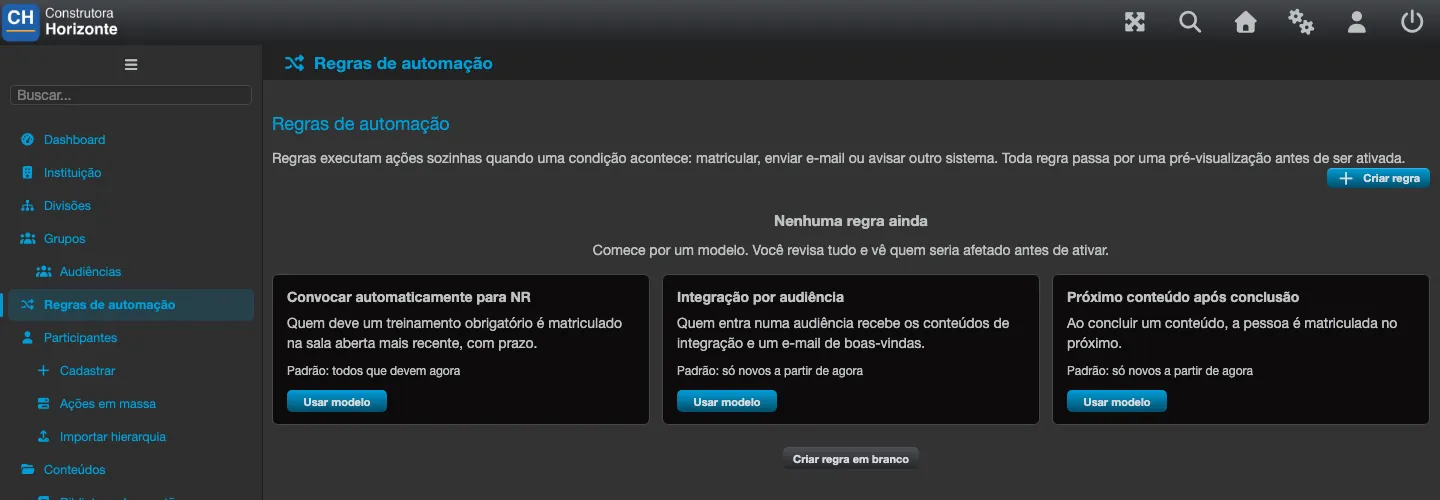
In the Automation rules section, pick a template and click Use template, or click Create blank rule:
- Auto-enroll for NR training - whoever owes a mandatory training is enrolled in the newest open class, with a deadline. Choose the mandatory training (only content versions with a mandatory training defined for some audience are listed).
- Onboarding by audience - whoever joins an audience receives the onboarding contents and a welcome e-mail.
- Next content after completion - when a person completes a content, they are enrolled in the next one.
A template that cannot be used yet shows Not available yet, with what is missing: enable the institution’s mandatory trainings, define at least one mandatory training for an audience, or create at least one audience.
The NR rule keeps the template’s structure: once created, only its name and deadline can change. To change anything else, create a new rule.
Preview and activate
Section titled “Preview and activate”Every rule starts as a Draft. Save it and click Preview and activate. The preview shows:
- how many people would be affected now, with a sample of names;
- how many of them have not signed in this month yet (or never have). Mind the billing: if those people sign in after being enrolled, they count as active users for the month.
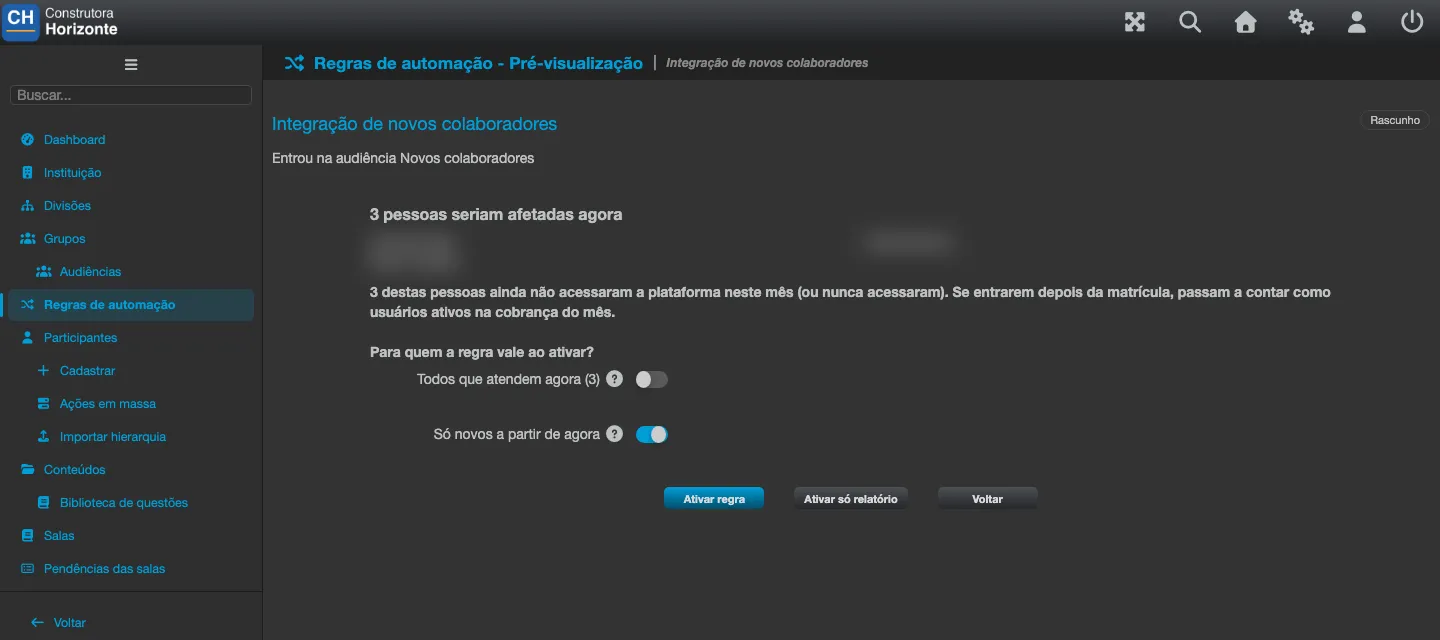
Choose who the rule applies to when it is activated:
- Everyone who matches now and anyone who matches later - the default of the NR template.
- Only people who match from now on - the default of the other templates. People who already matched at activation are recorded as such and are not affected.
When the rule reaches more than 300 people, type the number shown to confirm. Large rules are processed in batches every hour until everyone is covered.
Then choose how to activate:
- Activate report only - the rule goes to the Report only state: it records how many people each run would affect, but acts on nobody. Use it for a few hours to check the reach before turning it on for real.
- Activate rule - the rule becomes Active and starts acting.
The rule is evaluated every hour. The Run now button runs it immediately.
Daily limits
Section titled “Daily limits”By default, an institution can have up to 20 active rules and run up to 2,000 actions per day across all its rules. Eduvem can set lower limits for the institution. Each rule can have its own Actions per day limit, which can only be stricter than the institution’s.
When a daily limit is reached, the rule is paused with the reason “The daily action limit was reached” and resumes by itself the next day, without a new activation. It does not resume by itself if it was edited (in that case, preview and activate it again) or if the institution is already at its active-rule limit.
Following the runs
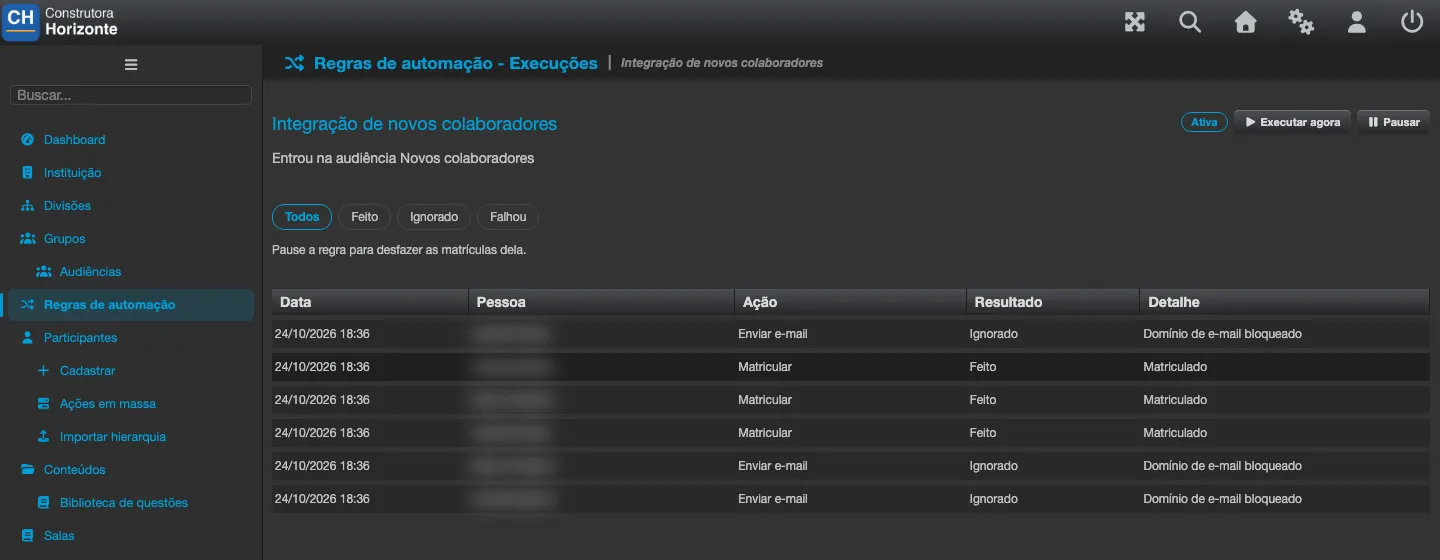
Section titled “Following the runs”The rule’s Runs section shows one line per person and action, with the result:
- Done - the action happened (for example, enrolled, e-mail sent, webhook queued).
- Skipped - the action will not be tried again in this cycle. For example: the person was already enrolled, had an enrollment cancelled before, opted out of e-mails, has no e-mail address, or the rule no longer applies.
- Skipped, will retry - a temporary reason, such as a full class or no open class. The rule tries again every 24 hours, up to 14 times.
- Failed, will retry - an unexpected error; the rule tries up to 3 times and then marks it Failed.
A rule never reactivates a cancelled, denied or suspended enrollment. An NR class requires the person to have a CPF and a full name in their profile; without them, the enrollment is skipped with that reason.
Every enrollment made by a rule is recorded with the rule source, separate from enrollments made by administrators, groups or the API.
E-mails to participants
Section titled “E-mails to participants”Rule e-mails honor people who opted out of e-mails, and each person receives at most one rule e-mail per day. The exception is the convocation notice of the NR template: because it is about the person’s own mandatory training, it is sent even to people who opted out of e-mails.
Pause, edit and delete
Section titled “Pause, edit and delete”An active rule cannot be edited: click Pause first. To activate it again, click Resume, which opens the preview again. To delete a rule, pause it first; its run history stays in the audit trail.
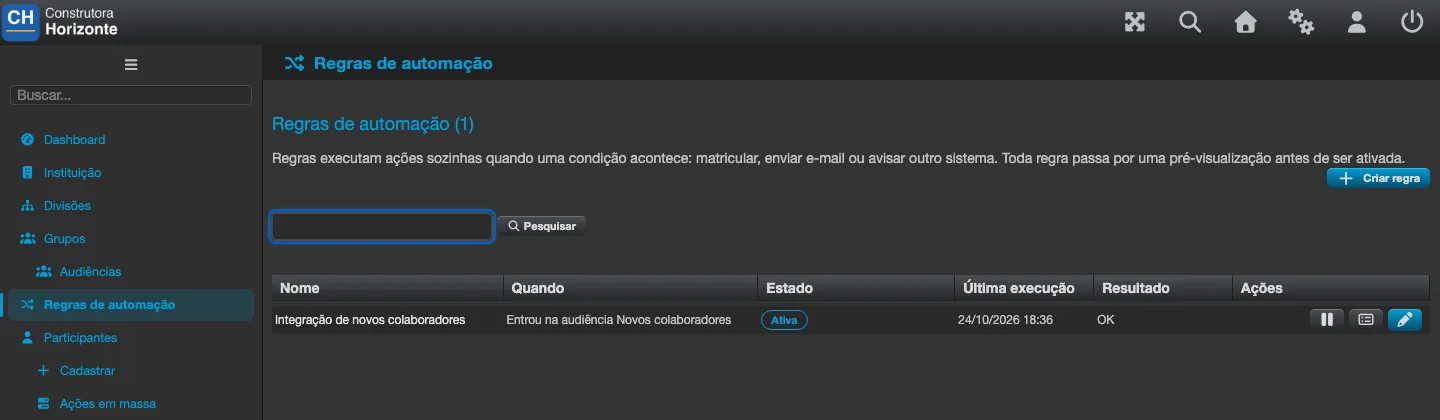
The platform also pauses a rule on its own and shows the reason in the list:
- Paused by an administrator
- The target class was closed or removed - edit the action, preview and activate.
- An audience used by the rule was removed - edit the rule.
- The mandatory training of the rule was removed - recreate the mandatory training or delete the rule.
- The webhook subscription was removed or disabled - fix the subscription under Integrations.
- Three consecutive runs failed - contact Eduvem.
- The daily action limit was reached - the rule resumes by itself the next day (see Daily limits).
Undoing enrollments
Section titled “Undoing enrollments”With the rule paused, the Cancel this rule’s enrollments with no progress button cancels the enrollments this rule made that have no progress, no access and no certificate yet. Enrollments with any progress stay. Each click processes up to 1,000 enrollments; if the message shows enrollments “still to do”, click again. The action is recorded in the audit trail, and people whose enrollment was undone are not enrolled again in the same cycle.