


Pre-test and post-test
The pre-test is an optional lecture that measures how much the participant already knows about the subject before starting the content. The post-test is not a separate exam: it is the content’s own final exam, on the participant’s first attempt. Comparing the two results shows the learning gain the content produced.
How to add it
Section titled “How to add it”In the modular content editor, the Add pre-test button inserts a pre-test as the first lecture of the first module. The button is disabled only when the content already has a pre-test, with the tooltip “This course already has a pre-test.”
You can add the pre-test before creating the final exam: the draft saves normally. But the content can only be published when there is exactly one final exam after the pre-test in the content tree. If you try to publish without that, the editor refuses with the message “This pre-test needs exactly one final exam after it to be published:”, followed by the lecture’s name. The same warning appears as a hint under the question-source field, before you publish: “Needs a final exam to be published.”
You can place an introductory lecture (for example, a welcome Text lecture) before the pre-test, inside the same module.
When you save a draft, the editor only checks that there is at most one pre-test per content item and that its settings are valid. When you publish, the editor also requires exactly one final exam, placed after the pre-test in the content tree.
Random draw or own questions
Section titled “Random draw or own questions”In the Question source field, the pre-test has two modes:
- Random sample from the final exam (default) - the platform draws a fixed number of questions from the final exam’s own question bank. The Number of questions field sets how many (1 to 50, default 5).
- Its own questions - the pre-test has its own question list, independent of the final exam.
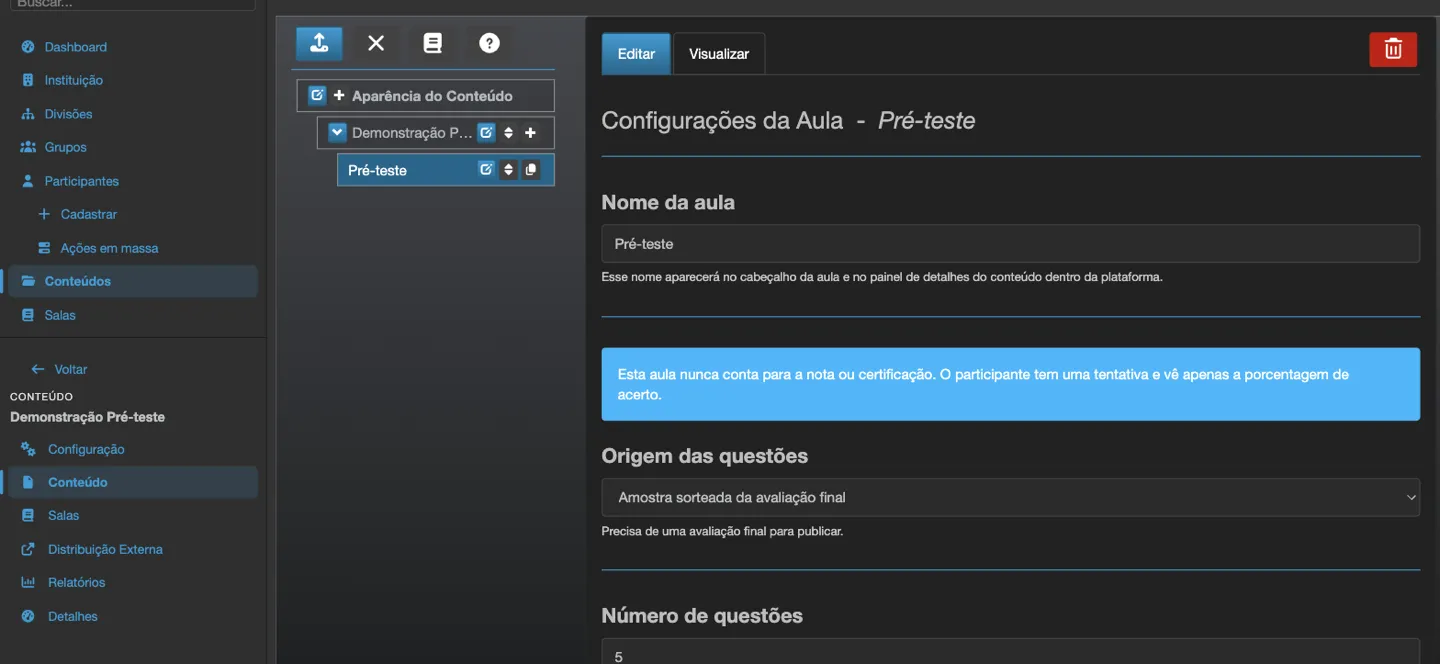
A time limit (in minutes, 1 to 600) is optional - left blank means no limit.
What the participant sees
Section titled “What the participant sees”The participant cannot move forward in the content until they answer the pre-test - any result unlocks the next lecture, including a low one. They get only one attempt: there is no way to retake the pre-test on their own.
Right after they submit the pre-test, they see only the percentage they got right. The correct answers and the explanation for each question stay unavailable until they submit the final exam. From then on, the See my answers button (and Hide my answers) appears on the pre-test lecture’s own result screen, unlocking the question-by-question review there - not on the final exam. The final exam result shows the note “Your pre-test answers are now available in the Pre-test lecture.”, and the participant needs to go back to the Pre-test lecture to see the answers.
Comparing pre-test and final exam
Section titled “Comparing pre-test and final exam”When the participant finishes the final exam, their result shows both numbers side by side - for example, “Pre-test: 40% -> Final evaluation: 85%”.
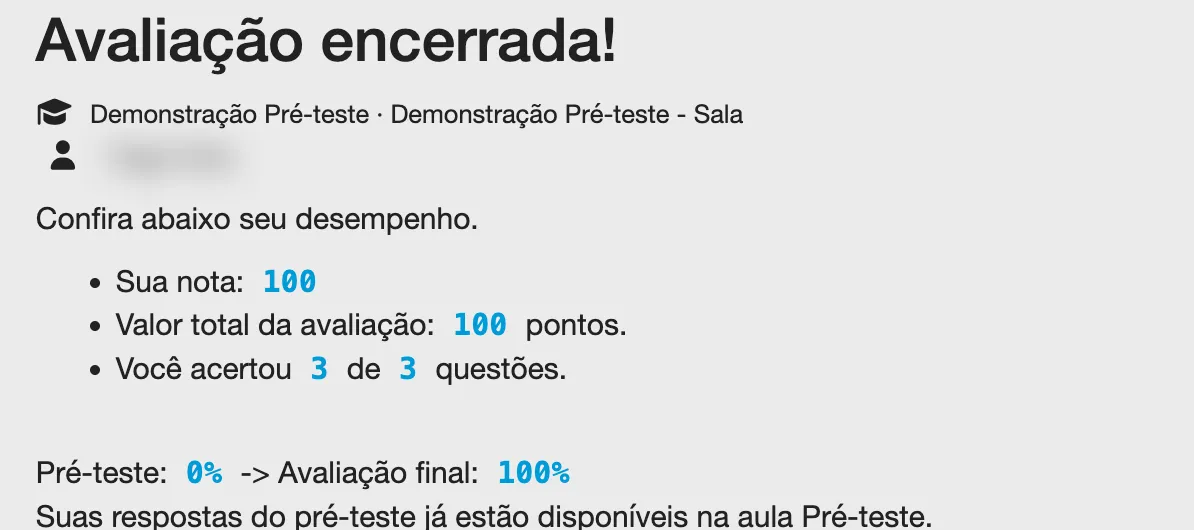
In Random sample from the final exam mode, the pre-test draws from the same question bank as the final exam. In that case, if the bank has enough questions, the final exam avoids repeating, for that participant, the questions they already saw on the pre-test. In Own questions mode this rule does not apply, because the two question lists are already independent.
Where to see the comparison
Section titled “Where to see the comparison”- Administrative Dashboard -> Performance and assessments -> Learning gain - per Content, the average pre-test score and the average score of the first attempt at the final exam, among participants who have both, with the gain in percentage points (pp) and, when the average pre-test score is below 100, the g indicator (normalized gain, (post - pre) / (100 - pre)). The table also has a No final evaluation column, for participants who took the pre-test but have not completed the final exam yet, and a Content changed column, for pairs whose content was republished between the two evaluations (still counted); a Content that nobody has completed the final exam for yet appears in the table and in a note below the chart. The Table button shows the same data as a table, and the date, division, group, track, content, class and enrollment status filters apply normally. Contents from older SCORM packages that already report their own pre/post values appear in a separate row marked Points (the package’s raw value, with no g indicator).
- Classes -> the class -> Participants -> the gear icon on a participant -> Manage enrollment, under Final exam attempts: a line like “Pre-test 40% (5 questions) -> Final exam 85% (+45 pp)”. Before the participant has a graded final exam, only the pre-test part shows.
- In the class enrollment report (XLSX and CSV), the PRE-TEST, POST-TEST and GAIN (PP) columns appear after GRADE, whenever at least one participant in the report has a pre-test score. For older SCORM contents, the PRE-TEST and POST-TEST columns carry the package’s own values and the GAIN column shows “-”.
- The Integration API also returns the pre-test and post-test scores as a percentage (0-100) for wizard content.
A retake of the final exam never replaces the first attempt used for this comparison.
When the pre-test stops being available
Section titled “When the pre-test stops being available”The pre-test closes for good the moment the participant starts the final exam for the first time, and it does not reopen after that - even if an administrator later resets the final exam (Reset final exam): a pre-test answered after the participant has already seen the final exam would no longer be a baseline measurement. A participant who arrives late - after classmates have already moved ahead - goes straight to the final exam, skipping the pre-test. The final exam never requires the pre-test as a prerequisite.
If the pre-test cannot be started or graded because of a technical failure, the participant sees the Skip pre-test option and moves on to the next lecture. That participant ends up with no pre-test result.
Resetting the pre-test
Section titled “Resetting the pre-test”Among the enrollment actions, the administrator has Reset pre-test: the participant can retake the pre-test without affecting the final exam or the rest of their progress. This action only works while the participant does not yet have any final exam attempt; after that, it is refused with the message “The pre-test cannot be reset because this participant already has a final exam attempt.” Reset final exam (see Evaluations and final exam) keeps the pre-test result, but does not reopen the pre-test.

Availability
Section titled “Availability”The pre-test is available in every institution - there is no setting to enable it.