


Roll call (attendance list)
Roll call records who attended each session of a class. Each real-world meeting is a session; for each session you mark every participant as Present, Absent, or Late and, whenever you want, export it all as CSV.
It works for both in-person classes and live classes: the session can be linked to a scheduled live class or exist on its own, for a meeting that wasn’t on the schedule.
Once turned on, the tab works for class administrators, tutors, and observers - the pilot restricts who turns on the feature, not who uses it.
Creating a session
Section titled “Creating a session”In Classes, open the class and click the Roll call tab, then New session:
- Date: when the session happens. The default is today, and it’s the only required field.
- Start time and Duration (minutes): optional.
- Title: a short optional name, for example the topic covered.
- Location: an optional room or address.
- Live class: link the session to an already-scheduled live class, so the roll call belongs to the class it documents. Leave it at No link to a scheduled class for a standalone session.
The session is born with the Not taken status and moves to Taken when you save the roll call for the first time.
Taking roll call
Section titled “Taking roll call”Click Take roll call on the session. The list brings up every participant enrolled in the class.
Before the first save, a notice appears saying roll call hasn’t been taken yet and that everyone starts marked as Present until you save. This is deliberate: the system separately stores “nobody has taken roll call” and “roll call was taken and everyone was present,” which are different things. A session with no roll call taken doesn’t count as perfect attendance.
Mark each participant and click Save roll call. On save, the system writes one row per enrolled participant, always with an explicit status - it never leaves anyone “blank” in the record.
Correcting a marking afterward
Section titled “Correcting a marking afterward”After roll call has been taken, go back into Take roll call and change the status of whoever needs it. The correction is saved on its own, without redoing the whole roll call: only that participant is changed, and the other markings stay as they were.
If someone else changed the same record while you had the screen open, the system warns you and reloads the list instead of silently overwriting what the other person did.
Session notes
Section titled “Session notes”Below the attendance list is the Session notes field: a free-form space to record what happened at the meeting - what was covered, why someone was absent, what’s left pending for next time.
Write the text and click the save button right below the field. The note is saved on its own, without redoing roll call: the attendance markings aren’t changed.
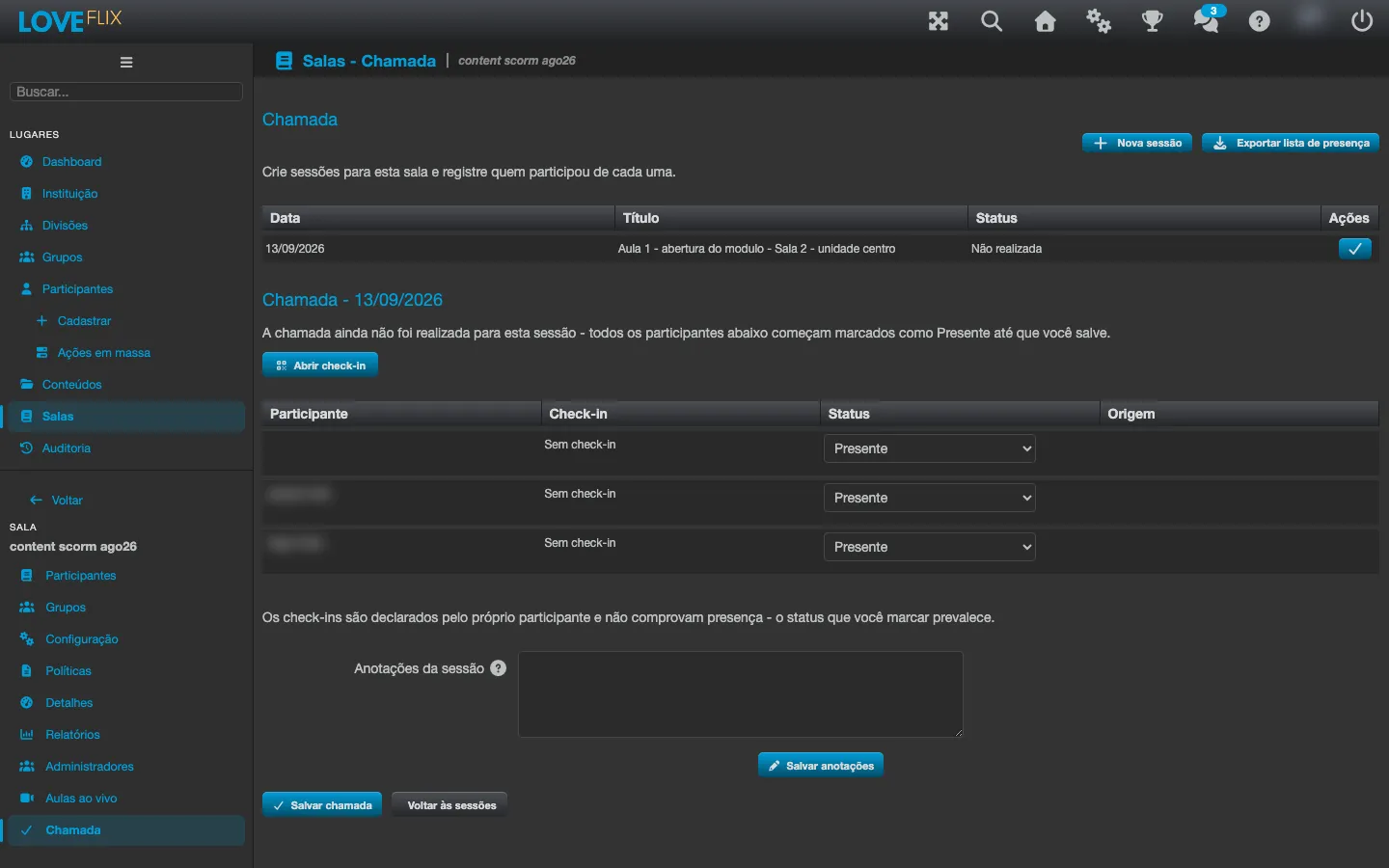
A few things worth knowing:
- The note isn’t seen by participants. It only appears on the Class’s administrative screens. Whoever is an observer of the Class can read the text, but not edit it.
- A canceled session also accepts a note - “canceled, room flooded” is exactly the kind of record the field exists for.
- Clearing everything and saving empties the note. It’s not an error: the field simply goes back to being empty.
- The text is long enough for several paragraphs, but it has a limit. If you paste something very long, the system warns you right in the field instead of giving a generic error.
- Every change is recorded with its author, like the session’s other changes.
QR-code check-in
Section titled “QR-code check-in”Instead of marking everyone by hand, you can let participants check themselves in.
- In the session’s roll call, click Open self-check-in. A check-in code appears on the screen for you to project in the room.
- Participants scan the code with their phone’s camera and confirm.
- As they arrive, the Check-in column of the list shows the Arrival time (and Departure, if they check out).
- At the end of the meeting, click Close self-check-in.
The code refreshes on its own and expires quickly. It’s worth understanding exactly what this protects: it prevents an old screenshot from staying valid, and it doesn’t prevent a photo shared on the spot with someone who didn’t show up. Rotation is a validity control, not proof of attendance.
While check-in is closed, a scan of the code is refused. On closing, anyone who checked in and didn’t check out is closed out automatically at that moment, so nobody is left with an open-ended departure time.
Where each marking came from
Section titled “Where each marking came from”The attendance list has a Source column, which shows how each marking got there: Marked for a marking you made on the screen, Default (unreviewed) for the initial Present nobody has reviewed yet, Self check-in (unattested) for a QR-code check-in, and Imported from Teams (unattested) for markings pre-filled by the Microsoft Teams attendance import (below).
The column appears for every institution using roll call, even those that don’t use Teams - in that case no marking comes from Teams.
Pre-filling from Microsoft Teams
Section titled “Pre-filling from Microsoft Teams”When the session is linked to a live class on Teams and the institution has import enabled, Eduvem automatically fetches the meeting’s attendance report after it ends and pre-fills roll call: whoever attended the meeting appears already marked.
Two situations worth knowing:
- Meeting participants who aren’t in the class. If someone joined the Teams meeting with an email that doesn’t match any enrollment, Eduvem doesn’t invent a marking. The screen reports how many attendances were left unmatched. Administrators can see which emails those were; tutors and observers only see the count, because those people are third parties in relation to the class.
- Attendances with no email. Teams reports whoever joined by phone, for example, with no email address. These attendances also count toward the unmatched total.
Import is born off for every institution and only the Eduvem team can turn it on, along with two thresholds that define how much meeting time counts as attendance. Ask support if you’d like to evaluate the feature.
Exporting the attendance list
Section titled “Exporting the attendance list”The Export attendance list button downloads a CSV with every session of the class.
The file is built from the list of enrolled participants, not from the markings: whoever enrolled after a roll call was already taken still appears, with attendance blank for that session. An attendance list that leaves people out isn’t fit to serve as a document, so nobody is omitted.
Common questions
Section titled “Common questions”Is the session the same thing as the live class? No. The live class is the scheduling; the session is the meeting that actually happened and for which you took roll call. They can be linked, but a class can exist without roll call and a roll call can exist without a scheduled class.
I canceled an occurrence in a series. Does its roll call disappear? No. Canceled occurrences keep existing with the Canceled state, and any roll call already taken keeps pointing to them.
Does the participant see the session note? No. The note is an internal record for the Class’s team. No participant screen shows a session’s content.
Can I mark attendance for someone who isn’t enrolled? No. The list is always the one for participants enrolled in the class.