


People sync
People sync keeps the list of people in Eduvem equal to your company’s employee roster. Instead of registering, updating and deactivating people one by one, you send the complete list of employees - as a CSV file or, automatically, from your HR system through the integration API. Eduvem compares the list with who is already on the platform, shows what will change and applies it only after an approval.
Each employee is identified by the externalId: the code your HR system already uses for that person (the employee number, for example). It is what links, from one upload to the next, the row in the file to the person on the platform.
How to turn it on
Section titled “How to turn it on”The feature ships off in every institution. To use it, ask Eduvem support to turn it on. In the same request you can ask for adjustments to the safety limits, automatic apply through the API and the stopped-feed alert, all described below.
Once it is on, the People sync entry appears in the Participants menu for institution administrators. Division and class administrators do not see it: the sync covers the whole institution.
The file
Section titled “The file”The file is a CSV with one header row and one row per person, in UTF-8. The separator can be a semicolon, a comma or a tab (it is detected from the header), and column names are not case-sensitive. On the screen, the spreadsheet icon downloads a template with every column and one example row. The limit is 50,000 rows per upload.
| Column | What it is | How it is handled |
|---|---|---|
externalId |
The employee’s code in your HR system, up to 100 characters | Required on every row. If the same code appears twice in the file, both rows are refused |
fullName |
Full name | Updated on every upload; cannot be blank |
email, cpf, username |
Email, CPF and username | Used to create the person and to find who is already on the platform. On an existing person they are never changed: a different value is only flagged in the report |
division |
Division name | Updated on every upload; must be the name of an active division, and only applies to institutions that use divisions |
state, city, custom1 to custom12 |
State, city and the custom profile fields | Updated on every upload |
status |
The employee’s situation | Optional: ativo (or active) and desligado (or terminated) |
terminationDate |
Termination date | Optional, in the YYYY-MM-DD format |
In status, write exactly one of those four values; other words, such as “inactive” or “fired”, are refused as an invalid status.
A few rules apply to every column that is updated on each upload:
- Column missing from the file: the field stays as it is on the platform.
- Blank cell in a column that is present: the field is cleared.
- A column with an unknown name refuses the whole file. Password columns (any header containing “senha”, “pass”, “pwd” or “secret”) are refused too: the sync never receives passwords.
- To create a new person, the row needs the full name and at least one of email, CPF or username.
How a row finds the person
Section titled “How a row finds the person”Each row is compared with the institution’s people in this order: externalId, then CPF (also when the CPF is the person’s username), then email, then username - ignoring case and accents. On the first upload, people already on the platform are found by CPF, email or username and become linked to the file’s externalId.
The sync never changes a person’s link on its own. The row is refused when its identifiers point to different people, or when the person found is already linked to another externalId.
Terminations
Section titled “Terminations”A row with status set to desligado deactivates the person when the terminationDate is blank, today or in the past. With a future date nothing happens yet: the deactivation comes with the first upload after that date. A termination row that matches nobody creates nobody.
Deactivation by termination only reaches people already linked to the HR system (who have an externalId). A person found only by CPF, email or username, not linked yet, is flagged as a row error and is not deactivated.
Sending a file
Section titled “Sending a file”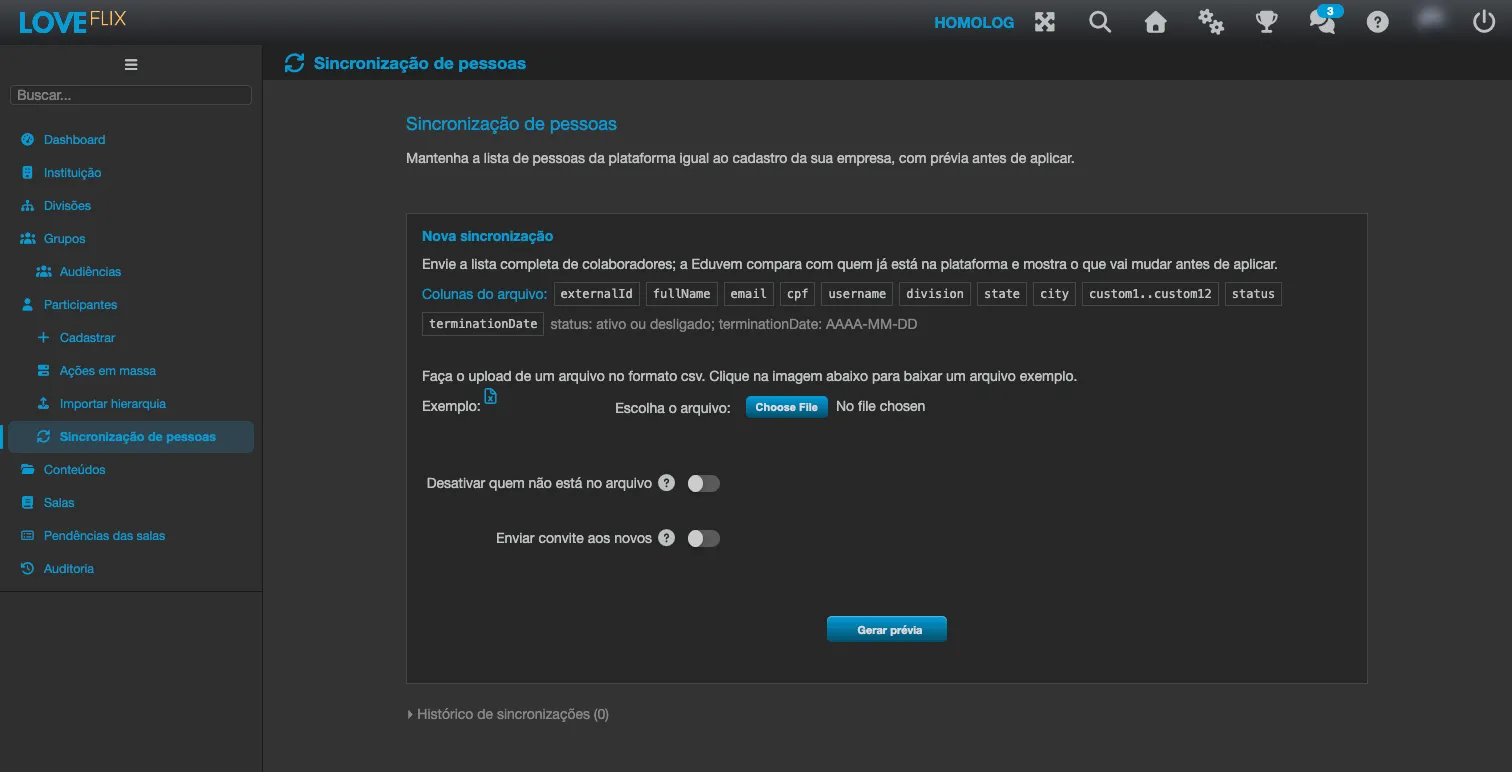
- In Participants > People sync, on the New synchronization panel, choose the CSV file.
- Check the options that apply to this upload (both start unchecked):
- Deactivate people who are not in the file - deactivates the people linked to the HR system who do not appear in the file. Use it only when the file is the complete list of employees.
- Send an invitation to new people - sends the registration email to the people created who have an email address.
- Click Generate preview.
For large files the preview can take a few minutes. You can leave the screen: when you come back, the preview is waiting. The institution has one sync in progress at a time. While a preview awaits approval, Change file goes back to the upload panel; when the new file’s preview is generated, the previous one is cancelled.
The preview
Section titled “The preview”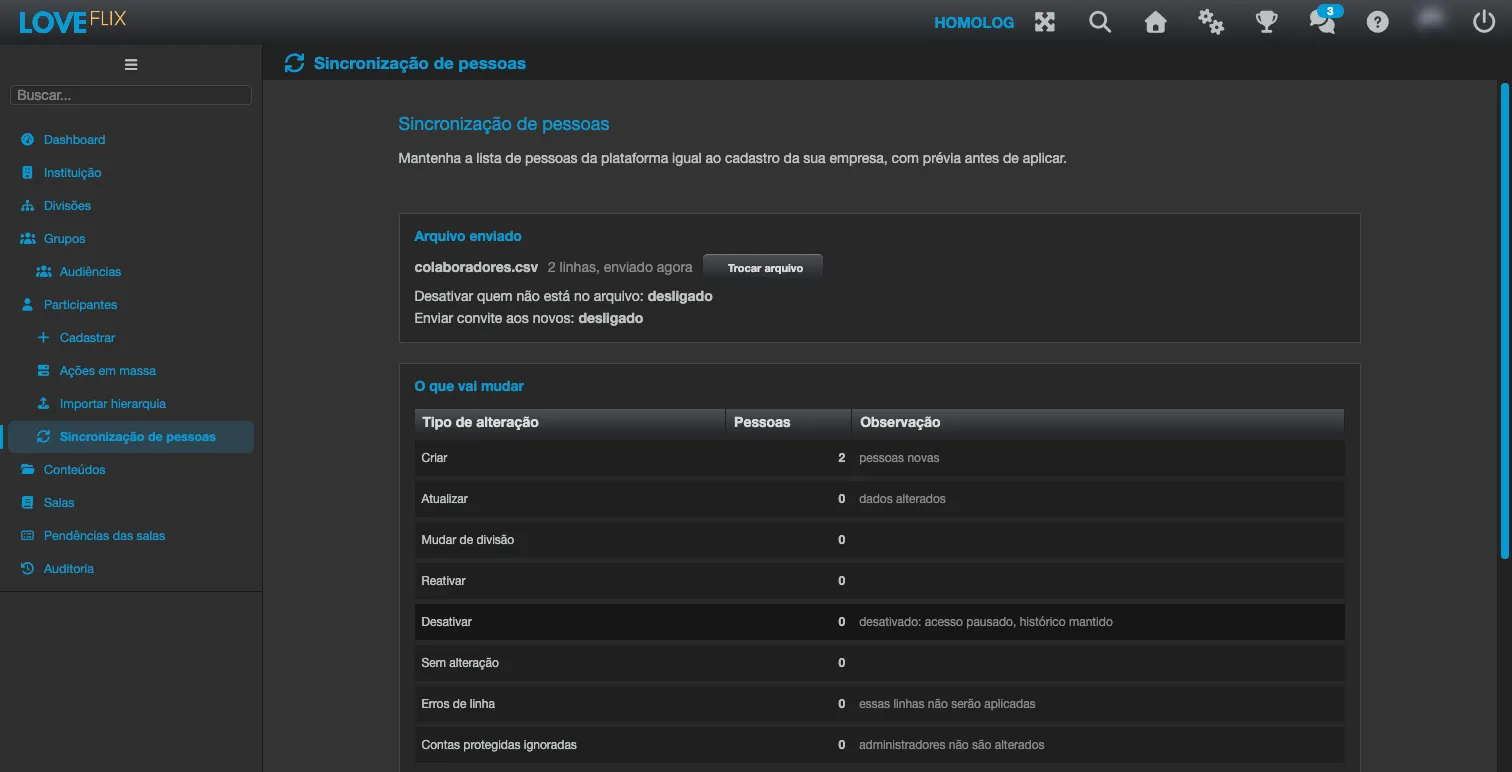
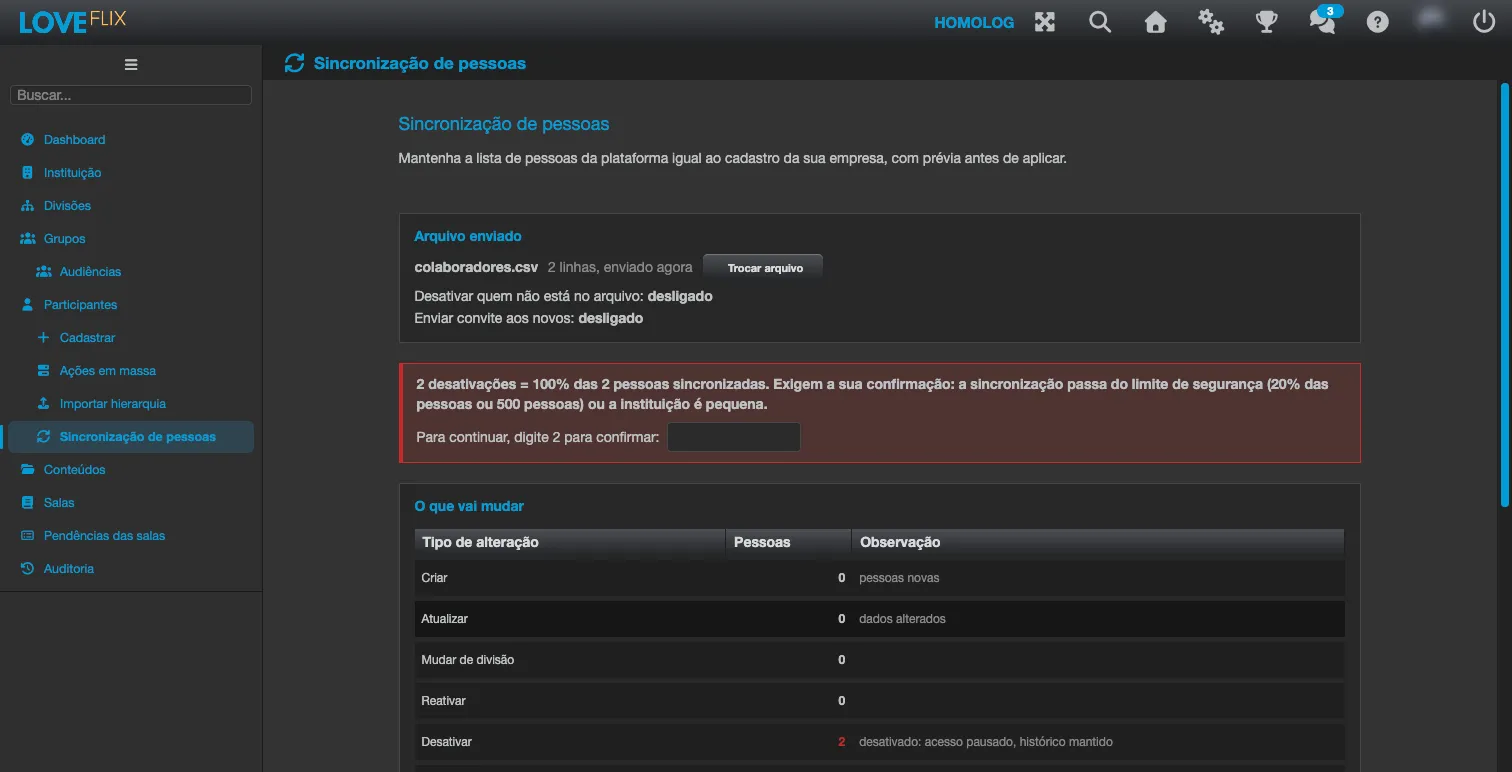
Nothing changes until someone approves. The preview shows:
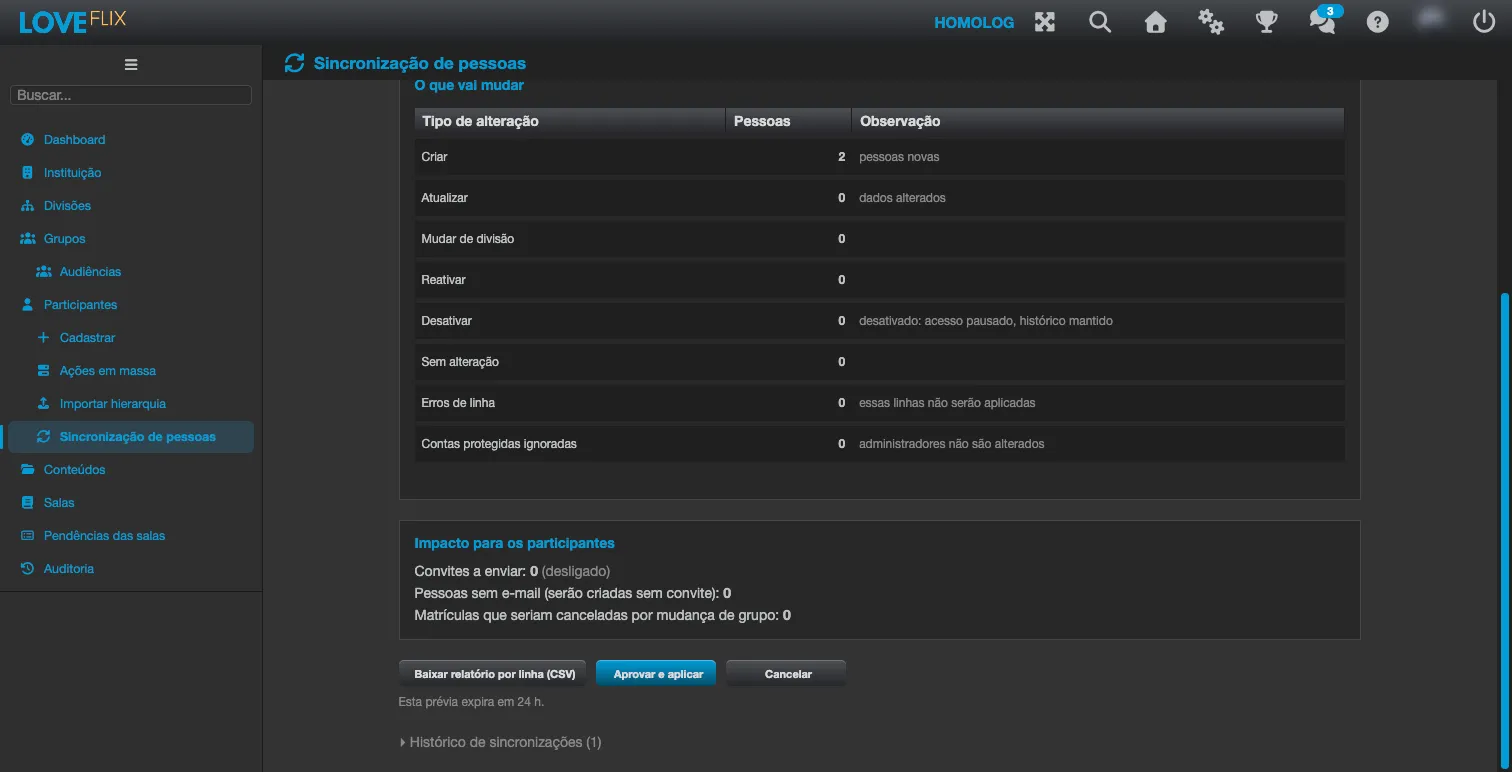
- What will change - how many people in each type of change: Create, Update, Change division, Reactivate, Deactivate, No change, Row errors (these rows will not be applied) and Protected accounts skipped.
- Impact on participants - the Invitations to send, the People without an e-mail address (created without an invitation) and the Enrollments that would be cancelled by a group change, with the number of those that already have a certificate.
- Row errors - the first 20 refused rows, with the row number, the partly hidden identifier and the reason in plain words.
Below the preview are the Download row report (CSV), Approve and apply and Cancel buttons. A preview that is not approved expires in 24 hours.
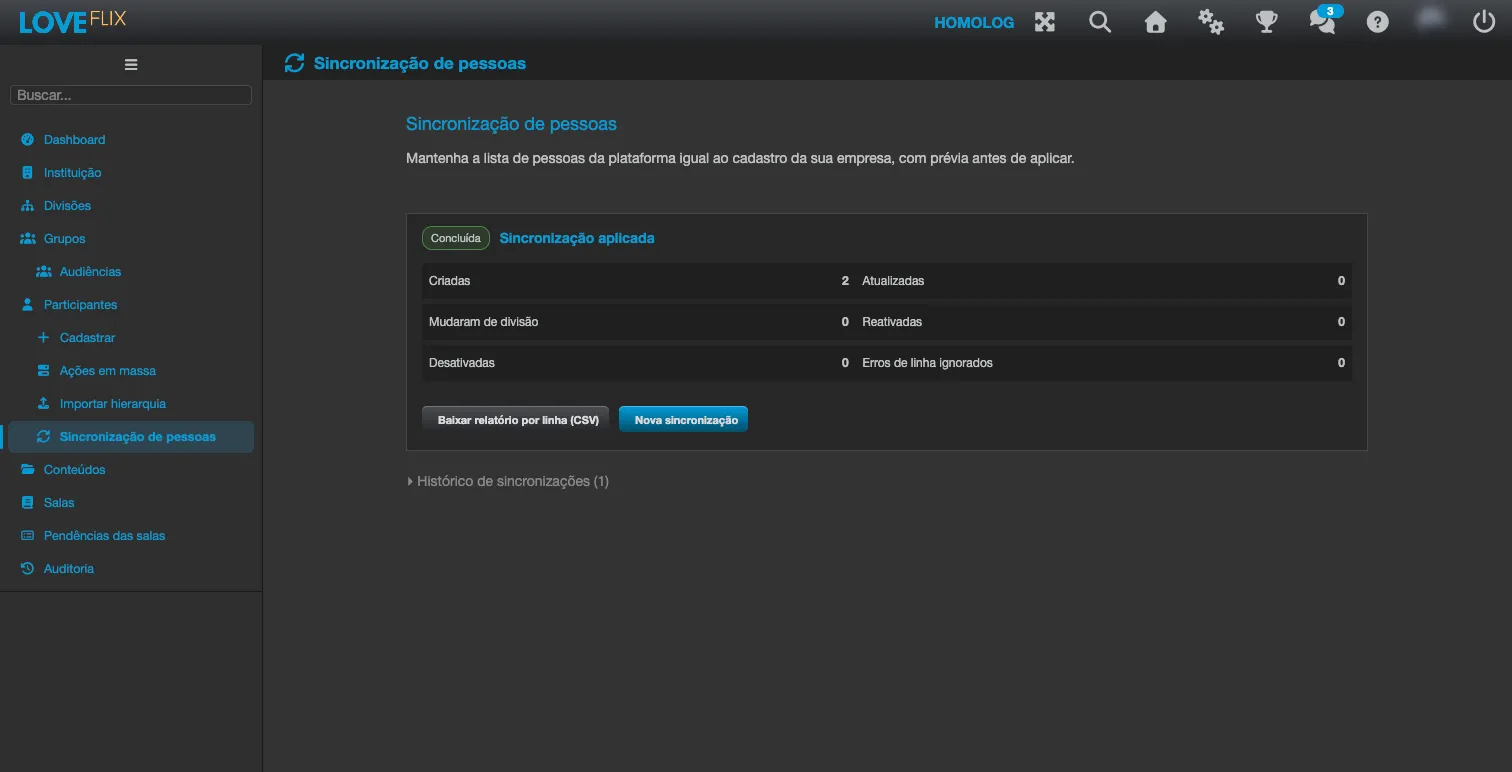
Once approved, the screen shows the progress (Applying changes) - you can leave, the process keeps running - and, at the end, the Synchronization applied summary: people created, updated, who changed division, reactivated and deactivated, plus the row errors ignored, the failures while applying and the invitations that failed to send, when there are any.
What each change does
Section titled “What each change does”- Create - registers the person with the row’s data. People with an email address are created without a password: the first access is through the invitation (if the option was checked) or through the Forgot password flow. People without an email address sign in with their CPF or username, following the same initial-password rules as creating users by CPF and creating users by username.
- Update - saves the name, state, city and custom fields that changed.
- Change division - moves the person to the division given in the file.
- Deactivate - access is paused and the history is kept: enrollments are suspended and open sessions are ended. The sync never deletes or anonymizes anyone.
- Reactivate - gives access back to people that the sync itself deactivated and who appear as active in the file again, restoring the enrollments it had suspended. A person deactivated by an administrator or for another reason is not reactivated by the sync: the row shows as an error and the reactivation is done manually.
Protected accounts are never changed: people with any administrative role in the institution, in classes or in divisions, and Eduvem staff accounts. They appear in the preview as protected accounts skipped.
Profile changes also affect groups. If a person stops meeting the rules of an audience linked to a group with the Audience members only option, they leave the group and the enrollments that group had made for them are cancelled - that is the number shown in Enrollments that would be cancelled by a group change. With the sync on in an institution that uses divisions, audiences can also have a rule on the division.
Safety limits
Section titled “Safety limits”Three limits protect the institution against a wrong file, such as a half list or another company’s file. They count the synchronized people: active people, linked to the HR system, who are not protected accounts.
| Limit | When it trips (default values) | What happens |
|---|---|---|
| File too small | With Deactivate people who are not in the file checked, the file matches fewer than 50% of the synchronized people | The sync stops before changing anyone (state Blocked by limit). Check that the file is the complete list of employees and use Send a new file |
| Too many deactivations | The upload would deactivate more than 20% of the synchronized people, more than 500 people, all of them, or the institution has fewer than 25 synchronized people | The preview waits for a person. To enable Approve and apply, the exact number of deactivations must be typed |
| Enrollment cancellation | The upload would cancel any enrollment that already has a certificate, or more than 100 enrollments | The preview waits for a person’s approval on the screen |
When more than one limit trips, the first one in the table applies. Eduvem support can adjust the values for your institution, but no limit can be turned off.
History and row report
Section titled “History and row report”At the bottom of the screen, Synchronization history opens the list of the most recent uploads, with the columns Date, Source (CSV file or API), State, Create, Update, Deactivate, Errors and Approved by. Approved by shows the name of the person who approved, Automatic (token) when the API applied the sync on its own, or via token followed by the beginning of the code of the token that approved it.
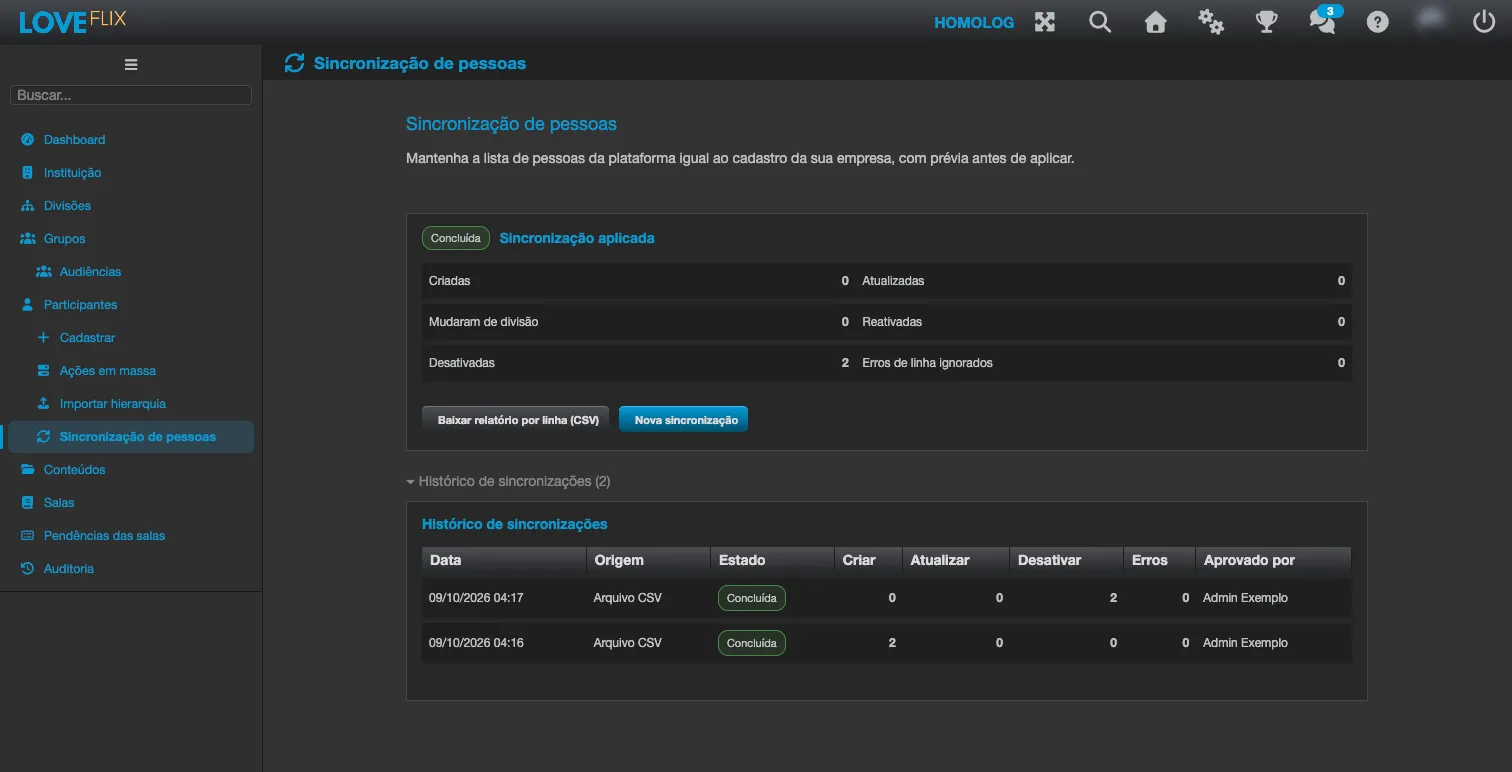
The possible states are: Queued, Preparing preview, Awaiting approval, Applying, Completed, Failed, Blocked by limit, Interrupted, Cancelled and Expired.
The row report (CSV) lists, for each row, the planned action, the result and the reason for each error, with the person’s identifier partly hidden and only the names of the fields that changed - never the values. The personal data of the uploaded file is erased from the platform a few days after the sync ends.
Through the integration API (HR systems)
Section titled “Through the integration API (HR systems)”Your HR system can send the list of employees on its own, on a schedule, through the integration API:
- The token needs the People sync permission. It only appears in the tokens’ permission list while the sync is on for the institution, and it is never checked by default.
- The upload uses the same columns as the file, in JSON, with the same options (deactivate people missing from the upload and send invitations). The API also lets you check a sync, page through its list of changes and approve or cancel it. The details are in the API documentation.
- Automatic apply only happens when your institution allows it (Eduvem support turns it on upon request) and no safety limit tripped. Otherwise, the sync sent through the API appears on the screen as Awaiting approval, and a person approves it there, just like a file upload. The same goes for approving through the API: a token only approves what the institution would let be applied automatically.
Stopped-feed alert
Section titled “Stopped-feed alert”If the HR system’s automatic upload stops, people who left the company may keep their access. Upon request, Eduvem emails the institution administrators when no sync has completed for a set number of days. The alert goes out once per interruption and is armed again after a new sync completes. Institutions that never completed a sync do not get the alert.
How it relates to automatic deactivation
Section titled “How it relates to automatic deactivation”While the sync is on, automatic deactivation does not reach the people linked to the HR system: their situation is set by the HR uploads. Everyone else keeps following the automatic deactivation rule.