


Reusable certificate templates
Besides configuring the certificate’s appearance content by content, the institution can create reusable certificate templates: text saved once, with dynamic fields (participant name, completion date, score, and others), which is then applied to any content, class, or track.
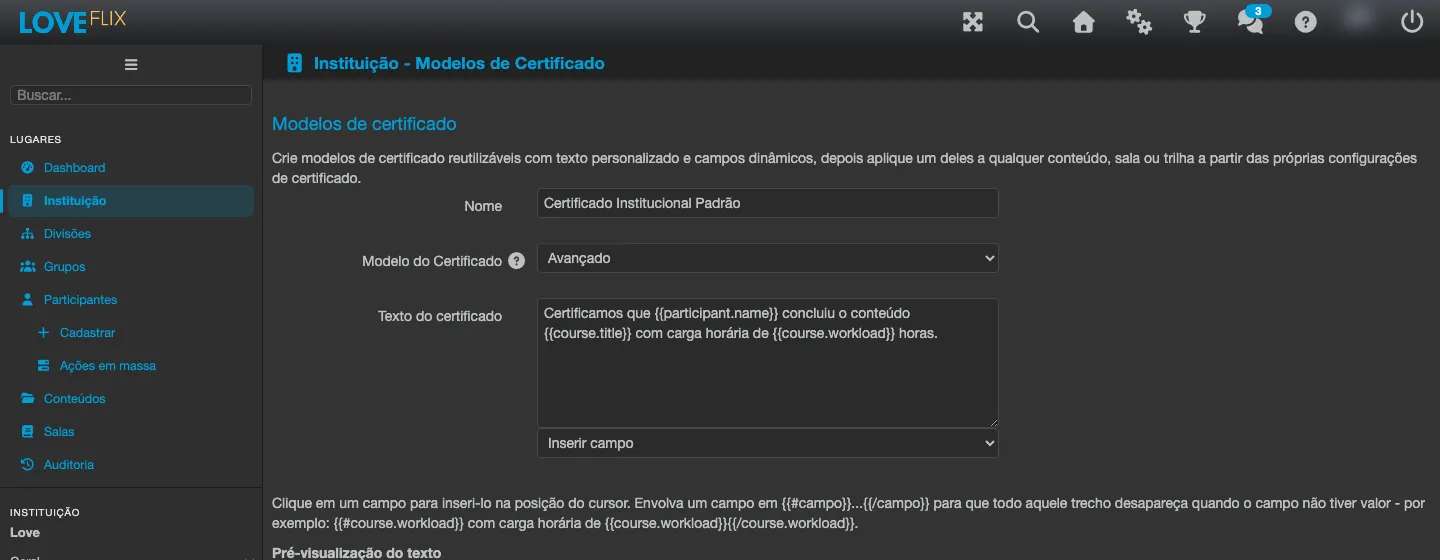
This is useful when several trainings should issue certificates with the same institutional text (for example, “We certify that {{participant.name}} completed the content {{course.title}} with a workload of {{course.workload}} hours”), without rewriting the text in each piece of content.
Where to create a template
Section titled “Where to create a template”In Institution, on the Certificate Templates tab, you’ll find the list of templates already created and the New template button.
Each template has:
- Name - identifies the template in the list and in the content/class/track selector.
- Model - Default or Advanced, the same visual model as the certificate section (see the note below about Default).
- Certificate text - the body of the text that appears on the certificate, with support for dynamic fields.
Use Insert field to add a dynamic field at the cursor position. The available fields include the participant’s name and CPF, the participant’s two custom profile fields (they only appear when those fields are configured to show on the profile), the content’s title/code/course load, the class name, the enrollment’s start and completion dates, score, the certificate’s expiration date (when the content has a configured validity - the field stays empty on a track, which has no validity of its own), and the institution’s name/short name.
The text preview shows how the certificate body looks with sample data, updated as you type. The Preview PDF button generates the complete certificate (with the real background image and layout), using sample data. If there are unsaved changes, the platform saves the template before generating the preview; if the template is in use, the same confirmation as Save Changes appears first. The preview opens in a new tab and you stay in the editor.
After the first save, the template gains the image uploads: in Certificate Background, the background image (JPG, 2000 × 1428 px) and, if you want a back page, the second-page image in Second Page (Optional). The images are saved as soon as the upload finishes. Before the first save, the screen says: “Save the template to upload the background images.”
How to apply a template to content, a class, or a track
Section titled “How to apply a template to content, a class, or a track”In the certificate section of the content (or class, or track), the Custom Certificate Template field lists the institution’s saved templates. Choosing one replaces the manual configuration of background, template, and text color below with the chosen template; selecting Configure manually (no template) returns to the previous behavior, with full control through the certificate customization and issuance fields.
Common questions
Section titled “Common questions”I clicked Preview PDF and the template was saved. That is expected: the preview is generated from the saved template, so pending changes are saved first.
I can’t find the background image option on the new template. The image uploads appear after the first Save Changes - until then, the screen shows “Save the template to upload the background images.”
Does a deleted template affect certificates already issued? No. Deleting it removes the template from the list for new configurations; certificates already issued don’t change.
Can I have a different template per class, even while using the content’s certificate template for the rest? Yes - the choice of custom certificate template is made in each entity’s own certificate section (content, class, or track), and each one can choose a different template or none.
See also
Section titled “See also”- Online customization and issuance of certificates - background image, text color, and the other options per content.
- Certificate validity and recertification - validity period per content, and automatic enrollment in a recertification class.