


Saved report views
With saved views, the administrator keeps a report already set up - period, people and columns - and runs it again with one click, without rebuilding the filters each time. A view can also be sent by email, every week or every month.
How to enable it
Section titled “How to enable it”Saved views are enabled per institution, on request to the Eduvem team. If your institution does not use the feature yet, ask support to enable it.
While the feature is not enabled, the reports screen stays as it has always been and the participants report keeps the Periodic delivery option (weekly or monthly email).
Saving a view
Section titled “Saving a view”- Go to Institution > Reports.
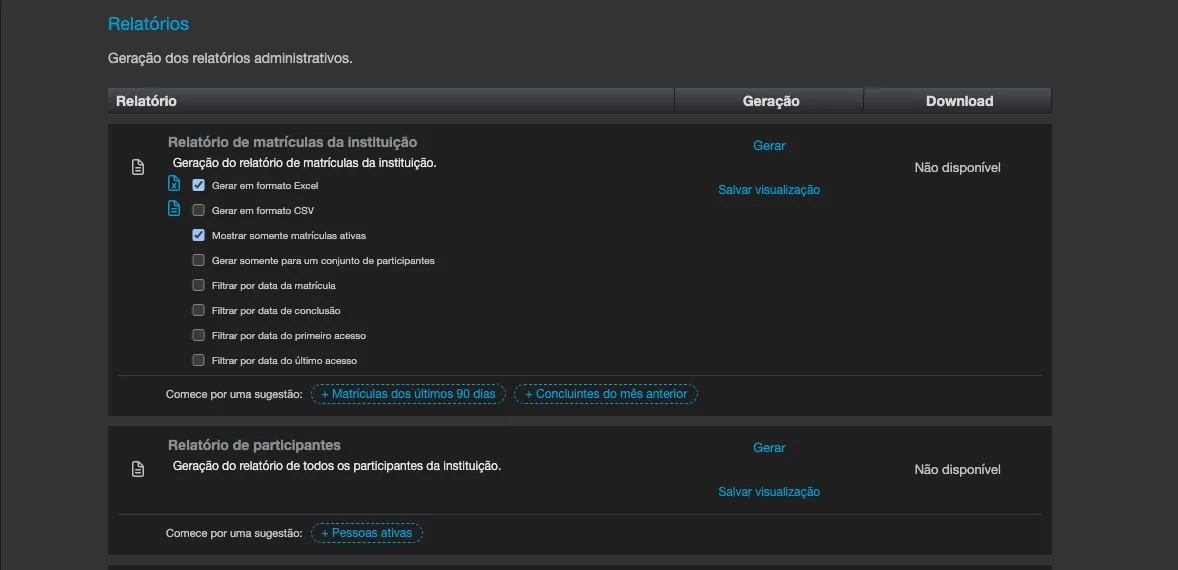
- On the row of the enrollments report or the participants report, click Save view (just below Generate).
- Fill in the form that opens on the row itself and click Save.
| Field | What it sets |
|---|---|
| Name | The name of the view (up to 120 characters). |
| Period | A date field and a relative window. In the enrollments report: Enrollment date, Completion date, First access or Last access. In the participants report: Registration date or Last access. The windows are Any period, Last 7 days, Last 30 days, Last 90 days, Previous month and Month to date. |
| People | Active or All in the enrollments report; Active, Former or All in the participants report. |
| Columns | The columns of the file. Every custom field of the institution’s registration form appears as a column. Columns with personal information carry the personal data tag. |
| Email delivery | No email, Weekly email or Monthly email. The file goes to your email, as an attachment. |
| Send personal data by email | Off by default: personal data columns are left out of the emailed attachment. Turn it on only if the attachment needs them. |
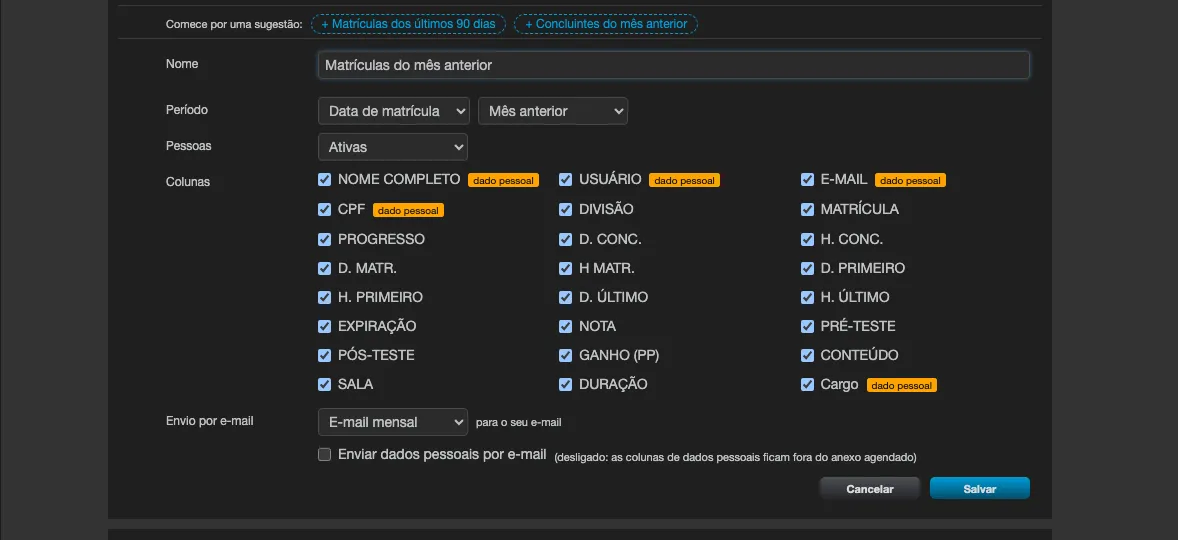
If you tick all the columns, the view always includes every available column - including registration fields created later.
Running, editing and deleting
Section titled “Running, editing and deleting”Each view appears as a row below the report, with its name, its delivery type and its status (Active, Suspended or Needs attention).
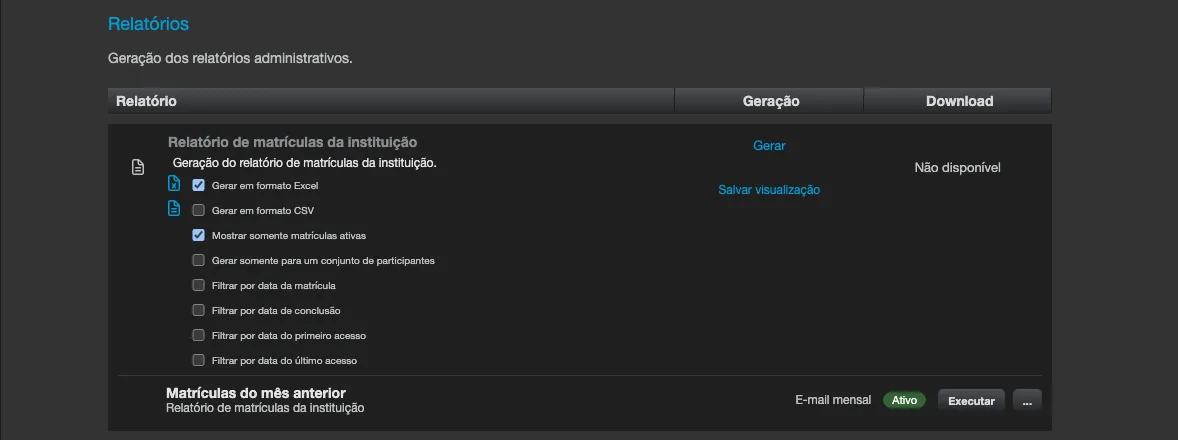
- Run generates the file right away, with today’s data, and downloads it in the browser. If no row matches the view, the system tells you instead of downloading an empty file.
- The … menu (More actions) has Edit and Delete. When you delete a view, its email delivery stops too.

For now, each person can keep one saved view per report type. To create another one, edit the one you already have.
Suggestions to start from
Section titled “Suggestions to start from”When you do not have any view of a report yet, the row shows ready-made suggestions, with the text Start from a suggestion:. One click on a suggestion creates the view, with no email delivery, and you can edit it afterwards:
- Enrollments from the last 90 days
- Completers of the previous month
When a view has a problem
Section titled “When a view has a problem”A view can become Suspended or Needs attention, and the row explains why. The most common cases:
- A filter no longer exists, for example a deleted class: edit the view and save.
- You no longer have permission to run that report: edit and save when you have access again.
While in this state, the view is not sent by email. When you edit and save it, it works again.
Email delivery
Section titled “Email delivery”Views with Weekly email or Monthly email are sent to the email of the person who created them, with the file attached, once per period.
In the Administrative Dashboard
Section titled “In the Administrative Dashboard”With the feature enabled, the filter bar of the Administrative Dashboard gets the Views menu:
- + Save current filters keeps the filters currently applied, under the name you choose.
- The Saved list shows your views; clicking one applies its filters. A view whose filter no longer exists is shown with the note “filter no longer exists”.
- The x next to the name deletes the view, after a confirmation (Delete or Keep).
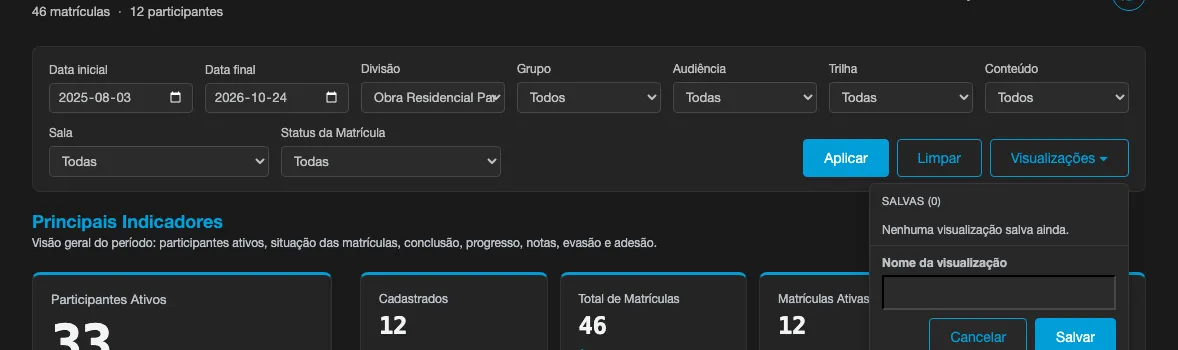
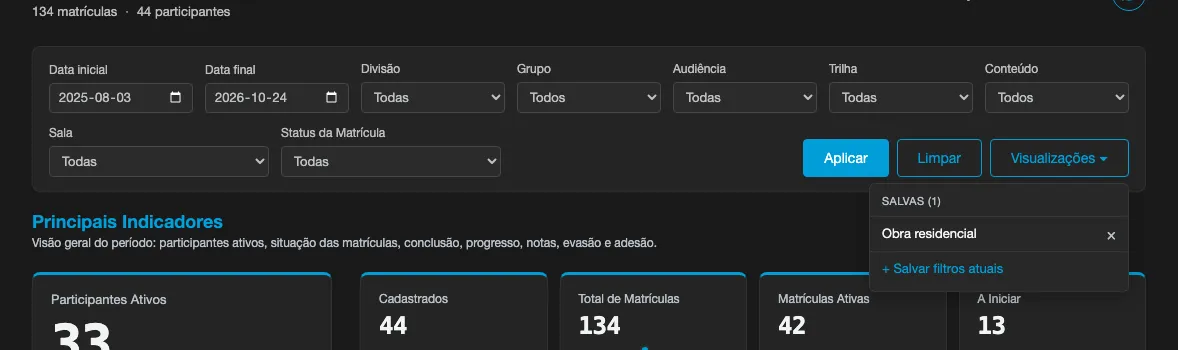
The period is only saved when it is a relative window (last 7, 30 or 90 days, previous month or month to date). Fixed dates are not saved. For now, the dashboard keeps one view per person: delete the existing one to save another.
Division administrators
Section titled “Division administrators”The administrator of a division who has no institution-level administration role gets their own Reports entry in the menu, when the institution uses divisions and has the feature enabled. The screen shows only the Participants report and the Institution enrollments report, with saved views only, and every run includes only the people in that administrator’s divisions. When the institution uses enrollment management, the same screen also carries the Class costs row, and the entry appears even without saved views enabled.