


Two-step verification
Two-step verification asks for a 6-digit code from an authenticator app (Google Authenticator, Microsoft Authenticator or similar) on every sign-in (password, Google or LinkedIn), in addition to the password. A leaked or guessed password is then not enough to sign in as an administrator.
Who is affected
Section titled “Who is affected”- Institution administrators, class administrators and publishers, when the institution option is on. Any administrator who turned it on in their own profile is always affected too.
- It applies to people who sign in with a password and also to those who sign in with Google or LinkedIn.
- Sign-in through your company SSO (SAML or Keycloak) does not change: security is handled by your organization’s own login system.
- Participants and other profiles are not affected.
Require it for your institution’s administrators
Section titled “Require it for your institution’s administrators”- Open Institution and go to the Access and login section.
- Check Require two-step verification for administrators (password sign-in) and save.
- Below the field, Administrators who have not set it up yet: shows how many are still missing.
If any administrator covered by the requirement has no password and no Google or LinkedIn sign-in, a warning with the count also appears (for example, “2 administrators have no password and no Google or LinkedIn sign-in.”). Anyone who does not sign in through a partner link or your company SSO needs a password before you turn the requirement on.
Although the field name mentions password sign-in, the option also covers Google and LinkedIn sign-ins.
When you turn it on, these administrators are signed out and set up the app at their next sign-in (your own session stays open until your next sign-in). To turn it off, clear the field and save: existing setups stay valid, and each administrator can turn theirs off in the profile.
Institution administrators can turn this option on and off.
Set up at first sign-in
Section titled “Set up at first sign-in”-
Sign in with your email, CPF or username and password.
-
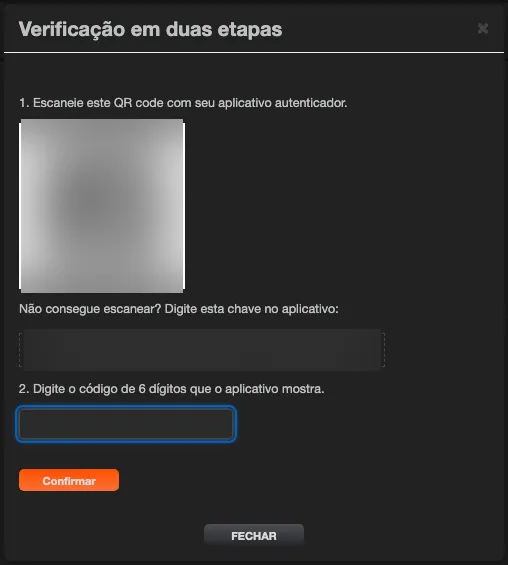
On the Set up two-step verification screen, scan the QR code with your authenticator app. If you cannot scan it, type the key shown under Cannot scan? Enter this key in the app: into the app.
-
Enter the 6-digit code the app shows and click Confirm.
-
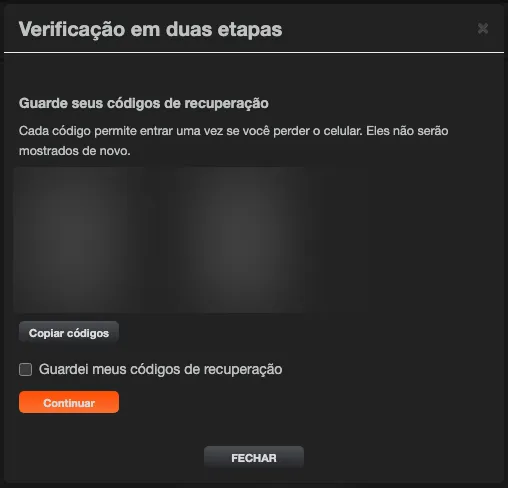
On the Save your recovery codes screen, copy the 10 codes and keep them somewhere safe (a password manager or a printout). They will not be shown again.
-
Check I saved my recovery codes and click Continue.
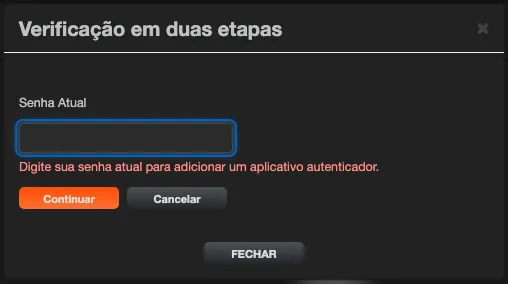
If you reached the setup through a Google or LinkedIn sign-in, a partner link or your profile, and your account has a password, the platform first asks for your Current password. People without a password do not see this step.
Each time an authenticator app is added (at first setup and when setting it up on another phone), you receive an e-mail saying that an authenticator app was added to your account. If it was not you, contact your institution’s administrator.
Signing in after setup
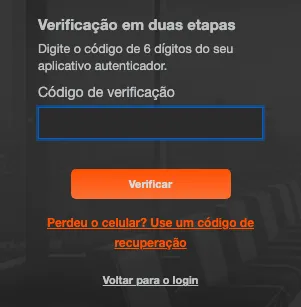
Section titled “Signing in after setup”After the password, enter the current code from the app under Two-step verification and click Verify. The code changes every 30 seconds; use the one on the screen.
Signing in with Google or LinkedIn
Section titled “Signing in with Google or LinkedIn”People who sign in with Google or LinkedIn do not need a password, but after the Google or LinkedIn screen the platform shows the same code screen (or the setup steps, if verification is not set up yet).
Exception: if Google reports that the person used Google’s own two-step verification in a Google sign-in within the last 12 hours, the platform does not ask for its code. This only applies to a Google account already linked to the person’s account. LinkedIn always asks for the code.
Partner link (integration)
Section titled “Partner link (integration)”When a partner system opens the platform for an administrator covered by the verification (the integration sign-in link), the link leads to the same code screen, or to the setup steps if the verification is not set up yet. Without the code, the link does not sign in.
After 5 wrong codes in a row, new attempts are blocked for 15 minutes.
Lost your phone?
Section titled “Lost your phone?”-
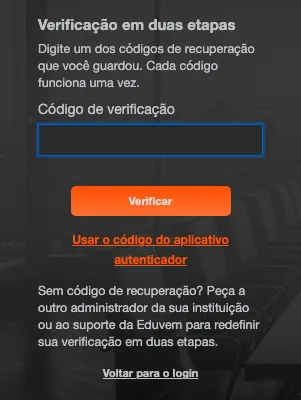
With a recovery code: on the verification screen, click Lost your phone? Use a recovery code and enter one of the codes you saved. Each code works once. After signing in, set up the app on your new phone from the profile.
-
Without a recovery code: ask another administrator of your institution or Eduvem support to reset your verification. Password recovery (Forgot password) does not reset two-step verification.
How another administrator resets it
Section titled “How another administrator resets it”- Open the person’s profile.
- Click Reset two-step verification and confirm.
- The person’s open sessions end, they are notified by e-mail, and they set everything up again at their next sign-in.
Confirm the requester’s identity before resetting (for example, through a second channel you already know). Every reset is recorded.
In your profile
Section titled “In your profile”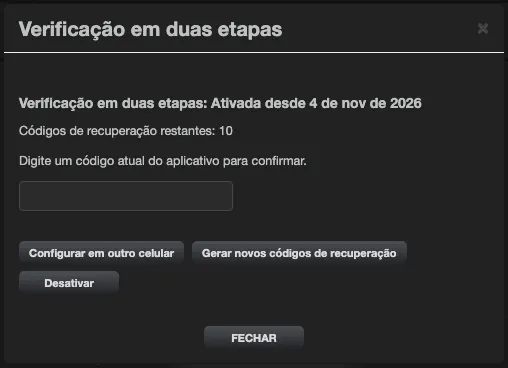
Under Two-step verification in the profile you see whether it is on (and since when), how many recovery codes are left, and you can:
-
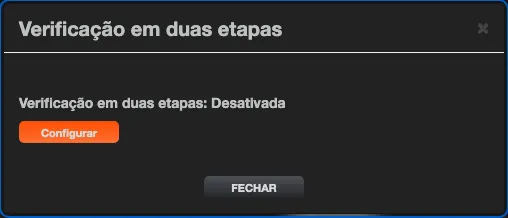
Set up verification even if your institution does not require it;
-
Set up on a new phone;
-
Generate new recovery codes (the previous ones stop working);
-
Turn off, only when your institution does not require it. When it does, you see Required by your institution for administrators.
Setting up on a new phone, generating new codes and turning off ask for a current code from the app.