


SSO with Microsoft
With single sign-on (SSO), participants sign in to Eduvem with your organization’s corporate account - no separate password, no manual registration, and deactivations reflected automatically in access.
How it works
Section titled “How it works”- Eduvem integrates with your organization’s directory (Microsoft Entra ID, formerly Azure AD) through the SAML 2.0 standard.
- On SSO access, the participant’s record is found or created automatically with the data coming from the directory (name, email and, when available, CPF).
- Access is always isolated per institution: the session is only valid for your own Eduvem.
What gets configured
Section titled “What gets configured”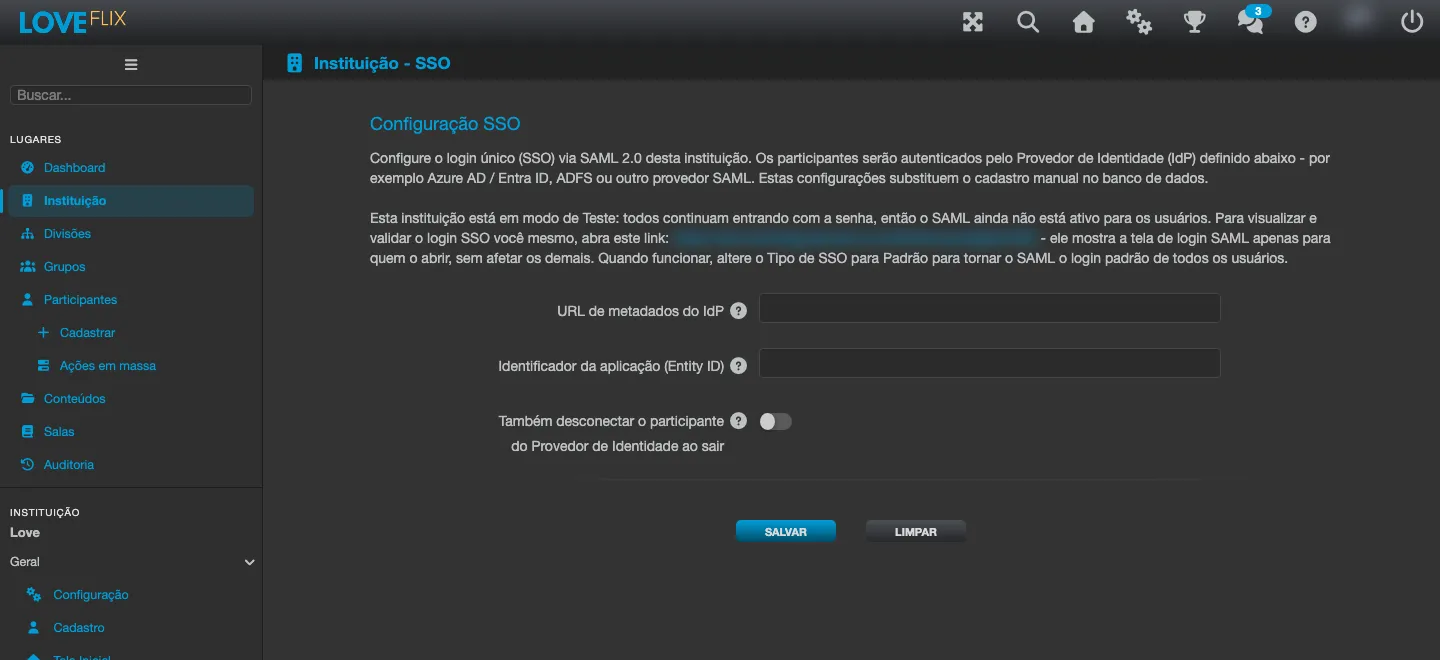
On the institution settings’ SSO tab, the integration’s data is registered, including:
- The metadata URL of the app your IT team created in Entra ID.
- The identifier Entra ID uses to recognize Eduvem as a trusted application.
- An alternative metadata URL (optional), used automatically only when the primary URL does not have a usable signing certificate.
- The SSO type, which defines how single sign-on coexists with password login:
- Disabled - no SSO.
- Default - SSO becomes the only way in: the password form stops appearing on the login screen.
- Test - everyone keeps signing in normally with a password; SSO is only available through a special link, to validate the integration without affecting other participants.
- Mixed - the password form and the “Sign in with Microsoft” button appear together, permanently, on the login screen.
Recommended step-by-step
Section titled “Recommended step-by-step”- Contact Eduvem support to signal you want to enable Microsoft SSO: activation is done with guidance.
- Your IT team creates the app (enterprise application) in Entra ID and provides the metadata URL.
- With the configuration registered, use the Test SSO type to validate access with a small group through the special link, without affecting other participants.
- Once the pilot is validated, change the SSO type to Mixed (password and SSO button side by side, permanently) or Default (SSO only, no password form), depending on the institution’s preference.