


Question library
The Question library is where the institution keeps the questions it uses in more than one content. Instead of rewriting the same question in every exam, you register it once, mark it with tags (for example, NR-35 or Hard) and use it in the final exams and pre-tests of any content in the institution: as a fixed question, or drawn from the questions that carry the tags you choose.
Who can use it
Section titled “Who can use it”Platform administrators, institution administrators and content publishers. Other roles do not see the section.
In the content editor, someone who edits an exam without one of these roles (for example, a division administrator) sees the Question library panel as read-only, with a notice. They can remove the draws and turn library questions into the content’s own questions, but they cannot add library questions or change a draw, and the Open in the library button does not appear for them.
Where to find it
Section titled “Where to find it”In the admin menu, open Contents and choose Question library. The screen follows the layout of the content editor:
- on the left, the tag tree: All questions, one entry per tag (with its question count) and Retired at the end. A question with several tags appears under each of them;
- at the top of the tree, four icon buttons (hover over each to see its name): create a question, import a file (CSV, Moodle XML, GIFT or Aiken), bring from exams and the step-by-step guide, plus the search box;
- on the right, the Edit and Preview tabs of the selected question.
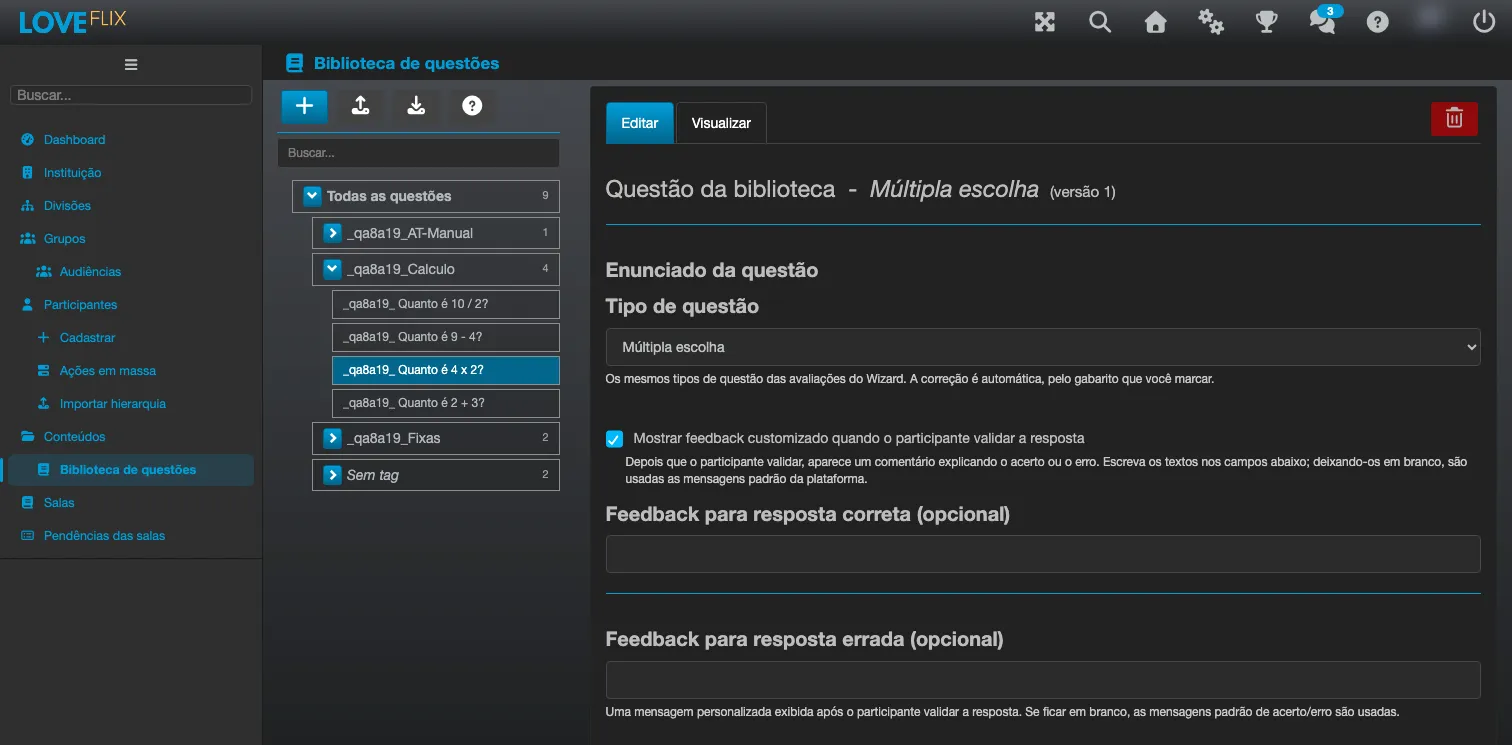
Create a question
Section titled “Create a question”- Click the create-question button (the first one, with the plus sign).
- Choose the question type. The library accepts the same types as the editor’s exams, and grading is automatic, from the answer key you mark.
- Write the stem and the alternatives and mark the correct alternative. The stem and each alternative accept formatted text (bold, lists, links, colors) and images, exactly as in the content editor.
- Add the question’s tags.
- Save.
Only questions the server can grade on its own enter the library. A question that cannot be graded automatically is refused, with the reason.
Tags and NR suggestions
Section titled “Tags and NR suggestions”Tags group questions by standard, topic or level, for example NR-35, Rescue or Hard. Exam draws pick questions by tags, so it is worth agreeing on a naming pattern with your team before registering many questions.
- When you type
NR, Eduvem suggests the standards fromNR-01toNR-38. - Names are standardized:
nr 10andNR-10become the same tag,NR-10. Capitalization and accents do not create different tags. - A tag can be renamed. It can only be deleted while no exam draws by it; deleting a tag removes it from the questions and does not delete the questions.
Bring from exams
Section titled “Bring from exams”If the institution already has exams with questions, there is no need to type them again. The Bring from exams button lists the questions of the final exams and pre-tests of the institution’s original contents and copies the ones you choose into the library.
- Identical questions that appear in several contents are grouped into a single entry, labeled “appears in N contents”.
- Eduvem suggests NR tags from the content titles. The suggestions come pre-selected and can be changed.
- For each entry, you choose which content the question is copied from. The library question keeps the identifier of that occurrence, so its answer history stays valid.
- Entries that are already in the library and questions that cannot be graded automatically appear disabled, with the reason.
- The other contents that had the same question are not changed. For them to use the library question, add it to each one’s exam (see below).
Import from Moodle (Moodle XML, GIFT and Aiken)
Section titled “Import from Moodle (Moodle XML, GIFT and Aiken)”The import button also accepts Moodle XML, GIFT and Aiken files. The rules for what is imported, what changes and what is left out, and the per-question report, are in Import from Moodle. In the window, the links Download CSV sample, Download GIFT sample and Download Aiken sample give you example files.
In the library, Moodle categories become tags: Eduvem uses the last level of the category path (without $course$, $system$ and top) as the question’s tag. Tag names longer than 100 characters are cut, and the report says so. To mark everything being imported, fill in Tag for all imported questions: it is added to the tags that already come from the file.
Only text is imported: images and formatting do not come along.
Import from a CSV spreadsheet
Section titled “Import from a CSV spreadsheet”The import button uploads several questions at once, already tagged. The format is the same as the spreadsheet question import, with one extra column:
| Column | What it is for |
|---|---|
| Tags | The question’s tags, separated by semicolons. Example: NR-35;Hard. |
The column is named Tags, and the example file to download already brings the columns in your language. The file can be up to 2 MB. If the import stops partway through, the questions already imported stay in the library, and the message says how many. As in the editor’s import, the window shows a summary, the new tags that will be created and the rows with problems before anything is applied.
Use the library in an exam
Section titled “Use the library in an exam”In a Final Exam lecture (or a Pre-test that has its own questions), the Question library button sits in the bar above the lecture editor. It opens a panel with two tabs.
Add questions: fixed questions
Section titled “Add questions: fixed questions”Search or filter by tag, tick the questions and click Add N selected questions. They enter the exam’s question list, marked with the book icon, and always appear for every participant.
Inside the content, a library question is read-only. So that every exam stays the same, it is edited only in the library. When you select it, the editor shows a blue notice with two buttons:
- Open in the library opens the question in the library, in another tab;
- Turn into this content’s own question creates a copy for this content only. The copy can be edited here, but no longer receives library updates.
Draw by tags: draw rules
Section titled “Draw by tags: draw rules”Each participant gets different questions, drawn from the library when each attempt starts. Each row is a rule: you choose the tags and the number of questions to draw. Only active questions that carry all the tags on the row enter the draw. To create a row, click Add draw. The die icon among the questions stands for a draw; clicking it opens its tags and count.
Example: one rule with NR-35 and Hard, count 2, another with NR-35 and Easy, count 3, plus two fixed questions. Every attempt has 7 questions: the 2 fixed ones, 2 hard ones and 3 easy ones drawn.
Next to each rule, Eduvem shows how many questions are available and warns when the group is small:
- fewer questions than requested: the content cannot be published until you register more questions in the library or lower the number;
- fewer than three times the requested number: a warning. Different participants will get many of the same questions. We recommend at least three times the number;
- more than 100 questions match the row’s tags: add another tag to the row to draw from a smaller group.
A fixed question is never drawn again, and a question that falls under two rules is delivered only once. The summary bar shows how many questions each participant answers, and the minimum grade applies to that total. When the exam opens, the participant sees that same number: the fixed questions plus the drawn ones.
With draws by tags, each participant gets all the fixed questions plus the drawn ones: the exam’s options to shuffle and to limit the number of questions do not apply.
If publishing is refused because questions are missing, the editor says which draw is short, for example: Could not publish. The “NR-35 + Hard” draw needs 5 questions, but the library has 3.
Limits: up to 10 draws per exam, up to 3 tags and up to 100 questions per draw. Across all the exam’s draws, the group the questions are drawn from can hold at most 100 questions (fixed questions do not count toward it).
Editing a question: the republish rule
Section titled “Editing a question: the republish rule”This protects people who already took the exam: the attempt keeps the exact text the participant saw. The flip side is that after fixing a question, you must republish each content that uses it for the next participants to receive the corrected version.
A question’s version goes up with every edit to the stem, the alternatives or the answer key. Changing only the tags, or retiring the question, does not create a new version.
List of outdated exams
Section titled “List of outdated exams”In the question’s editor, the Used in exams field lists the contents that use it and shows which are outdated, that is, published before the latest edit. An exam also becomes outdated when a question that now carries a rule’s tags was edited after the publication. Open the content from the list and publish it again to bring in the current version.
Retire or delete
Section titled “Retire or delete”- Retire (with an optional reason) takes the question out of new draws and out of the selection list. Exams already published keep it until they are published again, and nothing is deleted. The question stays under Retired and can be reactivated.
- Delete is only possible for a question that has never been used in any published exam. If it has been used, retire it.
The answer key and “Reveal correct”
Section titled “The answer key and “Reveal correct””Translated contents
Section titled “Translated contents”The library keeps each question in a single language. In a multilingual content, participants who use another language see the library questions in the language they were written in. The editor warns about this when you publish a translated content that uses the library.
Distributed contents
Section titled “Distributed contents”A copy distributed to another institution carries the questions already copied into the exam, and never consults the source institution’s library. Edits to the library do not reach the institutions that received the content.
Switching the library off
Section titled “Switching the library off”If Eduvem switches the feature off for the institution, the section disappears from the menu and exams with draw rules can no longer be published: to publish, remove the draws. Library questions already in an exam stay in it, locked for editing. Exams already published keep working, with the questions that were already copied into them.