


Enrolling participants
The enrollment links a participant to a class and carries their entire history there: progress, scores, completion, and certificate.
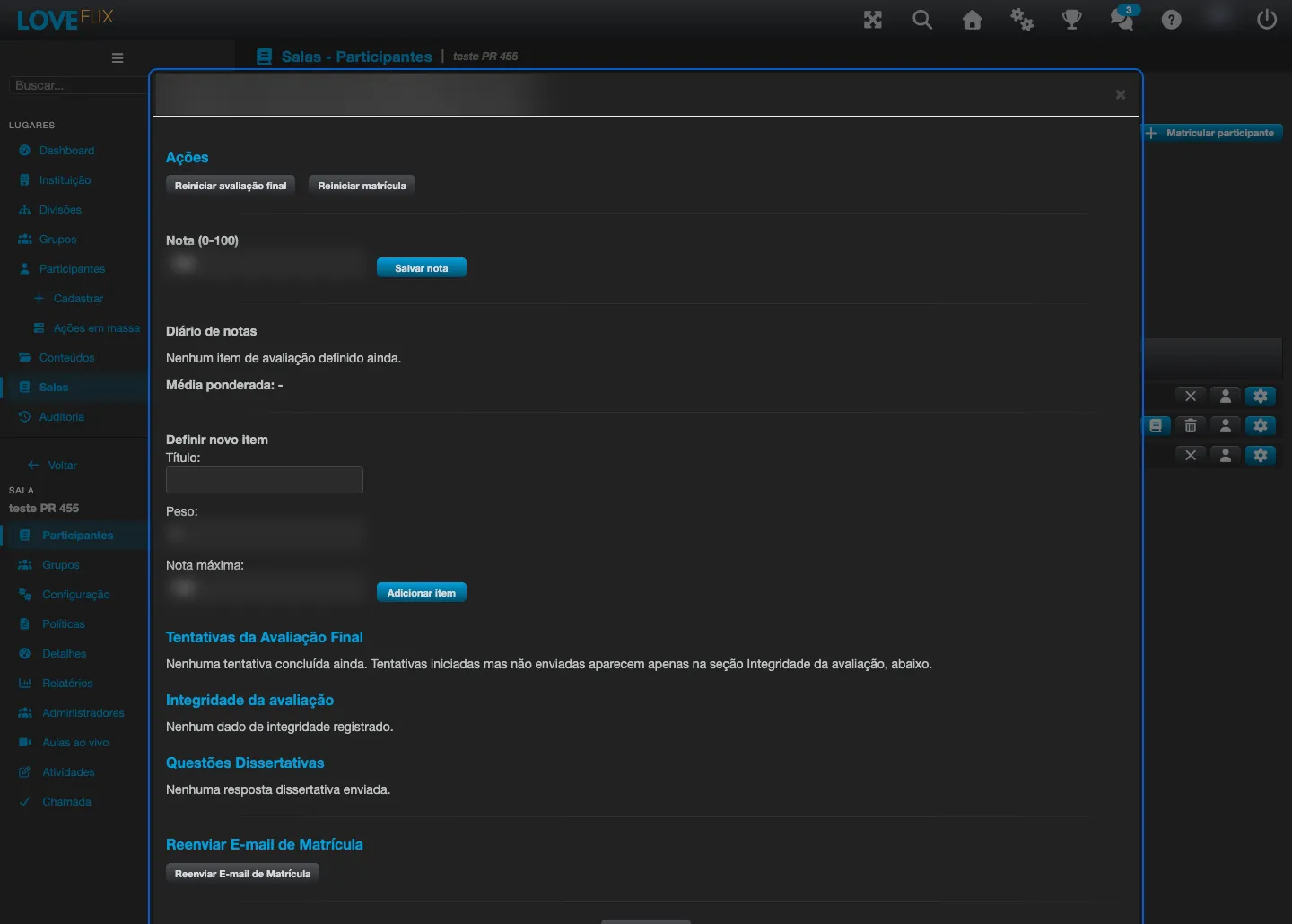
The Manage enrollment modal (gear button on the class’s enrollment list) gathers the actions on an enrollment: restart the final evaluation, restart the enrollment, save a manual score, and resend the enrollment email. It also shows the Final exam attempts, the Essay answers, and the Exam integrity section - the record of each exam attempt (start, duration, and the server-side re-check of the score). With Exam integrity logging enabled in the class configuration, leaving the tab or full screen during the exam is also recorded, and the participant is warned before starting that the attempt will be monitored. Nothing is blocked or deducted automatically: the records exist for your consultation.
The states of an enrollment
Section titled “The states of an enrollment”| State | What it means |
|---|---|
| Requested | Request made, awaiting the administrator’s approval |
| Enrolled | Active - the participant accesses the content |
| Denied | Request refused (can be reverted to Enrolled later) |
| Cancelled | Ended by the administrator or by the participant (reversible) |
The platform only allows the transitions that make sense - for example, reactivating a cancelled enrollment or reverting a denial - and rejects the rest.
How people get in
Section titled “How people get in”- Self-enrollment: in public classes, the participant enrolls from the storefront. If the class has automatic approval, they get in right away; otherwise, the request stays Requested until you approve it.
- By the administrator: individually from the class, or in volume through mass operations and groups.
- Seats: once the class’s limit is reached, new requests receive a class-full notice - the same applies to the administrator. To admit more people, raise the class’s seat limit.
- Resending the email: if the participant did not receive (or lost) the enrollment email, resend it at any time from the class’s enrollment list.
Cancellation and reactivation
Section titled “Cancellation and reactivation”Cancelling an enrollment removes the participant from the class chat and takes back the ranking points for that content; reactivating gives both back. The history is never erased - cancellation is always reversible.
Deleting is different from cancelling. The Delete action, available on the same enrollment list, erases all of the participant’s progress, scores, and certificate and cannot be undone. Use it only to correct an enrollment created by mistake - to end participation normally, cancel.
Cleaning up a class’s inactive enrollments
Section titled “Cleaning up a class’s inactive enrollments”Removing a group from a class cancels every enrollment it brought, and a class created by mistake ends up full of cancelled enrollments that cannot be deleted one by one. Since the class can only be deleted once it has no enrollments left, and cancelled ones count, cleaning up those enrollments is what unlocks deleting the class.
On the class’s Participants tab, the Delete enrollments… button opens a window with the class’s inactive enrollments separated by situation: cancelled, denied, and suspended. Each option shows how many enrollments are in that situation, and only appears when there is at least one. Only cancelled comes checked - the other two are your choice.
The confirmation button shows the selected total, and the window warns that the operation cannot be undone: each deleted enrollment loses progress, scores, and certificate, exactly as in the individual deletion described above. At the end, the list and the counts are updated right away (see the limit below).
Three things worth knowing before using it:
- Suspended enrollments belong to deactivated people and come back on their own when the person is reactivated. Deleting them breaks that return, which is why they never come checked.
- The action applies to the whole class, not to what is filtered on the screen. The number shown in the window is exactly the number that will be deleted.
- Up to 10,000 enrollments are deleted right away. Above that, the deletion runs in the background: the screen says the deletion has started and you receive an email when the process is finished.
The action is available to institution administrators.
Access deadline
Section titled “Access deadline”If the class sets a deadline in days, when it expires the participant loses access to the content but keeps the enrolled status - the administrator can extend the deadline at any time. By default the count starts on the enrollment date; the class can be configured to count from the participant’s first access, useful when the class is made available well before the program starts and the deadline should only start counting when the participant actually begins.
What happens on completion
Section titled “What happens on completion”With 100% progress (and the minimum score, when required), the platform: records the completion with the participant’s data at that moment (proof against future registration changes), sends the completion email, awards the ranking points, and releases the certificate.