


Satisfaction survey (NPS)
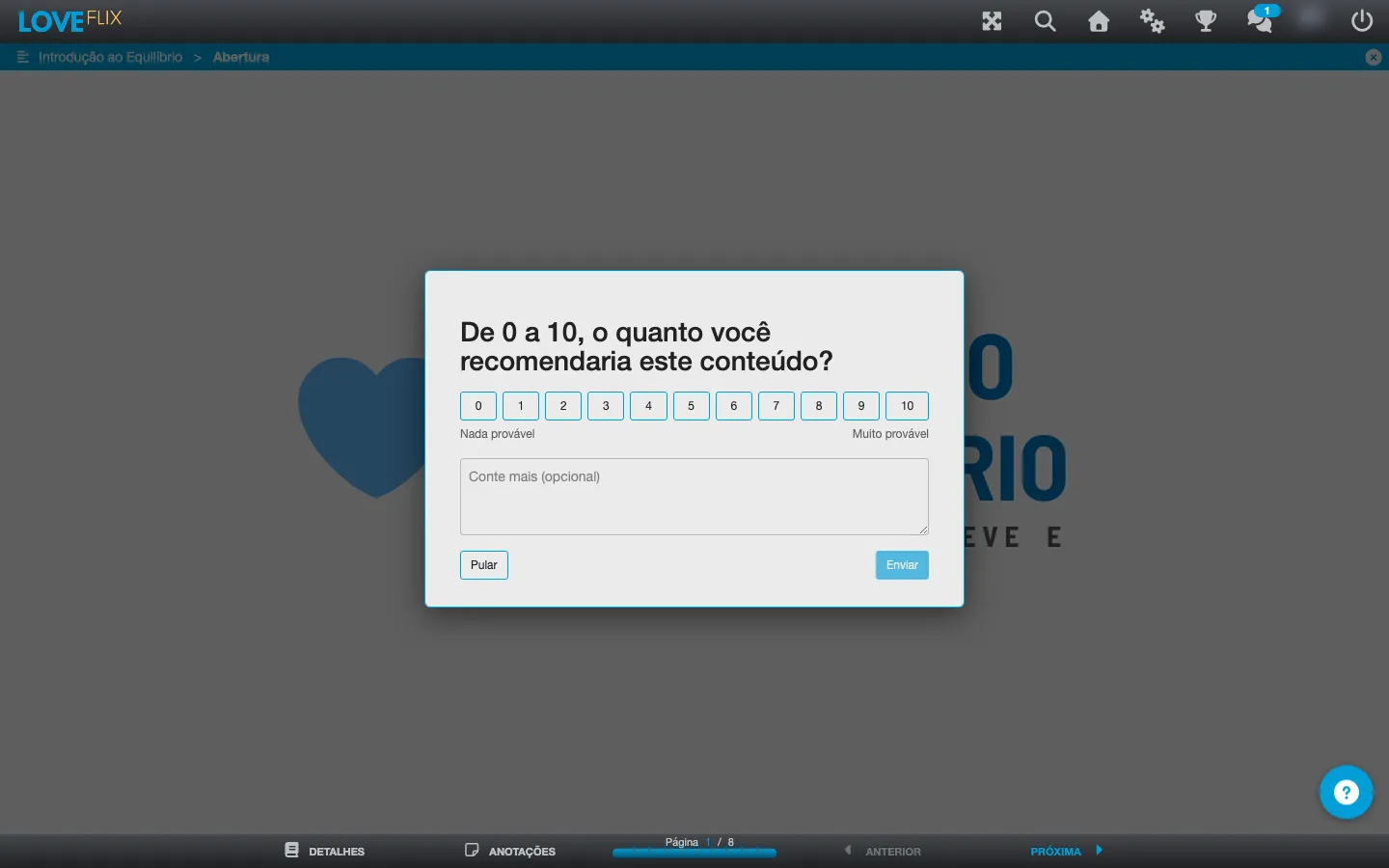
On completing a piece of content, the participant gets a single question: “How likely are you to recommend this content?”, with a scale from Not at all likely to Extremely likely and an optional comment field (Tell us more (optional)).
It’s the NPS indicator applied to content. It replaces the old star rating.
Where to configure it
Section titled “Where to configure it”The survey has two levels of configuration, and the institution level takes precedence.
At the institution
Section titled “At the institution”In Institution, on the Configuration tab, the Satisfaction Survey field accepts four values:
| Value | What it does |
|---|---|
| Let the class decide | Each Class chooses its own configuration. It’s the default value. |
| Disabled | No Class in the institution asks. |
| Optional | Every Class asks, and the participant can skip. |
| Required | Every Class asks, and the answer releases the certificate. |

Choosing any value other than Let the class decide applies to every Class at once and disables each one’s individual choice.
At the class
Section titled “At the class”In each Class, the Satisfaction Survey field accepts Disabled, Optional, or Required. The default is Optional.

When the institution has fixed a value, this field appears locked with the note Set by the institution. To go back to deciding class by class, change the institution’s configuration to Let the class decide.
When the survey appears
Section titled “When the survey appears”The survey doesn’t interrupt the lecture the participant is reading at the moment of completion. Completing the content only leaves the survey prepared; it appears later, when the participant comes back from the details screen to the content, or on the next visit to the Class.
This is deliberate: previously, in single-lecture content, the survey would pop up right over the screen the person had just opened.
Skipping and answering
Section titled “Skipping and answering”- Skip dismisses the survey only for that visit. Nothing is recorded, and it comes back next time. It’s useful for whoever wants to answer later.
- Send records the answer. Each Enrollment has a single answer: once sent, the survey isn’t shown again.
Required mode and the certificate
Section titled “Required mode and the certificate”In Required mode, answering is a condition to release the certificate. Completion and the score aren’t affected: the participant completes normally, only the certificate stays held back until they answer.
While they haven’t answered, the participant sees guidance instead of an error:
- on the profile’s certificate list: “Your certificate will be released as soon as you answer this content’s survey.”
- inside the Class: “Answer the survey on this screen to release your certificate.”
- in content from the editor (Wizard): “Open the content and answer the survey to release your certificate.”
Extra questions from the institution
Section titled “Extra questions from the institution”Besides the fixed recommendation question, the institution can add its own questions to the survey. In Institution, open the Satisfaction Survey tab. The tab is available to institution administrators.
Extra questions apply to every Class where the survey is enabled. The participant answers them right after the 0-to-10 question and before the comment field.
While no question exists, the tab shows “No extra questions yet. The survey only asks the fixed recommendation question.”
Create a question
Section titled “Create a question”Click New question and fill in:
| Field | What to set |
|---|---|
| Question text | The wording, 1 to 500 characters. |
| Answer type | 0-to-10 scale or Free text. A free-text answer accepts up to 2000 characters. |
| Required? | Whether the question must be answered to send the survey. |
The institution can have up to 10 active questions at once. The list shows, for each question, the columns Question, Type, Required, Status (Active or Archived), and Responses.
Reordering, archiving, and reactivating
Section titled “Reordering, archiving, and reactivating”- The arrows on each row change the order questions appear to the participant.
- Archive removes the question from the survey. Answers already received are kept and stay in the reports.
- Reactivate puts an archived question back in the survey.
Questions that already have answers
Section titled “Questions that already have answers”Once a question gets its first answer, its Question text and Answer type lock, and the editor explains: “This question already has answers, so its text and type can’t be changed anymore. To ask something different, archive it and create a new one.” The Archive and create new button does both at once.
Whether the question is required, and its order, stay editable at any time.
How the required setting works
Section titled “How the required setting works”- A required question must be answered the moment the participant sends the survey. Without an answer, they see “Answer the required questions (*) to send.” The participant can still Skip the survey.
- Making a question required never holds back a certificate that was already released.
- Anyone who answered the survey before the question existed isn’t asked again.
Turning it off in one specific Class
Section titled “Turning it off in one specific Class”By default, every Class with the survey enabled also asks the institution’s extra questions. For one particular Class to ask only the fixed recommendation question, uncheck Institution’s extra questions on that Class’s Config tab. The option comes checked, so no existing Class changes behavior until you uncheck it.
Where the participant sees the questions
Section titled “Where the participant sees the questions”Extra questions appear in the survey inside the Class and also on the certification card for SCORM and external content.
If the institution changes the questions while a participant has the survey open, they see “This survey was updated while you were answering. Reload the page to see the current questions.” and must reload the page to send it.
Where to read the result
Section titled “Where to read the result”In the Class, on the Reports tab, the institution sees the aggregated result: the NPS score, the number of responses, the response rate, and the split between promoters, passives, and detractors.
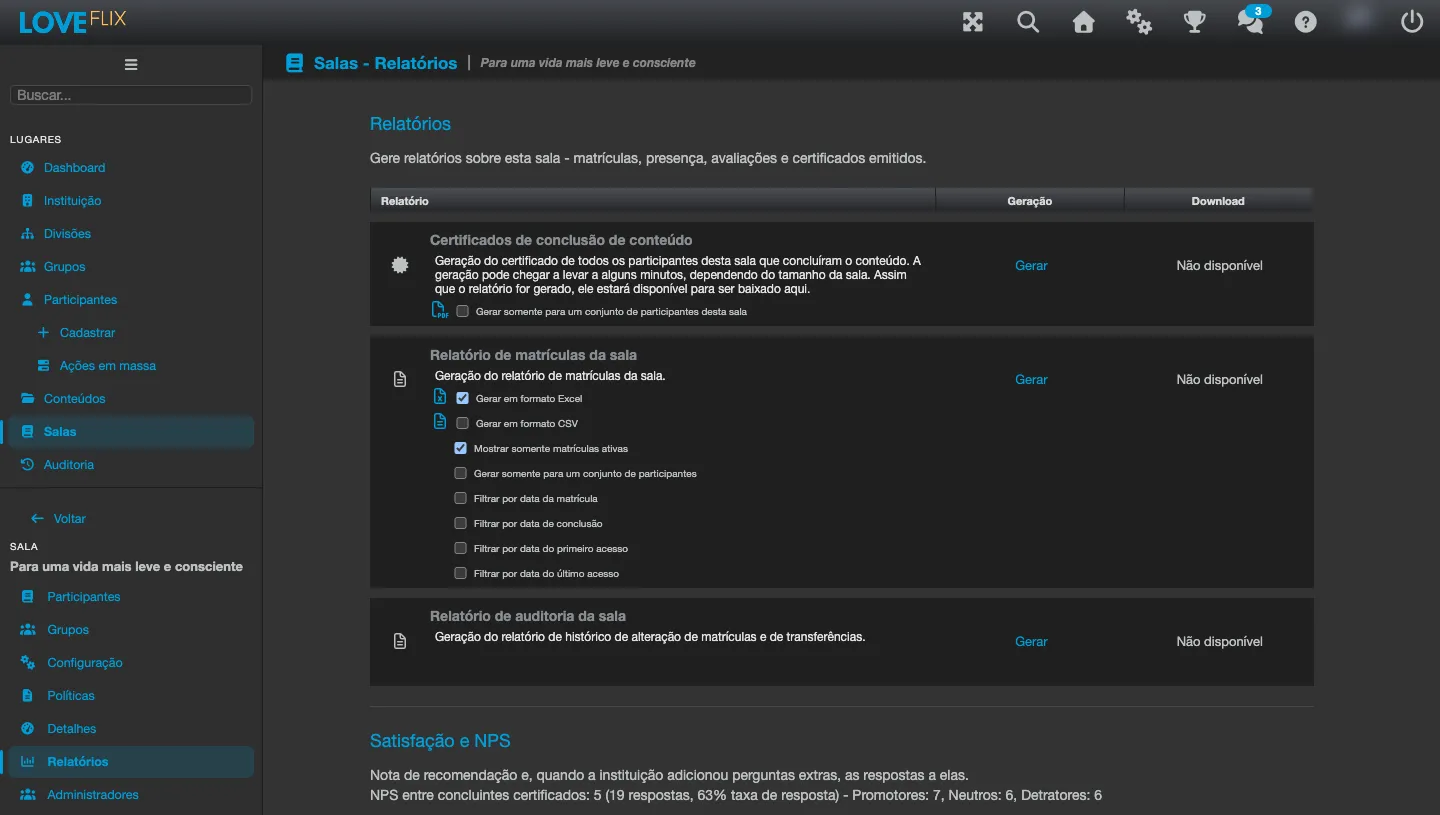
The response rate is calculated over certified completers, not over every enrollment in the Class. An old Class, with lots of people who completed before the survey existed, shows a low rate even if everyone who saw the question answered it.
While nobody has answered, the row shows only No responses yet.
Answers to the extra questions
Section titled “Answers to the extra questions”When the institution has extra questions, the same Reports tab carries the Additional survey questions block, visible to Class administrators and tutors. For each question, it shows:
- the number of responses;
- for scale questions, the Average and the Distribution (0 to 10);
- for free-text questions, the most recent answers (up to 50 per question), without identifying the participant.
Archived questions keep appearing in the block, marked (archived).
The Export responses (CSV) button appears only for administrators, not for tutors. The file carries every answer, one row per submitted survey, with the name, username, and e-mail of whoever answered, the fixed question’s score and comment, and one column per extra question.
See also
Section titled “See also”- Customization and issuance of certificates - the other rules that control the certificate’s release.
- Creating a class - where the Class’s other settings live.