


Applicability survey
The satisfaction survey asks the participant what they thought of the content at the moment they finish it. The applicability survey asks a different question, weeks or months later: is what was learned being used day to day?
It is sent only once per enrollment, a number of days after the content is completed (90 by default), and the participant answers it in the My development tab of their profile. The institution reads the aggregated result on the Reports tab of each Class.
1. Write the questions
Section titled “1. Write the questions”Under Institution, open the Satisfaction Survey tab. The tab has two inner tabs:
- Course reaction - the extra questions of the satisfaction survey, asked right on completion. See Satisfaction survey.
- Applicability - the questions of this survey.
The two lists are independent: a question created in one tab never appears in the other. In the Applicability tab, questions work like those of the satisfaction survey:
| Field | What to set |
|---|---|
| Question text | The wording, 1 to 500 characters. |
| Answer type | 0-to-10 scale or Free text. A free-text answer accepts up to 2000 characters. |
| Required? | Whether the question must be answered to send the survey. |
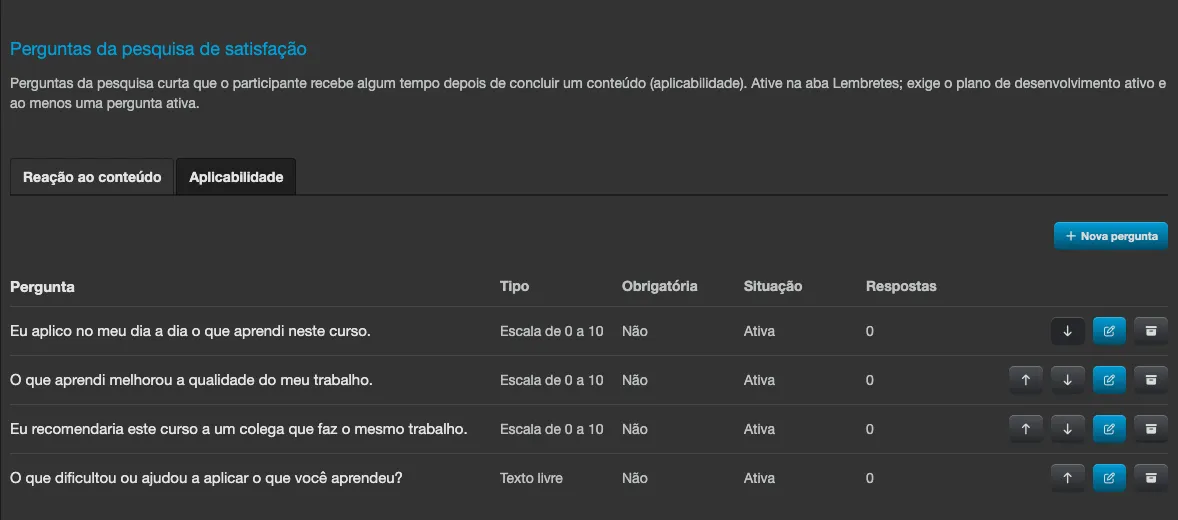
Each tab accepts up to 10 active questions. The arrows change the order, Archive removes a question from the survey without deleting its answers, and a question that has already received answers can no longer have its text or type changed (use Archive and create new).
Use suggested questions
Section titled “Use suggested questions”While the Applicability tab has no questions, it shows the Use suggested questions button. One click creates a starter set in the language of whoever clicked: three 0-to-10 scale questions (whether the participant applies what they learned day to day, whether the learning improved the quality of their work, and whether they would recommend the content to a colleague who does the same job) and one free-text question about what helped or got in the way of applying it. None of them is required. Once created, edit, reorder or archive them like any other question.
2. Turn on the sending
Section titled “2. Turn on the sending”Under Institution, open the Reminders tab, turn on Enable scheduled reminders (if it is not on yet) and turn on the Applicability survey reminder. See Scheduled reminders for the general switches.
| Field | Default | Accepted range |
|---|---|---|
| Days | 90 | 30 to 180 |
The number of days counts from the completion date of each enrollment. With the default, someone who completed a content item on March 1 receives the survey around May 30.
If any of the conditions is missing, the screen refuses to save with the message “The applicability survey can only be enabled with the development plan turned on and at least one active applicability question.” The “development plan” is the institution’s My development? field.
When the survey opens and closes
Section titled “When the survey opens and closes”For each completed enrollment, the survey stays open for 30 days, starting at the configured number of days. With the default of 90 days, it opens 90 days after completion and closes 120 days after.
- When it opens, the participant sees the pending item in My development. On the next daily reminder run, they receive a single email inviting them to answer. There is no second notice.
- When it closes, the pending item disappears and the survey can no longer be answered.
- When the survey is turned on for the first time, anyone already inside the window (with the default, those who completed between 90 and 120 days ago) is invited right away. Anyone who completed before that does not receive the survey.
- Canceled or deleted enrollments and deleted Classes do not receive the survey.
- The email follows the same consent rules as the platform’s other emails.
What the participant sees
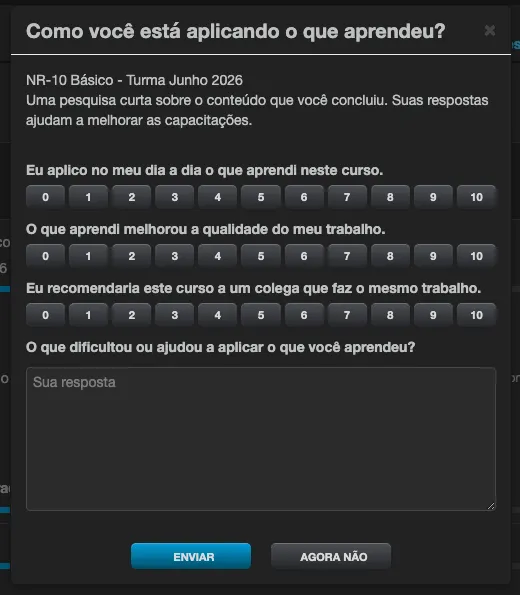
Section titled “What the participant sees”In the Pending section of My development, a row appears with the Class name, the Answer by date (the last day of the window) and the Answer survey button. The button opens the window “How are you applying what you learned?” with the active questions from the Applicability tab.
- Send saves the answers. The participant must answer at least one question and all of those marked as required.
- Not now dismisses the survey for good: the pending item leaves the list on all devices and no email is sent after that.
Either way, the pending item goes away and the pending badge on the top menu is recounted. The survey does not affect completion, the grade or the certificate.
Where to read the result
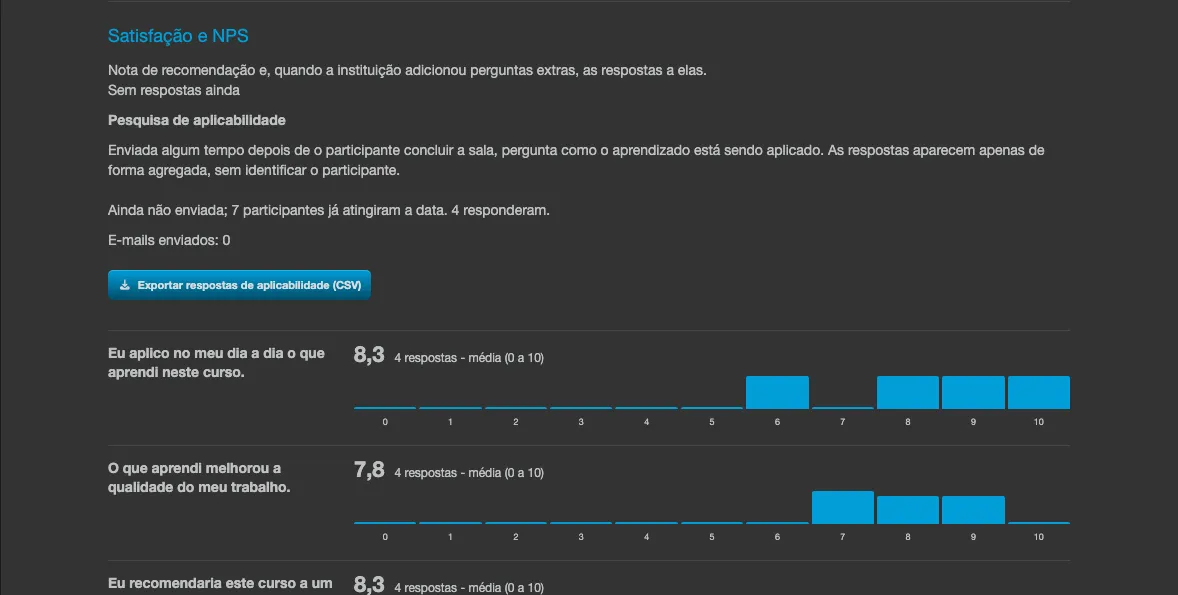
Section titled “Where to read the result”In the Class, on the Reports tab, the Applicability survey block appears to institution administrators, Class administrators and Class tutors. It shows:
- The status line: when the survey was sent and to how many participants (for example, “Sent on 06/10/2026 to 42 participants.”), or the date from which it will be sent, followed by how many answered.
- E-mails sent: the total number of invitations that went out.
- For each scale question: the number of responses, the Average and the distribution from 0 to 10.
- For each free-text question: only a notice that the text answers are in the CSV. The texts never appear on screen.
A Class administrator limited to some divisions sees only the people in their divisions.
The minimum of 5 answers
Section titled “The minimum of 5 answers”So that nobody is identified by their own answers, anyone who is not an institution administrator only sees numbers when at least 5 people have answered:
- With fewer than 5 respondents, the block keeps the status line and the total of emails sent, but replaces all the answer numbers with Fewer than 5 answers.
- With 5 or more respondents, a scale question answered by 1 to 4 people also shows Fewer than 5 answers in place of its numbers.
Institution administrators always see all the numbers.
Export the answers
Section titled “Export the answers”The Export applicability answers (CSV) button appears only to institution administrators. The file carries one row per answered survey, with the name, username, email and submission date of whoever answered and one column per question, including the free-text answers. It is the only place where the text answers and the identification of who answered appear.
When the survey is turned off
Section titled “When the survey is turned off”Turning off the reminder, turning off My development, or archiving all the applicability questions stops the survey: no new invitations, no new pending items. What was already collected stays in the Class block, below the notice “The applicability survey is not enabled for this institution.”
See also
Section titled “See also”- Satisfaction survey (NPS) - the survey done at the moment of completion.
- Scheduled reminders - the general switches and the other reminders.
- My development - the feature the survey requires.