


Share certificate on LinkedIn
When the Participant completes a content item and receives the certificate, they see the “Add to LinkedIn profile” action next to the certificate. One click takes the Participant to LinkedIn with the certification details already filled in, ready to go into the “Licenses & certifications” section of their profile.
It’s a simple way to turn every completion into organic promotion for your institution: the institution’s name appears as the issuer of the certification on the profile of whoever completed it.
How to enable it
Section titled “How to enable it”The feature comes disabled and is turned on per institution.
- Go to Institution in the administrative settings, on the Configuration tab.
- Turn on the “Certificates on LinkedIn?” toggle.
- (Optional, recommended) Fill in “LinkedIn page of the institution” - the field appears right below the toggle as soon as it’s turned on. See the next section.
- Click SAVE.

From then on, every Participant with an issued certificate sees the action, both on the Certificates tab of the profile and on the Certification item inside the Class.
Showing the institution’s logo on the certification
Section titled “Showing the institution’s logo on the certification”By default, LinkedIn identifies the issuing institution by name only. Since it can’t associate free text with a company page, the published certification shows a gray square in place of the logo and no link to the institution.
Filling in the “LinkedIn page of the institution” field makes the certification show the institution’s logo and link to its page - which gives much more visibility to your brand on every certificate shared.
The address needs to contain the page number. The public address (linkedin.com/company/your-institution/) doesn’t work: LinkedIn doesn’t recognize it. To get the correct address:
- Open your institution’s page on LinkedIn as an administrator of it.
- Copy the address from the browser bar. It looks like
linkedin.com/company/11396583/admin/- with the number in place of the name. - Paste that address into the field and save.
If the pasted address doesn’t have the number, the system refuses to save it and explains what to do - so the field is never left filled with a value that wouldn’t produce the logo.
Where the Participant finds it
Section titled “Where the Participant finds it”| Place | How to get there |
|---|---|
| Participant’s profile | Certificates tab, next to each certificate earned |
| Inside the Class | Certification item, at the end of the content |
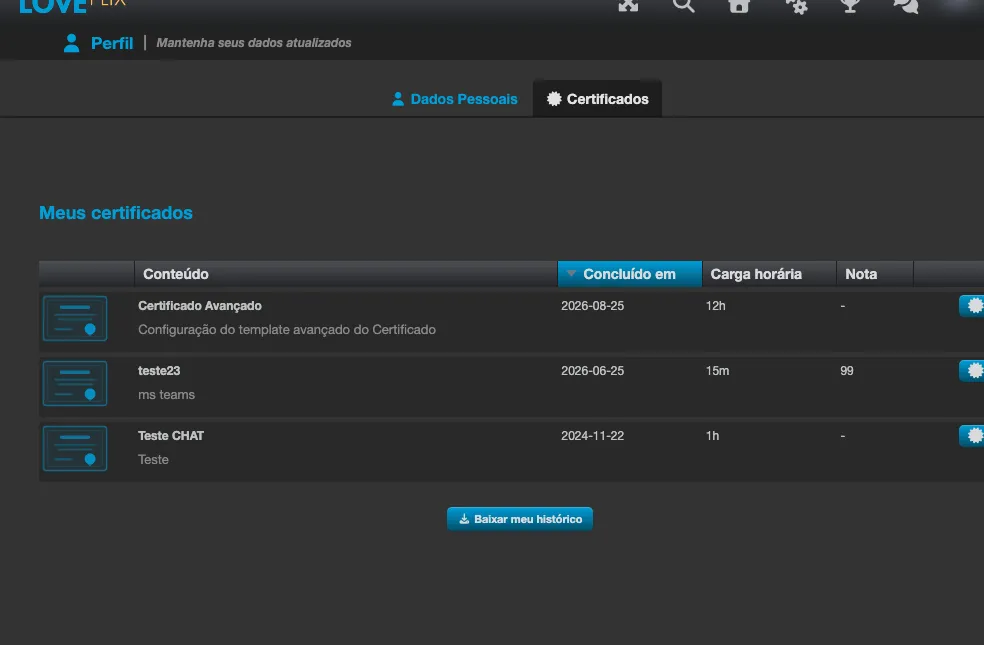
On the Certificates tab of the profile, each certificate earned gets an in button next to the row’s actions:
What is sent to LinkedIn
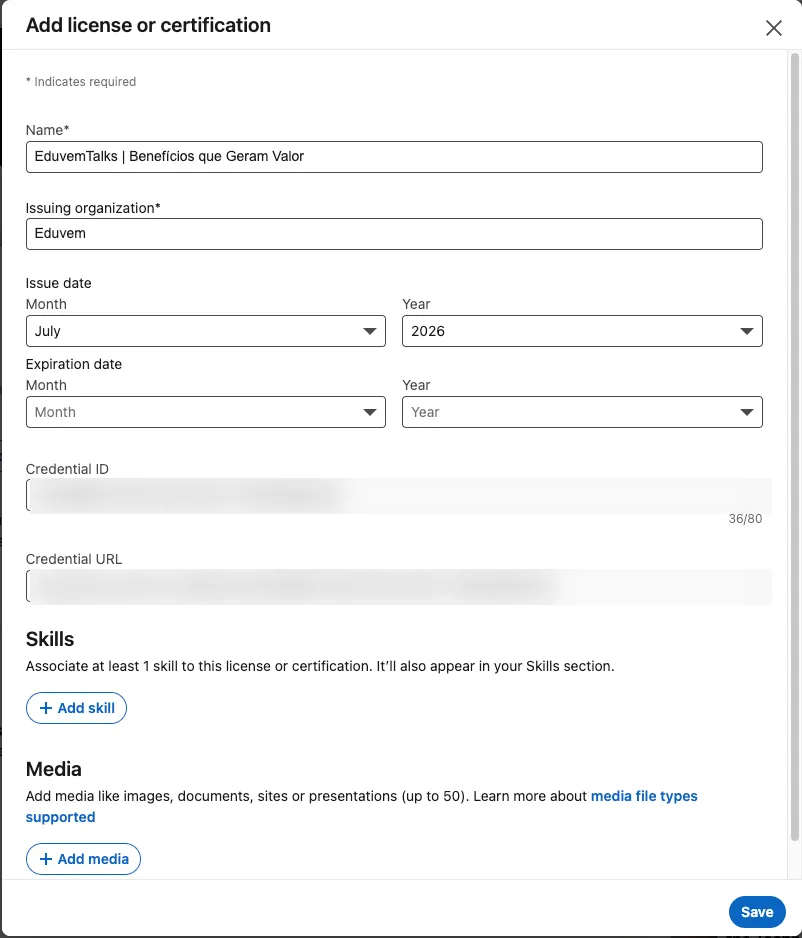
Section titled “What is sent to LinkedIn”Only the certification’s own data:
- content name
- name of the issuing institution
- month and year of completion
- certificate verification address
- certificate identifier
LinkedIn opens the “Add license or certification” form already filled in with this data (the form appears in the language of the Participant’s LinkedIn account, which isn’t always Portuguese):
No personal data of the Participant is sent, and there’s no need to connect accounts, authorize apps, or do any additional login. The Participant stays in control: LinkedIn opens the form for them to review and confirm before publishing.
How it looks on the profile
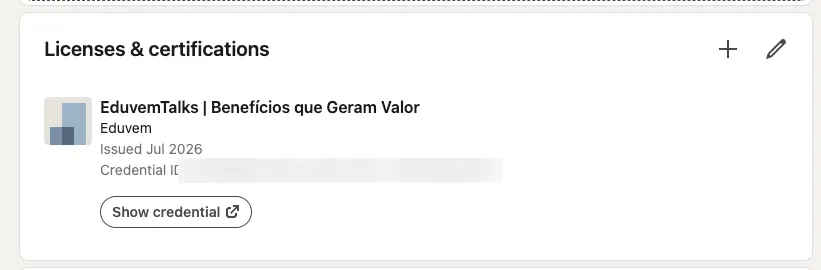
Section titled “How it looks on the profile”After saving, the certification appears in the “Licenses & certifications” section of the profile, with your institution as the issuer:
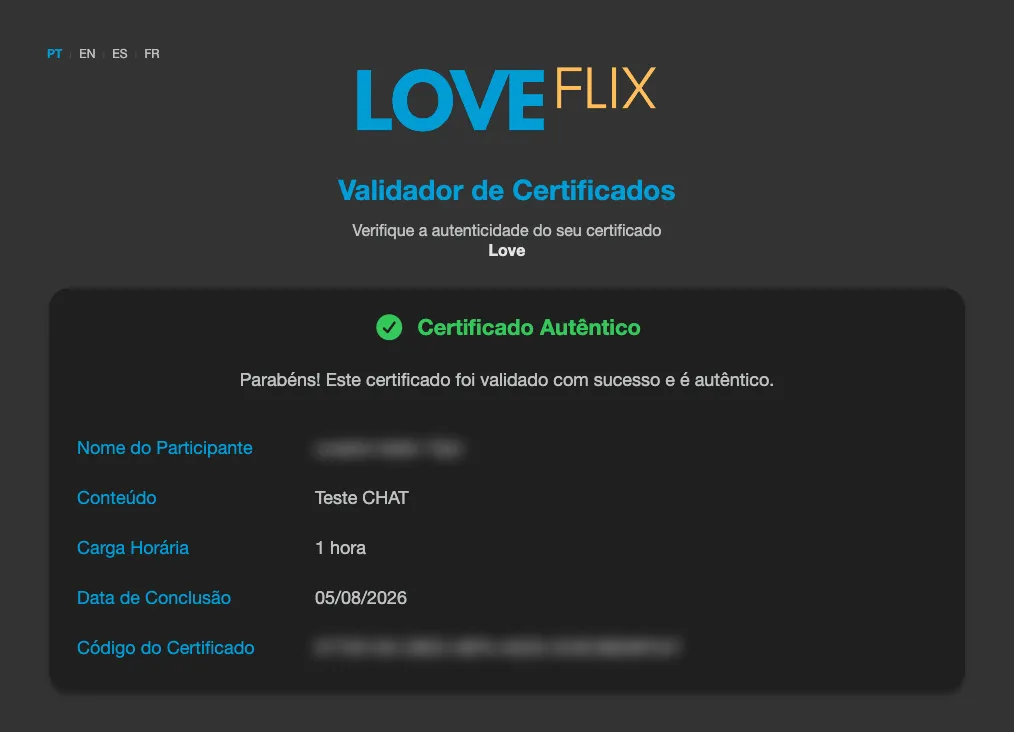
The “Show credential” button on that entry opens the public certificate validator, which confirms authenticity for whoever is viewing the profile - a recruiter, for example:
Frequently asked questions
Section titled “Frequently asked questions”Does the Participant need a LinkedIn account? Yes. If they aren’t signed in, LinkedIn asks them to log in before showing the form.
What if the fields don’t come filled in? In some cases LinkedIn opens the certification form blank. The Participant can still register the certification by filling in the fields manually. The path never gets stuck.
Does this change the certificate itself? No. The certificate, the visual template, and the verification stay exactly as before. The feature only adds the sharing action.