


Policy documents (acknowledgment)
Policy documents are PDF files - terms of use, regulations, codes of conduct, internal policies - that the participant needs to read and confirm acknowledgment of inside the class. While a document is pending, the participant can’t advance through the lectures.
The feature is enabled per institution, in the Enable policy acknowledgment (“termo de ciencia”)? setting (in Institution). If the tab described below doesn’t appear for you, request activation from support.

How to configure it (administrator)
Section titled “How to configure it (administrator)”In Classes, open the desired class and click the Policies tab.
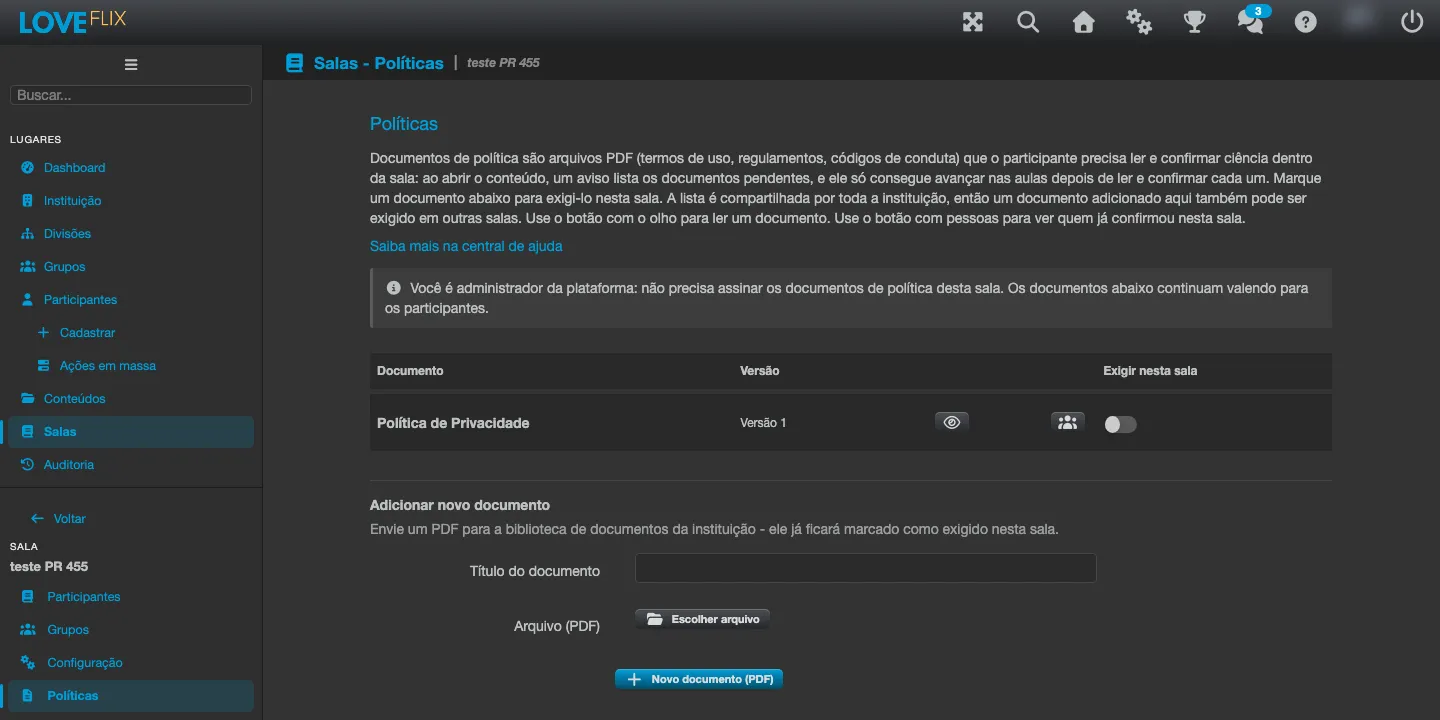
The tab has two parts:
1. The institution’s document list
Section titled “1. The institution’s document list”The table shows every policy document already registered with the institution. The list is shared across the whole institution: a document registered in one class becomes available to require in any other.
For each document you see:
- Document: the title, set at registration.
- Version: the currently published version (for example, “Version 1”). A document marked “No published version yet” isn’t required of anyone.
- The eye button opens the PDF in a new tab, so you can read the document before deciding to require it.
- Require in this class: turn on the toggle to require the document in this class; turn it off to stop requiring it. The change is saved right away and confirmed with a notification.
2. Add new document
Section titled “2. Add new document”To register a new document:
- Fill in the Document title - it’s the name the participant will see.
- Under File (PDF), click Choose file and select the PDF. Only PDF is accepted.
- Click New document (PDF).
The document is uploaded to the institution’s library and is already marked as required in this class. If the intention was only to register it for use in another class, just turn off the Require in this class toggle after the upload.
Checking who confirmed
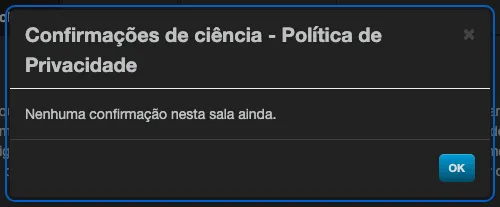
Section titled “Checking who confirmed”Each document in the list has a button with the people icon. It opens the document’s confirmation list for this class: the participant’s name, the confirmed version, and the date and time of confirmation. While nobody has confirmed, the list appears empty.
What the participant sees
Section titled “What the participant sees”When a participant opens a class’s content with a pending document, the Pending acknowledgment window opens on its own, over the lecture:
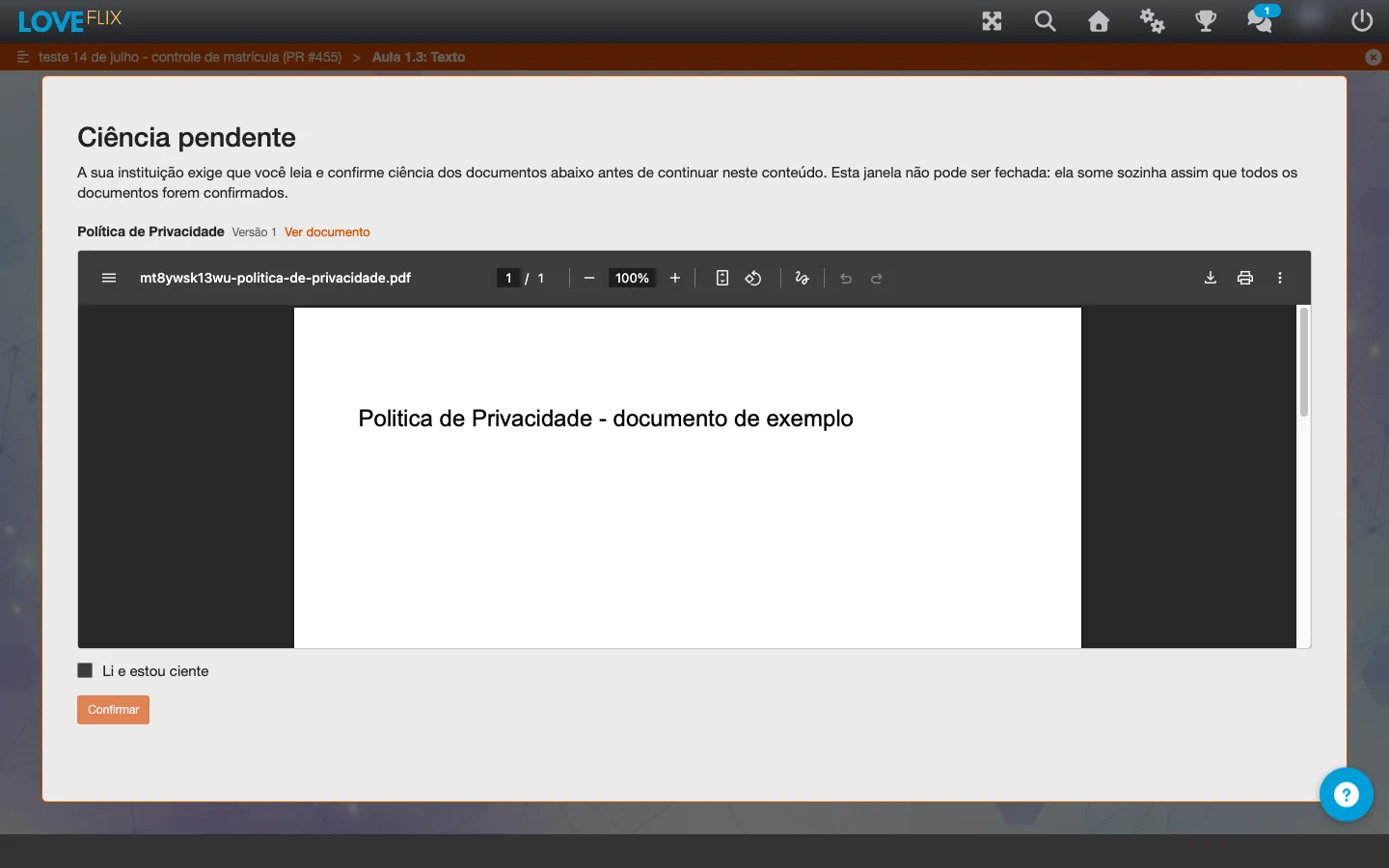
- It lists each required document, with the PDF displayed right there and the View document link to open it in a new tab.
- For each document, the participant checks “I have read and am aware” and clicks Confirm.
The window can’t be closed manually: it disappears on its own as soon as the last required document is confirmed, and navigation continues normally from there.
Each confirmation is recorded with the document’s version and the date, per participant - it’s this list that the administrator checks through the people button on the Policies tab.
Frequently asked questions
Section titled “Frequently asked questions”Do I need to register the same document again in each class? No. Register it once and turn on Require in this class in each class where it should apply.
What happens to someone already enrolled when I start requiring a document? The requirement applies to every participant in the class, including existing enrollments: the next time they open the content, they’ll see the pending acknowledgment window.
Can I replace a document’s file? Each upload creates a document with its own published version. To replace the content, register the new PDF and adjust which documents are required in the class.
Can the participant complete the class without confirming? No. The pending acknowledgment window blocks the content until every required document of the class has been confirmed.