


Professional qualifications
The Professional qualifications repository gives the participant a place to register credentials they earned outside this platform (a certification, a diploma, a short course, a language exam) with the supporting document attached, and gives the institution a screen to search, check the document, mark it as verified and export everything.
What the participant sees
Section titled “What the participant sees”With the feature on, the participant’s profile gains the Qualifications tab, with two parts.
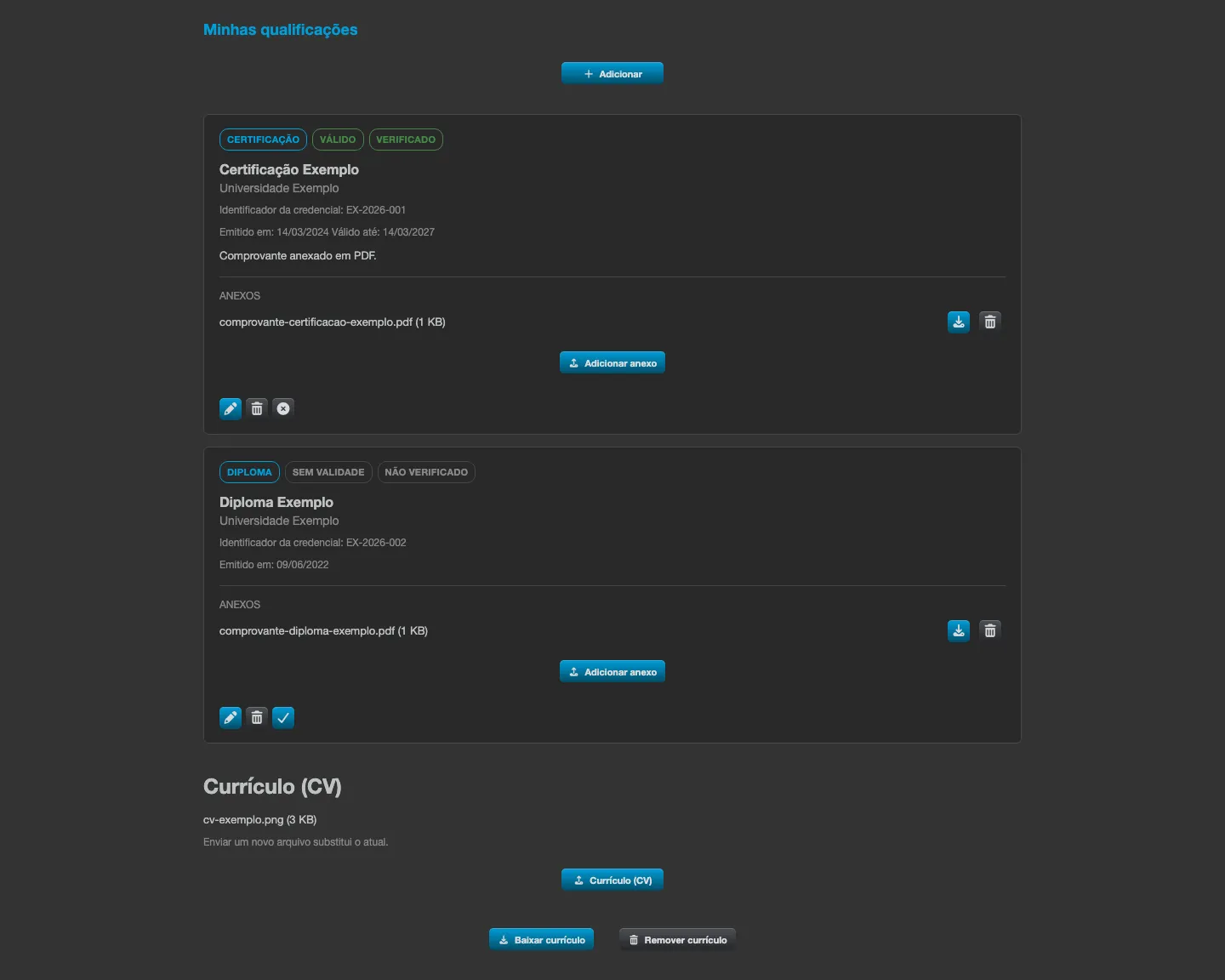
The list of qualifications
Section titled “The list of qualifications”The participant clicks Add and fills in:
| Field | What it is |
|---|---|
| Type | Certification, Diploma, Course, Language or Other. It appears as a tag and lets the institution filter the listing. |
| Name | The official name, exactly as it appears on the document. Required. |
| Issuer / institution | Who issued it: a university, a vendor or a certifying body. |
| Credential ID | The identifier printed on the document, used by the issuer to locate it. |
| Verification link (URL) | A public page where the issuer confirms the credential is genuine. |
| Issued on | The date the qualification was granted. |
| Valid until | Leave blank if it does not expire. |
| Notes | A note for the institution to read when reviewing. |
Each qualification accepts up to five attachments, and each file can be at most 10 MB. Only PDF, JPG and PNG are accepted - the platform checks the file’s content, not just the name’s extension, so a file of another format renamed to .pdf is refused.
The participant can edit and delete their own qualifications at any time.
The résumé
Section titled “The résumé”Below the list there is the Résumé (CV) section: a single file per person, also PDF, JPG or PNG of up to 10 MB. Uploading a new file replaces the current one. When a résumé is on file, the Download résumé and Remove résumé buttons appear.
What the institution sees
Section titled “What the institution sees”With the feature on, the Institution screen gains the Qualifications tab, visible only to institution administrators. It lists the qualifications of every participant in the institution, in these columns:
Person, Type, Name, Issuer / institution, Issued on, Valid until, Status, Attachments and Actions.
The name in the Person column is a direct link to that participant’s profile.
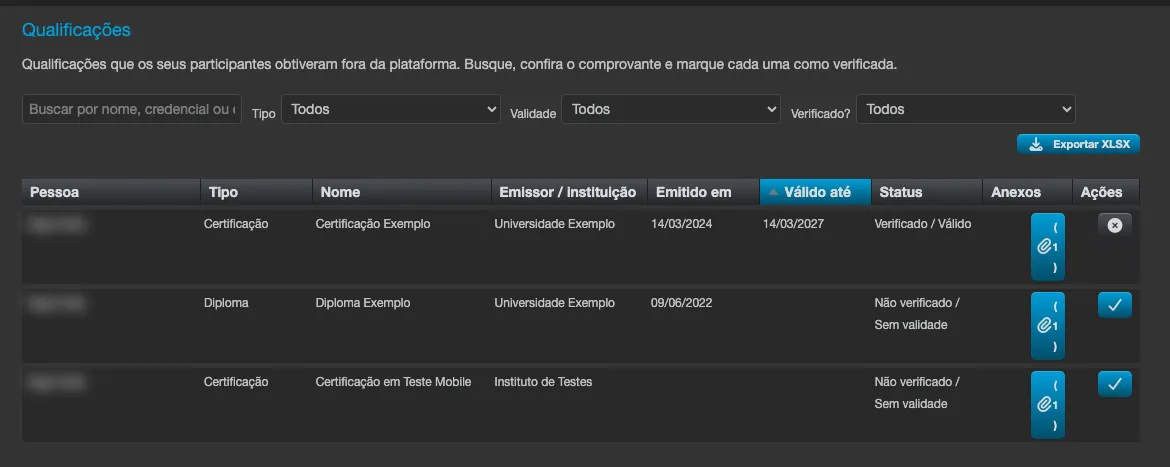
Searching and filtering
Section titled “Searching and filtering”- The search field looks up by name, credential or issuer.
- The Type filter separates by qualification type.
- The Validity filter offers All, Expired, expiring within 30, 60 or 90 days, or No expiry.
- The Verified? filter separates the already checked ones from the pending ones.
When no record matches, the screen shows No qualification matches the chosen filters.
Checking and verifying
Section titled “Checking and verifying”The Attachments column opens the documents the participant uploaded, to download and check. Once the document is confirmed, the Verify button in the Actions column marks the record as checked by the institution; Remove verification undoes it. The platform stores who verified it and when, and both pieces of information go out in the export.
Each row’s Status combines the two dimensions, in the format Verified / Valid:
| Verification | Meaning |
|---|---|
| Verified | The institution checked the document and confirmed the qualification. |
| Not verified | The institution has not checked it yet. |
| Validity | Meaning |
|---|---|
| Valid | Within the validity period. |
| Expiring soon | Expires within the next thirty days, counting today. |
| Expired | The expiry date has already passed. |
| No expiry | Has no expiry date: it does not need to be renewed. |
Exporting
Section titled “Exporting”The Export XLSX button generates the Qualifications report spreadsheet with what is on screen, respecting the search and the filters applied at the time. The columns are Participant, Type, Name, Issuer, Credential ID, Issued, Valid until, Verified, Verified by and Verified on. When the result is very large, the spreadsheet carries the first rows and warns in the footer to refine the filters.
Expiry warnings
Section titled “Expiry warnings”When a qualification has an expiry date, the platform sends an email to the participant themselves at three moments: 30 days before, 7 days before and on the day it expires. The email names the credential and the date, and leads back to the platform to update the record. The institution does not need to configure anything: the three warnings apply to every qualification with an expiry date, in every institution that has the feature turned on.
File privacy
Section titled “File privacy”The attachments and the résumé live in a private storage area: they are not served through a public link and are only accessible to the participant themselves and to the institution’s administrators, always authenticated. When a participant is deleted with anonymization, their files are erased along with their personal data.
- Turning off Professional qualifications? hides both tabs but erases nothing - the records, the attachments and the résumé stay stored and reappear when the option is turned on again.
- The issue date cannot be later than the expiry date.
- The five-attachment limit is per qualification, not per person.
- The résumé is one per person, not one per qualification.
- Only institution administrators see the Qualifications tab of the Institution screen and can verify records. The participant never sees the verification buttons.