


Messages and support
Eduvem has conversation channels for you to ask questions to tutors, to your institution’s administrator, or to the platform’s support, when your institution enables the chat.
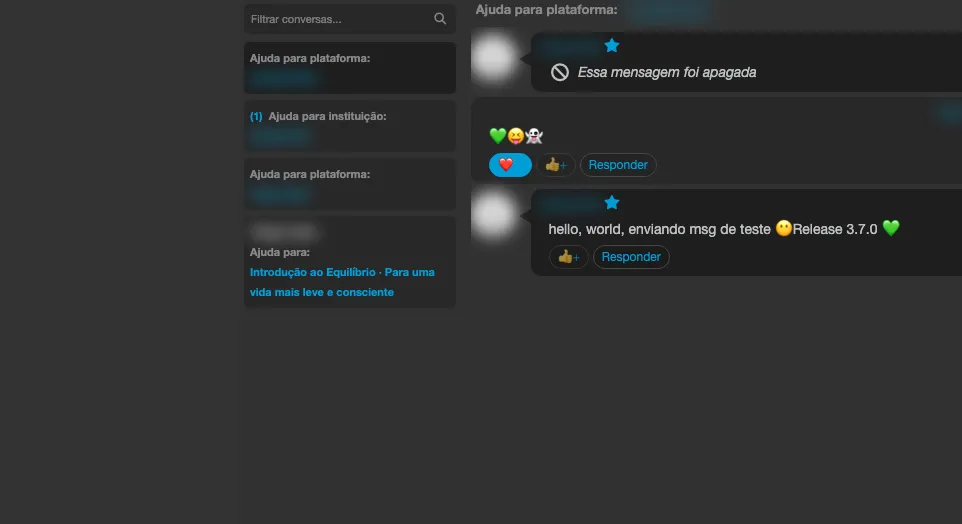
Messages panel
Section titled “Messages panel”In the top menu, use the messages icon to open the Messages panel, with all your conversations. If you do not have any yet, the screen shows that you have no conversations created. Use the search field to filter conversations once you have several.
Chat inside the content
Section titled “Chat inside the content”Inside a class, the content may have two conversation tabs:
- Chat - with all the participants in the class.
- Tutoring - directly with a specialist, to ask specific questions about the content.
Talking to support
Section titled “Talking to support”Through the help button in the top menu, you can also open a direct conversation with your institution’s administrator or with the person responsible for the platform, depending on how support was configured.
Emojis in your messages
Section titled “Emojis in your messages”In the message field, the Add emoji button opens an emoji picker. Choose one and it is inserted where the cursor was, without erasing what you had already typed. The picker is available in all four conversation channels: the Messages panel, the class Chat, Tutoring, and the Help Center.
Reactions to messages
Section titled “Reactions to messages”Hover over a message and use Add reaction to react with one of the six available emojis:
| Reaction | Meaning |
|---|---|
| 👍 | Thumbs up |
| ❤️ | Heart |
| 😆 | Laughing |
| 😮 | Wow |
| 😢 | Sad |
| 🙏 | Pray |
Each person can leave one reaction per message. To change it, choose another reaction; to remove it, choose the one you had already left again.
Reactions appear below the message as small tags with the count for each emoji. The platform shows how many people reacted, but does not show who reacted.
Managing your messages
Section titled “Managing your messages”After sending, you get a confirmation on screen. If you submit an empty or overly long message, Eduvem warns you before sending. You can also delete a message you have already sent, with a confirmation before deleting - and an indicator shows when the other person is currently online.