


Participant administration
Participant administration concentrates everything that involves the people of your institution: registration, roles, enrollments and data maintenance.
How people get into the platform
Section titled “How people get into the platform”Depending on your institution’s configuration, the participant can:
- Register on their own, when the institution’s Allow Registration option is turned on (the REGISTER button appears on the login screen).
- Be registered by the administrator, individually or in bulk.
- Sign in through corporate login, when the institution uses an SSO integration.
Registration can be done by email or by CPF, according to your audience’s profile.
Individual registration
Section titled “Individual registration”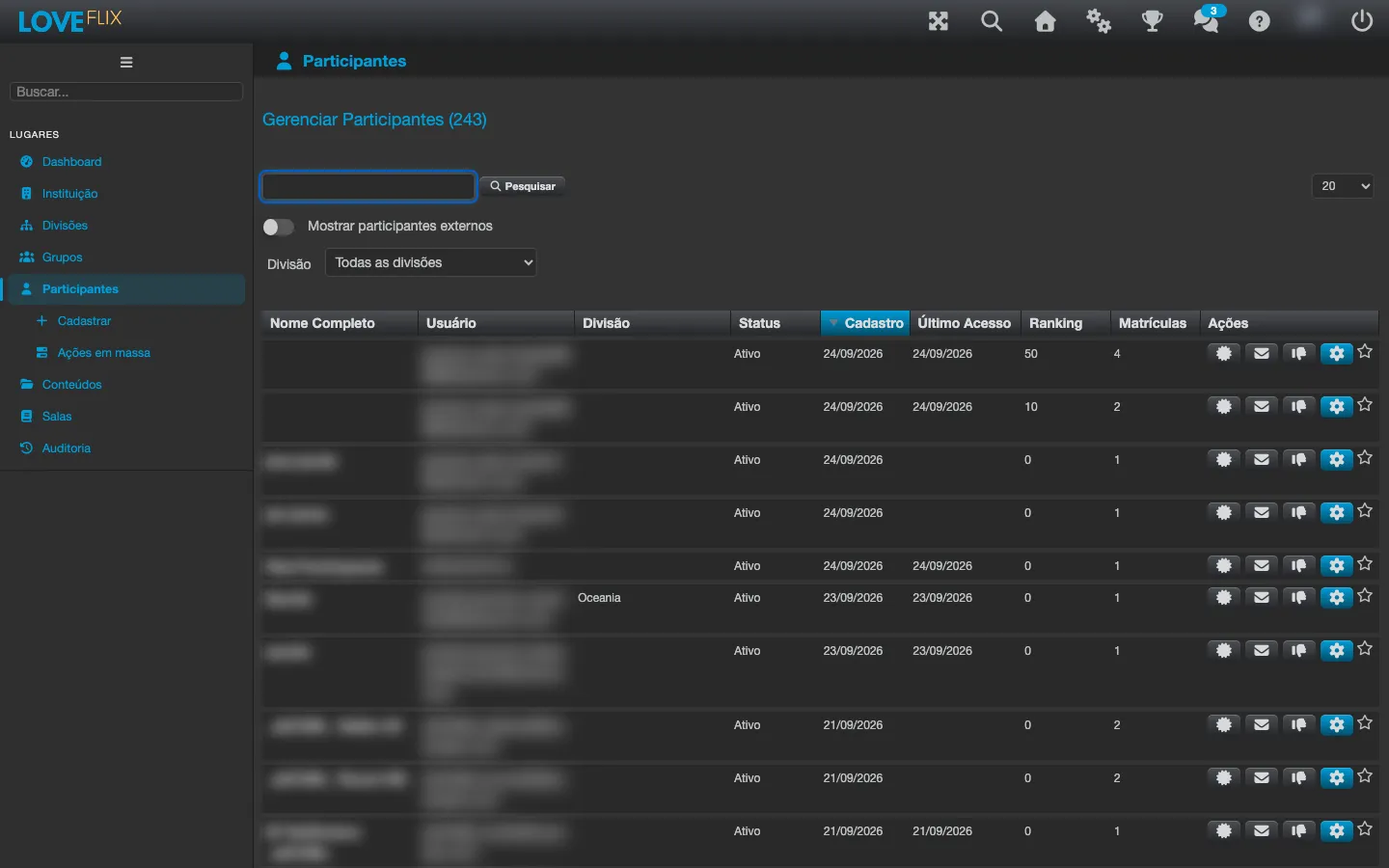
- Under Participants, in the admin console’s side menu, click Register.
- Create the registration by entering name and email (or CPF).
- Enroll the person in the desired classes - the platform sends the welcome notifications according to the institution’s configuration.
Mass operations
Section titled “Mass operations”For large audiences, use the batch paths: importing participant lists through the Multiple and CSV File tabs of the Register wizard, enrolling in volume through groups, and the Mass actions (deactivate, delete, reactivate and resend the email to several registrations at once). See Mass operations.
Roles and permissions
Section titled “Roles and permissions”Besides the participant role, a person can receive administrative roles with different scopes: institution administrator, content publisher, administrator (or observer) of a specific class or of all the institution’s classes, or tutor. See the full list under Access control. Grant the smallest role that solves the need.
Registration maintenance
Section titled “Registration maintenance”- Edit a participant’s data through their registration (including correcting the email for password recovery - see How to change the password).
- Deleting a participant removes access and anonymizes personal data, preserving the integrity of the institution’s history. The action is final - confirm before proceeding.