


Audio and video answers and recorded feedback
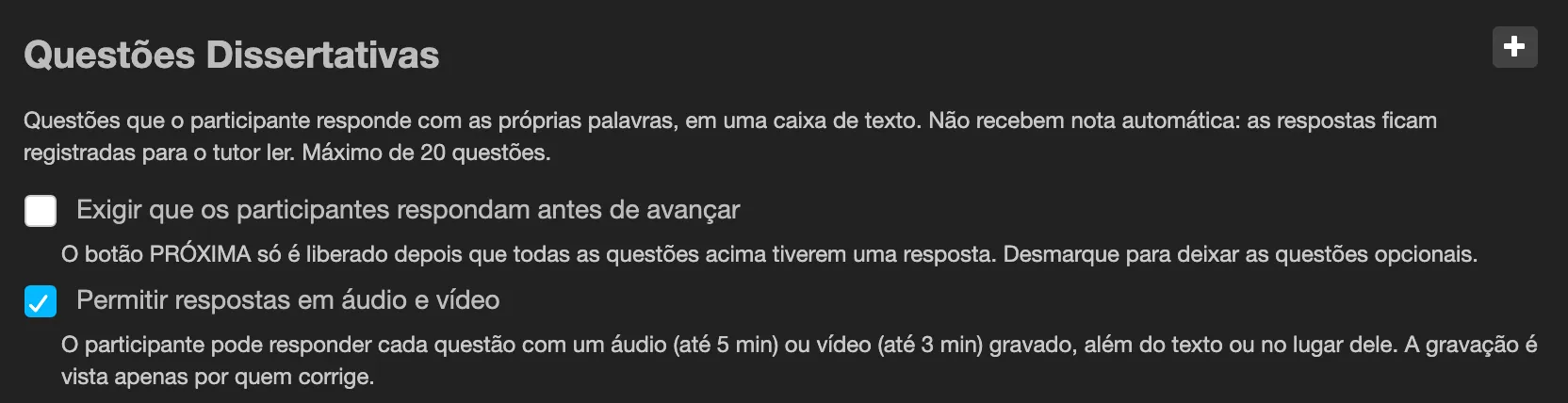
Open questions can be answered with a recorded audio (up to 5 minutes) or video (up to 3 minutes), in addition to or instead of the text. Graders can add a recording to their feedback. This is off by default.
Turn it on
Section titled “Turn it on”- A platform administrator enables Enable audio and video answers in evaluations for the institution.
- In the Wizard, open the open-questions slide and tick Allow audio and video answers (the box only appears once the institution option is on). Publish again.
What the participant sees
Section titled “What the participant sees”Under the text box: Or answer by recording, with Audio and Video buttons, and Upload a file (webm, ogg, m4a, mp4 or mp3, up to 60 MB).
- The first time in an exam, a notice explains that the recording stays in the class and is seen only by whoever grades. It is not used to identify the participant.
- While recording, the text box stays on screen and the time left is shown.
- Nothing is sent until the participant chooses Use this recording. Record again starts over.
- If the upload fails, the recording is kept and Try again sends the same recording.
- A question answered only by a recording counts as answered.
If the browser cannot record, only the text box and Upload a file appear.
What the grader sees
Section titled “What the grader sees”In the grading dialogs, the participant’s recording plays under their answer. Under each feedback box there are Record audio and Record video buttons. The recording is added to the written feedback and the rubric, never replaces them, and is saved on its own: closing the dialog keeps it (“Media saved, score pending”). The participant sees it together with the grade.
Good to know
Section titled “Good to know”- Recordings stay in the private storage of the institution and can be seeked while playing.
- Reset enrollment removes the participant’s recordings and the feedback recorded about them; Reset final exam does not remove them; anonymizing a participant removes them for good.
- You can also put an audio or video clip in a question statement and in its options: in the text editor, use the Insert audio or video button (MP3, M4A, OGG, MP4 or WEBM, up to 60 MB). The participant sees a player with controls and nothing plays by itself.