


Certificate builder
The Certificate builder puts together the institution’s certificate for you. Instead of preparing a background image and checking reserved areas, you choose a style, say who signs, and adjust the text, watching the result in a live preview.
Before you start: enable the feature
Section titled “Before you start: enable the feature”The builder is off by default and is turned on by the Eduvem team, per institution. To use it, ask Eduvem support to enable the Certificate builder for your institution.
Once enabled, the institution settings gain the Certificates section, in the General group (under Administration, Institution).
The automatic certificate
Section titled “The automatic certificate”When you open the Certificates section, you see Your certificate is ready. This is the automatic certificate: it uses the platform’s name, logo, and color, and you don’t need to do anything for participants to receive it. The preview shows how it looks when a participant completes any content.
To give it your institution’s look, click Customize.
Customize (Simple mode)
Section titled “Customize (Simple mode)”Simple mode shows the steps on the left and the preview on the right. Everything you change appears in the preview right away.
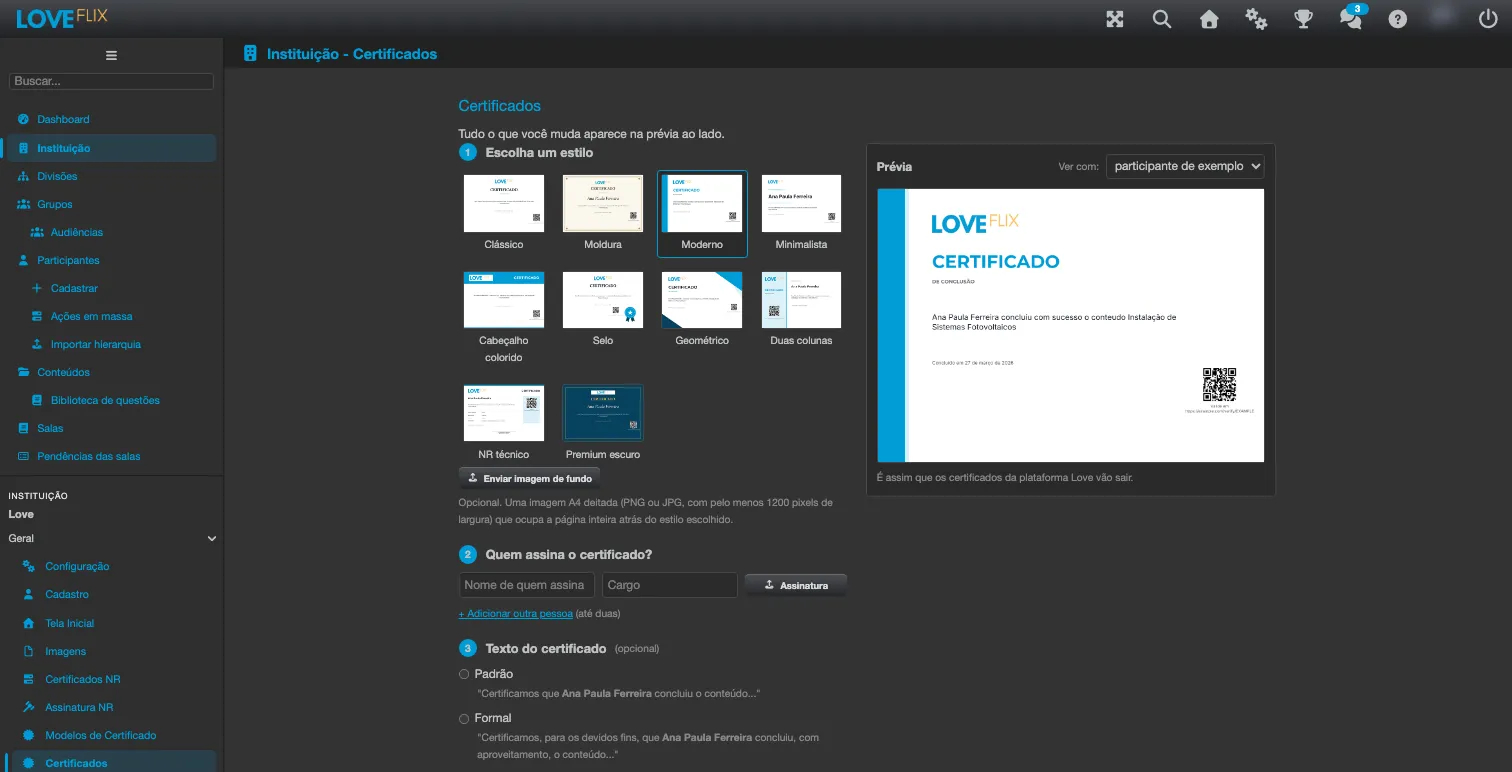
1. Choose a style
Section titled “1. Choose a style”There are ten styles. Pick the one that suits the institution; you can switch at any time without losing your other answers.
- Classic, Frame, Modern, Minimal, and Colored header;
- Seal, Geometric, Two columns, NR technical, and Premium dark.
2. Who signs the certificate?
Section titled “2. Who signs the certificate?”Enter up to two people who sign. For each one:
- Name of the signer and Role: required (the platform asks for the name of each person who signs);
- Signature (optional): a PNG or JPG image of the signature, at least 300 pixels wide.
Use + Add another person to add the second person and Remove to take one out.
3. Certificate text
Section titled “3. Certificate text”Choose how the text is written:
- Default: the platform’s plain text (“We certify that name completed the content…”);
- Formal: a more ceremonial wording (“We hereby certify that name has successfully completed the content…”);
- Write my own: your own text, up to 1000 characters.
In Write my own, the locked parts are filled in automatically for each participant: Participant name, Content name, Workload, Completion date, Institution name, and Room name. Use the Insert: buttons to place them in the text. You can change the text around them, but you can’t delete them or type them by hand (don’t use double braces). The Participant name is required in the text.
Technical lead
Section titled “Technical lead”This step is marked (required by NR-1). Enter the Technical lead name and the Registration (for example, CREA-RN 210012345-6).
It is printed only on the certificates of NR classes, and only on those that don’t have a technical lead of their own. To learn more about NR certificates, see NR certificates with dual digital signature. If the institution issues NR certificates and the name is not entered, the platform warns that “NR certificates need the technical lead’s name”.
Other languages
Section titled “Other languages”When the institution accepts more than one language and you wrote your own text, this step asks for the text in each other allowed language (“You wrote your own text. Write it in these languages too:”). With the Default or Formal text, the platform already comes out in each language on its own.
Until a language has its own text, holders of that language receive the whole certificate in the institution’s base language.
Background image (optional)
Section titled “Background image (optional)”With Send a background image, you add an image that fills the whole page behind the chosen style: an A4 landscape image, PNG or JPG, at least 1200 pixels wide.
Image limits
Section titled “Image limits”| Image | Rule |
|---|---|
| Signature | PNG or JPG, at least 300 pixels wide |
| Background image | PNG or JPG, A4 landscape, at least 1200 pixels wide |
| Any image | At most 7016 pixels per side and 10 MB |
The preview and the PDF
Section titled “The preview and the PDF”The preview on the right updates with every change. In View with:, switch between example participant and longest name, which uses the longest participant name on the platform so you can check that nothing overflows.
To see the complete certificate as a PDF, click View PDF. Save first: the screen warns “Save the changes to see the PDF. The preview beside it already shows how they look.”
Save and go back to the default
Section titled “Save and go back to the default”- Save: the next certificates come out this way. Certificates already issued don’t change.
- Go back to the standard certificate: discards your customization and restores the automatic certificate. The platform asks for confirmation, and certificates already issued don’t change either.
Full editor
Section titled “Full editor”To position each element by hand, use your own artwork, have more than one page, or keep track of published versions, use the full-screen full editor. When the institution’s certificate was made in it, the Certificates section shows the card This certificate was made in the full editor, with Open full editor and Back to simple mode. See Full certificate editor.
Common questions
Section titled “Common questions”I don’t see the Certificates section in the institution settings. The Certificate builder is not enabled. Ask Eduvem support to enable it.
I changed the style. Do people who already received the certificate see the change? No. Certificates already issued don’t change. Only the next ones come out with the new design.
My text came out in another language. Each participant receives the certificate in their own language, or in the class’s fixed language (see Creating a class). If you haven’t written the text in that language yet, the whole certificate comes out in the base language - fill in the Other languages step.
I can’t upload the signature image. Save the certificate once first. Also check the format (PNG or JPG), the minimum width of 300 pixels, and the 10 MB limit.
See also
Section titled “See also”- Online customization and issuance of certificates - configuration per content, class, and track.
- Reusable certificate templates - a saved certificate to apply to several pieces of content.
- Full certificate editor - the certificate designed full screen, with published versions.
- NR certificates with dual digital signature - the technical lead on NR certificates.